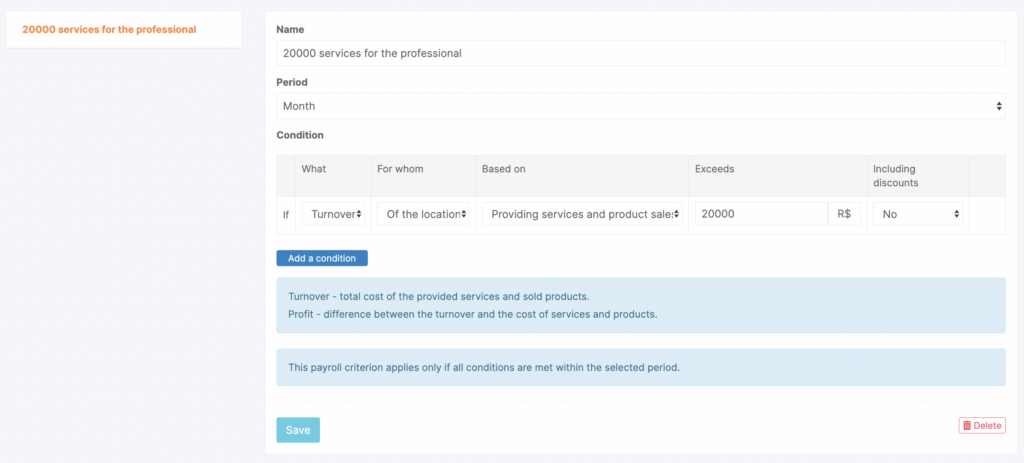
Go to Administration mode Payroll > Payroll Criteria. Click Add a criterion button, then in the window that opens edit all information and click Save.
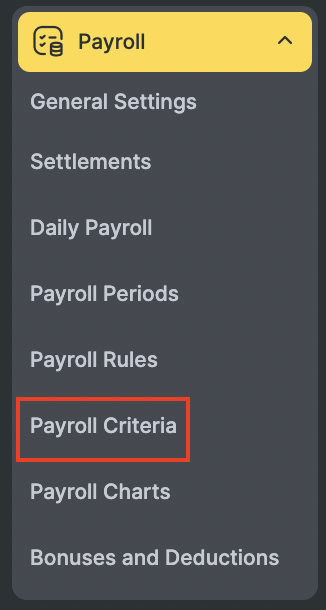
- Specify the Name, for example, “Services 20,000”.
- Specify the Period for which the criterion will be calculated:
month or day (if the period is set to month, profit or turnover will be calculated starting from the 1st day of the calculation month). - Set the Conditions under which certain payroll calculation rules will apply (more details here). Select the options that define how the rule will be applied:
- WHAT will affect payroll calculation: turnover, profit, or the number of services/products;
- FOR WHOM the exceeded amount will be counted: whether it is generated by an individual employee or by the entire branch;
- BASED ON the amount will be counted: for services and/or products;
- the EXCEEDS amount of turnover, profit, or number of services/products;
- whether this amount should be calculated INCLUDING DISCOUNTS client discounts (as well as payments made with bonuses and certificates) or not.
Criterion template #
If profit/turnover/quantity for an employee/branch from providing services and/or selling products exceeds *** amount in currency, with/without discounts included.
Example of a configured criterion #
If profit for the branch from providing services and selling products exceeds 20,000 excluding discounts.
If you select Quantity in the conditions, then in the FOR WHAT section you will be able to limit which services and/or products are included in the calculation.
Example
If you want only haircut revenue to be included in the calculation, select only that category (or specific services within it) by checking the box next to those services.