
Altegio allows you to notify and inform both new and returning clients about your services and discounts, send booking confirmations, remind clients about upcoming visits, request reviews after visits, and also keep staff informed at any time about client bookings, reschedules, or cancellations. To do this, you need to configure notification types in Altegio and choose the delivery channel (SMS, Email, PUSH).
Configuring notifications and delivery channels #
In Altegio, you can send notifications to employees, administrators, and clients for different events and through different channels.
- To configure notifications, go to Administration mode, Notifications section.
- On the Notification types tab, you can set up and enable/disable notifications triggered by specific events, edit message templates, choose delivery channels and their order.
You can learn more about notification types in the articles in the Notification types section and in the article Notification types and template setup.
In this article, we’ll review each delivery channel in detail.
Delivery channels #
SMS and chatbots #
You can connect an SMS aggregator or a chatbot via the Marketplace. To do this:
- From the Administration mode, go to Integrations > Notifications.
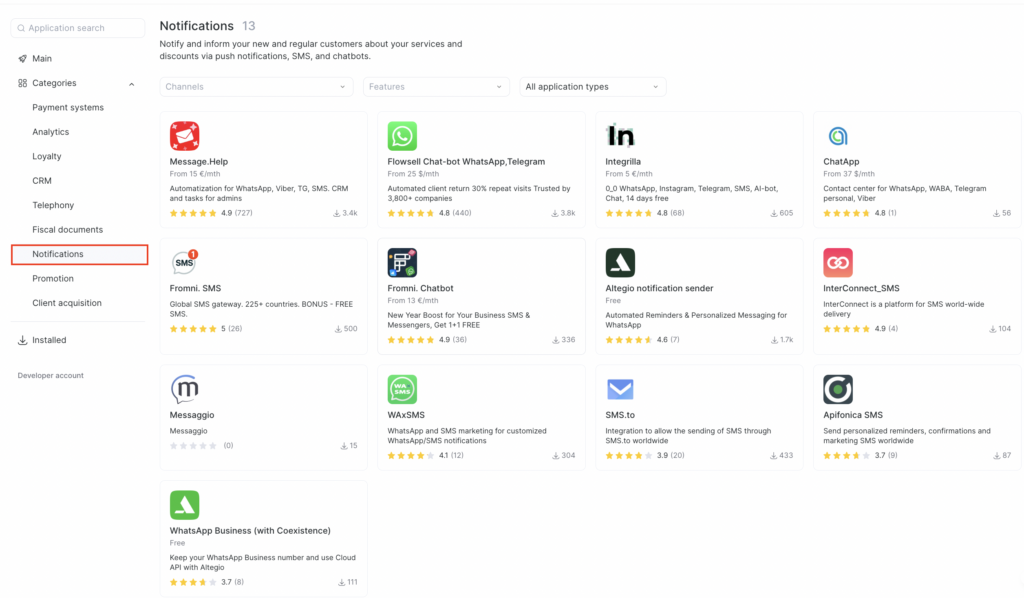
In this section, you can filter services by the following parameters:
Sending channels: SMS, Push, Email, WhatsApp, Telegram, Viber, Voice, WABA, Other.
Capabilities: Bulk messaging, Service notifications, Cascading sending, Appointment confirmation, Retention campaigns, RFM analysis, Map reviews, Negative review interception, Reports and analytics, Task management.
Application type: All application types, Chatbots, SMS aggregators.
Select the required parameters in the dropdown lists to display only the services that match your requirements.
- Click the service icon and review the SMS aggregator/chatbot features on the page that opens.
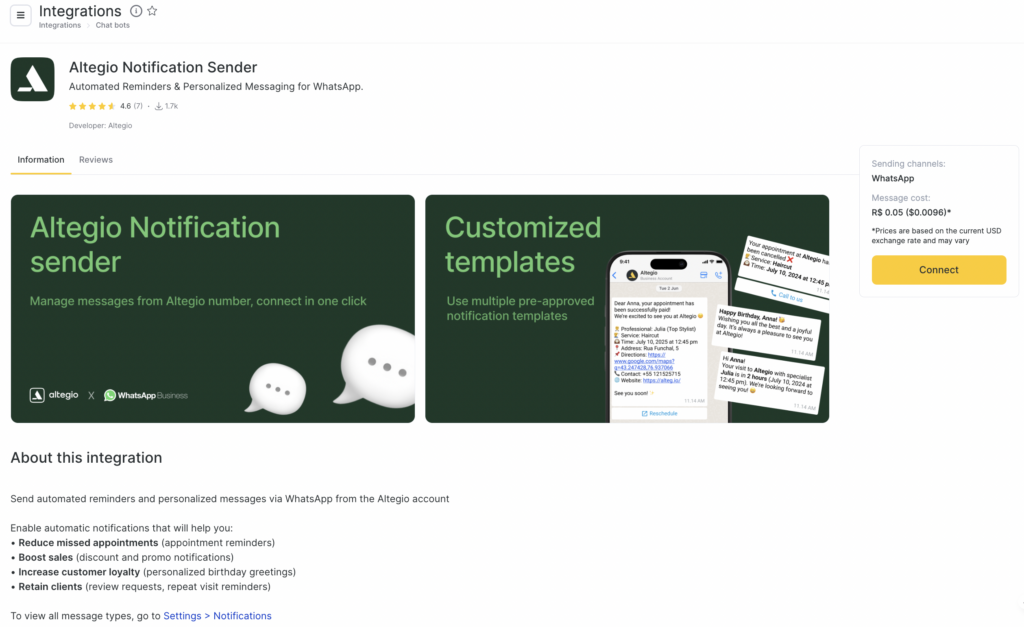
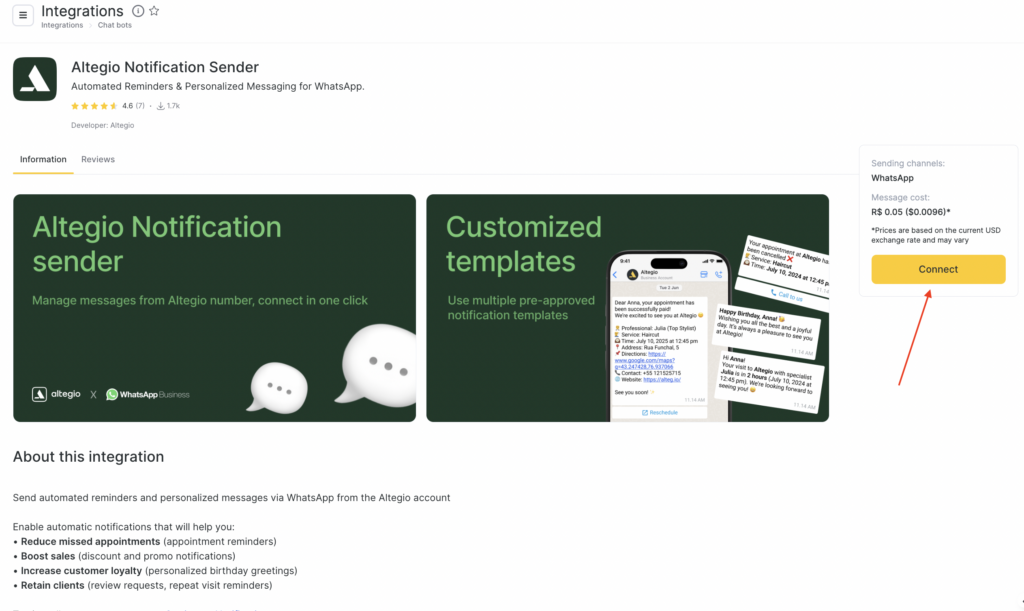
- If the SMS aggregator/chatbot suits you, click Connect on the right and follow the suggested steps.
You can find the list of all available SMS providers in this article. To view available chatbots, follow this link.
Email notifications #
To send Email notifications, no integrations are required. Sending emails is free and happens directly from Altegio.
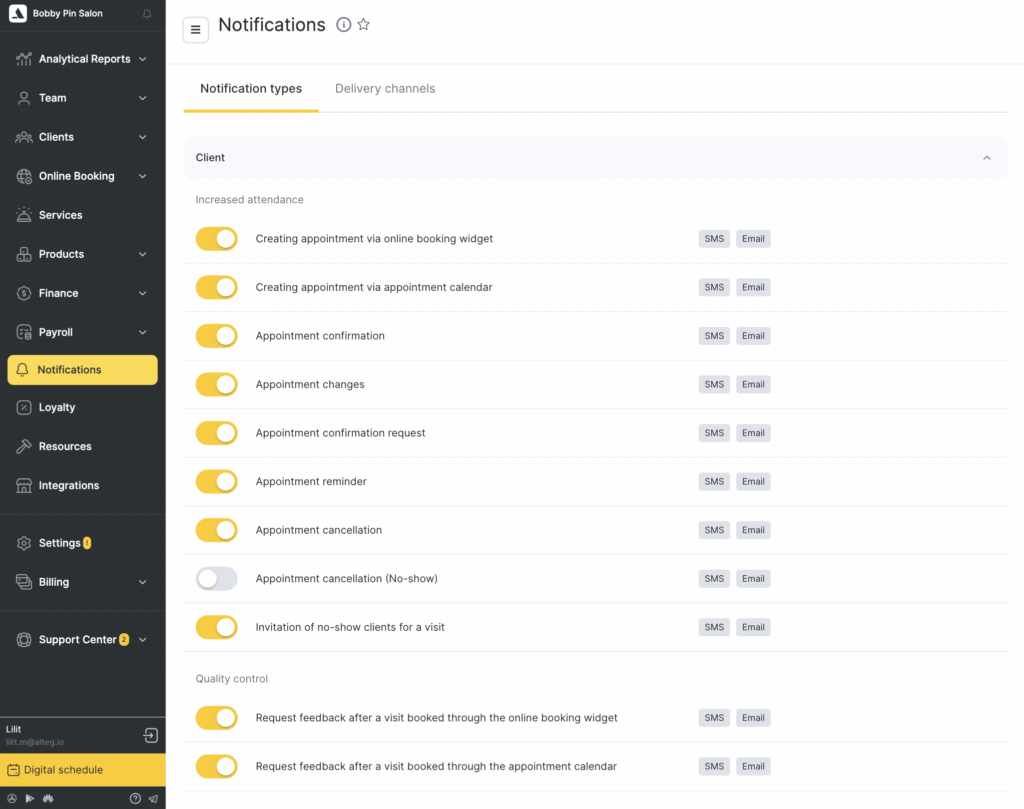
To set up Email notifications, configure the required notification types in Administration mode, Notifications > Notification types and select Email as the delivery channel.
Notification types are configured similarly to SMS notifications, but some notification types have additional Email settings. Read more here.
PUSH — client notifications #
If you have a branded mobile app, you can notify your clients via PUSH for free. Learn more about app development in these articles:
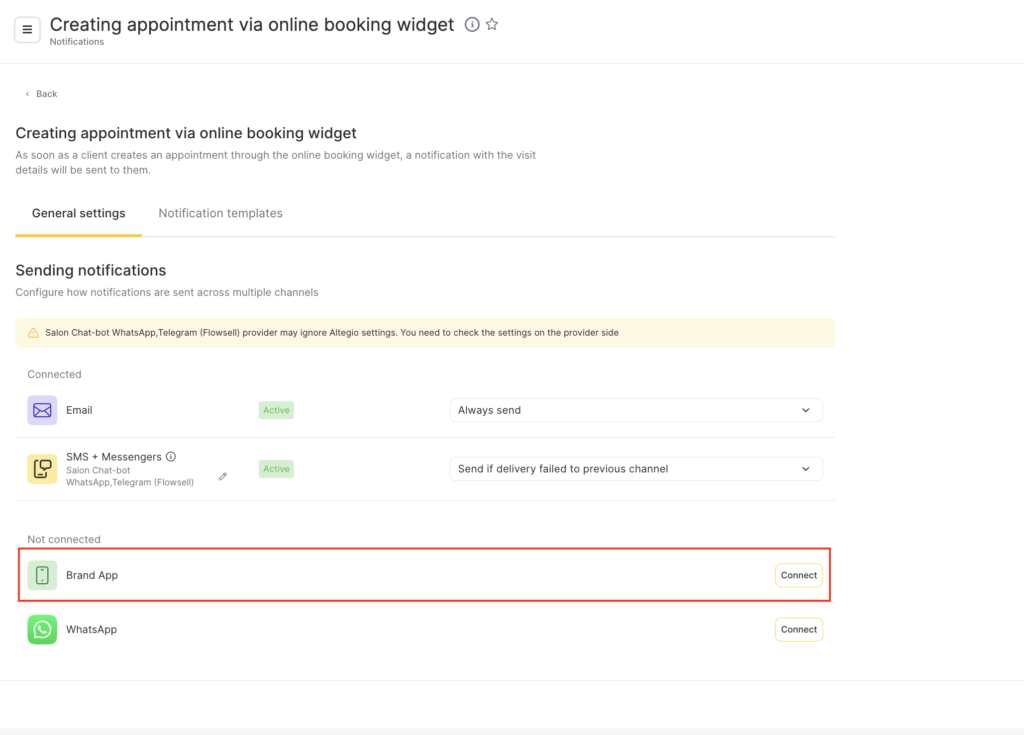
To enable this channel, in Administration mode go to Notifications > Notification types, open the required notification type and, on the General settings tab, enable the Branded app channel.
Benefits of push notifications:
- free and help significantly reduce SMS costs;
- do not require written consent from the client to receive notifications;
- if a push notification cannot be delivered, the client will receive an SMS notification.
PUSH — team notifications #
In Altegio, team members can configure push notifications in the mobile app. The feature is available on the Notifications tab in the account settings.
Before configuring notifications in the mobile app, make sure notifications are enabled on the Notifications tab in the team member profile (in the web version: Team > Team members list > team member name > Notifications tab).
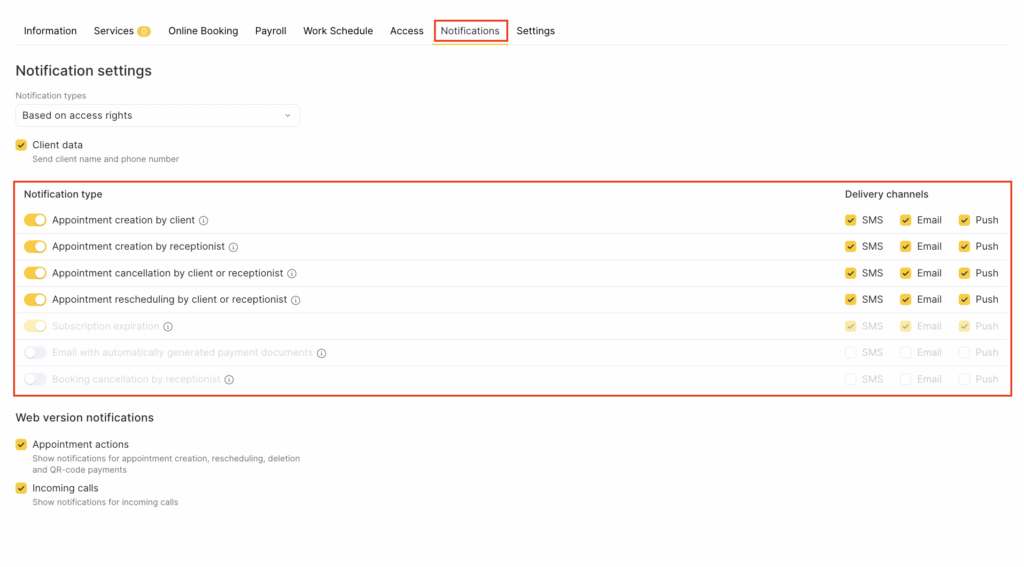
For more details about setting up notifications in the mobile app for team members, see this article.

