
How to write off products via an inventory operation #
To process a product write-off:
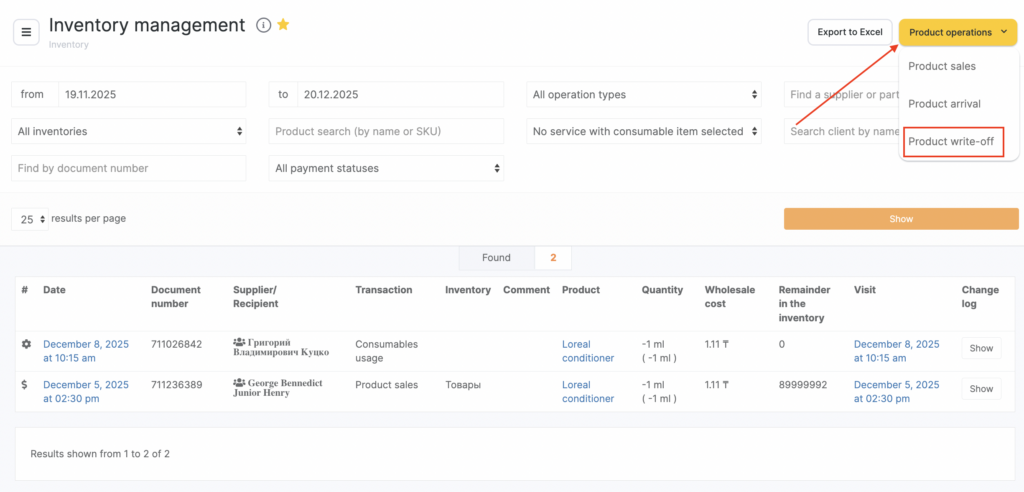
- Switch to Administration mode and go to Products > Inventory Management. Click Product operations.
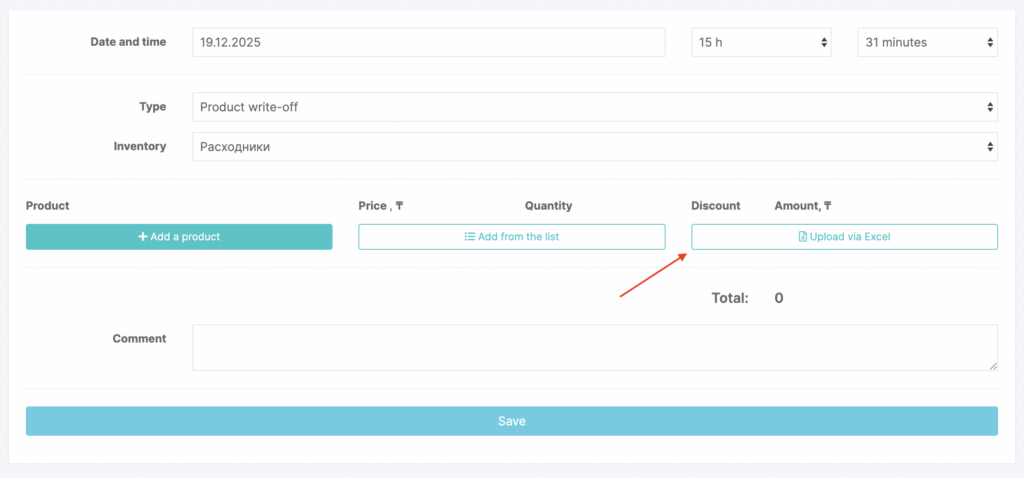
- In the dropdown list, select the operation type Product write-off.
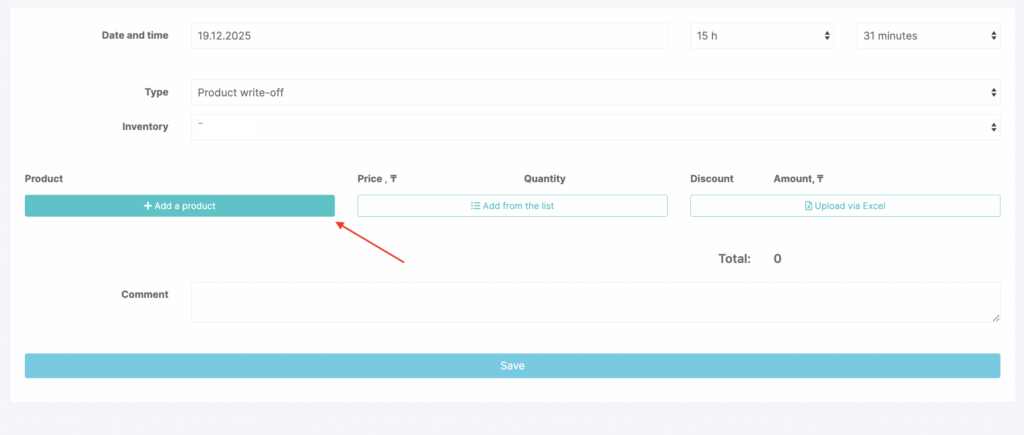
- In the window that opens set the date and time the inventory operation is created.
- Select the inventory (the inventory must have the For writing off products type).
- Add the products.
Three ways to add products #
1) Add each product one by one #
Click Add product and enter the product name or SKU (see the product catalog setup article for details).
2) Add products from a list #
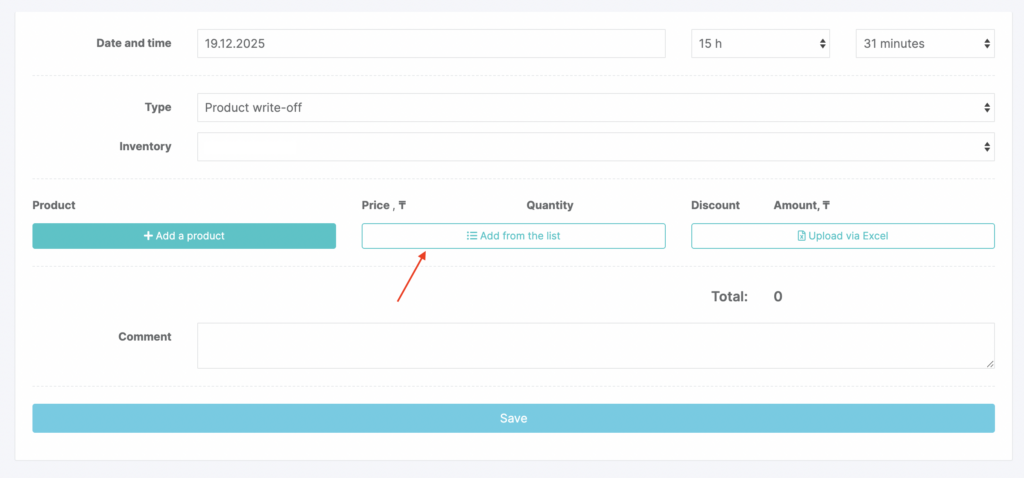
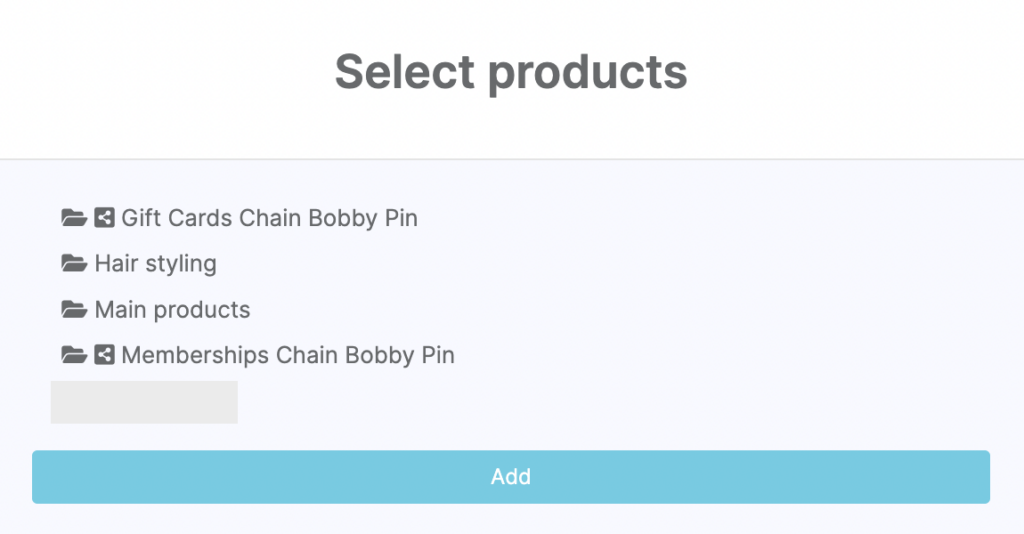
Click Add from list. Select a category, click its name, then click Add. Check the products you want to write off and click Add.
3) Add multiple products from Excel #
- Click Upload from Excel. The step-by-step process is described in the How to add a product list using Excel article.
The set of fields you can upload here differs from what’s listed in that article (see above).
Here you can add:
- product ID
- name
- SKU
- barcode
- price
- quantity
- discount
- total price
Required fields are: Name, Quantity, Price, and Total price.
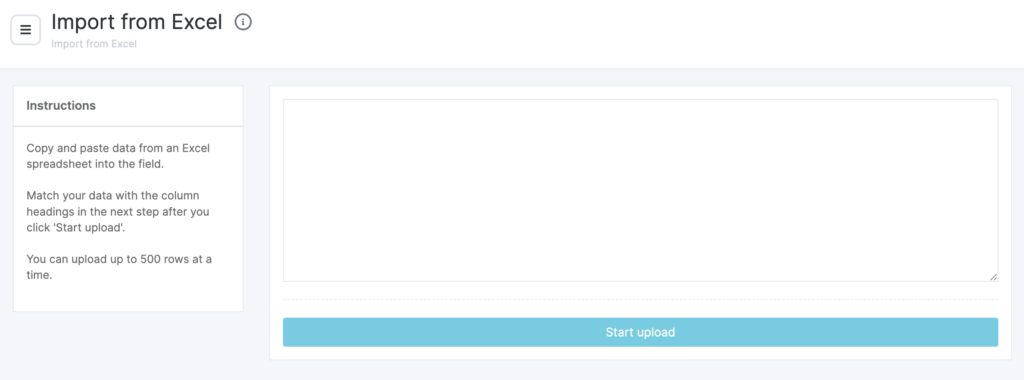
After you add products, their details will be filled in automatically. The price equals the cost price (per one write-off unit of measure) set in the product card.
- Enter the quantity (units of measure will be pulled automatically from the product card).
The total amount for each product and for the entire write-off will be calculated based on the quantity.
- Add a comment and click Save.
You can view all data for this operation in Products > Inventory Management.

