
Altegio now allows you to configure package services (for example, 4-hands services). This is useful if your company provides several services at the same time within one appointment, performed by different team members. The new settings are also suitable for situations where the same service is performed simultaneously by several team members. They also work when one or more team members provide several services in a row — such services can be combined into a package and a discount can be applied to the package.
Packages can be sequential or parallel and can include from 2 to 10 services. Read more below in this article about how it works and how to configure it. You can create package services in a location or in the chain interface, configure online booking for them in a location, and also create and edit package appointments in the Appointment Calendar.
Important
Package services are still being improved and will become available to all Altegio users in the future. If packages are not yet available for you, please contact Altegio technical support or your manager (you can find their contact details in Reports > Upcoming Visits). Your feedback will also be very helpful for us while we continue improving packages.
Creating a Package #
- In the main menu go to the Services section (Administration mode).
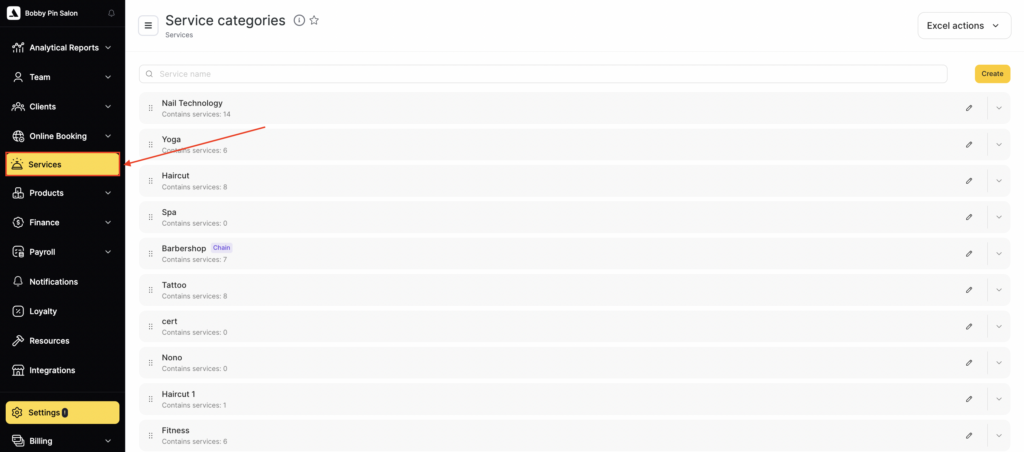
- When creating a package, you use already created individual services. If the services are not yet created, create them in advance following this guide.
- If the service category for the package is already created, expand it. If not, create a new one; for more details on creating categories, see here.
- In the opened category, click the Add button and select Service package.

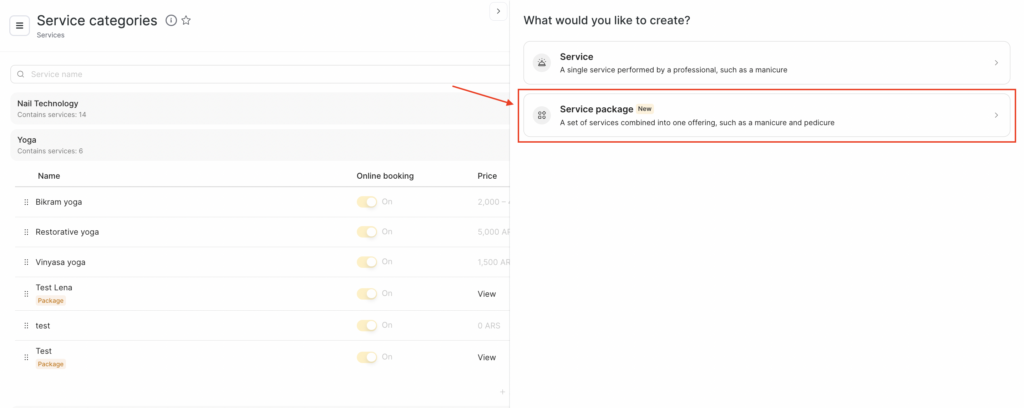
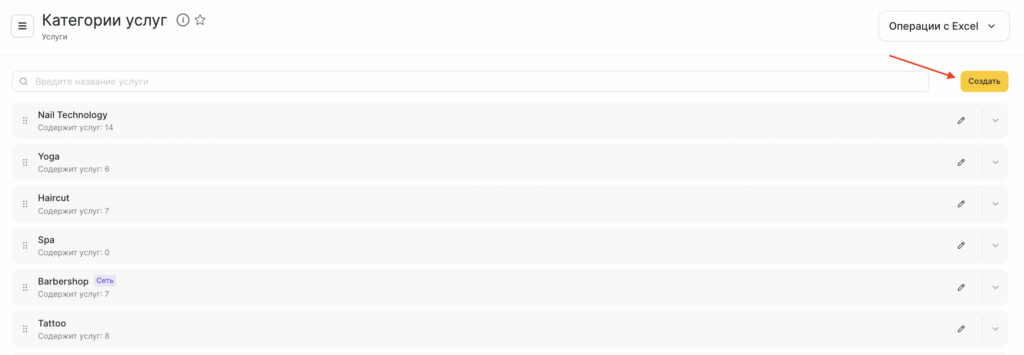
Or click the Create button in the upper-right corner and select Service package. If the category was not expanded in advance, the first category in the list will be selected by default. You can change it later when creating the package or in the package settings.

- After selecting Package, a new creation and settings form will appear. These settings are similar to standard service settings, but packages also have additional options. All of them are described in detail below.
After filling in all the data, click Create or Save if you are editing an existing package. Created packages will be marked with a Package icon in the Services settings.

Package Settings #
You can create packages both in a location and in the chain interface. Creating them in the chain interface is almost the same as creating them in a location, but settings for online booking, resources, and translations into other languages can only be configured in locations.
Main Package Parameters #
On the Main settings tab:
- Specify the package name. For example: Hardware manicure + hardware pedicure.
- Select a service category. By default, the category in which the package is being created will be selected.
- Select the services included in the package, their order of delivery, and specify the package price.

Services in the Package #
- In the Package services section, click Add service.
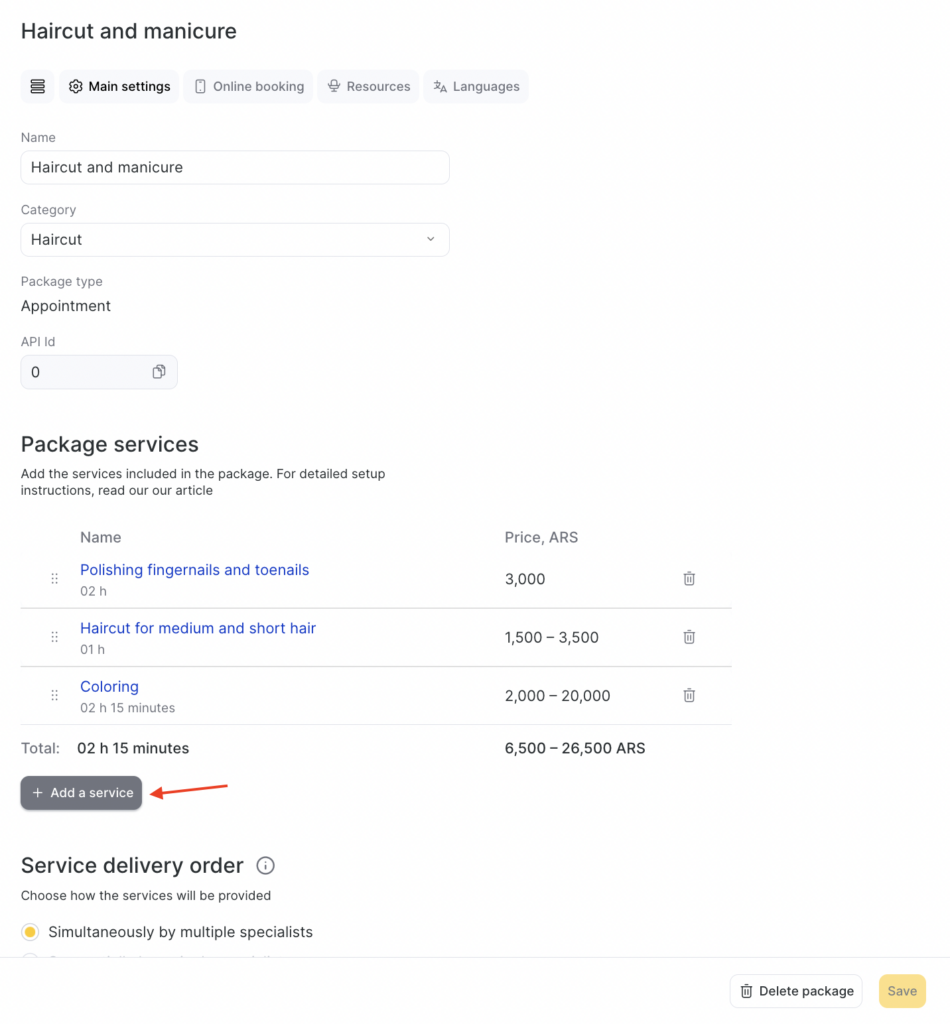
- In the modal window that opens, select the services that will be included in the package. Expand the required category and select the service. You can also use the search. After all services are selected, click Select.
Important
1. Services must be created in advance to appear for selection. For now, you can select only individual services.2. You can select different services from different categories.
3. You can select chain services.
4. A package can contain from 2 to 10 services.
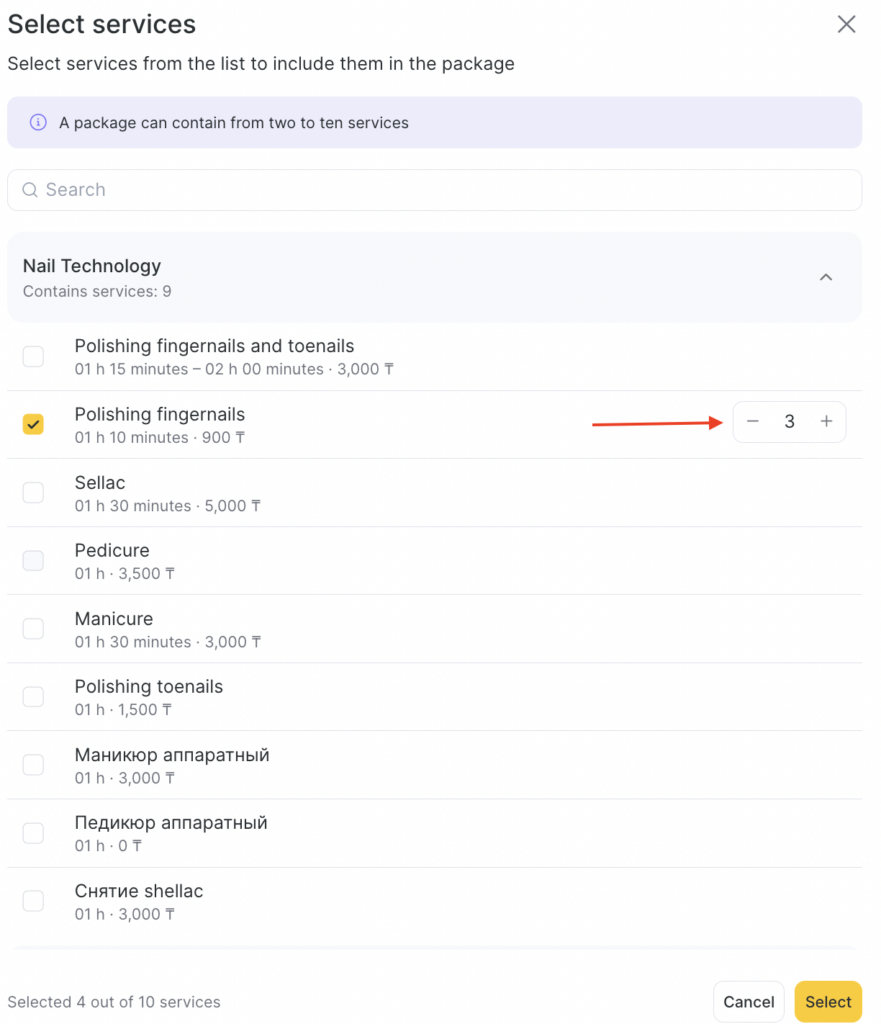
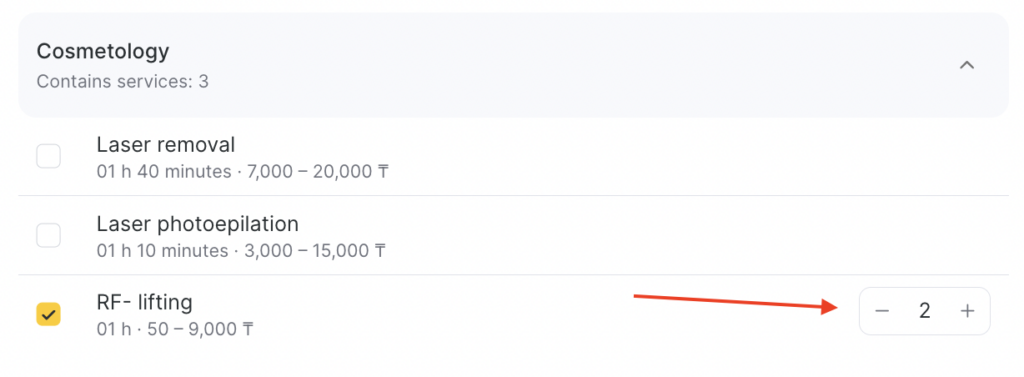
5. You can select the same service multiple times and set the quantity using the “+” and “–” buttons.
6. When selecting services, other previously created packages are not displayed — only individual services.
7. A service must be linked to a team member who provides it.
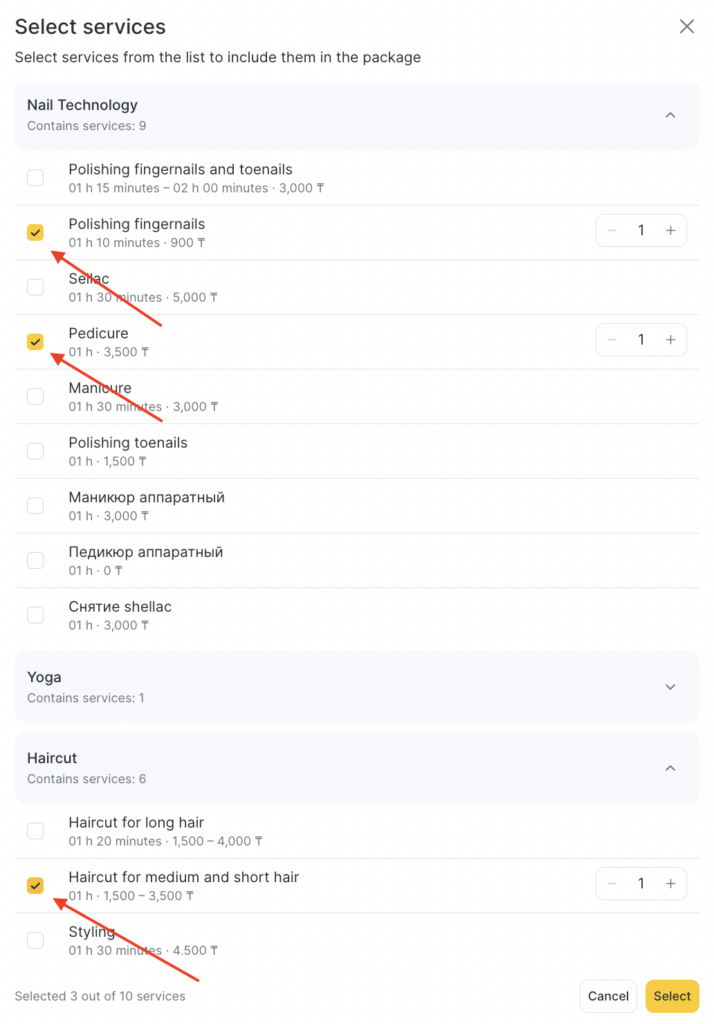
Example of selecting different services:
Example of selecting the same service multiple times:
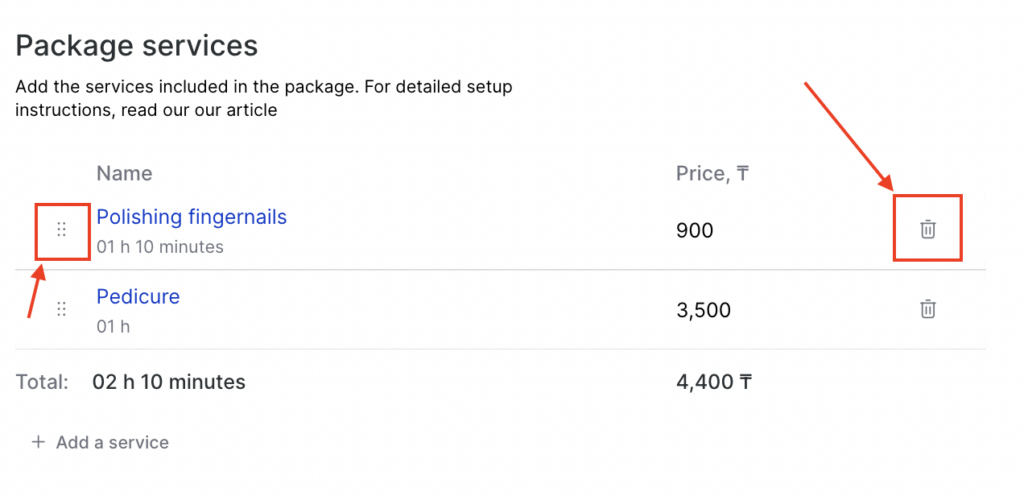
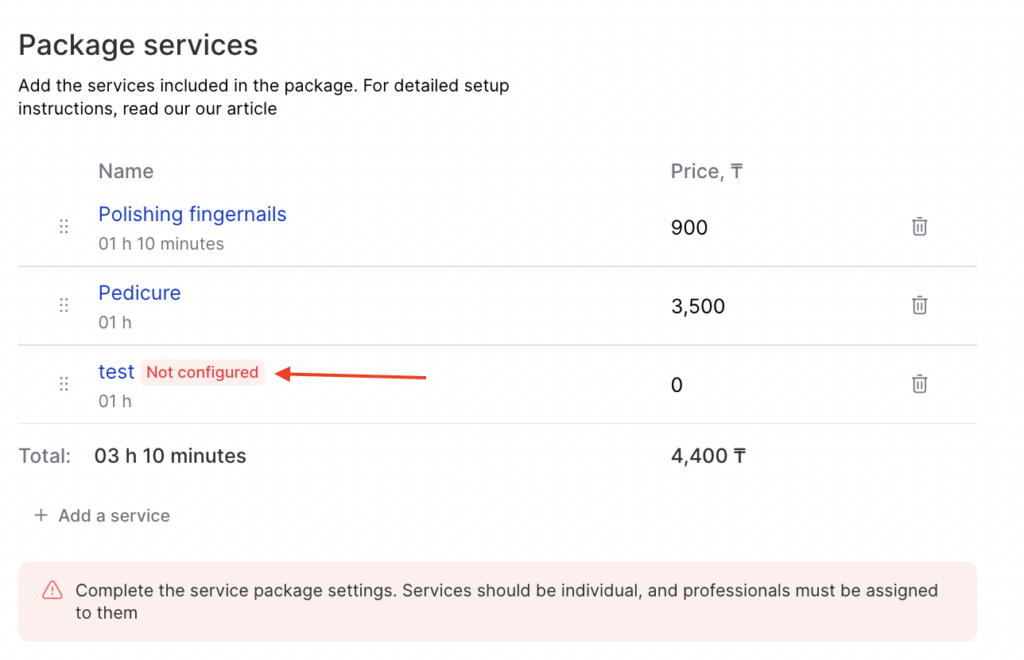
The services added to the package will be displayed on the package settings page. When you click the service name, its settings page will open in a new tab.
- To remove a service from the package, click the trash bin icon.
- To add a new service to the package, click Add service again. When adding a new service to a package, you can also uncheck services that were previously added to the package.
- To change the order (for a sequential package), hold down the icon with dots to the left of the service name and drag it to a new position in the list.
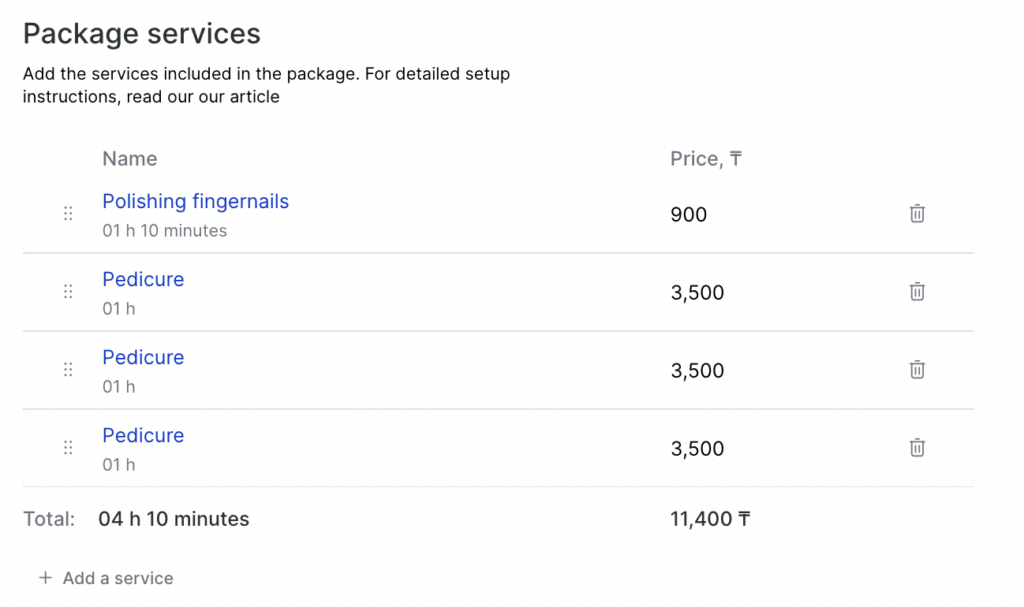
If a quantity was specified for a service when selecting it, the same service will appear in the list multiple times.
If a service is not linked to a team member, the note Not configured will appear next to its name. If such a service is added to a package, you will see a corresponding warning. It will not be possible to fully configure a package that contains such a service.
Service Delivery Order #
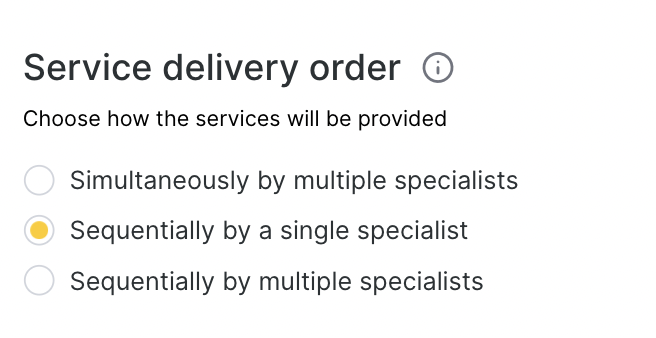
- Choose how the services will be delivered:
- Simultaneously by multiple specialists.
Choose this option if the services are provided in parallel by different team members at the same time. Example: Manicure + Pedicure in 4 hands. - Sequentially by one specialist.
Choose this option if the services are provided one after another by a single team member. Example: Eyelash tinting + eyebrow correction.
In this case, all selected services must be linked to the same team member. The package will always be provided by only one team member; you cannot choose different team members for different services. - Sequentially by multiple specialists.
Choose this option if the services are provided one after another by different team members. Example: Evening look (Makeup + Evening hairstyle), where the makeup artist and stylist are two different professionals and provide services one after another.
Unlike the Sequentially by one specialist option, this setting is more flexible: it allows you to choose different team members for different services in the package, but you can also choose the same team member if they are able to provide several services in the package. This gives the client more flexibility and more convenient time slots for booking.
- The selected setting affects the package duration:
- If Simultaneously is selected, the duration of the package will be equal to the duration of the longest service in the package.
- If Sequentially is selected, the duration of the package will be equal to the sum of the durations of all services in the package.
- If service duration is set as a range in service settings or in team member settings, the package duration will also be calculated as a range.
Also, if a service has a duration of zero, then the package duration will be zero — only services with a non-zero duration will be taken into account.
For more details on these nuances, see the Complex Configuration Scenarios section at the end of the article.
Package Pricing #
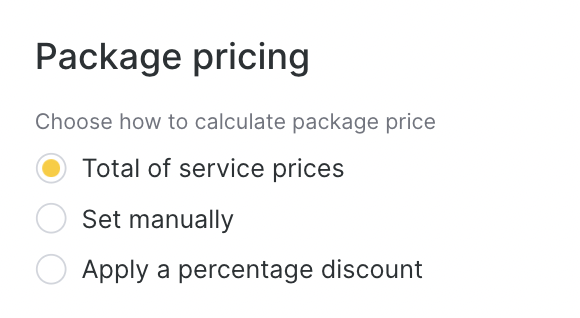
- Select the pricing type and set the package price:
- Sum from services — in this case the package price will be equal to the sum of all service prices included in the package.
- Set manually — you can manually specify the package price. The difference between the total cost of all services and the set package price will be distributed proportionally between the services. If the package contains services with fixed prices, discounted service prices will be displayed.
- Apply percentage discount — you can set a discount percentage for the package. The discount percentage will be applied to each service. The resulting service prices are rounded to whole numbers.
- If the cost of services included in the package depends on the individual prices set for team members, is set as a range, or is zero, the package price will be calculated according to the selected options.
For more details, see the Complex Configuration Scenarios section at the end of the article.
Examples of settings for different types of packages can be found below in the Examples of Package Settings section.
Setting Up Online Booking for a Package #
In the package settings, on the Online booking tab, you can configure how the package will look in online booking and also enable or disable online booking for it.
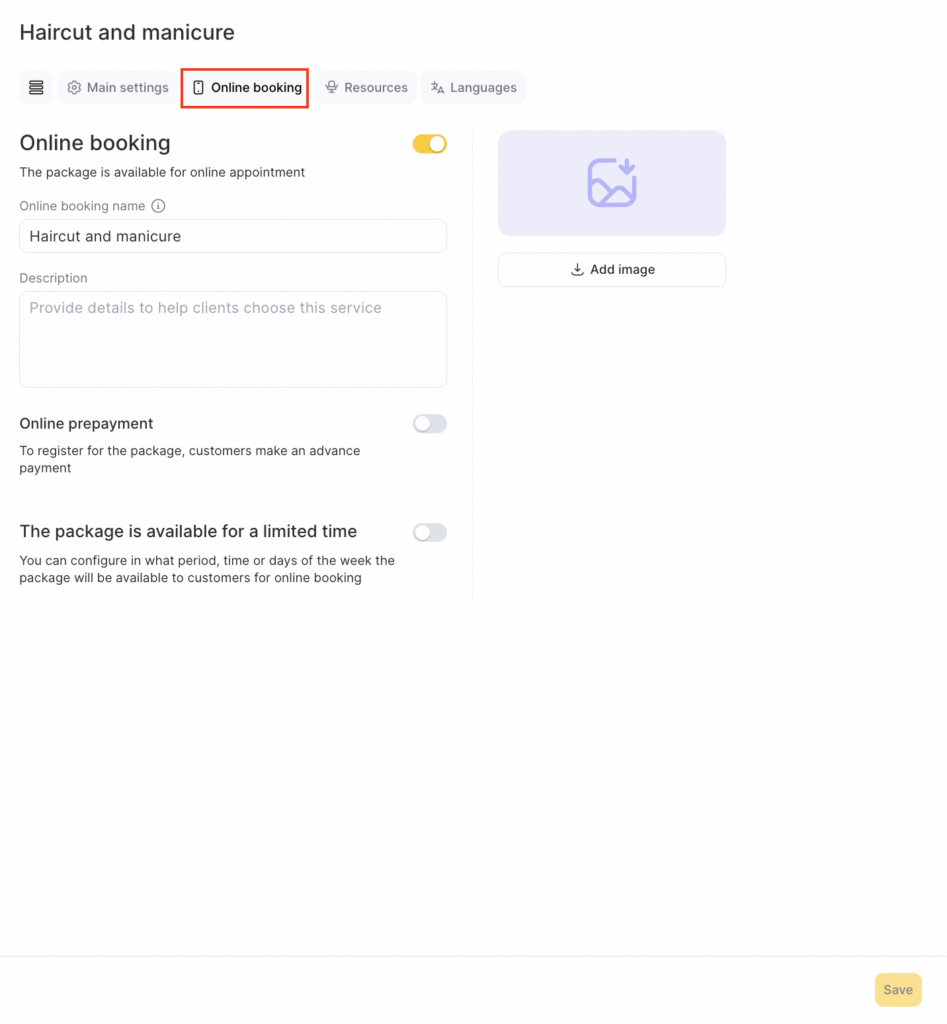
- Specify whether the package will be displayed in online booking. If you switch the toggle to the inactive position, clients will not be able to book this package online, but the receptionist will still be able to create package bookings in the Appointment Calendar.
- Specify the name for online booking. This is the package name that clients will see in the online booking widget. If you leave this field empty, the main name will be used.
- Add a description for the package. Here you can describe how the services are provided: materials used, benefits, and other information that will help the client choose.
The maximum description length is 450 characters. - Add an image that reflects the essence of the package.
Recommended image size: 645×300 pixels.
Maximum file size: 12 MB. - To enable online prepayment for the package, turn on the corresponding toggle in the Online prepayment field. When online prepayment is enabled, clients will be able to pay for the package in the online booking widget. For more details on online prepayment settings, see this article.
Important
Online prepayment for packages can only be mandatory and 100%.If at least one team member providing services in the package has mandatory prepayment enabled in their settings, then online prepayment will be mandatory for the entire package, even if online prepayment is disabled in the package settings. In this case, the team member settings take priority over package settings.
When booking a package online, selecting additional services or other packages is not available. Clients can book only one package at a time. To book other services, they must create a new booking. If the client selects any other service during online booking, an error will appear: “This service is not provided together with the selected ones. Please book it separately.”
- If needed, turn on the The package is available for a limited time toggle.
Specify: During which period booking is available, At what time booking is available, and Days available for booking (“Weekdays only”, “Weekends only”, “Any day”, “Selected days” — for selected days, you need to mark the necessary dates in the calendar).
In the online booking widget, only time slots that fall within this interval will be available.
Important
The Service available for a limited time setting for a package is independent and does not depend on similar settings for the individual services included in the package. That is, you can limit time only for the package itself.
For packages, online prepayment and membership-based booking are currently not available.
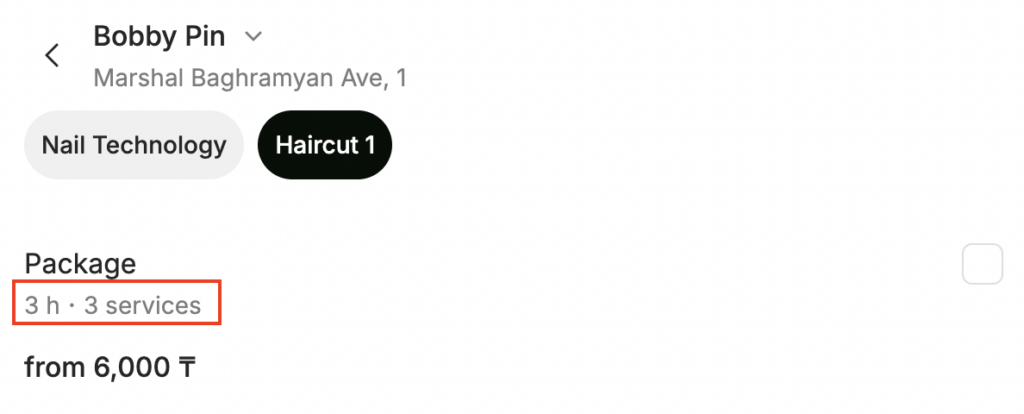
Example of how packages look in the online booking widget:
Packages in the Appointment Calendar #
After creating and configuring packages, clients will be able to book them online via the online booking widget (if online booking is enabled for them), and receptionists will be able to create package bookings manually in the Appointment Calendar.
Creating Package Bookings in the Calendar #
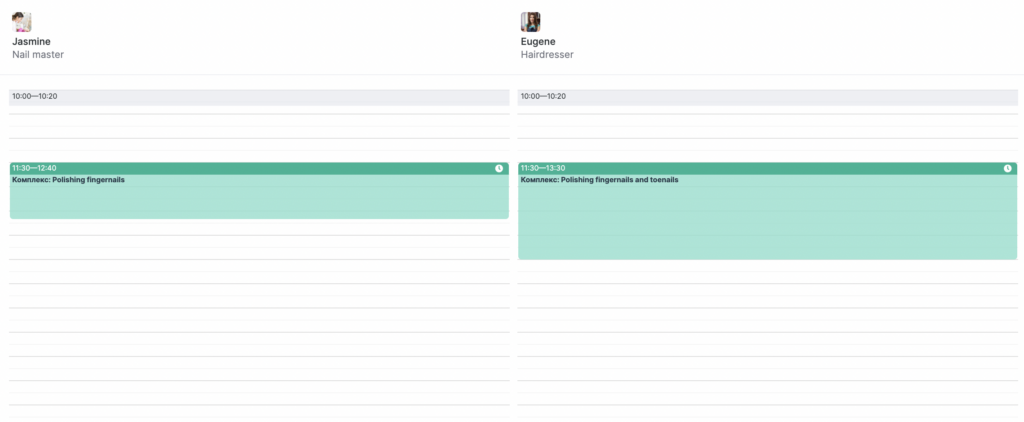
Creating package bookings in the appointment journal is similar to creating regular individual bookings. However, unlike individual bookings, after creating a single package booking in the journal, several linked bookings will appear: either for one team member (if the package is sequential) or for several team members (if the package is parallel).
To create a package booking:
- Click the required date in the calendar on the left; the Appointment Calendar for that day will open. Choose any team member who provides the package service and select the time you want to book the client for.
If the package involves several team members, all team members participating in the package must be available at the selected time and have overlapping working hours.
- Hover over a free time slot and click the New booking button that appears.
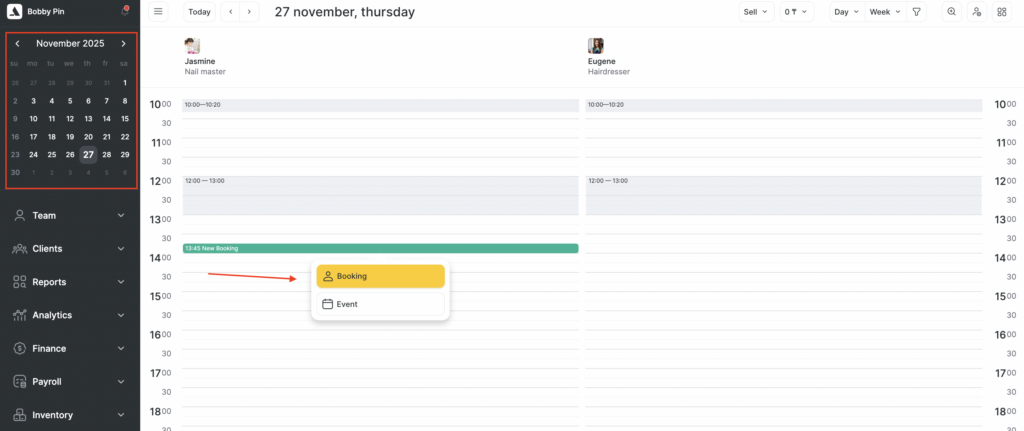
If the Appointment Calendar is set to “All types” booking type, select Booking as the type.
If the Appointment Calendar is set to Individual, then after clicking New booking the appointment type will automatically be Booking.
You can also add a package to an already created booking.
- Enter the client’s details (name and phone number are mandatory). In the center of the window, find the required package service using the search or expand the service tree and select the package from the list. All package services are marked with a Package tag.
If the selected team member does not provide any of the services in the package, the package will not appear in that team member’s service list.
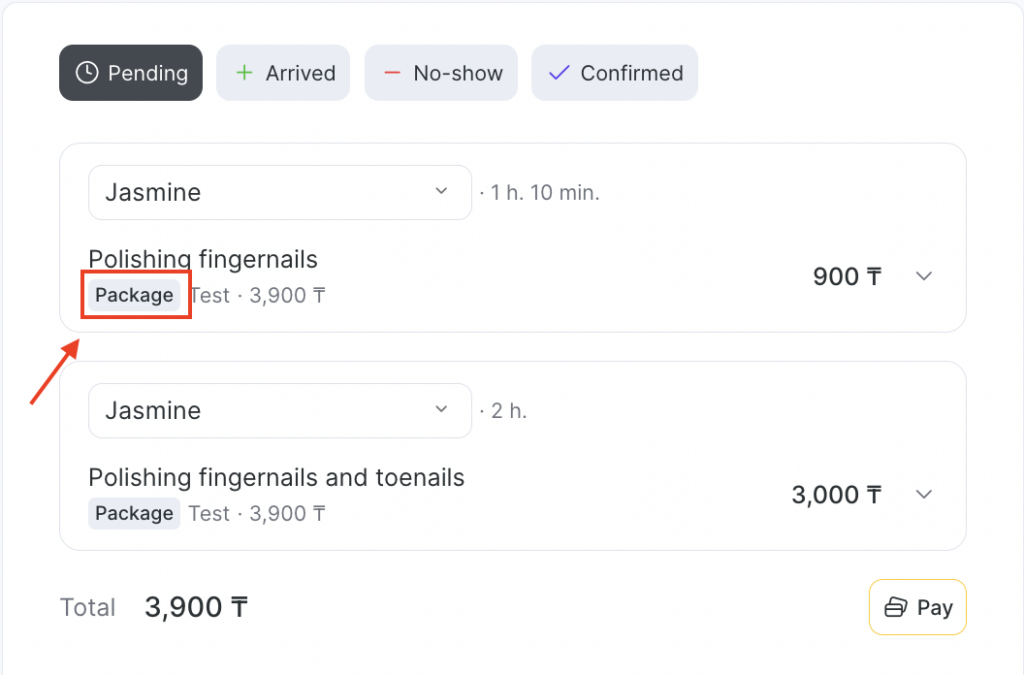
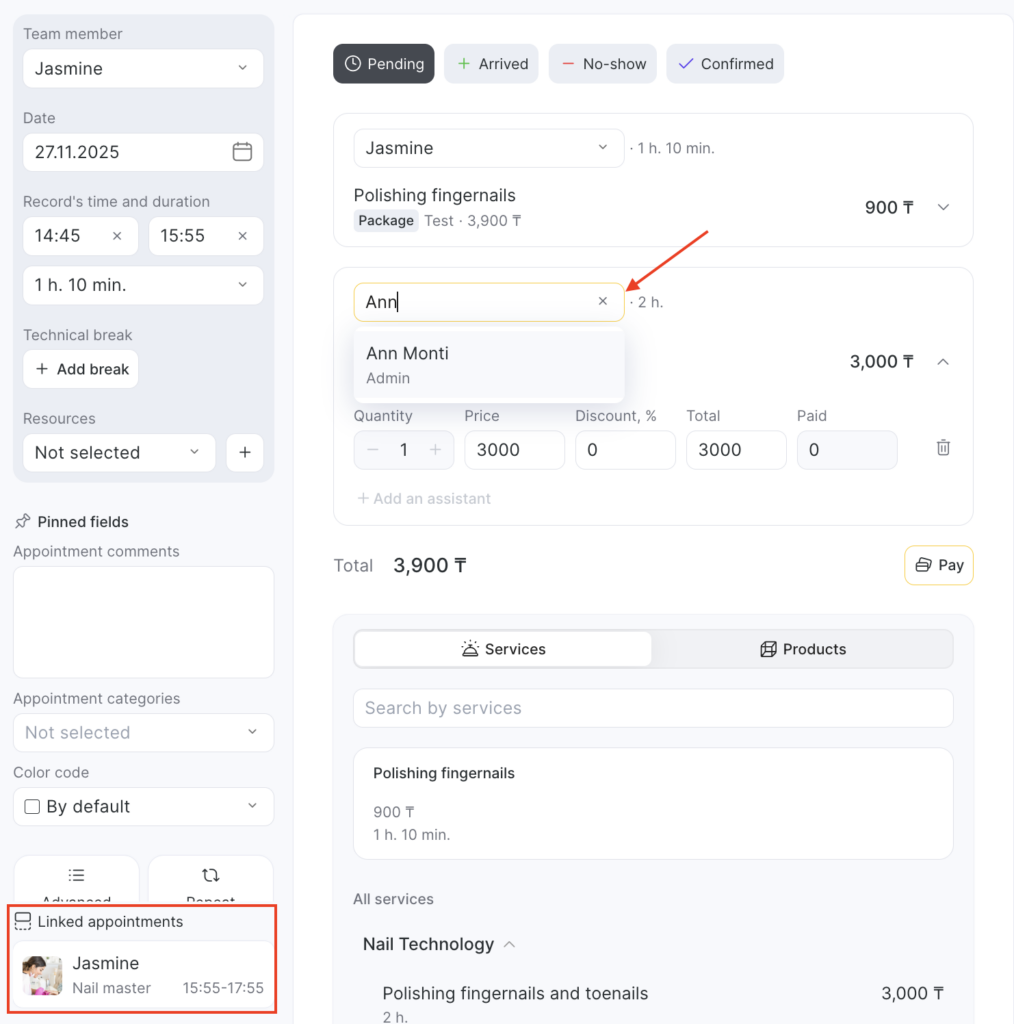
- After adding the package service to the booking, all services included in the package will be added to the appointment. By default, the first service in the package will be assigned to the team member for whom you created the booking. In the lower-left corner, a Linked appointments block will appear with a list of team members providing the services in this package.
Other services in the package will be assigned to team members depending on the package type:
- If the package is sequential, all services will be assigned to the same team member by default, but you can change the team member if needed.
At the moment, a sequential package can be provided only by one team member, so it is important that this team member is assigned to all services in the package. - If the package is parallel, the first suitable team member who provides each service will be assigned automatically. In this case, you should manually select the correct team member if the automatically assigned one is not the one you need.
Important
The choice of team member affects both the price and the duration of each service assigned to that team member. Accordingly, the total price and duration of the package may also change.
- After selecting the appropriate team members for the package, create or save the booking.
If a service in the package has no team member selected, or a selected team member does not provide that service, or is not working at the specified time, the booking cannot be saved.
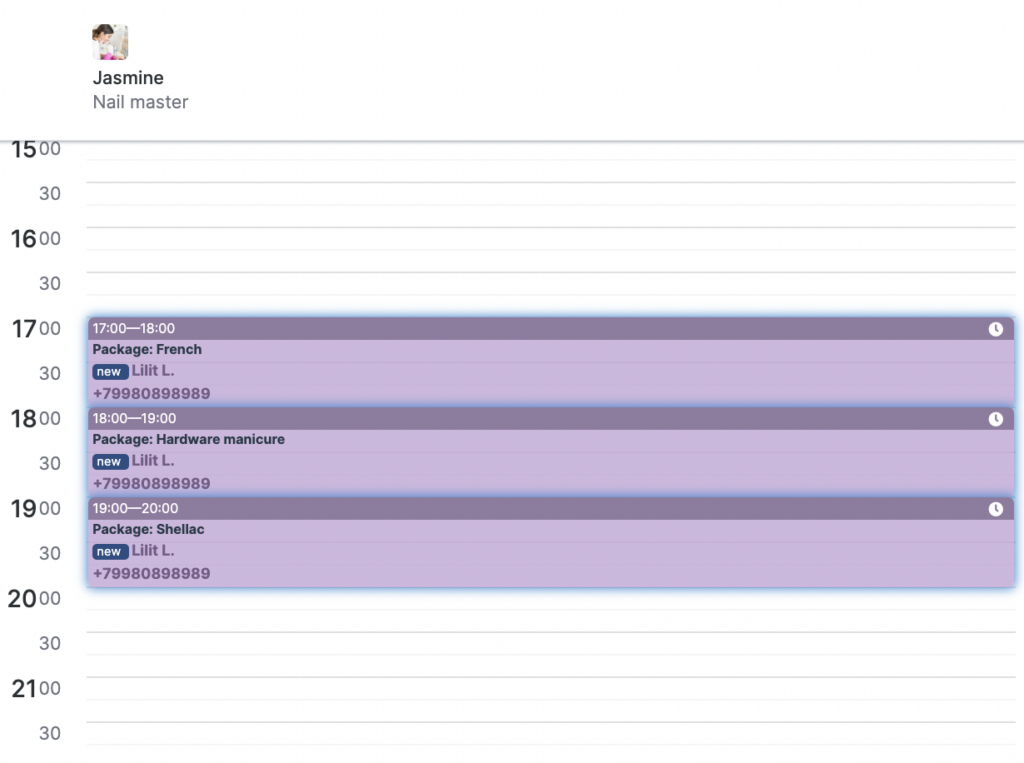
- After saving, depending on the services and team members in the package, several bookings will be created for the same time with the corresponding number of services and team members. When you hover over any of the bookings, all appointments related to the package will be highlighted, just like linked visits.
Example of how a package is displayed in the calendar when created in the calendar:
Example of how a package is displayed in the calendar when created via online booking:
Working with a Package in the Calendar #
After creating a booking with package services, you can edit and delete it. You can also add separate services to the booking that are not part of the package, create bookings with several packages in the calendar, and delete both individual services and the entire package from the booking.
- If you move one of the bookings belonging to a package visit, you will need to move all related bookings as well — a warning will appear when you attempt to move one of them.
- Adding an additional service to a package booking that is not part of the package depends on the order of actions. You can first create a booking with a service and then add a package to it, or you can add a service to any existing package booking.
- If you first create a booking with a regular service that is not part of the package, then:
– For a sequential package, all package services will be added to the same team member as the regular service.
– For a parallel package, the selected team member will be assigned to the first service in the package, and you will need to select team members manually for the remaining services. - If you first create bookings for a package, then to add a separate service, the receptionist must first select the booking (team member) to which the additional service will be added, and then add the service to that booking.
Important
Adding separate services to a package booking is only available in the Appointment Calendar. A client can book only one package at a time online or separate individual services.
- In the Appointment Calendar, you can also create bookings for several packages at once. You can select both a parallel and a sequential package at the same time.
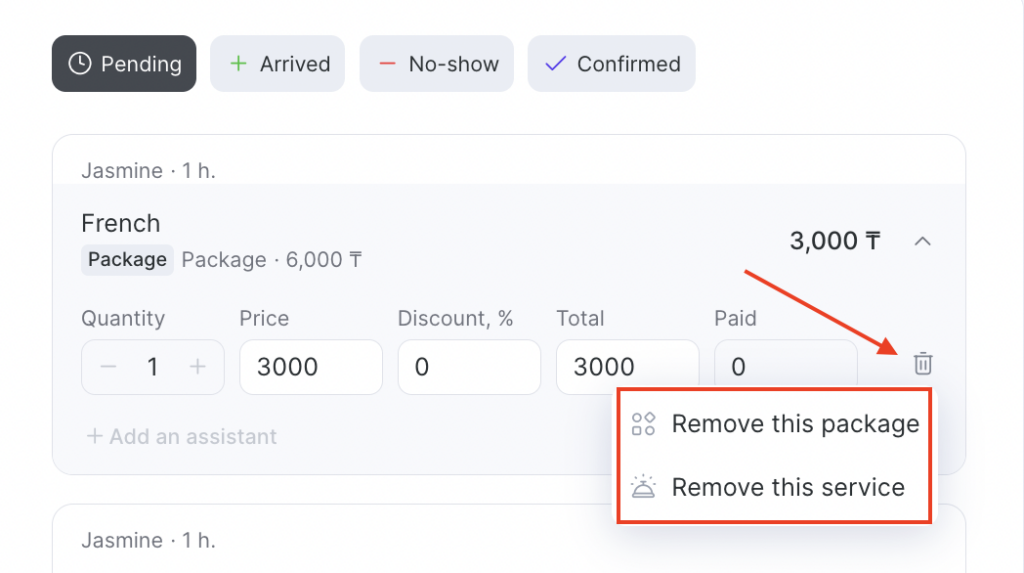
- To delete a package booking, open any of the bookings belonging to that package and expand the service block by clicking the arrow. You will then see options: delete the package or delete a service.
- If you delete the package, all services in the package will be deleted from all related bookings.
- If you delete a service from the package, only that specific service will be deleted from all package bookings. The remaining bookings will be preserved, but if they contained only that service, they will become empty (without a service), and the remaining package service will become a regular individual service. The remaining service will have the same price as when the package was added.
- If an additional regular service was added to a package booking, it is deleted simply by clicking the trash bin icon.
- If you use resources, you can also work with them in packages — create bookings via the Resources menu in the appointment calendar and add resources in the visit window.
For more information about configuring and working with resources in packages, see the Advanced Package Settings — Resources section below.
Examples of Package Settings #
Let’s look at three popular configuration examples that can be used for packages.
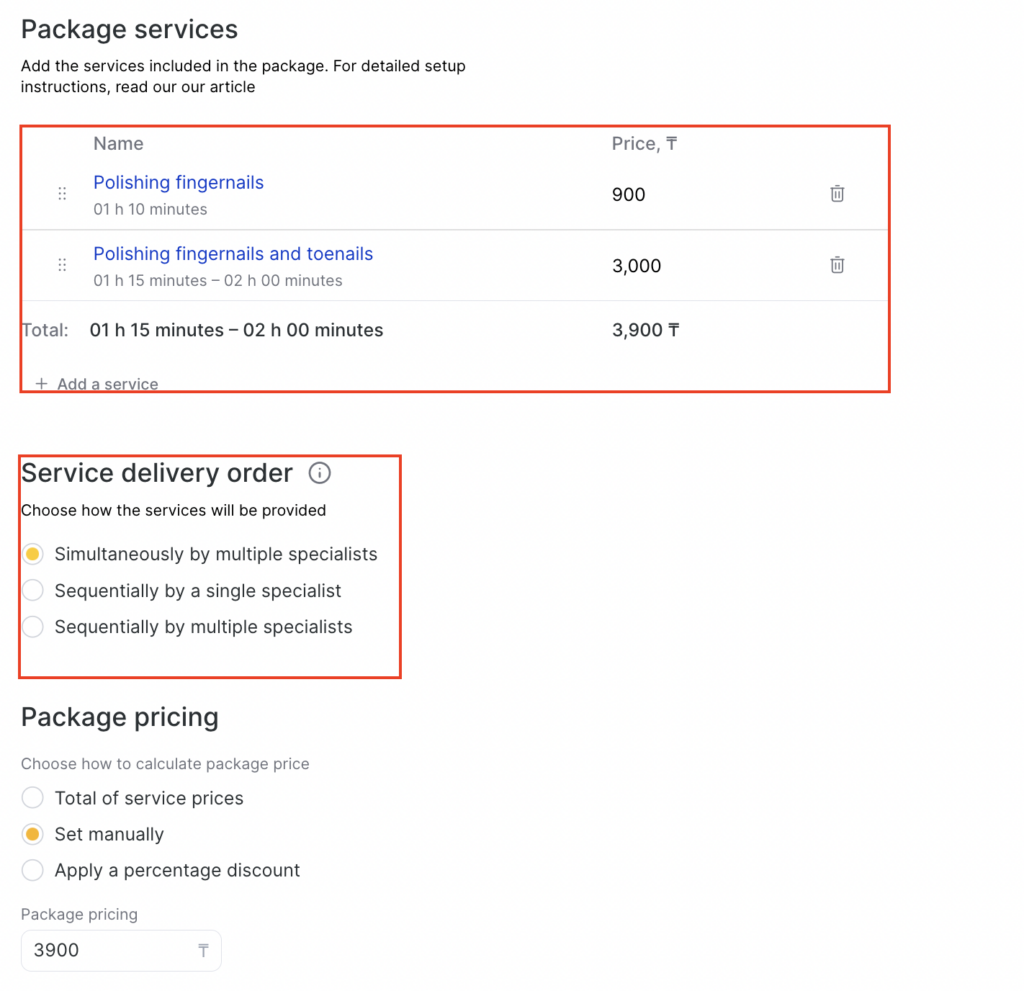
- Manicure + Pedicure in 4 hands: a parallel package that will be performed by two team members at the same time.
To configure such a package, you need to:
- In the Package services section, select the Manicure service and the Pedicure service. The team members available in online booking will depend on which team members are linked to these services.
- In the Service delivery order section, select Simultaneously by several specialists.
- All other settings can be chosen at your discretion.
- Polishing fingernails + Manicure + Sellac: a sequential package, performed by one team member (or several). In this case, you can set a price for the entire package at once, for example with a discount — this discount will be visible to clients in online booking.
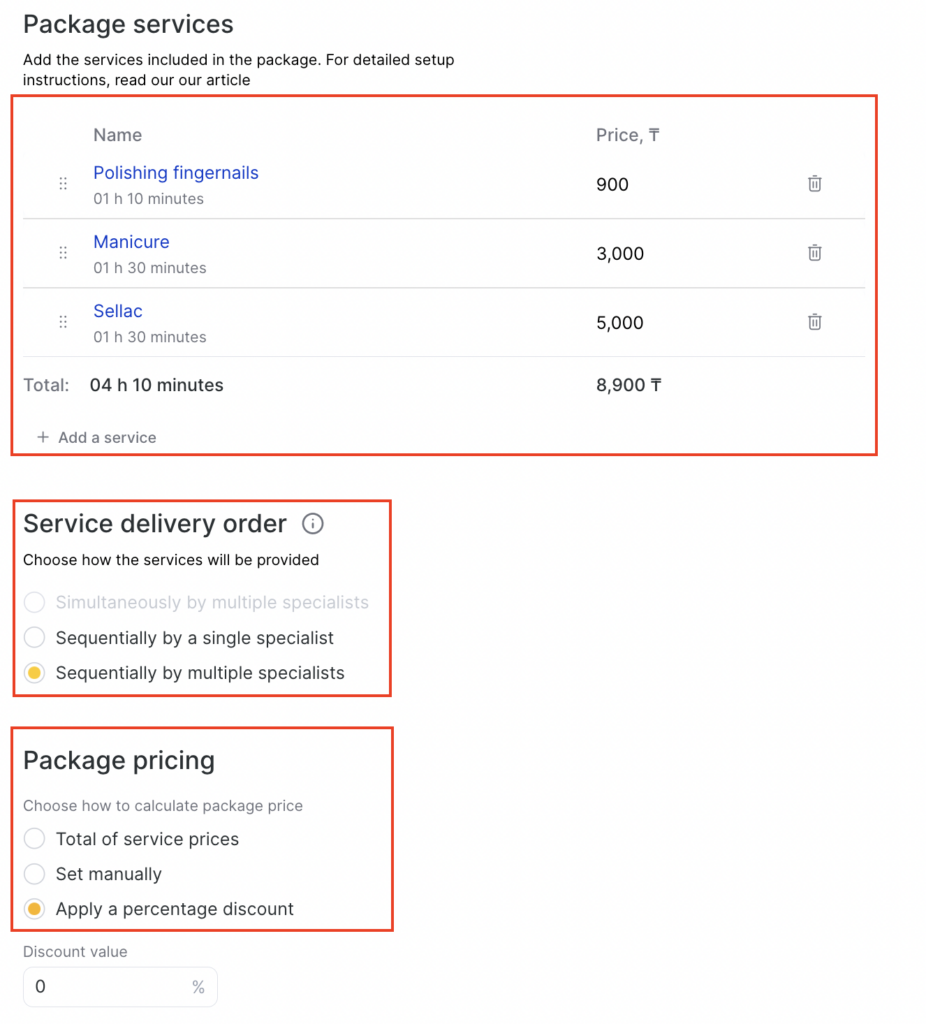
To configure such a package, you need to:
- In the Services in the package section, select the Manicure, Shellac, and Polishing fingernails services.
- In the Service delivery order section, select Sequentially by one specialist — if the services must be provided only by one team member. You can also select Sequentially by several specialists if the team members may be different.
- In the Package pricing section, you can apply a percentage discount or set a manual price. If the package price is lower than the sum of the individual services, the discount will be displayed.
- RF-lifting in 4 hands: a parallel package with identical services performed simultaneously by different team members. This way, you can create a booking for two team members at once who provide the same service at the same time.
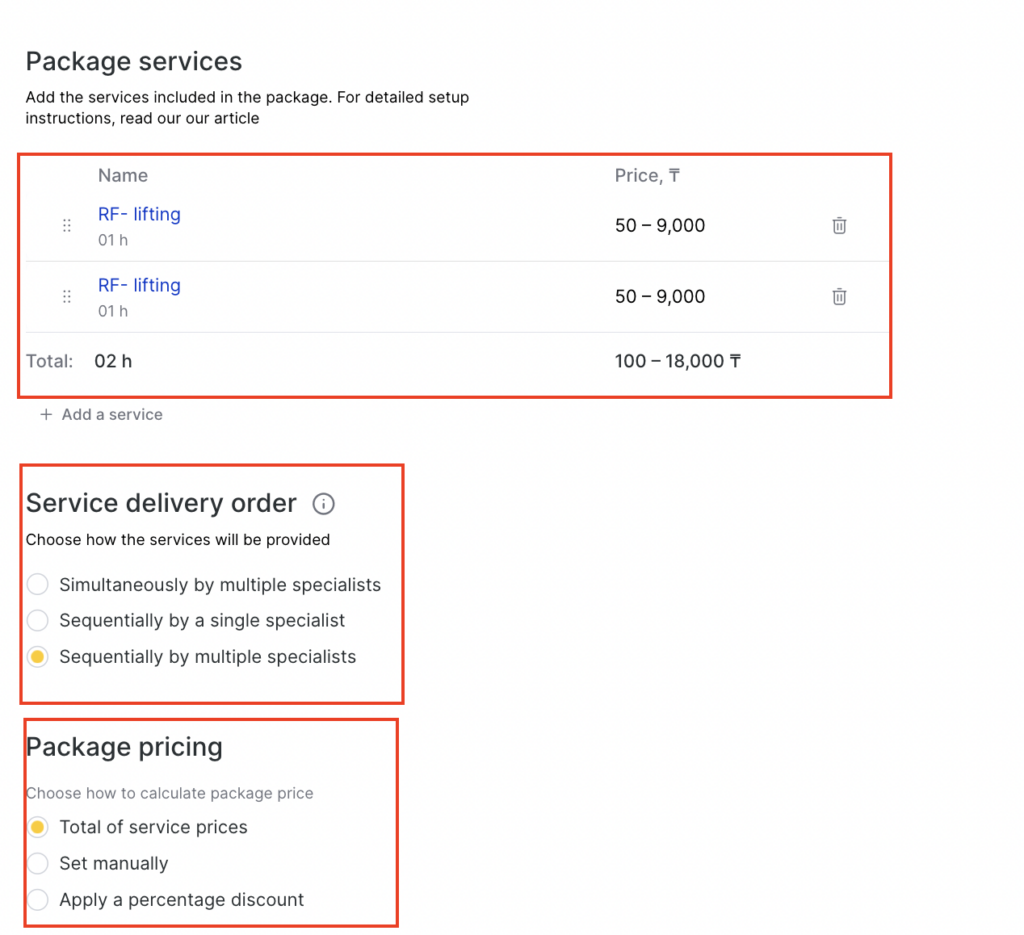
To configure such a package, you need to:
- In the Services in the package block, select the RF-lifting service and set the quantity to 2 when selecting it. You can specify another quantity if more than two team members provide the service simultaneously.
Advanced Package Settings #
If needed, you can configure resources for a package, as well as add translations into other languages.
Resources #
- If services included in the package are linked to resources, those resources will be displayed on the Resources tab in the package settings.
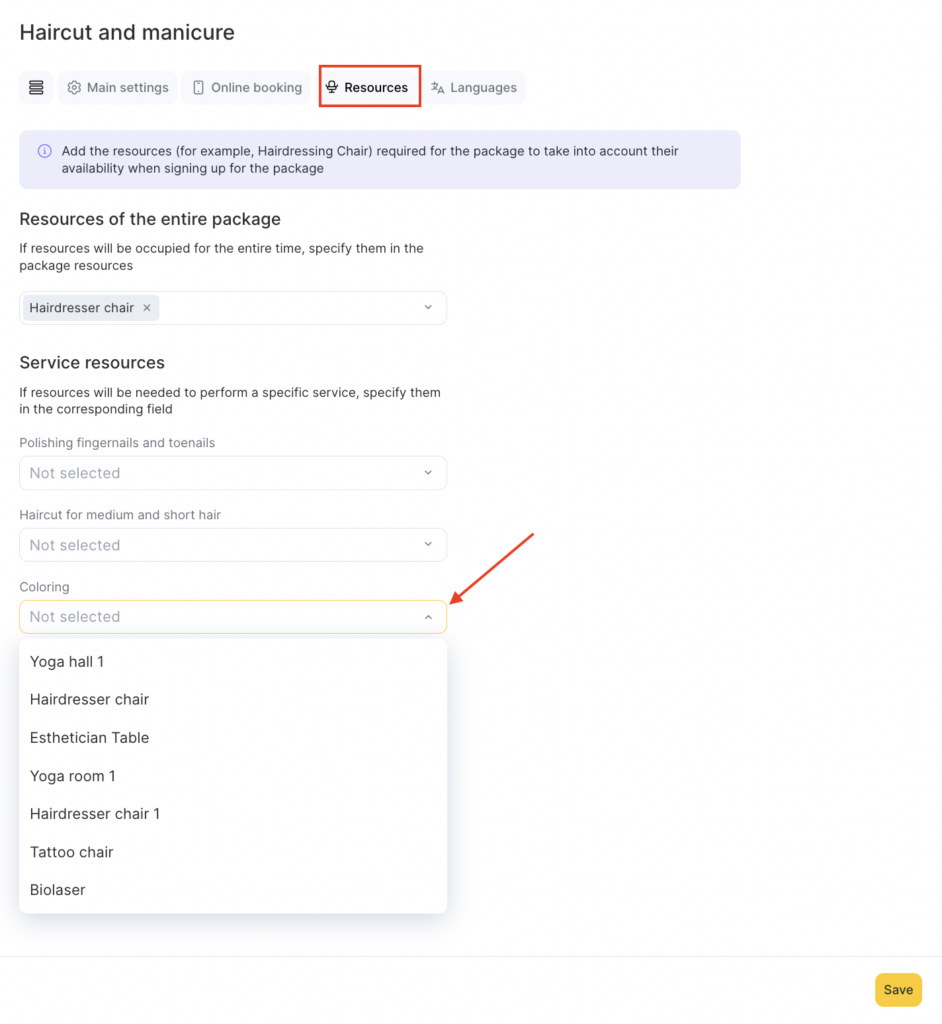
- In the Service resources block, you can unlink resources from the package services — they will be removed only from the services within the package; the resources will remain linked to the standalone services. You can also assign any other resources in this block.
Resources linked to standalone services in the package will be occupied for the duration of those services.
- In the Resources for the entire package block, you can add resources not for individual services but for the whole package. For information on how to create a new resource, see the relevant article.
Resources linked to the package will be allocated to services during booking as follows:
- If the package is sequential, the package resources will be assigned to each service in the package, meaning they will be occupied for the entire duration of the package.
- If the package is parallel, the package resources will be assigned to the longest service in the package, meaning they will be occupied for the duration of the longest service.
- When working with resources in the appointment journal, if you add another service with a different resource to a package that already uses resources for two services, the booking will be split among three resources (each resource will have its own booking).
- In the new visit window, resources are displayed on the left side.
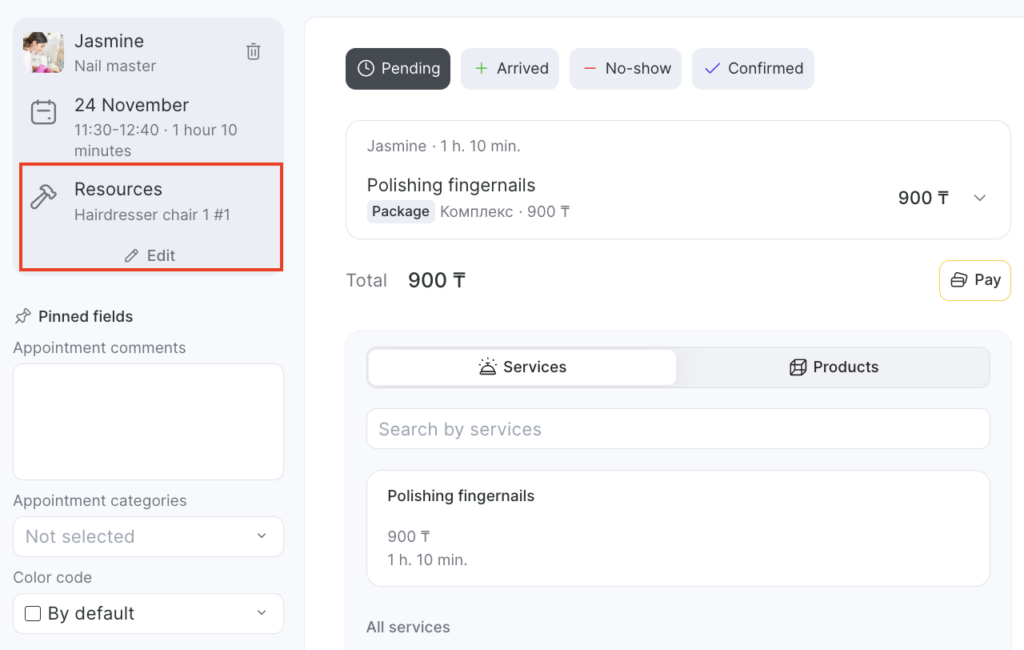
Languages #
Specify the package name in other languages so that clients see it when they change the language in the online booking widget.
Select the required language and add the translated name of the package. For more details on this setting, see here.

Complex Configuration Scenarios #
In some cases, service duration or price may be set as a range, or not specified at all. Let’s see how the package duration or price will be calculated in such cases.
- If the service duration in their settings or in the team member settings is set as a range, the package duration will also be calculated as a range:
- If Simultaneously is selected, the minimum package duration will be calculated from the lower bounds of the service ranges, and the maximum duration — from the upper bounds.
- If Sequentially is selected, the lower bound of the package range will be the sum of the minimum service durations, and the upper bound — the sum of the maximum durations.
- If services are configured with a duration of zero, the package duration will be zero. At the same time, if only some services have a non-zero duration, only those durations will be taken into account. For example, one service has a duration of 0, another 2 hours, and another 1 hour — the package duration will be 3 hours.
- If the cost of services included in the package depends on the individual price of the team member’s services or is set as a range:
- For Sum from services — the package price will be shown as a range. The minimum price will be the sum of all minimum prices; the maximum will be the sum of all maximum prices. In this case, the exact package price at booking time will only be determined after all team members are selected.
- For Set manually — you simply set the package price manually. If the package includes services with price ranges, their prices in online booking will be shown as crossed out, and the exact discounted price will only be determined at the booking stage.
- For Apply a percentage discount — the package price will be displayed as a discounted range according to the discount set in the package settings.
- If a price range is set for services in their settings or in team member settings only for the upper or only for the lower bound (that is, “Price from” or “Price to”), then the package price will also be calculated taking this partial range into account.
- For services without a price:
- If the package contains only services with a price of zero, the package price can only be set manually.
- If the package contains at least one service with a price, any pricing option can be used. The package price will then be calculated based on that one service.
- If the package contains several services with a price and several with zero price, any pricing option can also be used. The package price will be calculated only from the services with a non-zero price; zero-priced services will not be included in the calculation.
Notes
It is not possible to assign a separate bill of materials to a package. However, if services in the package have bill of materials linked to them, those cards will still apply.You cannot assign specific team members directly to a package — team members are assigned automatically based on the services they are linked to.
You cannot change the duration in the package itself — only in the service or team member settings.
Exporting and importing packages via Excel is not yet available.
If you change a service type from individual to group in the service settings, a warning Package not configured will appear in the package settings. In this case, the package will not work.

