
For business owners
Altegio.me is a free mobile application for your clients. With Altegio.me, you can notify clients about appointments, promotions, and any other activities for free via push notifications.
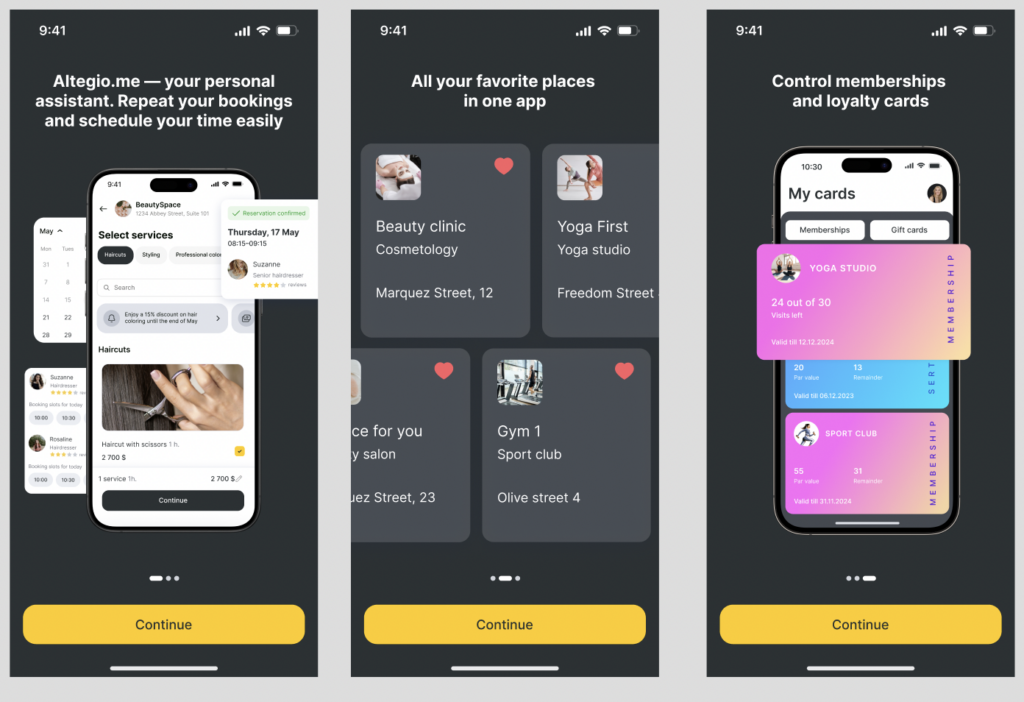
The application helps beauty salons, sports studios, medical clinics, and other establishments interact with users. Specifically:
- Saves budget on SMS notifications and chatbots.
- Strengthens presence in mobile channels.
- Attracts an active audience.
The following Push notifications are available in the application:
- Creation of an appointment through the appointment calendar.
- Creation of an appointment through the online booking widget.
- Confirmation of a client’s appointment created through the online booking widget.
- Request for appointment confirmation by the client.
- Upcoming visit.
- Invitation for a repeat visit.
- Deletion of an appointment created through the online booking widget.
- Request for a review after a visit, the appointment for which was created through the online booking widget/appointment calendar.
- Birthday congratulations.
- New discount.
- Expiration of a discount.
- Notification to the client about a successful online payment.
- Mass mailings to clients.
Important
Clients can only see establishments in which they have ever made an appointment online or through an administrator. To view all their appointments in the app, users need to read the user agreement upon authorization and allow data processing.
In the app, the display of a promotional block is available, as is in the online booking widget.
Online sales of memberships and gift cards are also available. Additionally, if an image is uploaded for the type of memberships or gift card, it will be displayed on the client’s loyalty card.
For clients
Altegio.me is a convenient app for booking appointments with your favorite specialists for any services in one place. If a client has ever booked services through. Altegio, they will be able to view information about their visits.
Advantages of Altegio.me for clients:
- Any visit can be repeated with the press of a button: no need to search for the studio and select a specialist again.
- Independent management of visits in the personal account: canceling and rescheduling appointments.
- All necessary information at hand: visit history, loyalty cards, and gift cards.
To download the app, visit:
Google Play
AppStore
Note
OS requirements:
• iOS 12.0 and higher
• Android 5.0 and higher
How the app works
Authorization
The user installs the Altegio.me app on their device. Next, it’s necessary to log in with the same phone number that the client previously used to book through Altegio. After entering the number, a confirmation code will be sent via SMS (sending the code does not require an SMS aggregator connection). If the device is allowed to auto-fill the code, it will be filled in automatically after the message is received.
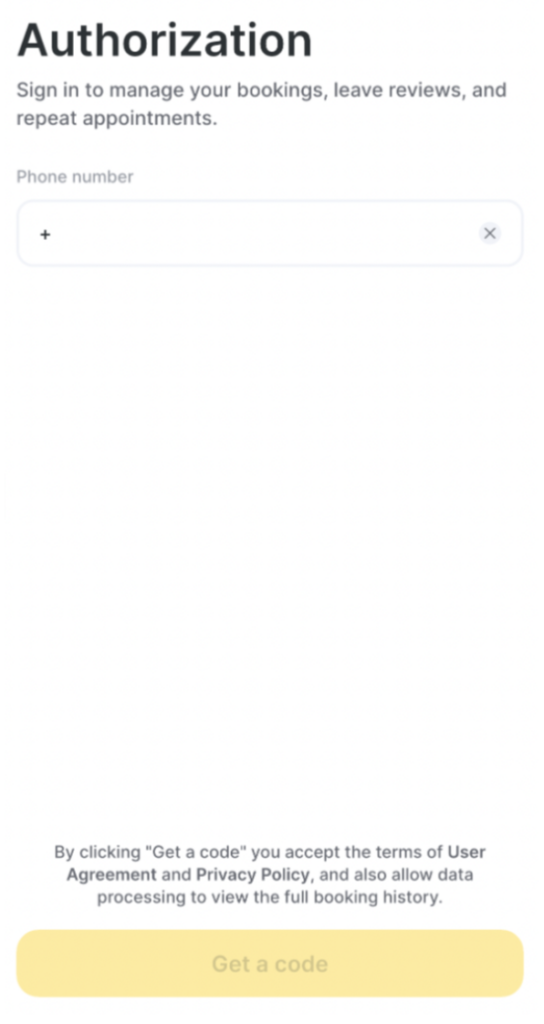
After entering the number, a confirmation code will be sent via SMS (you don’t need to connect to an SMS aggregator to send the code).
If you enable code entry on your device, the confirmation code will be filled in automatically after receiving the message.
After authorization, the app’s main page will open. All information on the page is divided into different sections; we’ll cover each feature in more detail below.
Appointments
In the “Appointments” section, all upcoming, past, and canceled appointments made by the visitor using the phone number with which they are authorized in the app are displayed. The appointment cards are arranged in a carousel, which can be scrolled. Also, you can go to the page with all appointments through the “All” button.
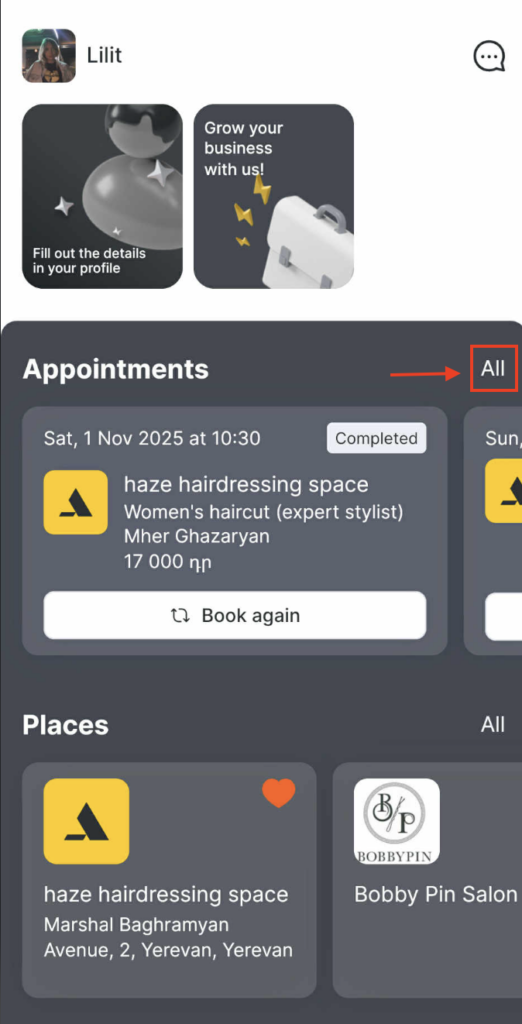
In this section, you can:
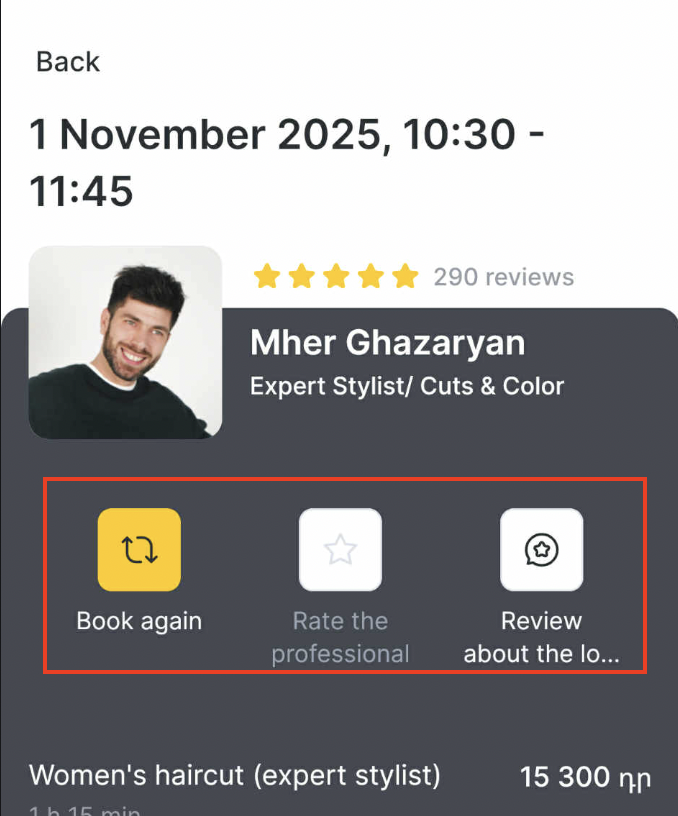
- View past appointments, repeat them, or rate them. In the card of a past appointment:
- Pressing the “Book again” button will open the branch booking form, where you only need to choose the date and time for the appointment; other parameters will be selected by default.
- Pressing the “Rate the professional” button will open a form to leave a review about the specialist. If the appointment was canceled, then the button will be inactive.
- Pressing the “Review about the location” button will open a form to leave a review about the company.
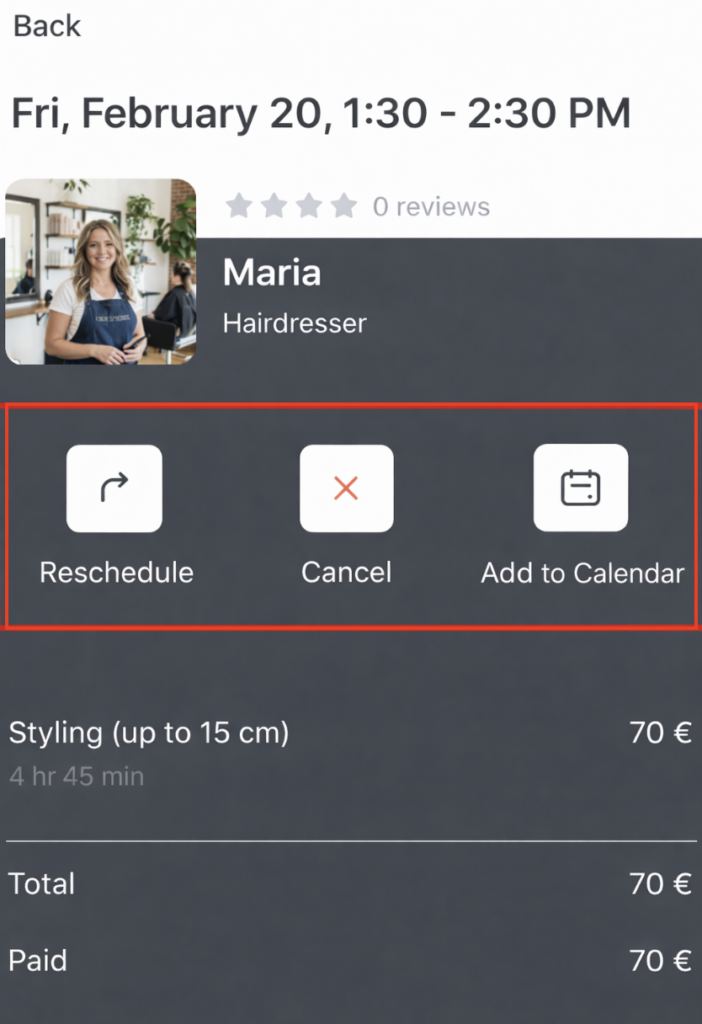
In addition, you can view upcoming appointments, cancel, or reschedule them, if such option is enabled in the online booking settings.
Places
In the “Places” section, all the companies where the visitor has ever made an appointment using the phone number with which they are authorized in the app are displayed. The company cards are arranged in a carousel, which can be scrolled. Also, you can go to the page with all companies through the “All” button.
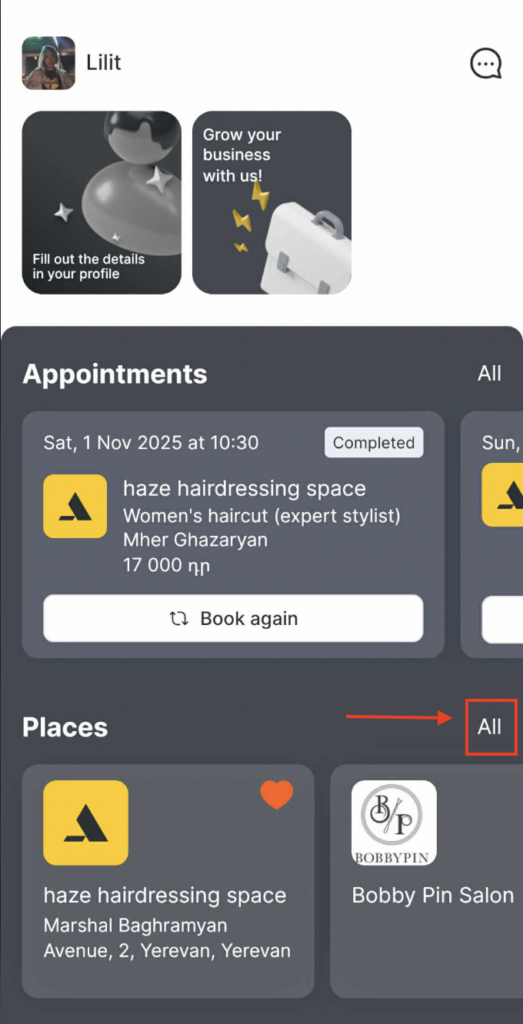
In this section, you can:
- View all the companies added to Altegio.me where an appointment was made.
- View all your appointments at these companies.
- Purchase memberships and gift cards online (if online sales are set up, read more about this in the article).
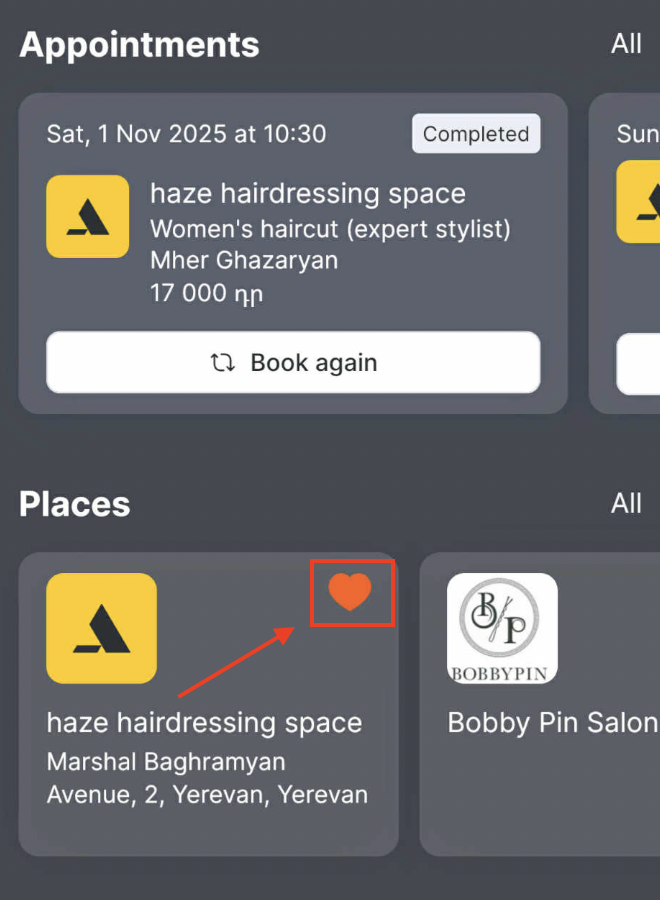
- Add a favorite place to your favorites (by pressing the heart icon next to the name) and view the list of favorite places.
- View company information. The company data are the same as those in the online booking link on the “About the company” tab: address, description, working hours, website, phone number, links to social networks, reviews.
- Book online for any service. After pressing the “Book” button, the main online booking form of the location will open. You can also repeat a past appointment through the “Book again” button.
- Call the company if a phone number is listed in the location information. After pressing the “Call” button, the company’s phone number will be copied (if there are multiple numbers, the first one will be copied).
Memberships
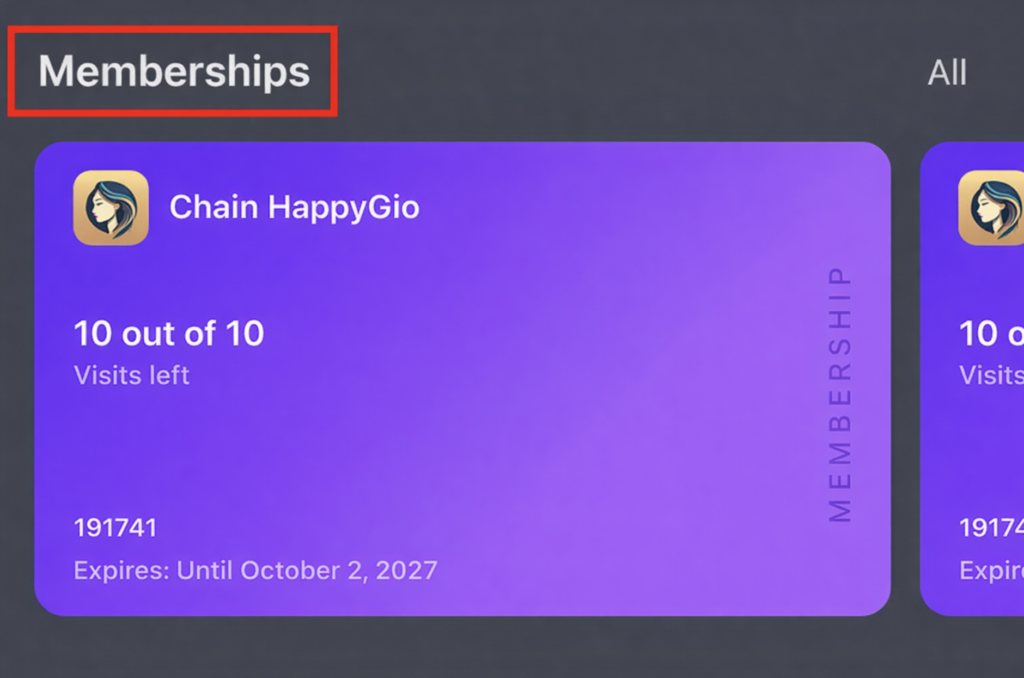
In the “Memberships” section, all available memberships purchased by the client are displayed. The cards are arranged in a carousel, which can be scrolled. Also, you can go to the memberships page through the “All” button.
Clicking on any membership card will display: the company’s name and logo, the number of visits and how many visits remain, the membership number, validity period, the duration for which freezing is available (if such a setting is enabled in the type of membership), and which services the membership applies to.
Additionally, the client will be able to book services directly from this section—if the loyalty form (card, membership, gift card) is valid in the location, then clicking the “Book” button will open the required widget. If the membership is valid in different locations of the chain, several locations will be offered to choose from.
If the membership is frozen, it will be marked with a snowflake ❄️; if it is about to expire, it will be marked with a flame 🔥.
Gift Cards
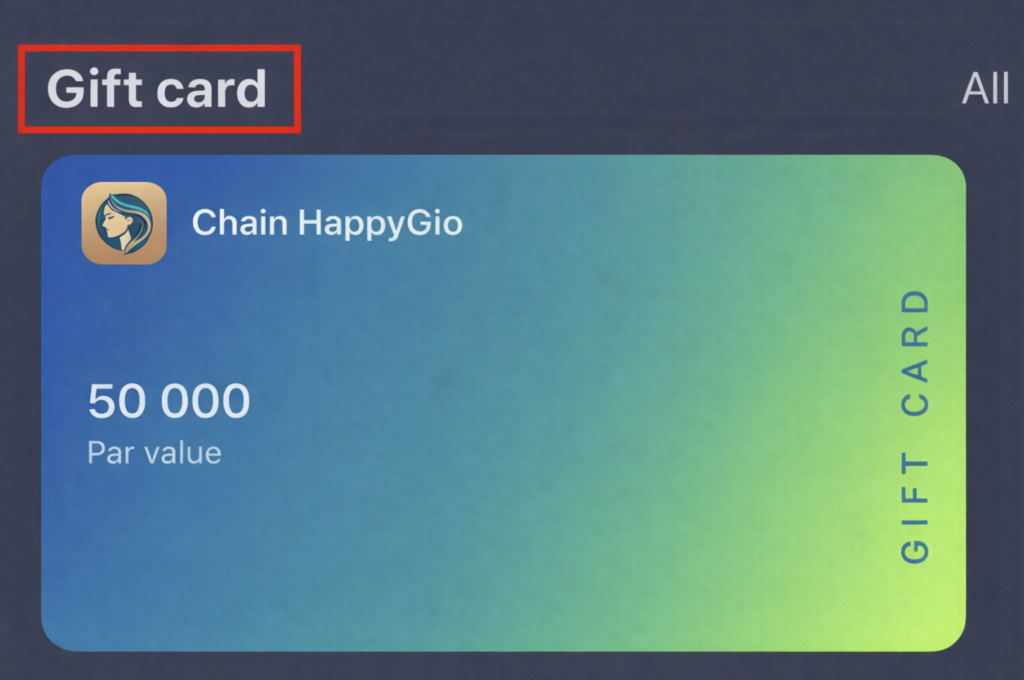
In the “Gift cards” block, all available gift cards purchased by the client are displayed. The cards are arranged in a carousel, which can be scrolled. Also, you can go to the gift cards page through the “All” button.
On the gift card, the following information is displayed: the nominal value (balance), remaining balance—if the deduction is multiple, validity period, number of uses—can be used only once or multiple times, as well as what the gift card applies to—services and/or goods or without restrictions.
Note
If you have a chain of locations, then the logo in the loyalty cards will be taken from the main location of the chain. If your location has online sales of memberships and gift cards enabled and the sales button is added to the online booking widget, this sales button will also be displayed in Altegio.me.The button and widget for selling memberships and/or gift cards are available during online booking in the widget, in the “Places” section on the company’s page in the “Purchases” block, and when accessing the membership card.
Adding an image to a membership or gift card
If you enable the option for online sales for a type of membership and/or gift card and upload an image, it will also be displayed in the Altegio.me app.
Even if you do not sell memberships and gift cards online, uploading an image is still available.
To add an image:
- Go to the chain interface Loyalty > Membership Types / Gift Card Types.
- Select the type of membership/gift card or create a new one. You can read more about creating a new type of membership here, and about creating a new type of gift card here.
- On the page or tab Membership / gift card settings enable the option Available for selling online and upload the required image.
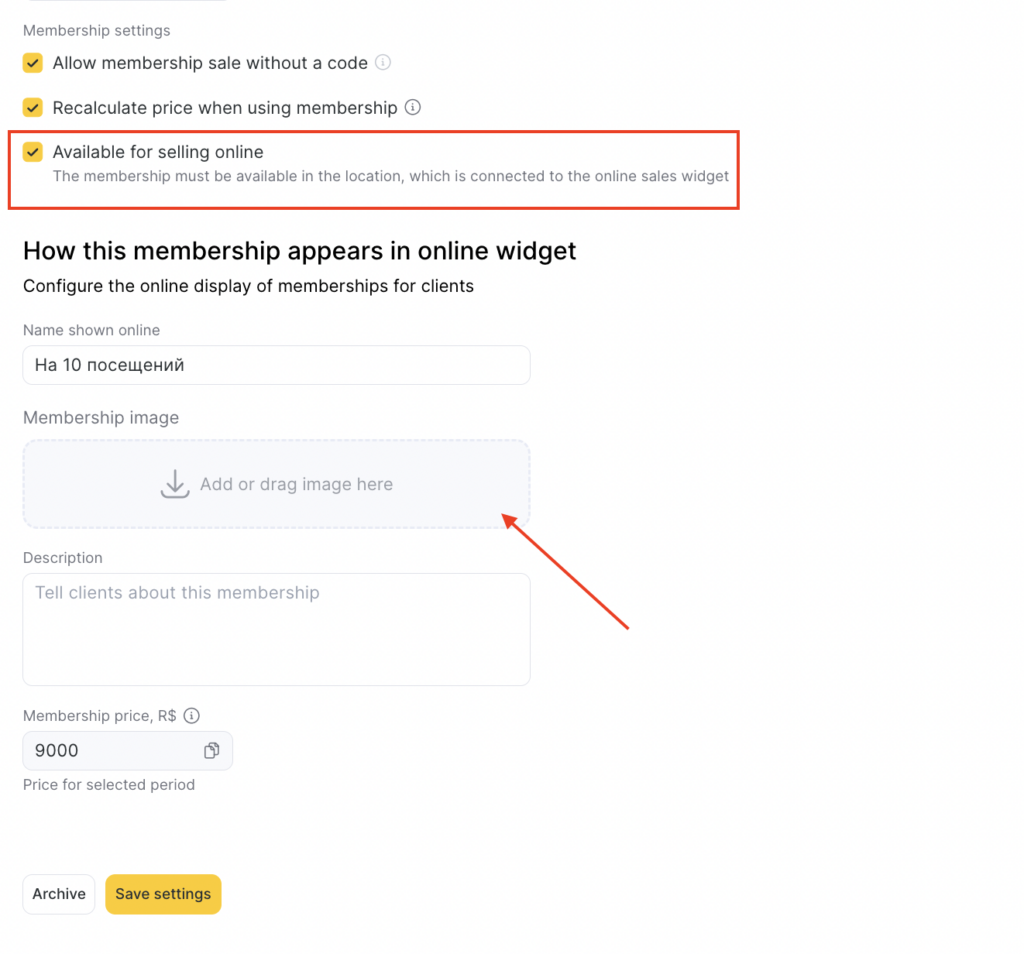
- Uncheck the Available for selling online option if you do not plan to sell online or if it is not available, there is no need to delete the image.
- Click the Save button. After, the uploaded images will be displayed in the cards of purchased memberships and gift cards in the app, regardless of how the membership and/or gift card was purchased—online or during a visit to the company.
Image upload recommendations
The recommended minimum image size is 288 x 184 px, not exceeding 12 Megabytes.
The image should be in horizontal orientation. If an image in vertical orientation is uploaded, it will be cropped to fit the horizontal layout.
After adding an image, you need to wait for 5-10 seconds for the photo to upload to the server, after which you can save the membership/gift card type settings.
Notifications
The “Notifications” section displays all Push notifications sent by companies in Altegio.me.
To access notifications, press the bubble icon in the top right corner:
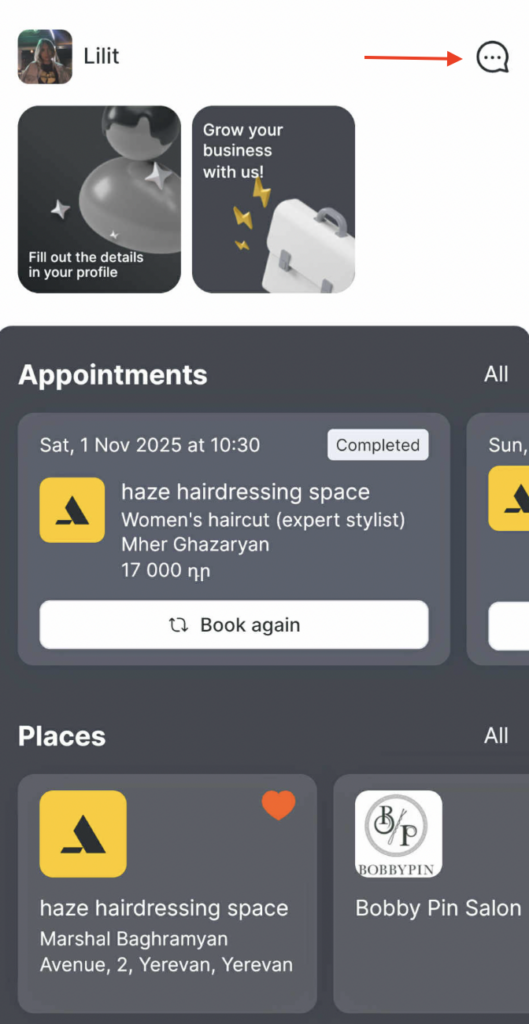
If a user misses any message, they can always return to it later. Unread notifications are marked with a dot indicating the number of messages, and a dot also appears on the section itself if there are unread messages.
For system notifications, the following options are also available: a Details button to view the details of the appointment, a Book button for a reminder about the appointment, and a Confirm button for notifications with a confirmation request.
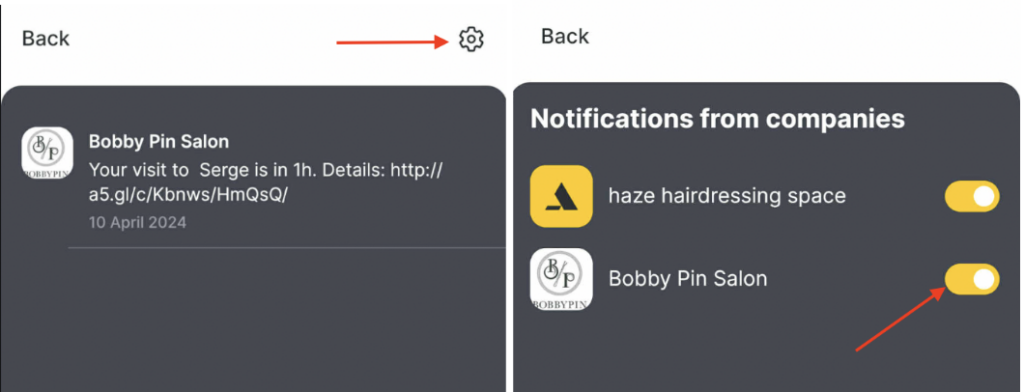
If a user wants to disable notifications from a company, they can do so by clicking on the gear icon in the upper right corner and switching the slider to the inactive state.
At the moment, Altegio.me supports sending the following notifications:
- Creating an appointment via the appointment calendar.
- Creating an appointment via the online booking widget.
- Confirming a client appointment created via the online booking widget.
- Requesting appointment confirmation from the client.
- Upcoming visit reminder.
- Invitation to book a repeat visit.
- Deleting an appointment created via the online booking widget.
- Review request after a visit (for appointments created via the online booking widget or via the appointment calendar).
- Birthday greeting.
- New discount.
- Discount expiration.
- Client notification about a successful online payment.
- Bulk messages to clients.
Important
For a push notification to be delivered, it must be enabled and configured in Altegio, and notifications must also be enabled in the app’s personal account and in the client’s phone settings. You can configure push notifications in Altegio in the Notifications section.
To display your company name in a push notification, enter it in Altegio under Settings > Brand > Company name. If this field is left empty, the push notification will show Altegio as the sender name.
Bulk messaging in Altegio.me
To send a bulk mailing in Altegio.me, go to Clients > All Clients and select Bulk actions > Send Push to Altegio.me.
(The Send Push to the mobile app action works only for your own branded client apps. For more details, see the articles — article 1, article 2.)
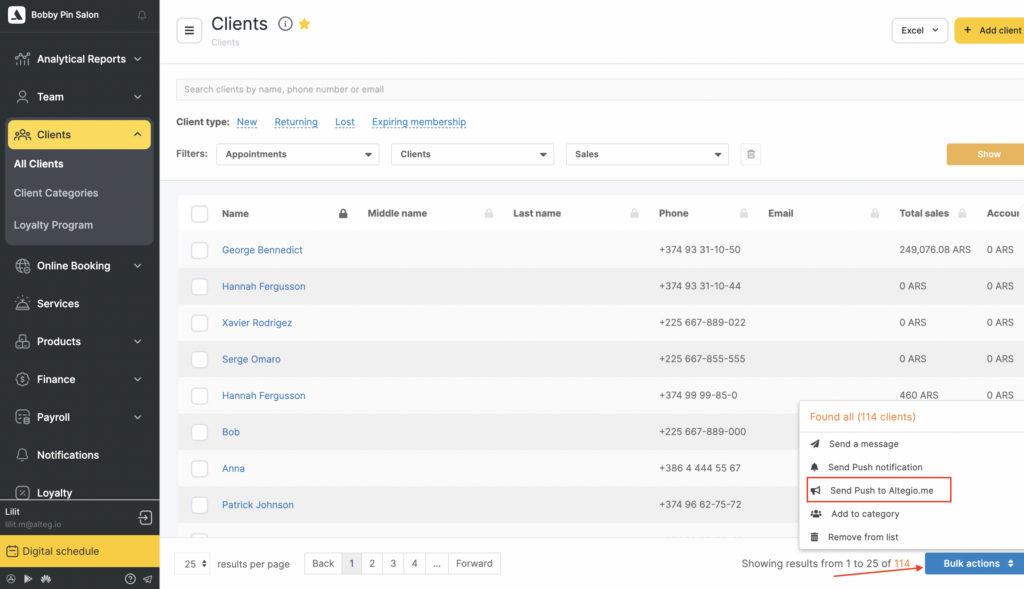
When sending a push notification, the client database will show the number of clients who have the app installed. After sending, clients who have the app installed will receive a push notification. When they tap the message, the online booking widget will open in their browser.
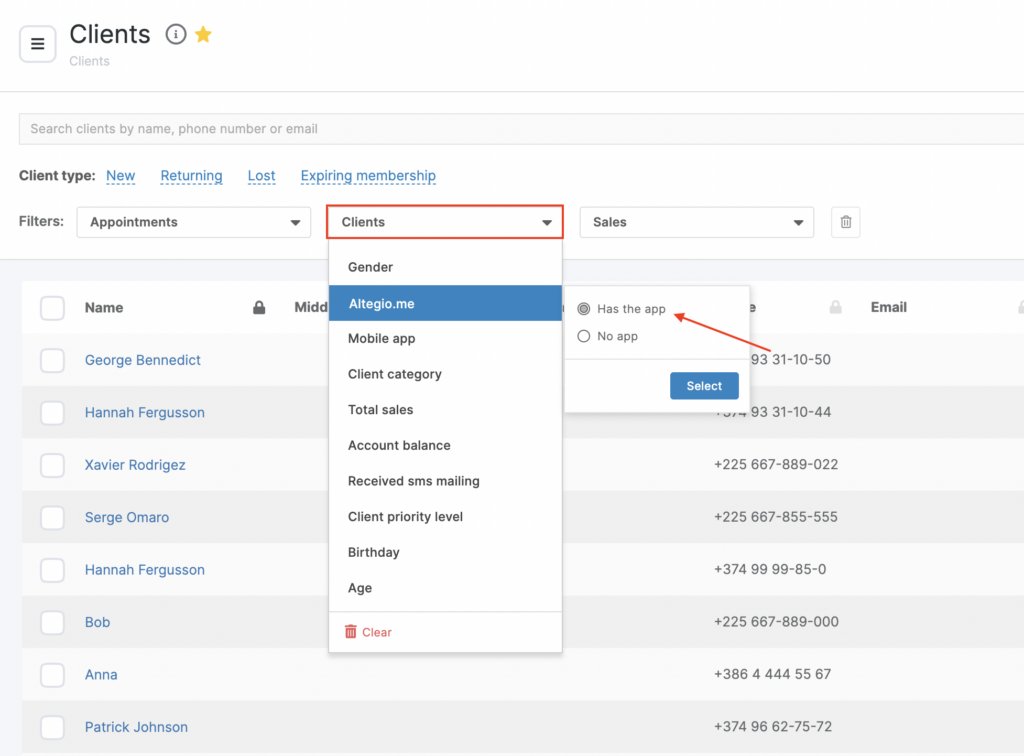
You can also filter clients in the database who have the app installed. To do this, select the filter:
Clients > Altegio.me > Has the app > Select, then click Search.
Note
If a client installed the app and later deleted it, the client may still appear when searching in the client database using the filter Clients > Altegio.me > Has the app. However, after you send a notification via Bulk actions > Send PUSH in Altegio.me, if the message is not delivered, the client database will update and the filter will no longer show that client.
Personal account
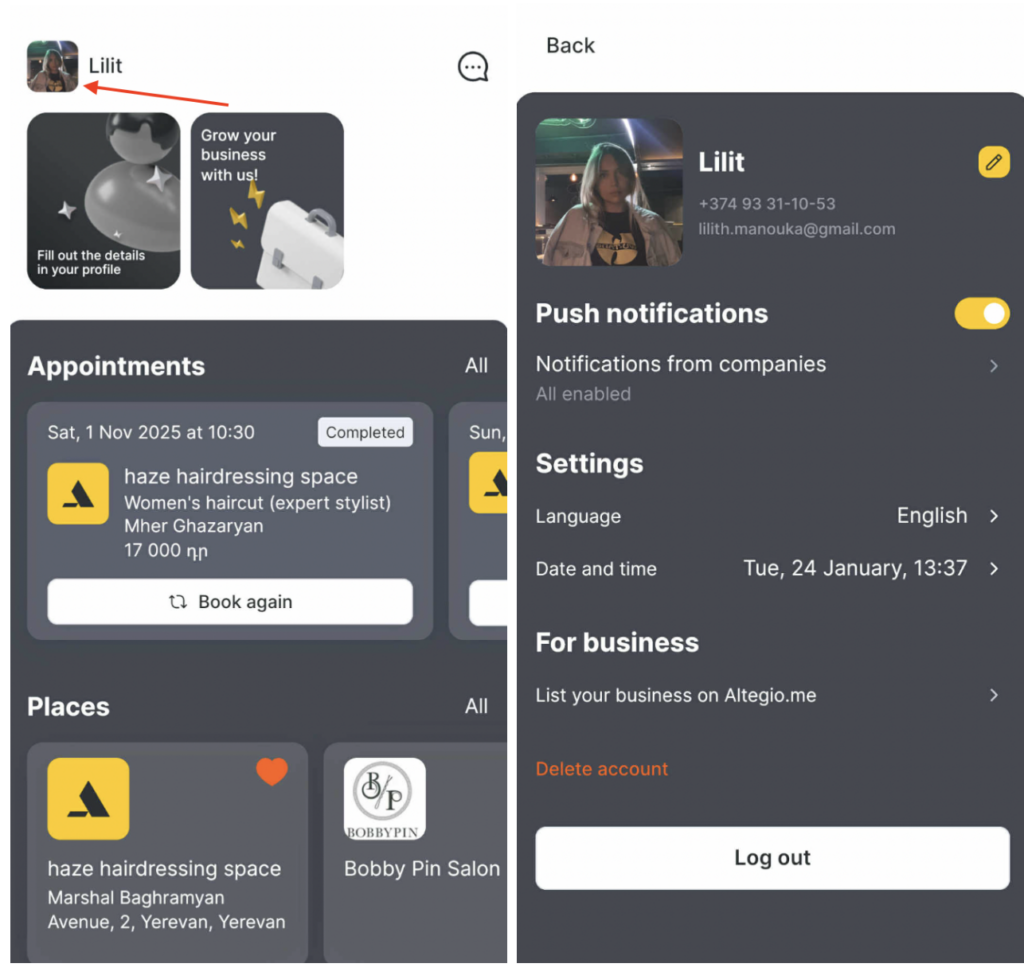
To access your personal account, click on your name in the top left corner of the main page. In the personal account, you can:
- Upload/change your photo.
- Change your name.
- Enable/disable app notifications (this will take you to the device’s notification settings).
- View your loyalty cards, bonuses, discounts, and promotions.
- Change the language and the format of the date and time.
- Log out of your account.
Loyalty cards are available when viewing all subscriptions or gift cards under the “Loyalty cards”tab, as well as in the personal account. In the “Discounts”block, the client will see promotions, the accumulated amount of bonuses, or a discount, depending on the promotion applied to this card. Clicking on the card number will copy it to the clipboard.