
When all the online booking settings are completed, add the online booking widget to the website.
If you have already customized the online booking button design and want to open an online booking form by clicking the button, then this option is for you.

The online booking widget can be attached to any button on the company’s website. Therefore, first of all, you need to paste the code of the button itself on the site:
<code><a href="#" class="ms_booking">Online booking</a></code>Setup #
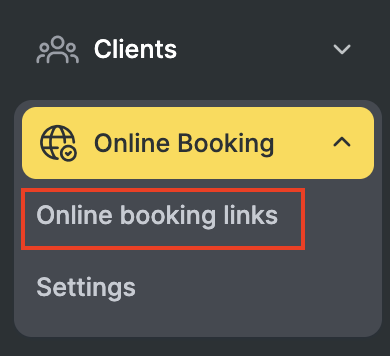
- In the Administration mode go to Online booking > Online booking links section.
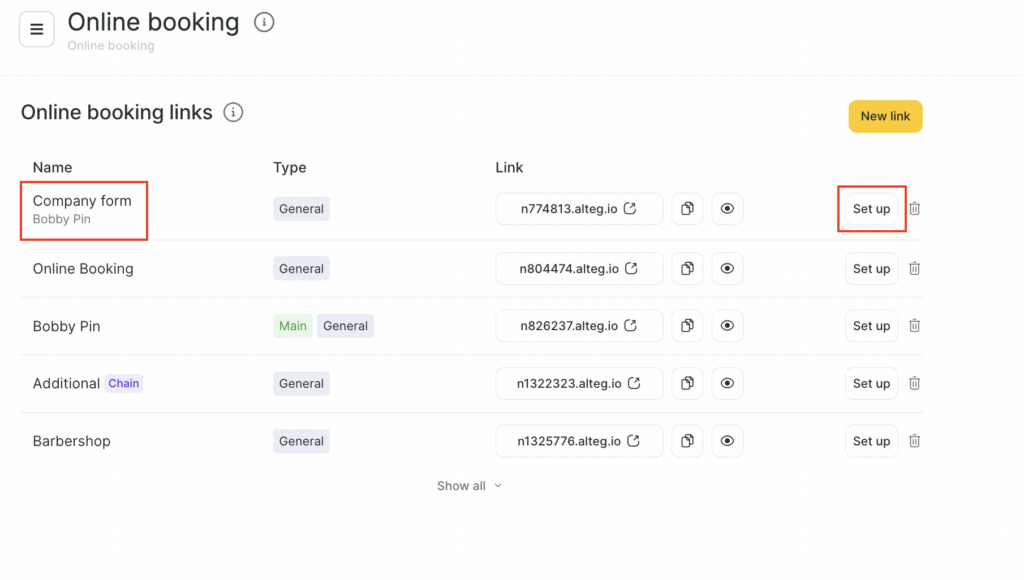
- Select the required form and click Set up button. If needed, create a new online booking form (learn more about in this article).
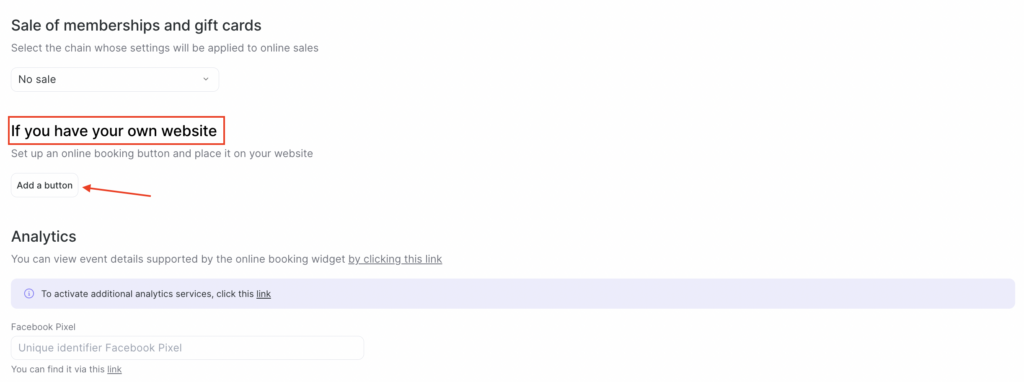
- In the window that opens, find the If you have your own website section and click Add a button — the button settings will appear.
- Find the button code below. Copy the button code and place it before the closing </body> tag on every page of your website.
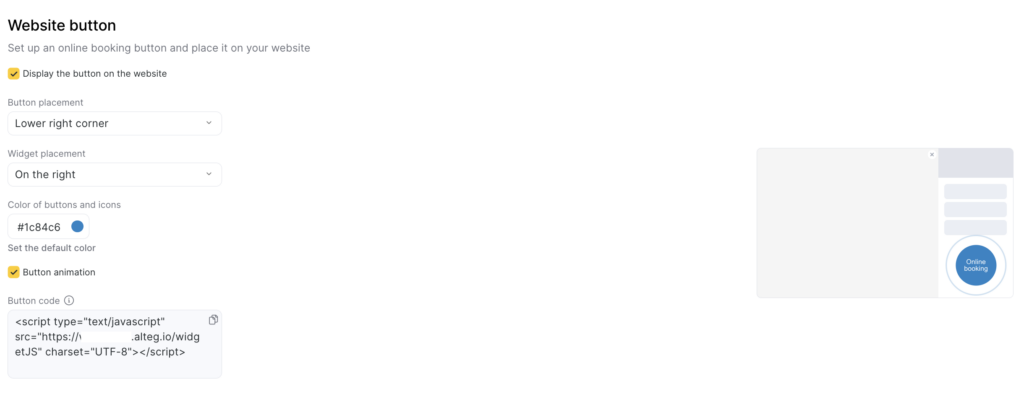
The code looks like this:
<script type="text/javascript" src="https://w11782.alteg.io/widgetJS" charset="UTF-8"></script>
In this example, 11782 is the unique identifier of a specific form.
<script type="text/javascript" src="//w11782.alteg.io/widgetJS" charset="UTF-8"></script>
However, you need to make a small change to the code: remove https: and use the resulting version on the website.
You can also find the identifier for a specific form on the page Online Booking > Online booking links (more details in the article How to find the number (ID) of the online booking form (widget)). In your website template, the booking form code must be placed below the button code.
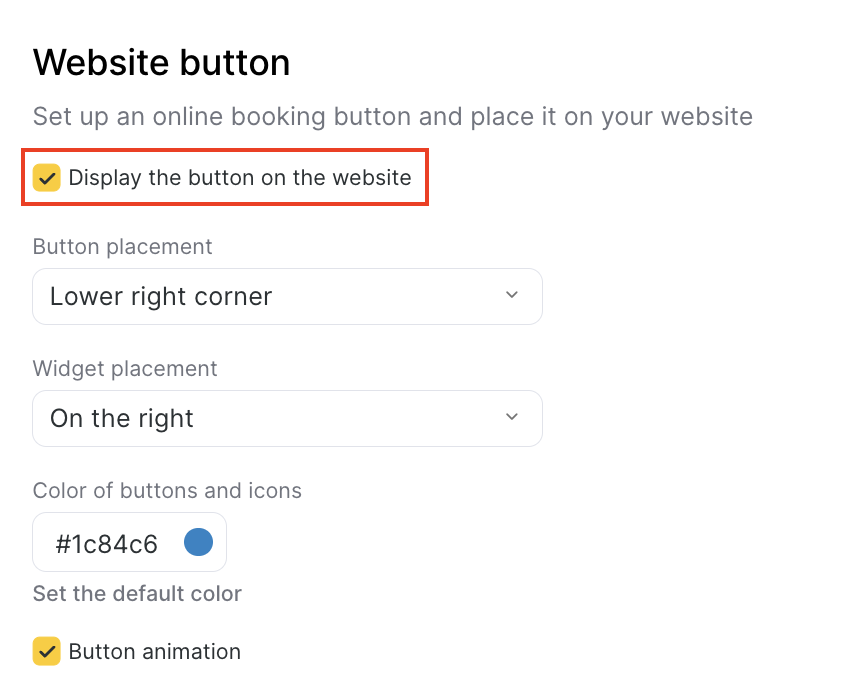
- Uncheck Display button on the website. This setting controls the display of the standard round button. It is not required for a custom button. The checkbox is enabled automatically when you click Add a button to the website. If the checkbox is not enabled, the button settings menu will be hidden. After saving the settings and copying the code, you need to uncheck it.
Important
Do not use the sample code to install on your website. You must generate the code using the instructions above. Each code includes the unique ID of your online booking link.

