What is it, and why is it needed? #
Altegio lets you automatically write off consumables when providing services. To do this, you need to create bill of materials and link them to services.
Before setting up bill of materials, make sure the required list of items exists in your inventory catalog (Products > All products).
Setup and editing #
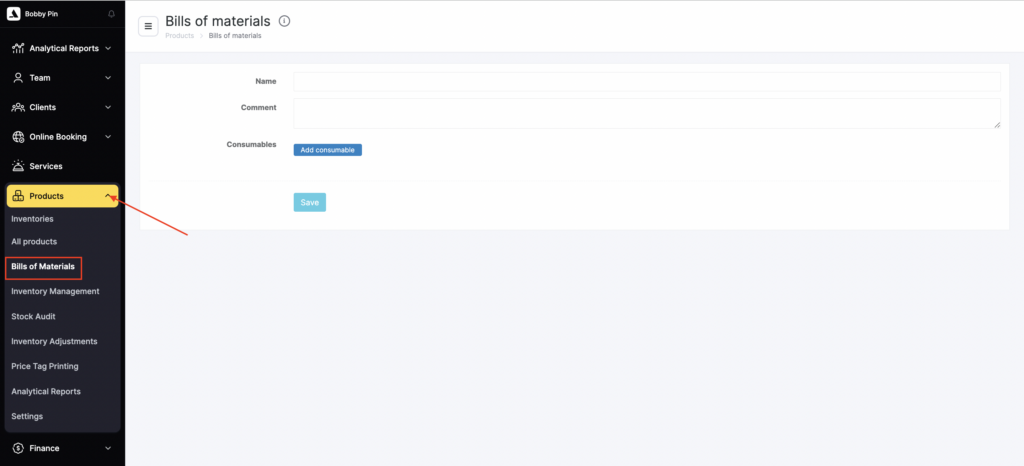
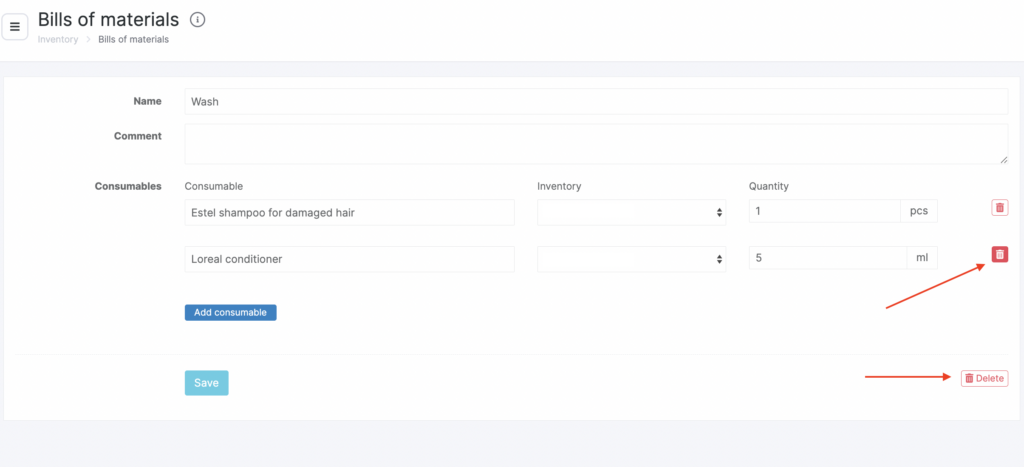
- To get started, go to Products > Bills of Materials. You can create, edit, and delete them.
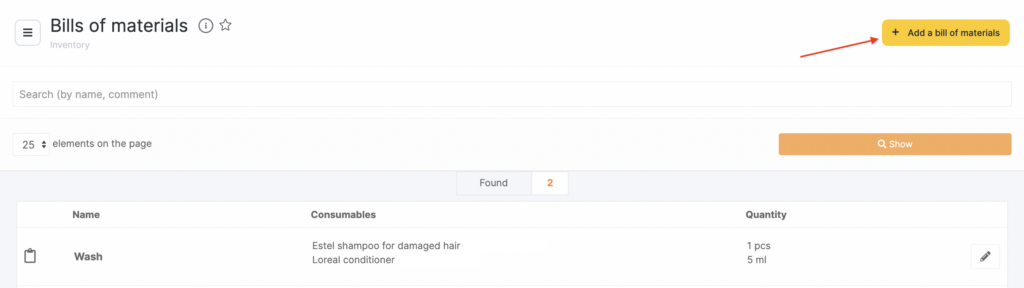
- To add a new bill of materials, click Add bill of materials (see the Creating and setting up a new bill of materials article for more details).
- To edit a bill of materials, click its name or the pencil icon.
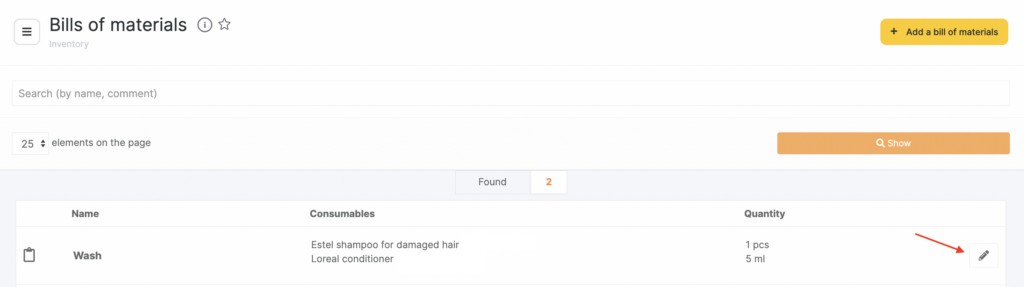
- In the window that opens, you can edit the following information:
- Name
- Comment
- Consumable
- Inventory
- Quantity of consumables to be written off under this bill of materials
Here you can also add a consumable to the bill of materials and/or remove it.
- Be sure to click Save at the end.
- To delete a bill of materials, click Delete.
Linking bills of materials to services #
In practice, to link a bill of materials to a service, you need to link it to the team member who performs that service. This makes it possible to track consumables even when different team members use different quantities of materials for the same service.
Important
Linking bills of materials to services is possible only in service settings.
Ways to assign a bill of materials to a service #
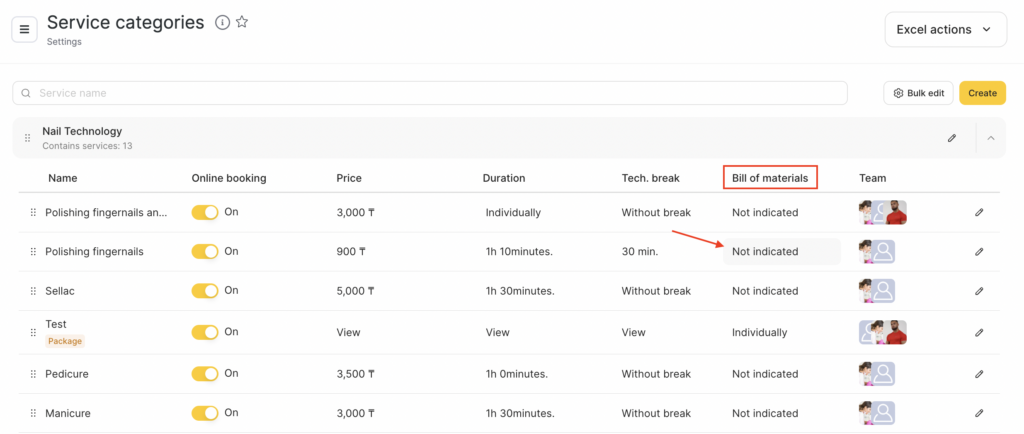
Via the quick management option #
Go to Services (Administration mode) and expand the required category. In the list that opens, select bills of materials for the relevant services.
Via service settings #
- Go to Services (Administration mode). Open the required category, select the service, and under Team click the team member photo or the Not assigned label.
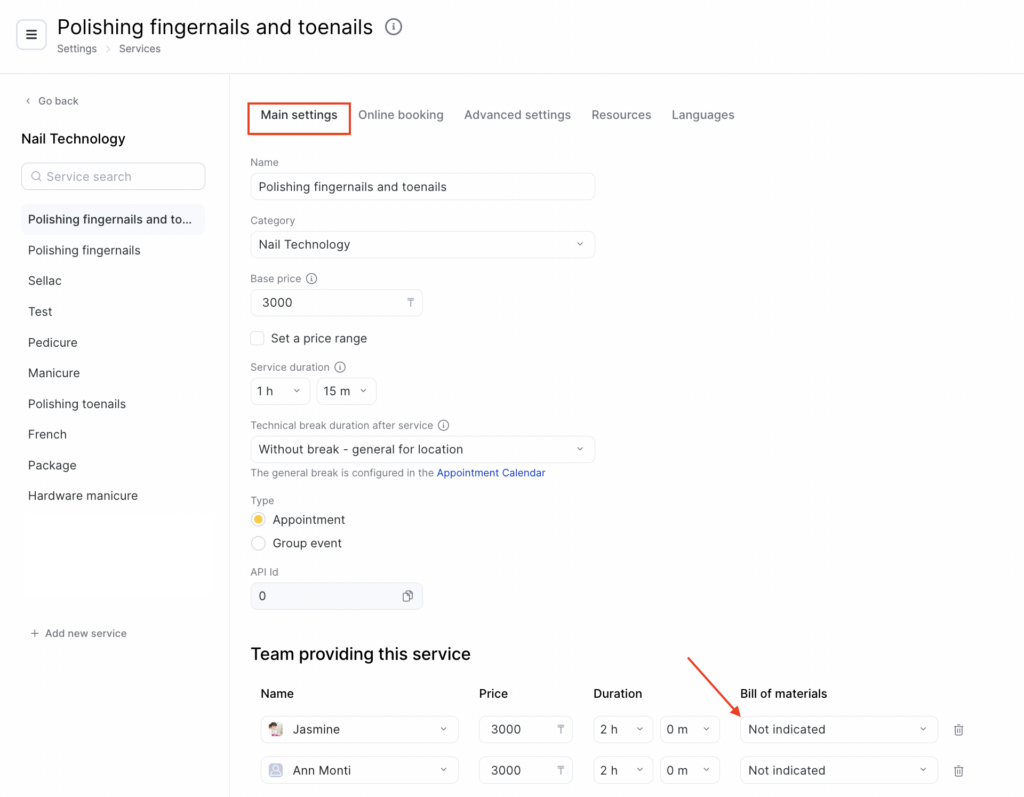
- In the new window, the Main settings tab will open. Click Assign team member if the team member hasn’t been added yet.
- Select the team member, set the Service duration, and assign the Bill of materials to the service.
- Click Save.
Via team member settings #
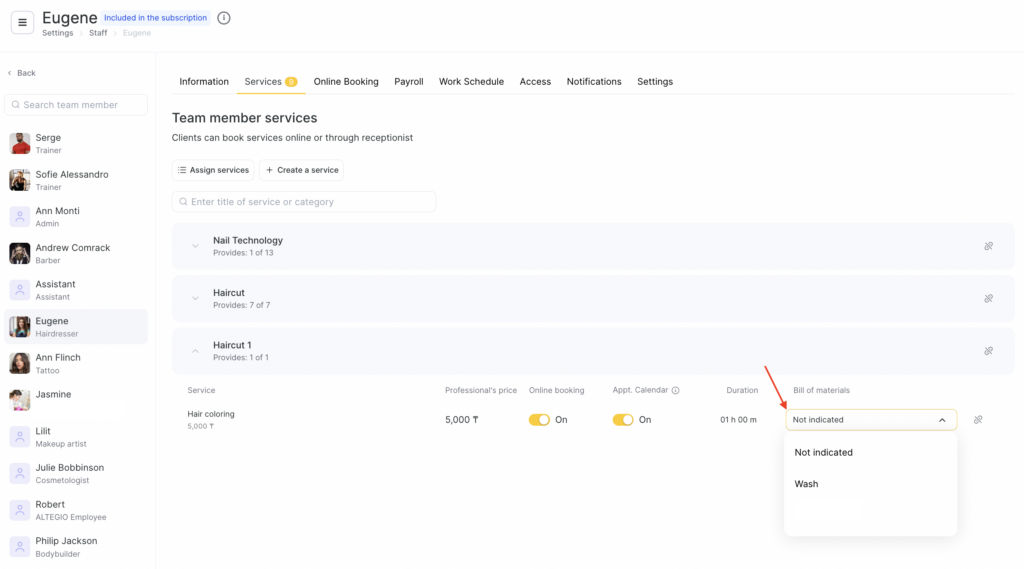
- Go to Team > Team members list. Select a team member by clicking their name or the number of their services.
- On the Services tab, add the services this team member will perform.
Click Assign services (or Create service if there are no services in the system yet). Enter the service name and category, set the price and duration. - Assign the Bill of materials to the service.
- Click Save.
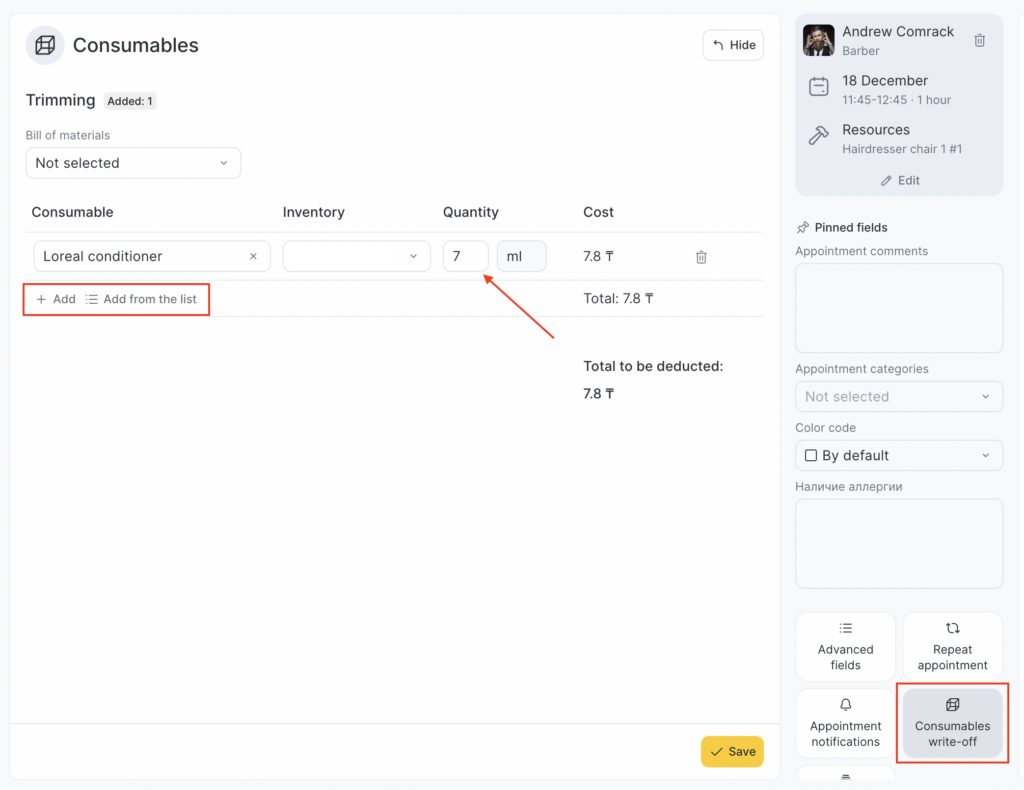
- If, when providing a service, the actual consumable usage differs from the values set in the bill of materials, you can correct it in the visit window. Open the visit window, go to Consumables write-off, adjust the values.