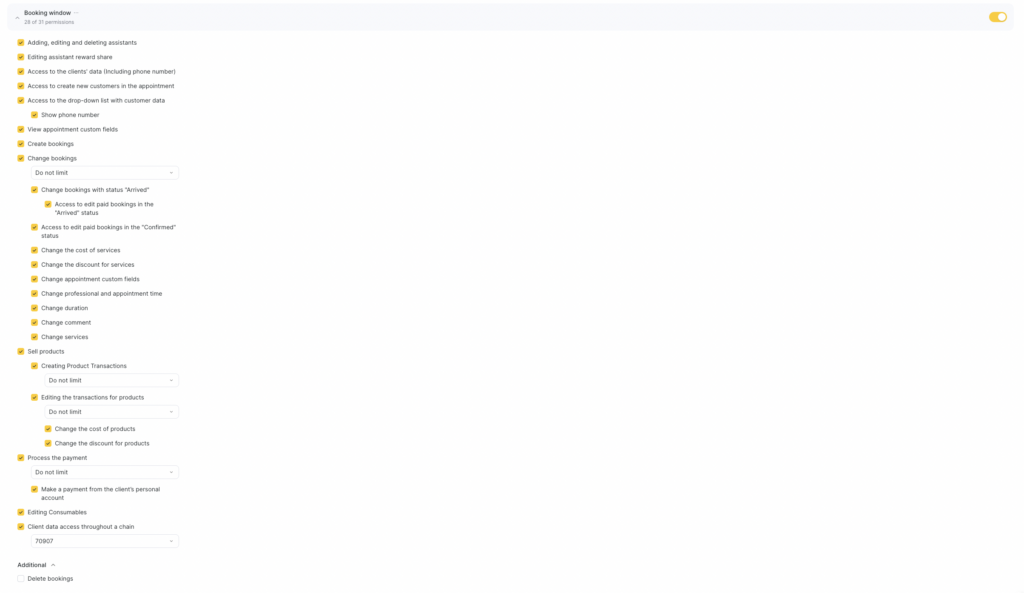
The booking window lets youadd, edit, and delete appointments in the Appointment Calendar, and process product and service sales within an appointment. In the Booking Window, you can view a client’s details, visit history, and visit statistics.
Access setup means granting/removing permissions to create, edit, and delete appointments, sell products and services, view client details, and view visit/contact history.
If you have a chain (or multiple chains), you can configure a user’s access to view client data by chain.
For example, a receptionist can create appointments but cannot edit or delete them; can sell products and take payments, but cannot see product transactions and service payment details for previous days.
To prevent information leaks, you can also block access to client data and to the dropdown list with client details.
Setup #
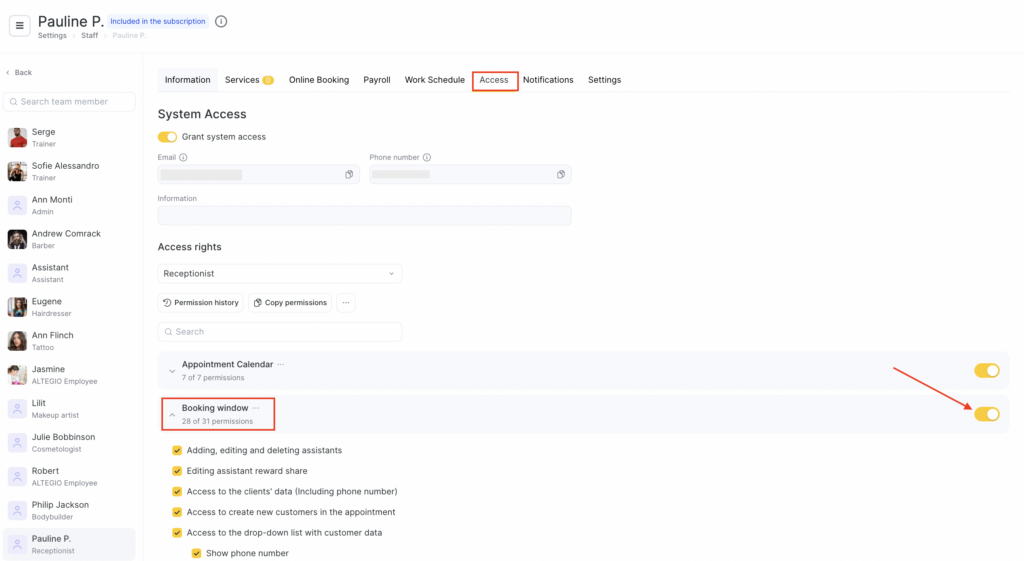
- Go to Team > Team members list (Administration mode), select the required team member, and open the Access tab.
- Find the required permission block and enable it using the toggle, then click the Booking window section name and turn on the specific permissions you want to grant to the team member.
- To save changes, click Save in the bottom-right corner.
More about each permission #
- Add, edit, and remove assistants
This permission lets you add and edit assistants for a visit.
- Editing assistant compensation share
Enable this option if you want the team member to be able to change assistants’ shares in the visit window.
Applies when Payroll calculation — General settings has the option enabled: I have services where I use more than one assistant — Each assistant receives their full commission set for the service, regardless of the number of assistants added to the service within an appointment. - Access to client data
Enable this option if the team member needs to see client data in the booking or event window. If they don’t need access to this information, leave the option disabled.
Client data includes: phone number, email, client details shown on the right side of the booking/event window, loyalty program information, and the appointment details. - Access to create new clients in an appointment
Enable this option if the team member needs to add new clients in the booking or event window. In this case, the created client is automatically added to the all clients list (client database).
If you want to prevent adding new clients to an appointment or event, simply uncheck the option.
Important
The team member must have the Create appointments permission enabled; otherwise, the input fields (name, phone, email) will be unavailable.
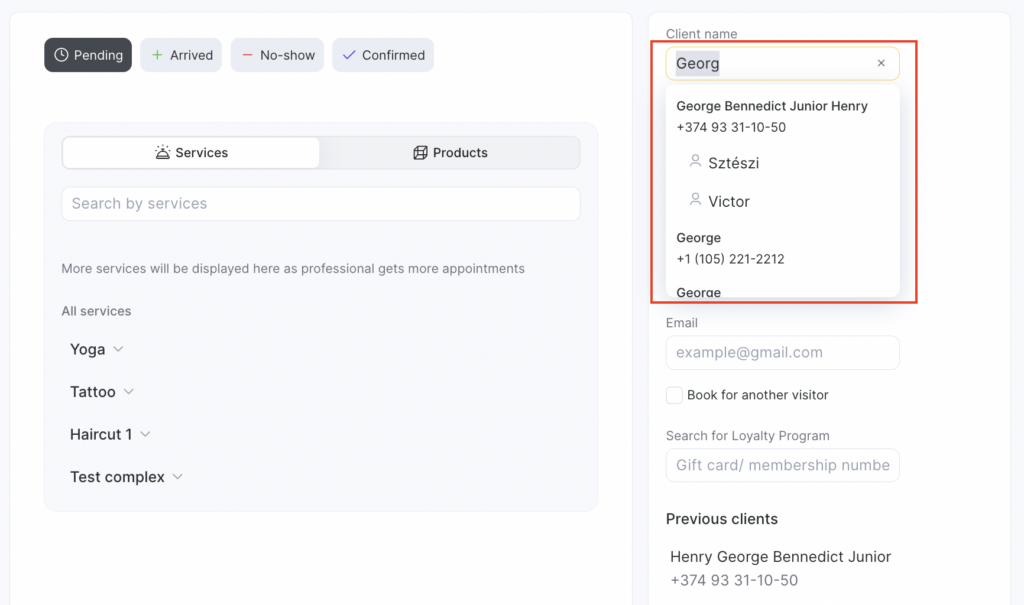
- Access to drop-down list with client data
Enable this option if the team member needs to search for existing clients and select them from the list when creating an appointment. If the team member doesn’t work with client data and shouldn’t see the client list, disable the option.
The client drop-down list is the list of existing clients from the database that appears when searching by client details (name, email, and also phone number, last name, middle name, and loyalty information — if the team member has the relevant permissions).
Show phone number Enable this option so the team member can see phone numbers in the dropdown list. If you need to hide phone numbers, leave the option disabled.
- View custom appointment fields
Enable this option so the team member can see additional custom fields added to the appointment. These fields are created in the chain interface and also in the location interface for the online booking widget (details are covered in the relevant article).
- Create bookings
Enable this option if the team member needs to add new appointments or events to the Appointment Calendar.
- Change bookings
Enable this option so the team member can edit existing appointments. The permission applies only to unpaid appointments and those that are not in the Arrived status.
Basic appointment editing allows the team member to:
- change the appointment/visit status;
- add and edit services and their quantity (without changing the price);
- remove services from the appointment;
- add comments, notes, categories;
- change the appointment color;
- work with resources;
- change the client (if the team member has access to client data).
After enabling this permission, you can configure additional, more granular permissions for managing changes.
Choose the period during which the team member can make changes to previously created appointments. This helps prevent backdated edits and reduces the risk of mistakes in financial reporting.
You can set a limit from 1 day to 6 months, completely prohibit edits in the past, or allow access with no limits.
Edit appointments with status “Arrived”
Allow the team member to edit appointments in the Arrived status with the same set of capabilities as Edit appointments. Changes are allowed only for unpaid appointments.
Permission to edit a paid appointment in status “Arrived”
If enabled, the team member can make the same changes as under Edit appointments, but for paid appointments in the Arrived status.
Permission to edit a paid appointment in status “Confirmed”
Allow the team member to edit paid appointments in the Confirmed status — similar to the permission to edit a paid appointment in the Arrived status.
Change the cost of service
Allows the team member to adjust service prices at the time of payment.
Change the discount for services
Allows the team member to add a discount to a service or change an already applied discount at the time of payment.
Change appointment custom fields
Enable this option so the team member can edit additional fields added to the appointment. These fields are created in the chain interface, and also in the location interface for the online booking widget.
Change professional and appointment time
Allows the team member to change the assigned professional, date, and time — effectively rescheduling the appointment via the booking window.
Change duration
Allows the team member to adjust the appointment duration. This permission works independently from the ability to change the professional or date/time — you can grant access to duration changes only, without allowing rescheduling.
Change comment
Allows adding and editing comments in the booking window. If disabled, comments remain available only for viewing and copying.
Change services
Restricts the ability to add services to an appointment and to change their quantity if they are already set.
- Delete appointments
Enable this option if you want to allow the team member to delete client appointments. By default, only unpaid appointments in any statuses except Arrived can be deleted. Additional advanced settings are available:
Delete appointments with status “Arrived”
Allows the team member to delete unpaid appointments that have already been moved to the Client arrived status.
Delete paid appointments
Enable this option to allow the team member to delete appointments that have already been paid.
- Process product sales
Enable this permission to allow a team member to sell products within a visit.
You also need to set the period for which the team member is allowed to create product transactions in the past. This limits the ability to record sales “retroactively” and helps avoid mistakes in financial reporting.
You can restrict access from 1 day up to 6 months, leave it unlimited, or completely block creating transactions for past periods.
Edit product transactions
Allows a team member to make changes to product sales within a visit.
Just like with creating transactions, choose the period in the past during which these operations can be edited.
This permission does not allow edits on its own — it only enables access to additional permissions:
Change product price
Change product discount - Process payments
Enable this option to allow a team member to process visit payments using different payment methods. Also set the period for which the team member can process payments in the past. This limits the ability to process payments “retroactively” and helps avoid errors in financial reporting.You can set the period from 1 day up to 6 months, leave it unlimited, or completely block payments for past days.
Process payments from the client’s personal account
Additionally allows a team member to charge payments from the client’s personal account.You can read more about creating and using a personal account in a separate article.
- Edit consumables
Enable this option so the team member can add and edit consumables in an appointment.
- Client data access throughout a chain
If the company uses a chain (or multiple chains), you can grant the team member access to view client data within the selected chain: number of visits, sales and payment totals, loyalty data, and other metrics.