After filling out the initial settings sections, add and edit information about the company’s services.
All services are grouped into categories. A Category is a section (folder) containing several types of similar services or jobs.
Examples of categories: haircuts, coloring, consultations, quests, body repair.
New category #
- Go to the main menu and open Settings > Main settings > Services.
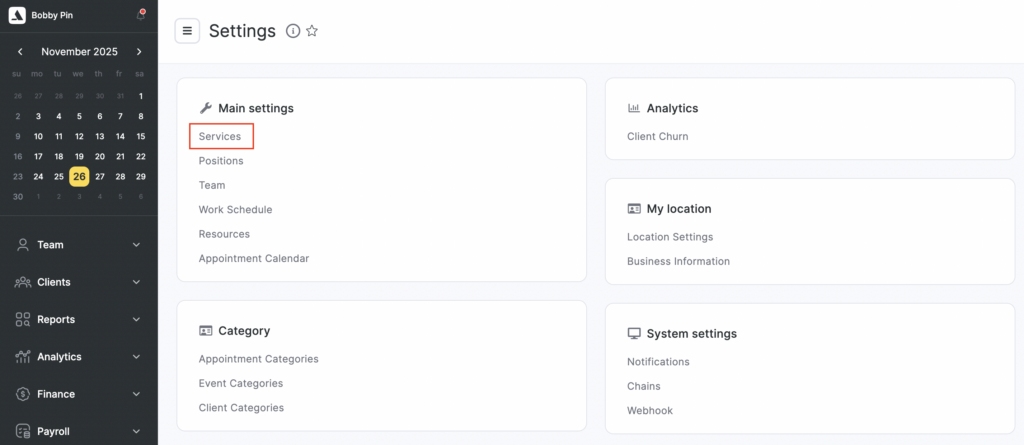
- To add a new category, click the Create > Service category button. A new window will open where you need to enter information about the category.

- Specify the Name of the category, for example, Haircuts.
- Check the Use a different name for online booking checkbox if you want to use a different name in the online booking widget. If you do not specify another name, the main category name will be used.
- In the Name for online booking field, enter the category name that clients will see when booking online.
- Click the Create button.
Editing #
In Settings > Main settings > Services you can see a list of all categories with their services.
There are controls to the right and left of the category name; use them to edit the category and move it within the list.

To edit an existing category or delete it, click the Edit (pencil) button. In the new window that opens, make the necessary changes and click Save.

To delete a category, click the Delete button. A warning window will appear: Deleting a category will have irreversible consequences: deletion of nested services in the category, loss of all associated operations and settings.
Enter the word DELETE to confirm deletion.
To view existing services, click the folder with the category name. A dropdown list will open where you can edit services, delete them, and add new ones.
If a service category is marked with the Chain icon, it is a chain category and can only be edited at the chain level.

For more details on working with chain services, see the article Setting chain services.