
For some types of businesses, it’s very important that only clients who will definitely show up can book services. That’s exactly why Altegio lets you restrict online booking to clients who have an active membership for the service.
Important
Membership-based booking is available for any online booking scenario. Read more about online booking setup in the article via the link.
It also works for the Altegio mobile app (CIS countries) and for other countries.
Membership-based booking is available:
for individual services — only without online payment;
for group services (events) — with or without online payment.
That means for individual services you can enable only one option: prepayment or membership booking (not both). For group services (events), you can enable both options at the same time.
How it works #
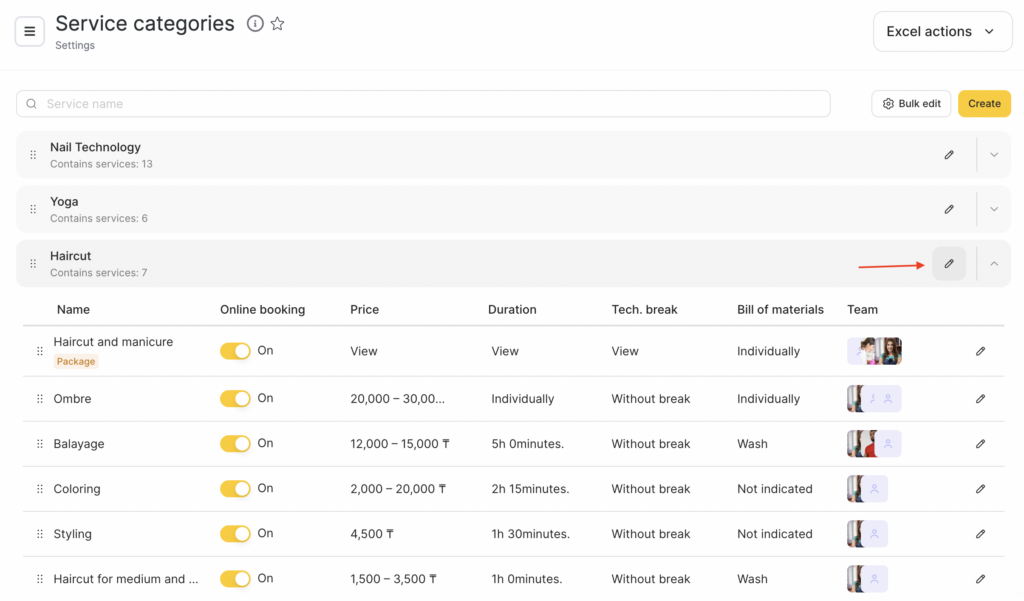
- In the location interface, go to Settings > Main settings > Services.
- On the page that opens, click the service name or the pencil icon to open the settings.
- Open the Online booking tab and scroll down.
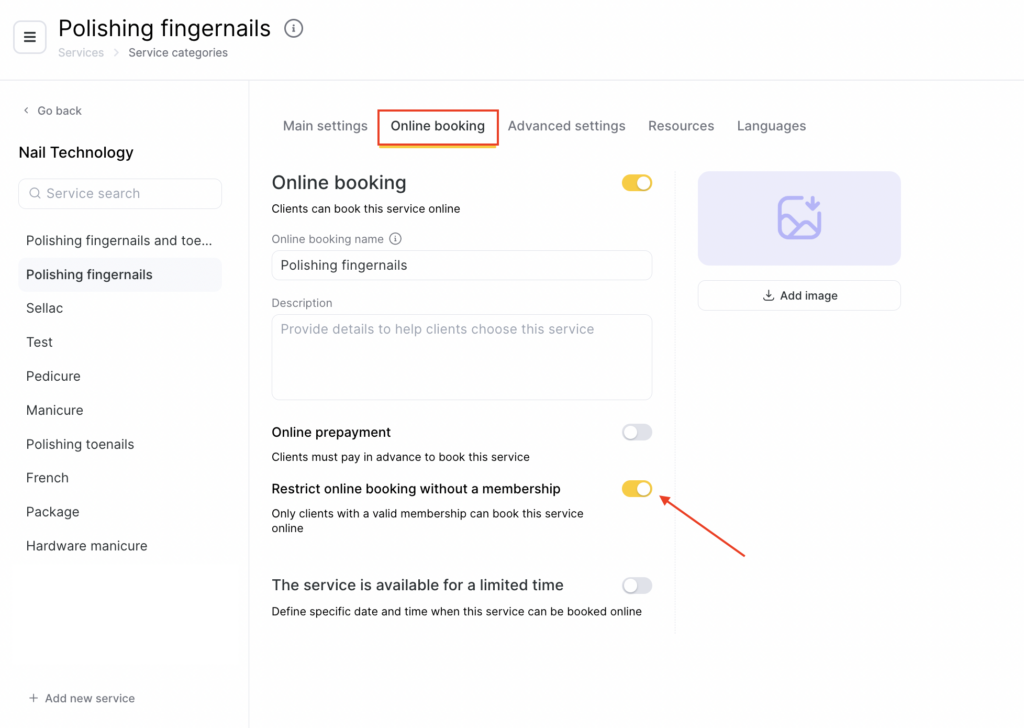
If the service is individual enable Restrict online booking without a membership.
Important
If your branch has mandatory or optional payment enabled for individual services, when configuring the service you must choose either online prepayment or restrict online booking without a membership — you can’t enable both at the same time.
If you plan to use both options, you can create duplicate services: one with online prepayment enabled and another with membership booking enabled. For example: Room rental and Room rental (membership).
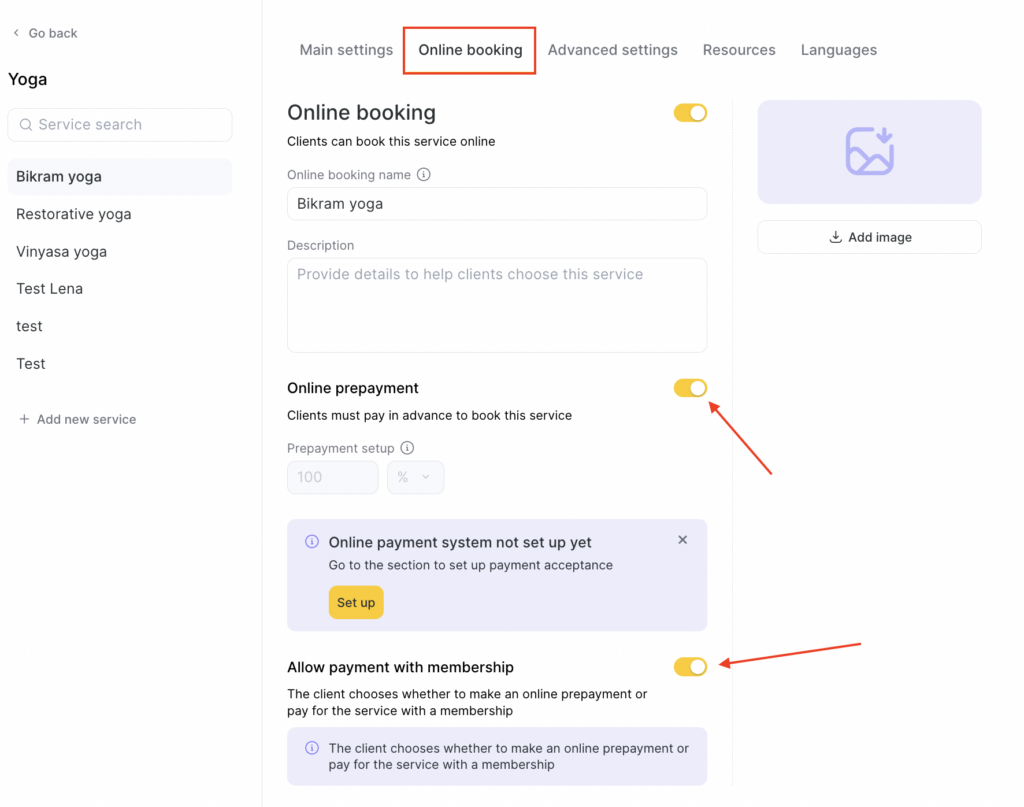
If the service is group (event) enable Membership booking.
Important
If your location has mandatory or optional payment enabled for group services (events), you can enable both settings at once. During online booking, the client will be able to choose: pay online or book with a membership. For group services, only 100% prepayment is available.
If membership booking is enabled, a visitor won’t be able to book unless they have a valid membership.
A membership is considered valid if:
- It can be used to pay for the service being booked.
- The membership status is Active, Issued, or Frozen.
- The remaining balance is greater than 0.
- The expiration date is later than today.
- The membership includes enough services to cover both previously created bookings and the current booking.
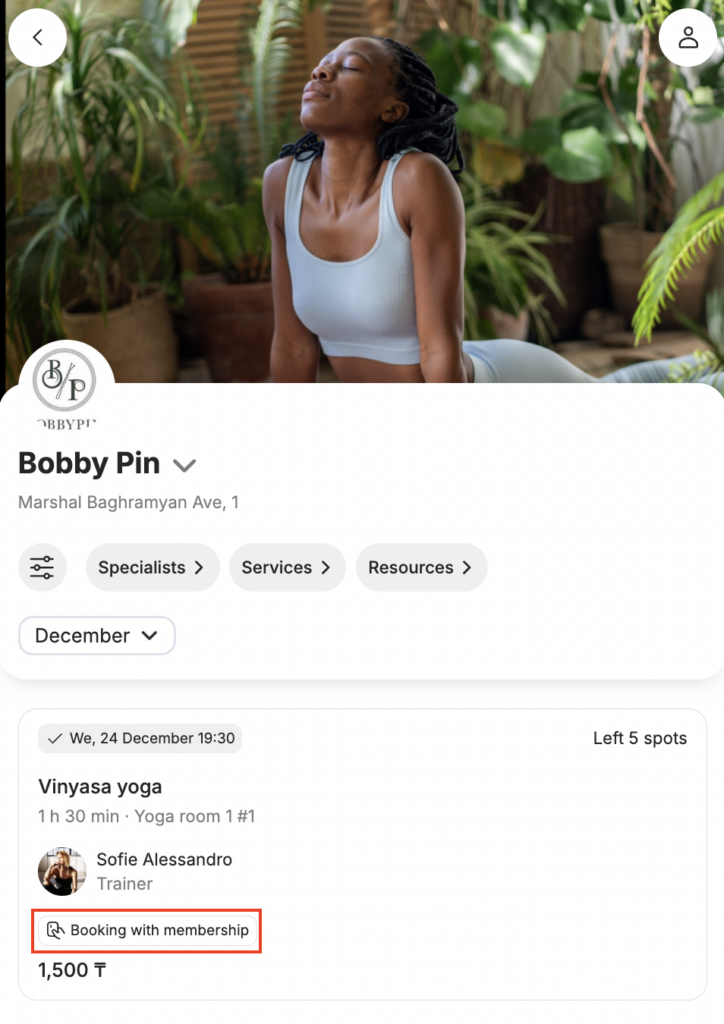
After you enable the setting, a Membership booking label will appear in the online booking widget. The label color depends on the theme selected in the widget design settings.
When creating a booking, the system checks for a valid membership. If one exists, the client can book.
If the booking includes multiple services that require different memberships, and the client has all of them, the booking will be created successfully for all services.
After a successful booking, in the widget account under My bookings and in the Altegio.me mobile app, the services will be marked with the Booking with membership tag.
Important
The membership must be created and sold to the client in advance.
For membership booking to work, the client must book online using the same phone number the membership was sold under.
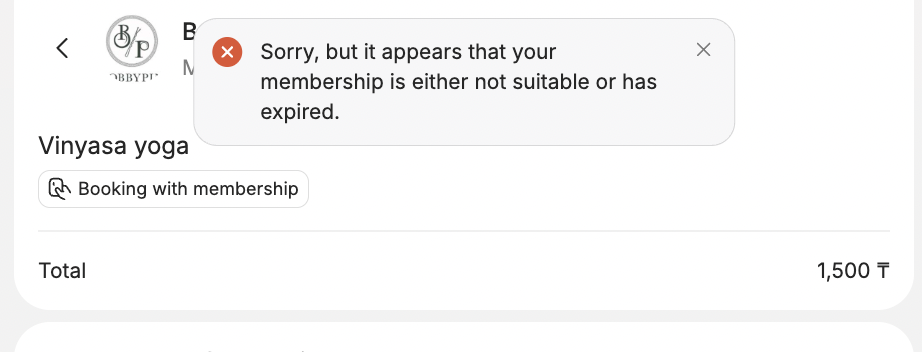
- If the client tries to book a service they don’t have a membership for, they will see: “Sorry, but it appears that your membership is either not suitable or has expired.”
If the client has an active membership for another service, or the membership is used up/expired, booking will not be possible.
Cancelling a membership booking works the same way as cancelling a regular booking. When rescheduling or repeating a booking, the system checks whether the membership requirement and service settings are still met.
Important
If the service has Automatic deduction from memberships enabled, the automatic deduction follows separate settings. That means you don’t need to manually monitor the membership balance at the moment of cancellation.

