
Each of your team members/professionals can view all of their appointments on a mobile phone without leaving their workplace. Team members can also access their schedule outside working hours. This makes it possible to organize remote team coordination without any extra effort. For this purpose, we developed the Altegio mobile app.
Access settings #
Grant separate access for each team member. This can be done either in the team member settings in the mobile app or in the web version.
- In the web version of the system, go to Administration mode > Team > Team members list. Read more in this article.
- In the mobile app. Read more about team member setup and access rights in the app in the article.
Additional access rights setup
#
For comfortable work in the Altegio mobile app, additional access rights setup may be required. Below are examples of the most common permissions that managers grant to their employees.
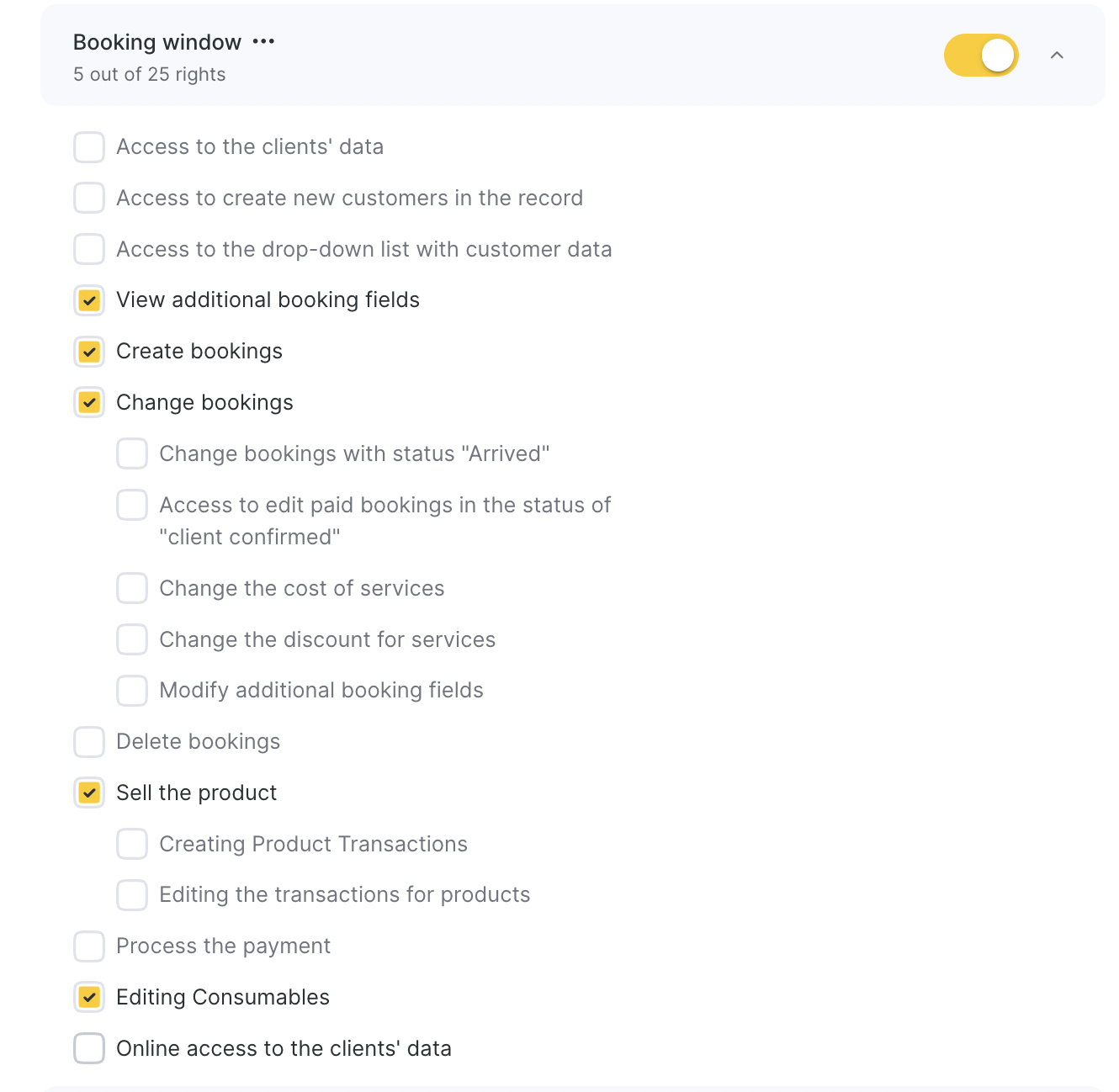
- To view appointment or event details, access to the Appointment Window block is required. Without additional permissions in this block, an employee will only be able to view the basic information about an appointment or event. Add the following permissions if needed:
- Create appointments — so the employee can create appointments in the schedule.
- Edit appointments — with this permission, the employee will be able to add comments to an already created appointment; if necessary, additional permissions for editing appointments can also be configured.
- If needed, you can also grant permissions to delete appointments, process payments, sell products (including memberships and certificates), view additional fields, write off consumables, and view client data.
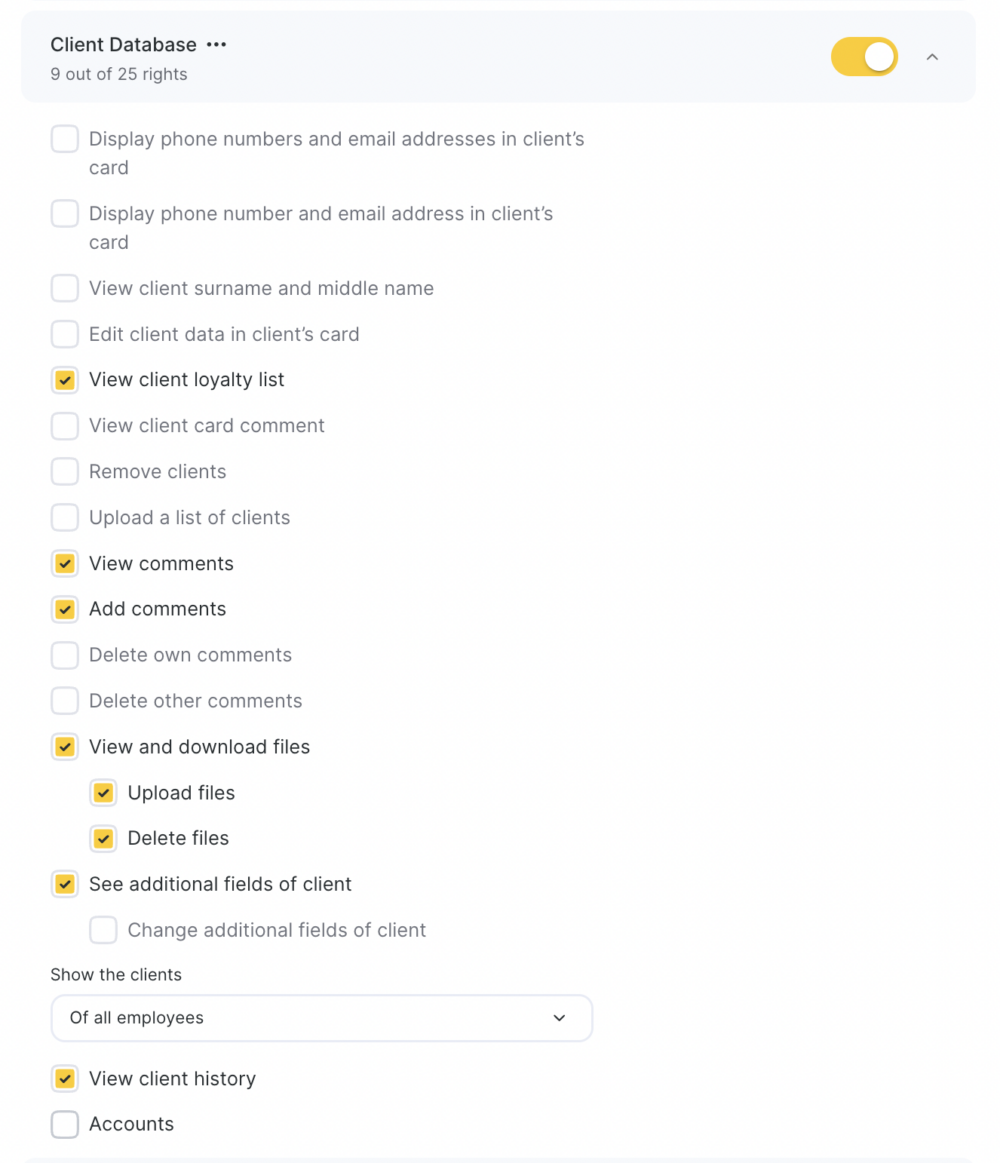
- In the All Clients section, grant the View client visit history permission. With this permission, the employee will be able to view data on the client’s past or future visits. Access to the All Clients section without additional permissions only allows viewing general client information.
If you want the employee to be able to view the client note in the client card or appointment, add the View note permission; if it should also be editable, additionally grant Edit note.
Access to clients’ contact details is controlled by a separate setting. If it is not enabled, the team member will not see this information.
- If you are concerned about keeping your clients’ data secure, access to it can be restricted. The employee will see all information important for their work except the clients’ contact details.
Viewing a client’s contact details is controlled by separate access settings in different blocks. If you do not want the employee to see the client’s phone number and email, do not grant the permissions from the list below.
Permission in the Appointment Calendar block:
Show phone numbers.
Permissions in the Booking Window block:
Access to client data;
Access to the drop-down list with client data > Show phone numbers;
Access to network client data.
Permissions in the All Clients block:
Show phone numbers and email in the client list;
Show phone number and email in the client card.
Permissions in the Overview section block (this section can only be viewed in the web version of the program):
Visits section > Show phone numbers in the summary;
View appointment list > Show phone numbers in appointments;
View message details > Show phone numbers in messages;
Calls section > Show client phone numbers.

