
In the Altegio mobile application, you can view the Appointment Calendar in the Week mode. Employees and administrators will be able to check occupation for an extended period.
How it works #
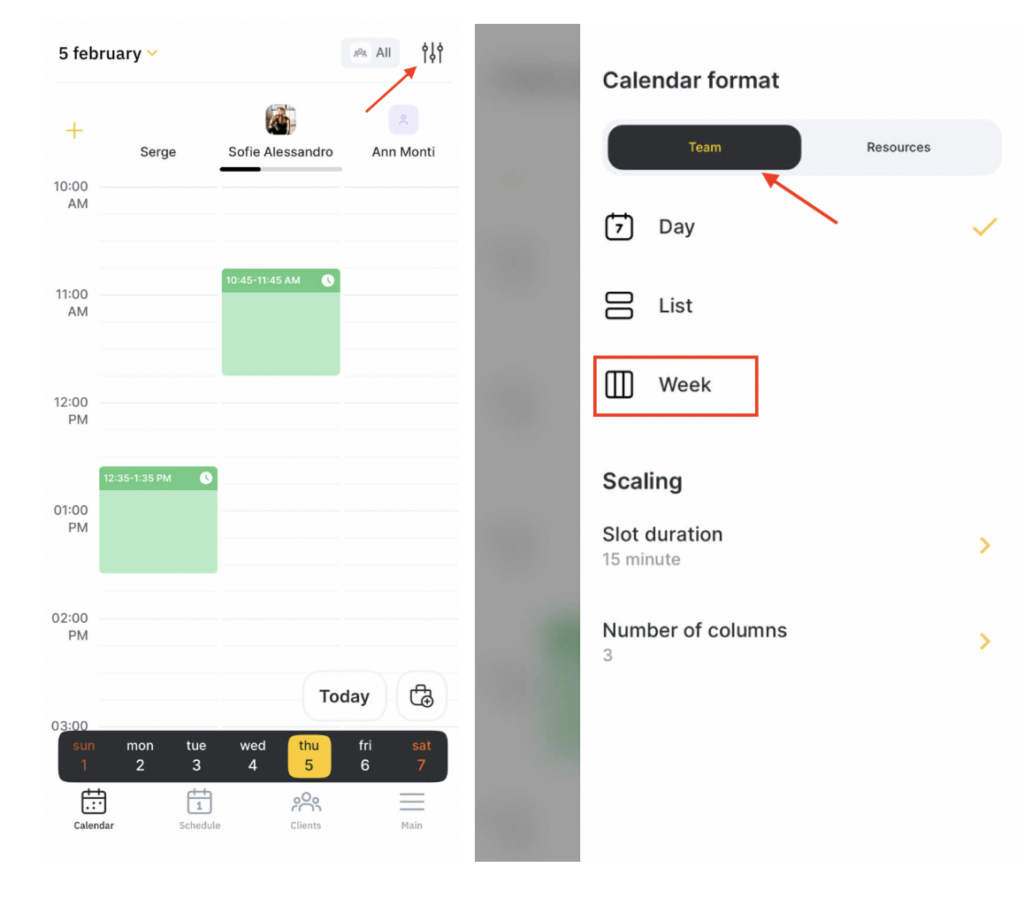
- To open the weekly schedule click the upper right sidebar.
- Select the Week mode.
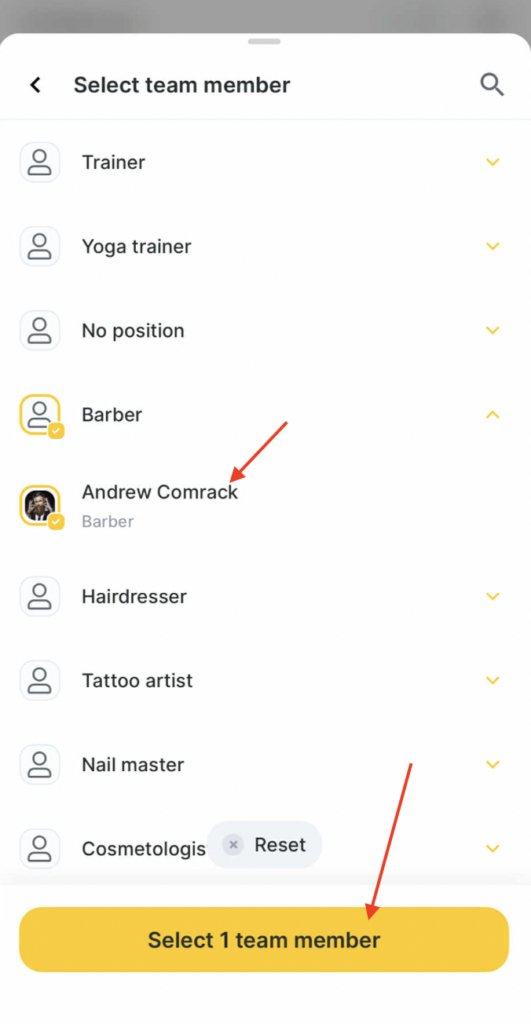
- From the drop-down list select one team member
Click the Select 1 team member button.
In the Week mode bookings are displayed schematically: the start and end times of the booking and the names of services without headings added.
The colors of the booking correspond to the colors of the booking in the Day mode.
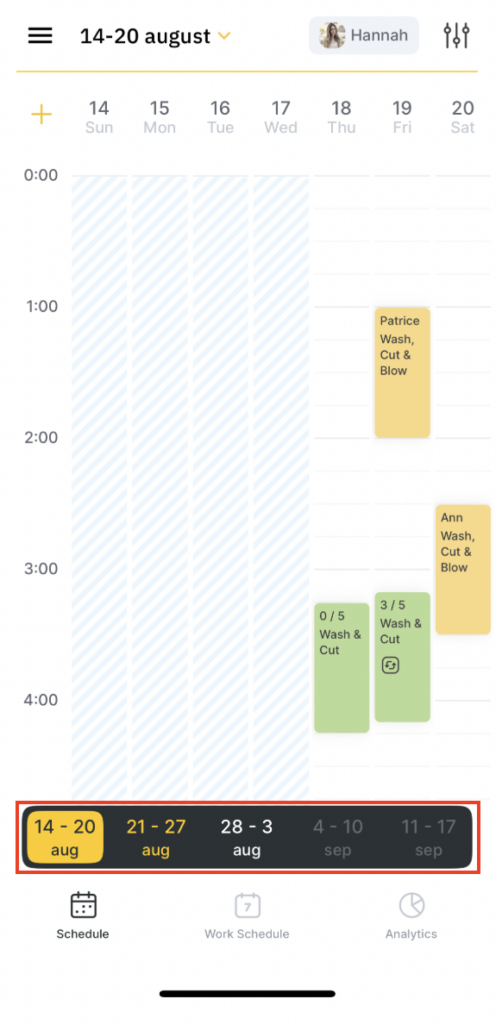
To select a different team member, click on their name in the upper right corner.
In the weekly schedule, you can open a visit by clicking on an appointment, or create new appointments or events. You can also configure the frequency of the calendar.
Notes
In Week mode, you can only select one team member.
In Resources view, viewing the weekly schedule is unavailable.
Users with permission to view only their own schedule will only be able to select themselves.
If a user does not have permission to view previous days, a message indicating that they do not have permission to view the schedule is displayed in previous weeks. However, no appointments are displayed in the current week’s past day columns.
If a week spans two months, for example, November 30th – December 5th, only the first month is displayed below the dates.
If a week has no working days, it is grayed out.
Clicking on it displays a message indicating that the schedule has not been set, along with a Set Schedule button.

