
Altegio and telephony integration is an opportunity to save time and improve the quality of customer service. You don’t just communicate with customers and visitors, you show how important they are to you.
The largest IP telephony providers are integrated with Altegio. The full list can be found in the articles in the Integration with IP telephony providers section.
Connecting #
- To connect IP telephony, go to the Telephony section in the chain interface.
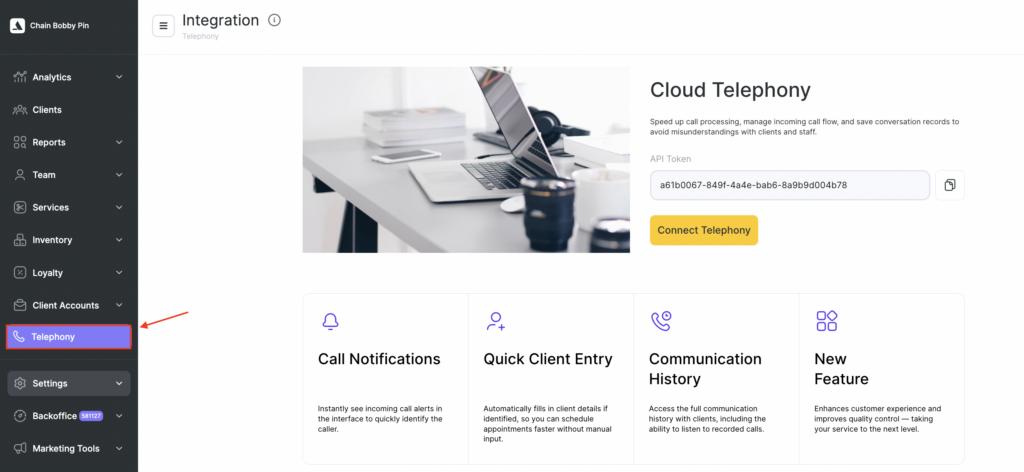
- Copy the telephony token and paste it into the appropriate field in the Personal Account of IP Telephony.
- When these settings are done, in the Chain >Telephony section additional Routing, Routes, Calls sections will appear, and the integration status is changed to Integration is connected.
Setting #
- Go to the Routes section and build the route that the call will follow. There is only one default route – Route for all users. The default route setting is to save the call history along the route in the Chain history.
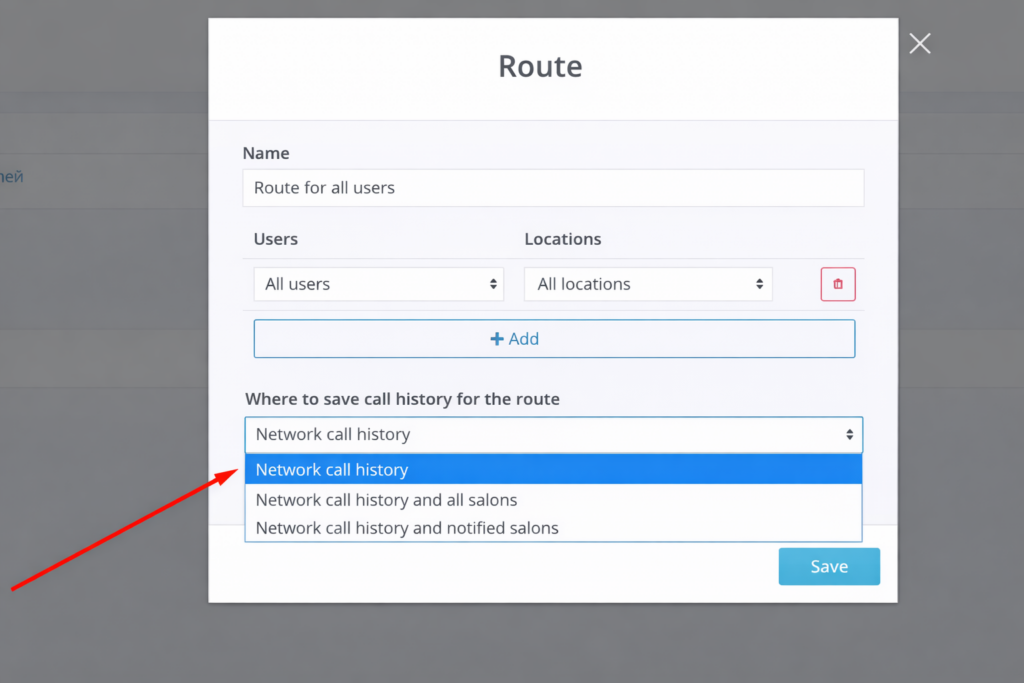
With such setting calls will be visible only in the chain call history, pop-ups will not appear anywhere. Change the setting to the one you need:
- History of calls in chain and all locations – a pop-up window about the call will appear in all locations of the chain, the call will be visible in all locations in the Analytical Reports > All Reports > Marketing > Call logs section.
- History of calls in chain and notified salons – a pop-up window about the call will appear in the location/locations that will be selected in this route.
- After setting up the route, attach it to the phone number/ID of the telephony, SIP, to which calls are received. To do this, go to Routing section.
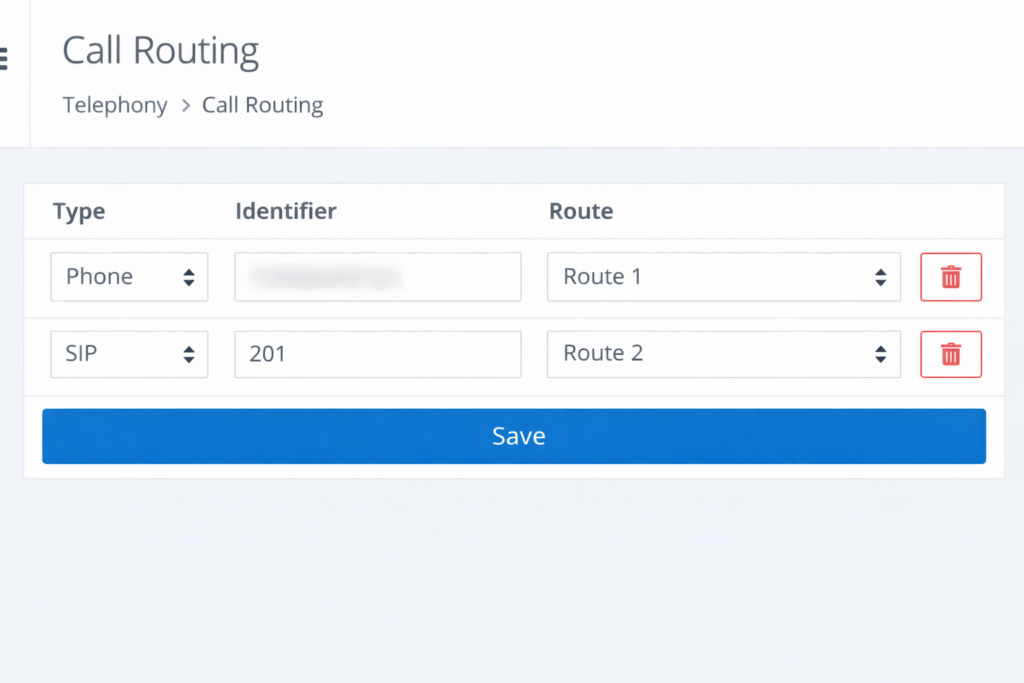
- Specify the phone number to which calls from your clients are received – your contact number on the website, social networks, etc.
The number has to be without a plus sign, brackets, hyphens, spaces and other symbols.
Telephony ID – in the case the IP telephony operator’s Personal account has an automatic replacement of the phone number with a specific extension of the employee.
The configuration is complete. Now telephony will work in Altegio.
Note
If, after completing all settings, calls still don’t appear, you need to check:
1. Whether the phone numbers match in Altegio routing and in the telephony personal account/dashboard.2. The statuses of the phone numbers in the telephony system.
Any mistake in a phone number will result in calls not being processed. Calls also won’t be forwarded if the phone numbers are blocked in the PBX. With such statuses, no call information will be displayed in Altegio.

