
In the chain interface, under Services > Service Settings, you can find all services and service categories from every location included in the chain. This setting removes the need to create the same services in each location and also helps merge several identical services that exist in different locations into one.
Chain services are marked with a special chain icon. Services that are provided only in a specific location do not have this icon.
Note
Once a service becomes a chain service, this cannot be undone — it cannot be turned back into a local (single-location) service. If you are not sure whether a service should be chain-wide, check with your manager first.
Setup
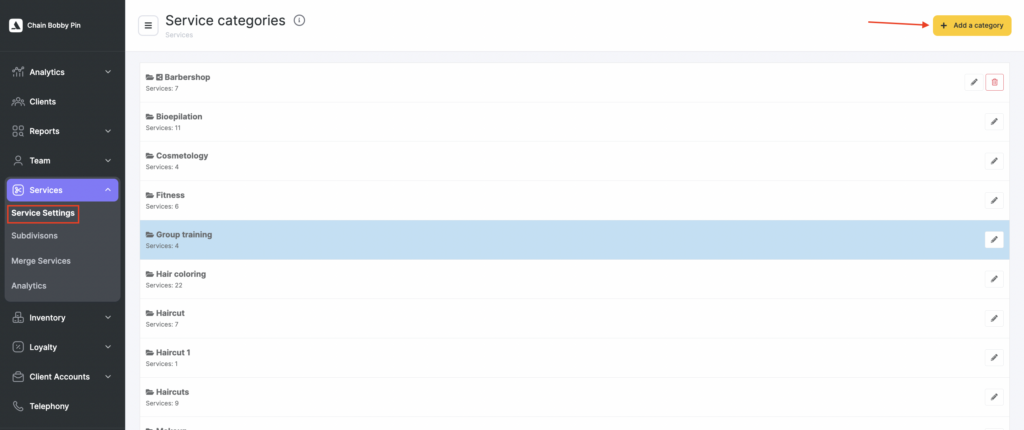
- Go to Services > Service Settings. Here you can add a service category and create services within this category.
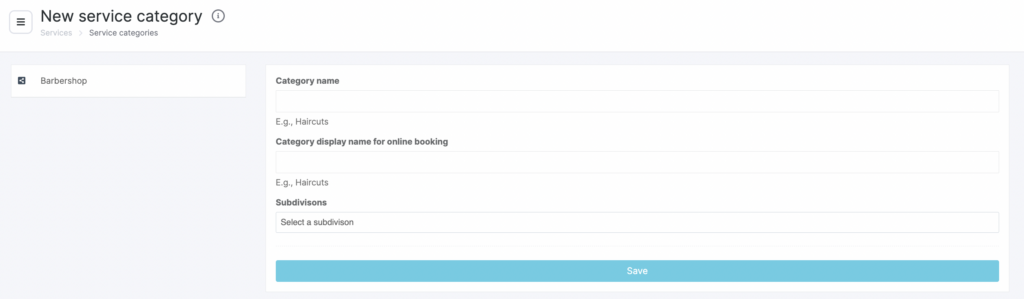
- A category created in this section will be a chain category. Click Add category. In the new window, enter the category name, the online booking name (this is the name clients will see during online booking; if you leave the field empty, the main category name will be used. Click Save.
The created category will appear in the general list.
Editing chain-managed service categories in a Location
If a Service Category is marked as a chain-level category, its name cannot be changed in the Location. Open the chain interface from the category or service settings and edit the category there.
Editing
- To edit category information, click the pencil button. To delete it, click the trash icon.

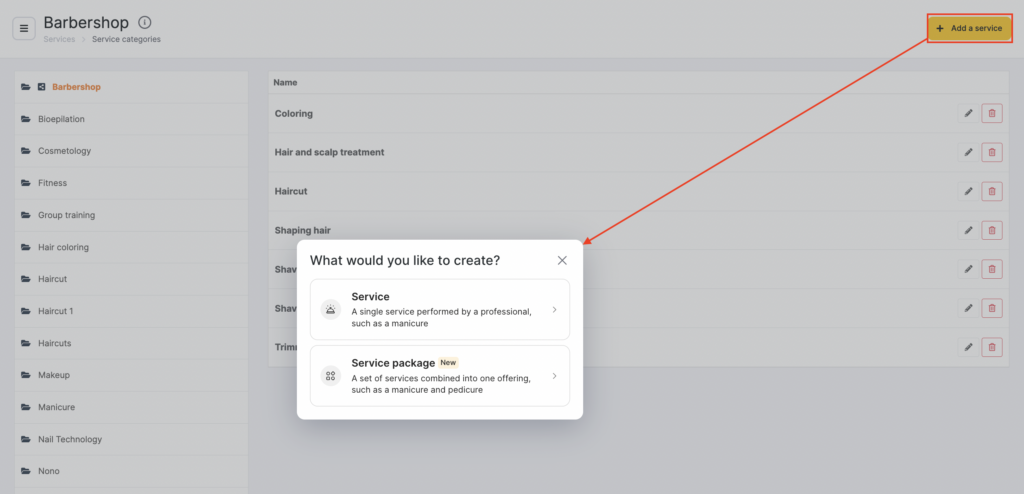
- Add services to the category. To do this, click the category name — the Add service buttons will appear. Click any of them.
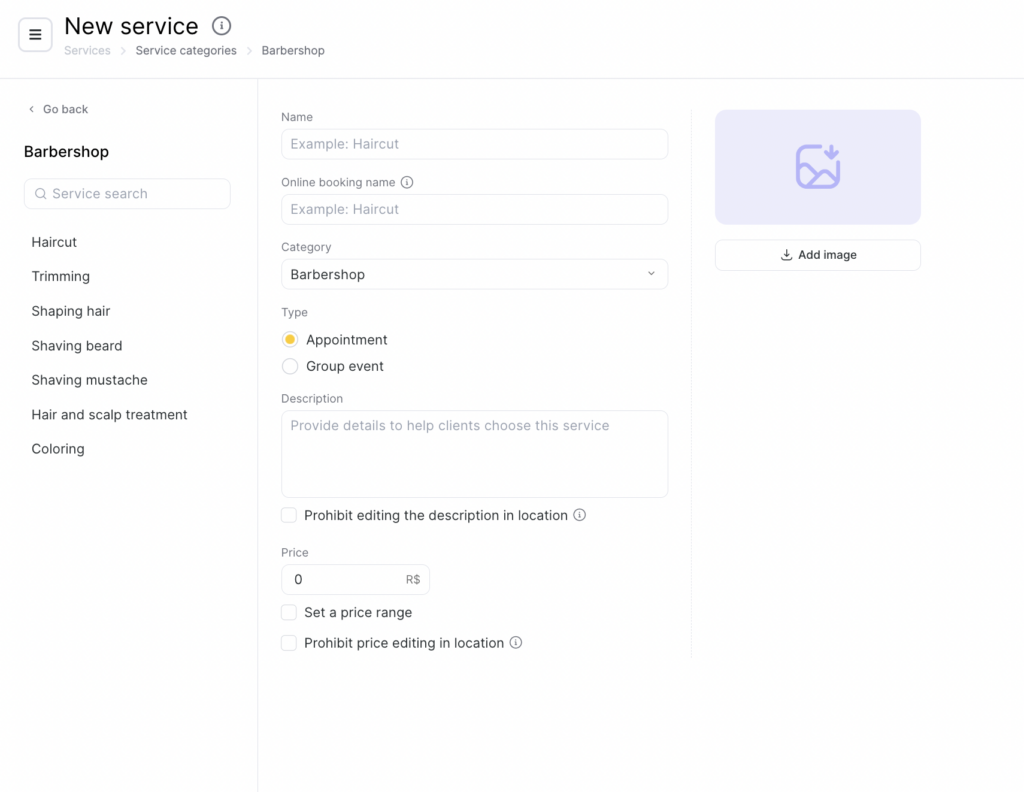
- Enter the service name and the online booking name (this is the name clients will see during online booking; if you leave the field empty, the main service name will be used). Select the category this service belongs to. Specify whether this service will be available for group booking. Add an image that reflects the service.
Also enter the service description and choose whether to disable description editing in the location. If you disable description editing in the branch, the chain description will be automatically applied across all branches, and it will no longer be possible to change the service description at the branch level. Otherwise, the description can be set separately for each branch.
Set the service price. If needed, tick Set price range, then enter the minimum and maximum price.
Here you can also disable price editing in the location. If you disable price editing in the location, the chain price will be automatically applied across all locations, and it will no longer be possible to change the service price at the location level. Otherwise, the price can be set separately for each location.
- Click Save. Add all required services to the category. To add services to locations or merge services from different locations, go to Services > Service Migration. A detailed guide on how to work with this section is available in the article.