
Setting up a regular button
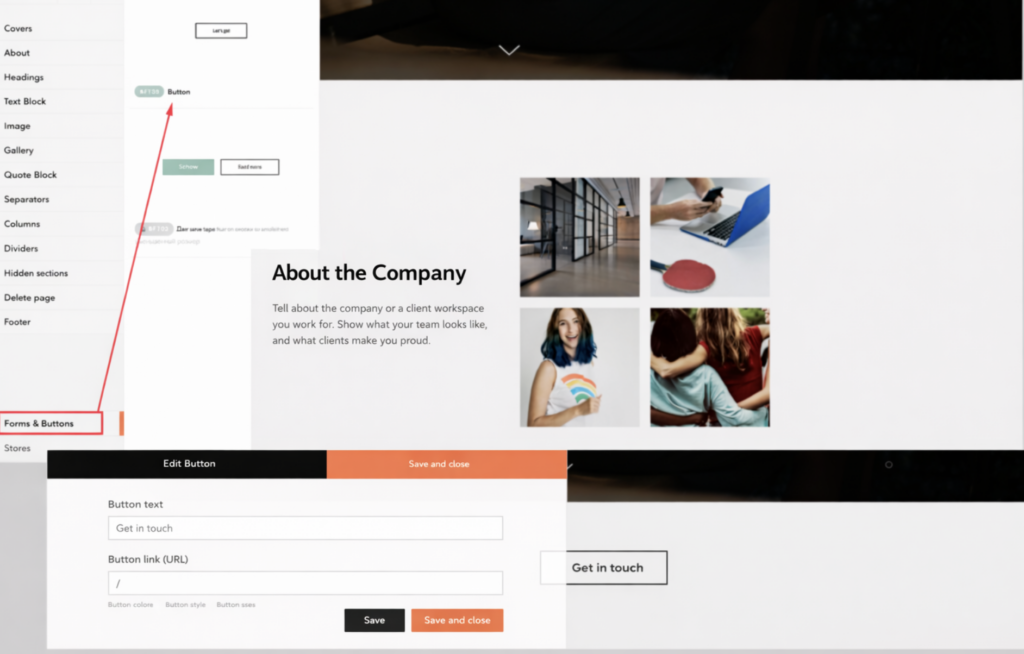
- In the Block Library, choose the Form and Button type and add a Button.
- In the block Content, change the button name to, for example, Book. In the Button link field, enter the # sign.
- Save and close the block.
Setting up a button from a Zero Block
- Add a Zero Block, click Edit block, and then add a button (Add Button).
- Configure the button: click it and, in the menu that opens on the right, set all required parameters (name, color, font, etc.).
- In the Link field, enter the # sign.
- Save and close the block editing window (Save > Close).
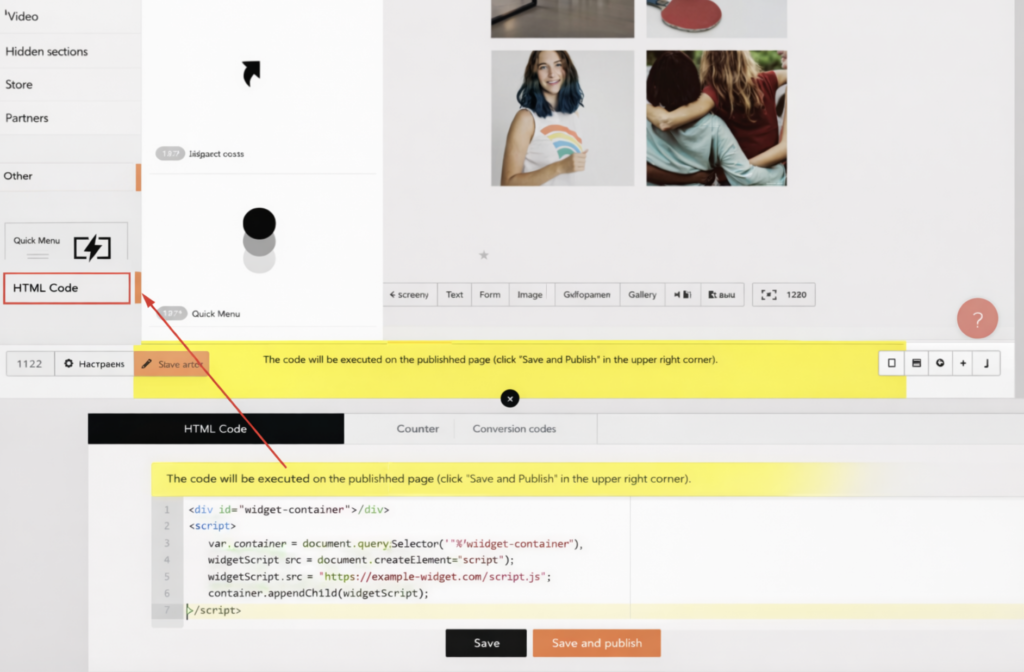
- After the last block, add an HTML block. In the block Content, add the following code and save it.
<script type="text/javascript">
$(document).ready(function() {
$('.CLASS').addClass('ms_booking');
var scriptService = document.createElement('script');
scriptService .src = "link from the Button code menu";
scriptService .type = "text/javascript";
scriptService .charset = "UTF-8";
document.documentElement.appendChild(scriptService );
});
</script>
- Where CLASS is the value of the class field from the button code, and link from the Button code menu is the value from the Altegio online booking form (how to find this data is explained below).
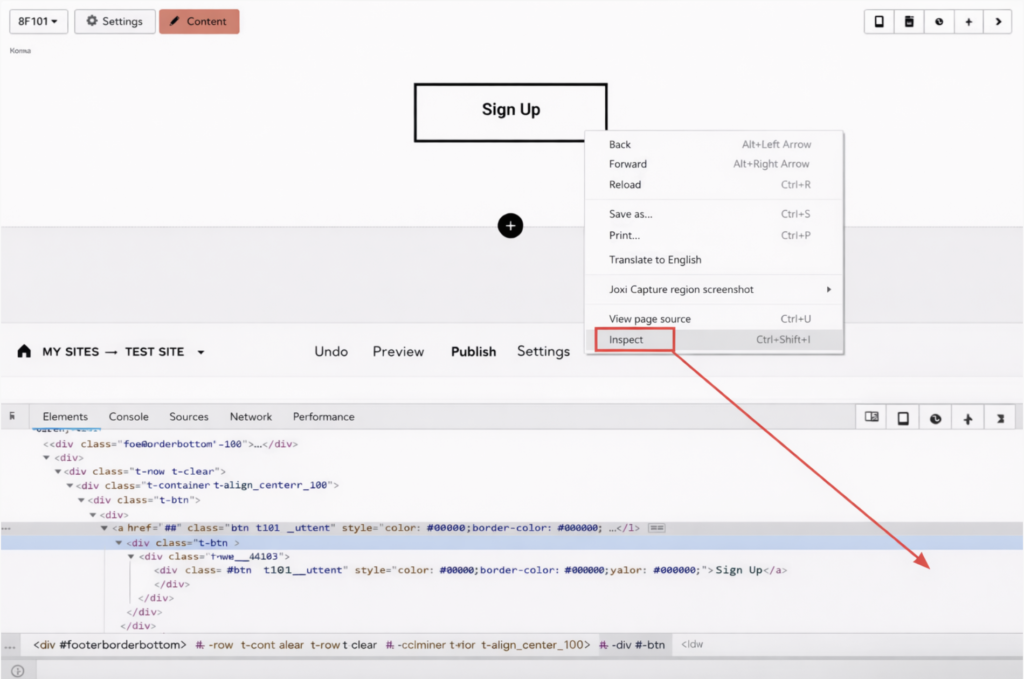
- Go to the published website and right-click the online booking button, then select Inspect (or View page source / Inspect code). Copy the contents of the class field:
t-btn t142__submit
and paste it into the HTML code you added earlier, replacing the word CLASS — not as justt-btn t142__submit, but as:
.t-btn.t142__submit
The class value for your button may differ from the example in this instruction.

- In Altegio, in the main menu go to Online Booking > Online booking links. Select the required online booking form. More details on where to find the online booking button code are available in the Button settings article.
In the Button code field, copy the link (as shown in the example below) and paste it instead of the words “link from the Button code menu” in the HTML code you added earlier.
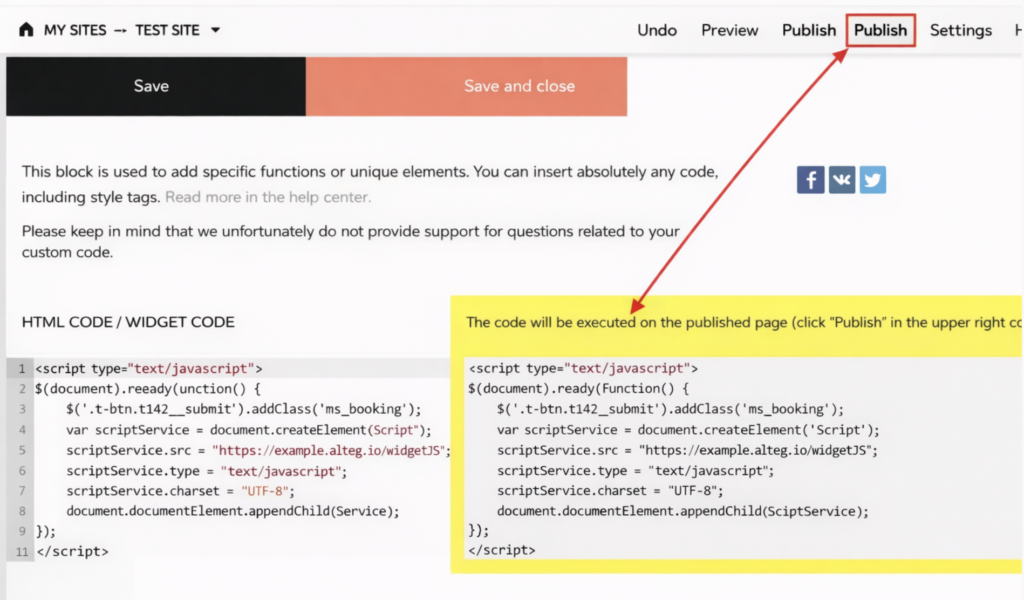
- Click Save and close, then publish the website.
If the Altegio widget is triggered by a button from the main menu (for example, the ME403 block can display a button in the dropdown menu), then the value in the class field will most likely be t-btn. In this case, everything will work correctly.
But if you add an Altegio button in any Zero Block, the class value will be tn-atom. The same tn-atom value will be used for all other buttons and hyperlinks in all Zero Blocks. That means if, besides the Altegio button, a Zero Block contains, for example, a clickable phone number, email, or another link, clicking them will also trigger the Altegio widget instead of the intended action.
This can be solved with layout changes: remove buttons from Zero Blocks and place a native block with the BF101 button directly under them.

