
An automatic reminder notification about an upcoming visit that is sent to the client a specified time before the visit starts. It is used to reduce late arrivals and no-shows.
In the online booking widget, the client can also choose a reminder time that is convenient for them or disable this notification.
Setup and editing #
- In the Administration mode, go to Notifications section, and open the Notification types tab.
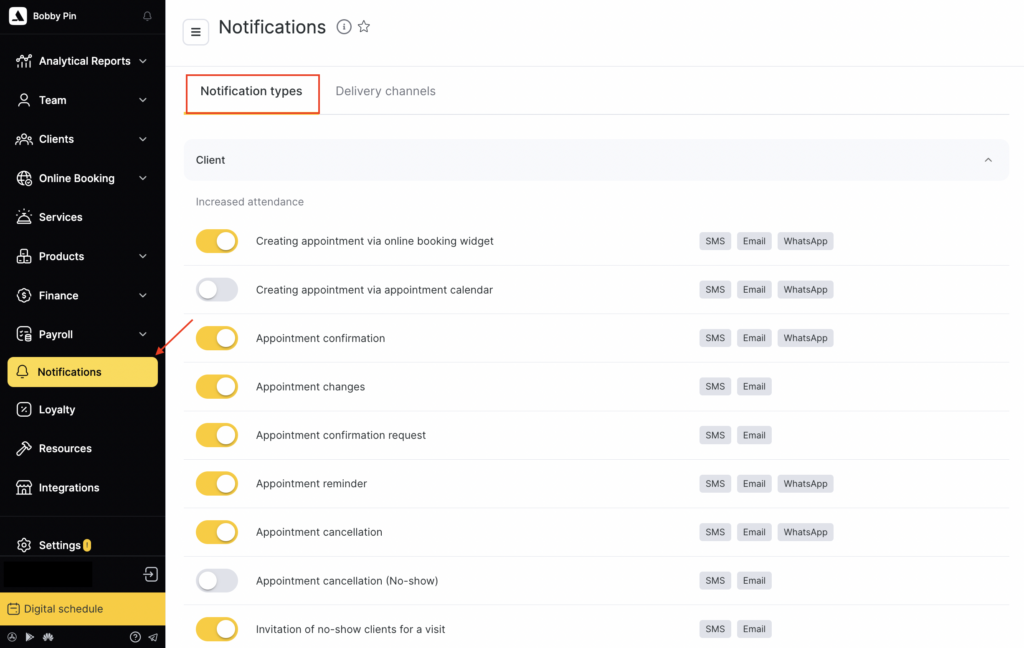
- In the Client section, select Appointment reminder. To edit the conditions, sending scenarios, and templates, click the notification name.
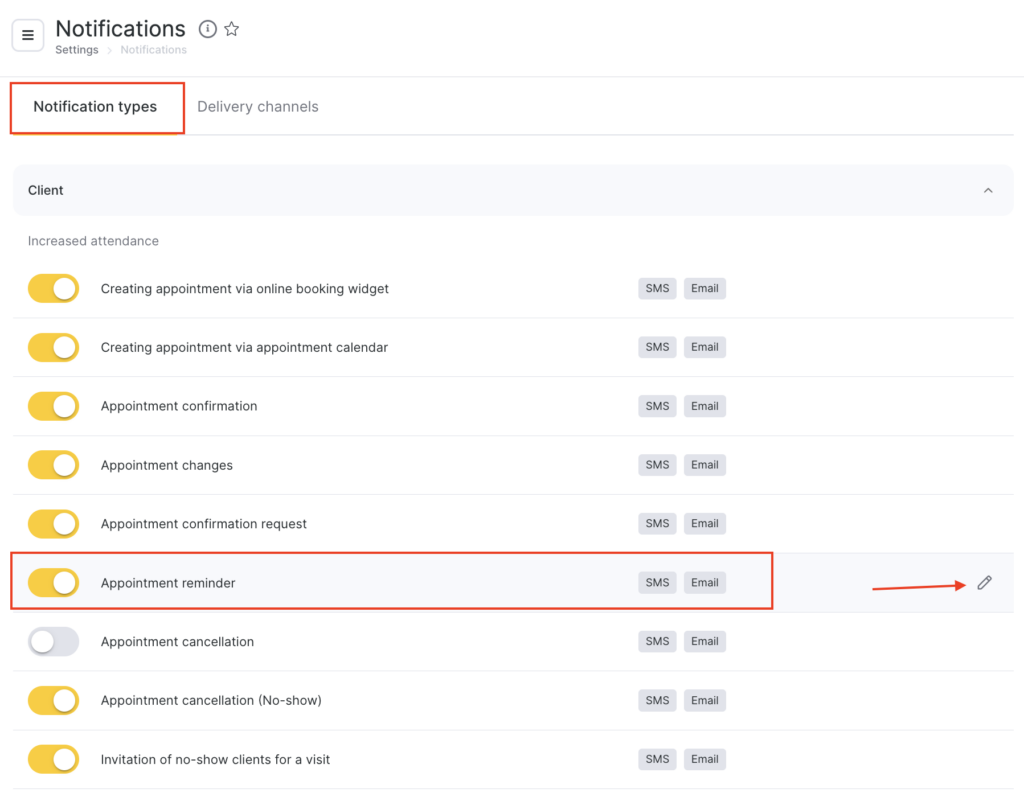
- On the General settings tab, select the sending conditions.
Send notification (N hours before the visit)
- Choose how long before the visit the client will receive the reminder. This condition applies to all available sending channels. You can choose sending 1, 2, 3, 4, 5, or 6 hours before the visit, or 9, 12, 15, 18, 21, or 24 hours before the visit.
- For the Email channel, you can additionally select a different email sending time. To do this, check Different time for email sending and choose the required time. If you don’t check the box, the email will be sent at the same time as via other channels (provided that the Email channel is enabled in this notification type).
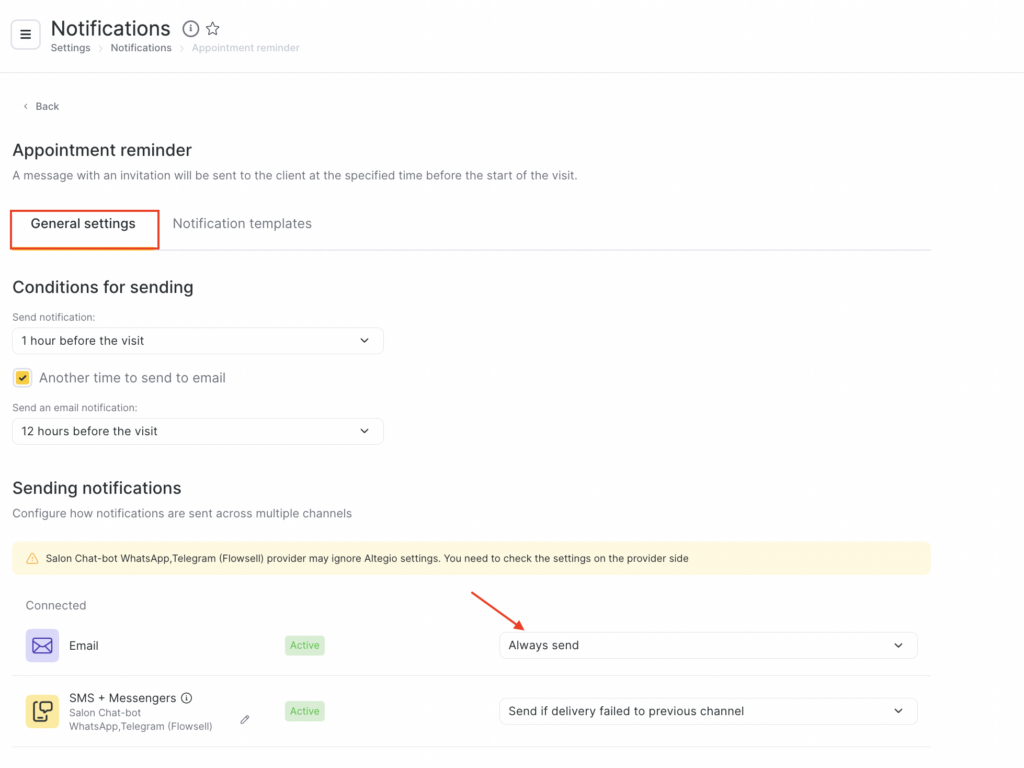
- Next, configure how notifications will be sent via multiple channels. More details about multi-channel notification scenarios are available here.
Available sending channels:
- SMS / chat-bots
- Branded app
- Altegio.me
Templates #
After configuring the sending scenarios, set up templates for different channels. More details on notification template setup are available here.
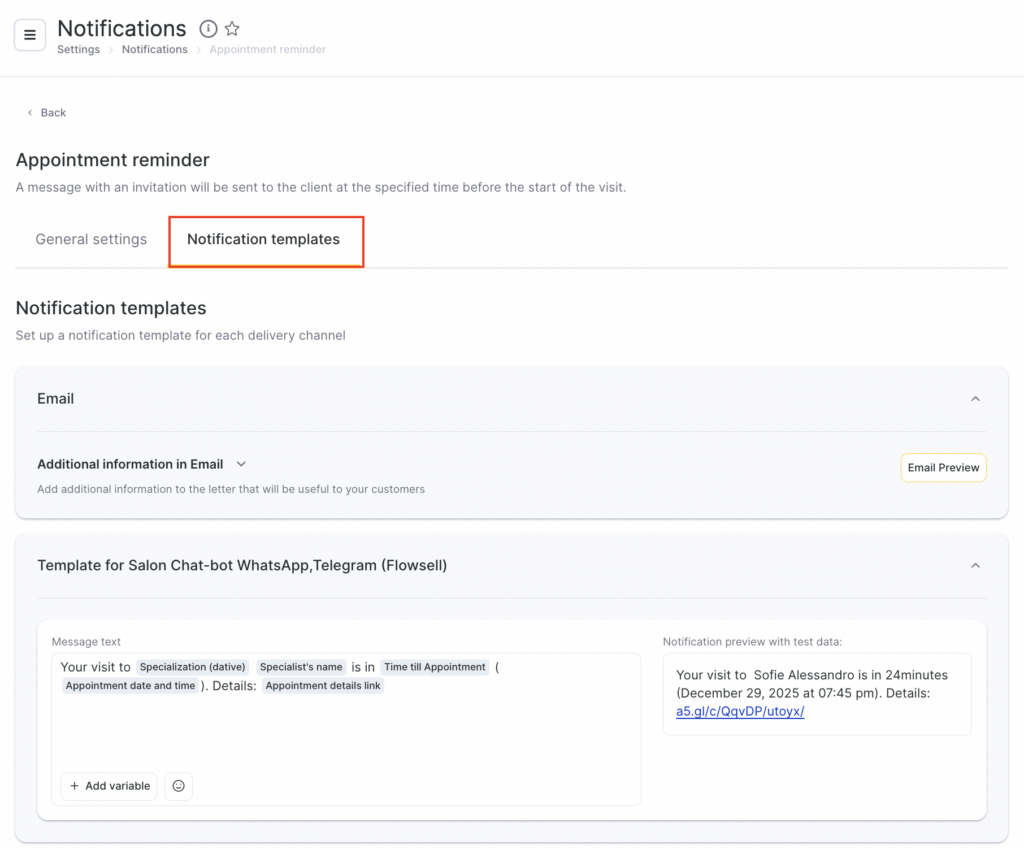
When editing the notification on the Notification templates tab, you can specify different text for each available sending channel.
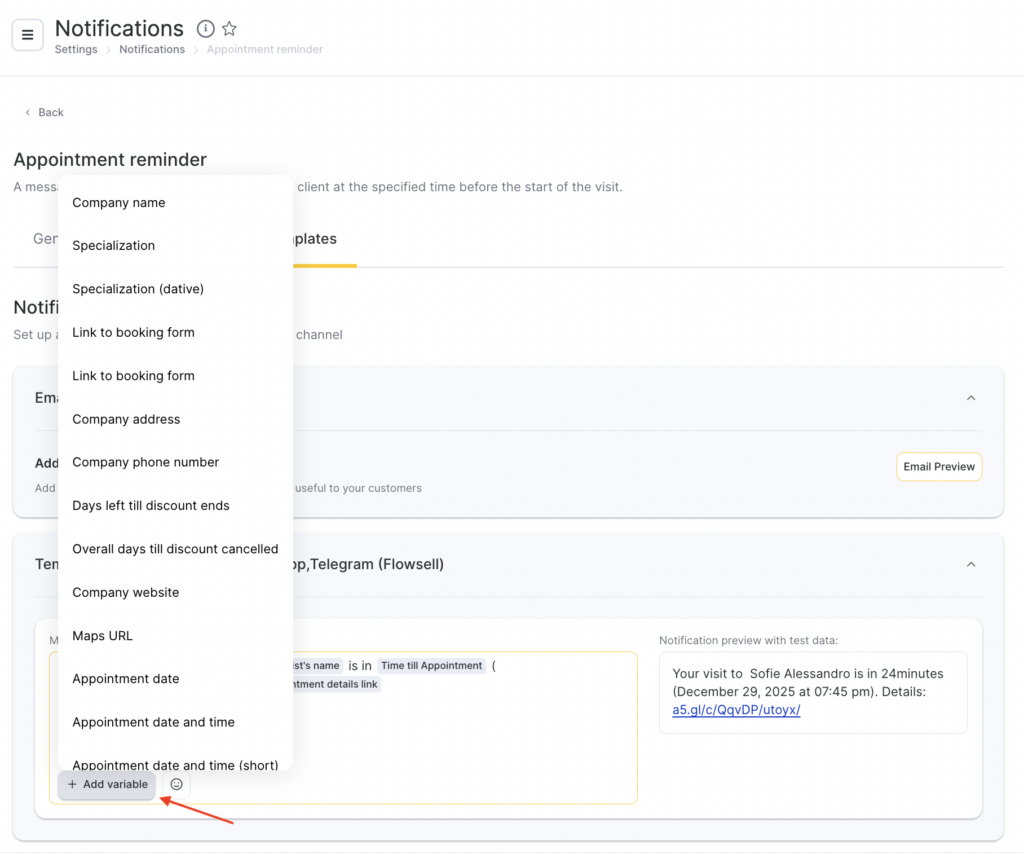
Variables are available for setup — the system will automatically insert visit, service, client, or branch details in their place. To add a variable to the template, click Add variable, then choose the one that matches the meaning.
After adding a variable, use a space to separate the variable from the main text and from other variables.
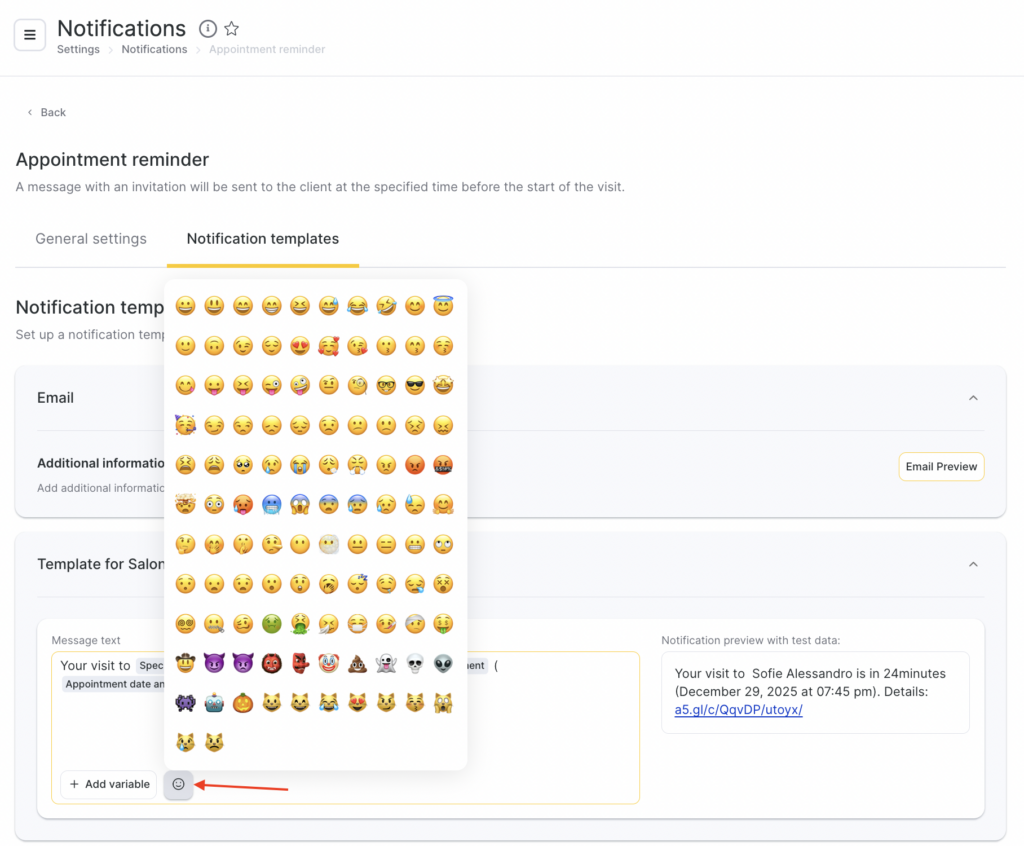
In SMS notification templates, you can use emoji. To do this, click the emoji button and select the one you need from the suggested options or add your own.
Standard templates with variables
Until your visit with Specialty (genitive case) Staff member name, there is Time until appointment (Appointment date and time) left. Details: Link to appointment details
Until your visit with Specialty (genitive case) Staff member name, there is Time until appointment left. Details: Link to appointment details
Visit reminder. Details: Link to appointment details
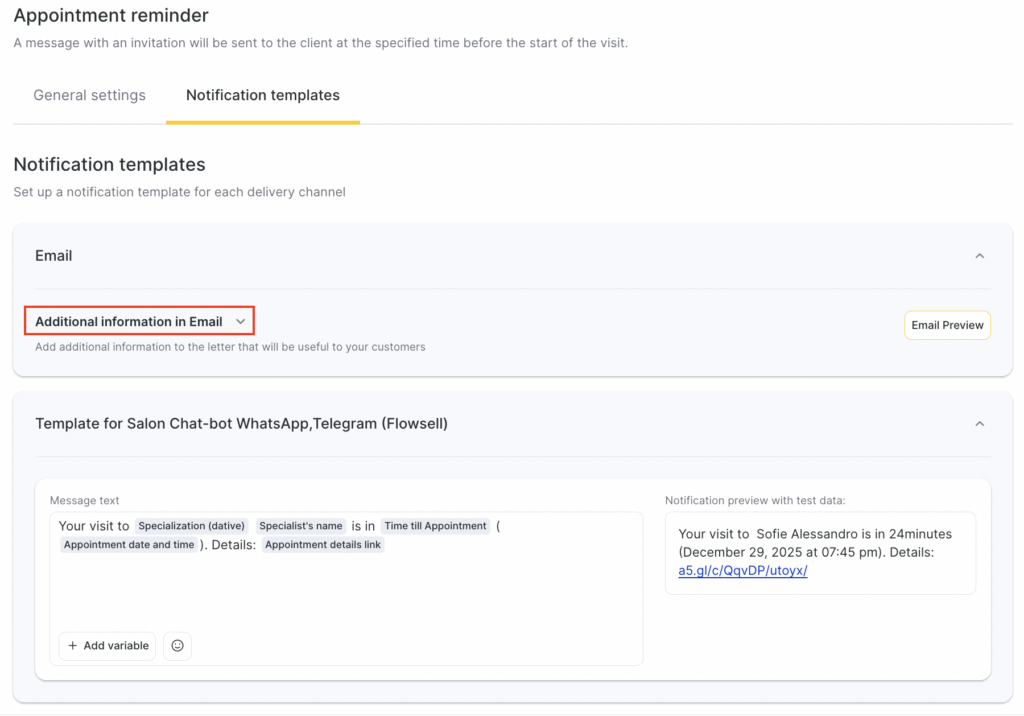
- For the Email channel, template editing is not available, but you can add additional information. To do this:
- When setting up notification templates, go to the Additional information in email tab.
- Enter extra text, upload an image, or add a link.
- Click Save.
More details on notification template setup are available in the article.
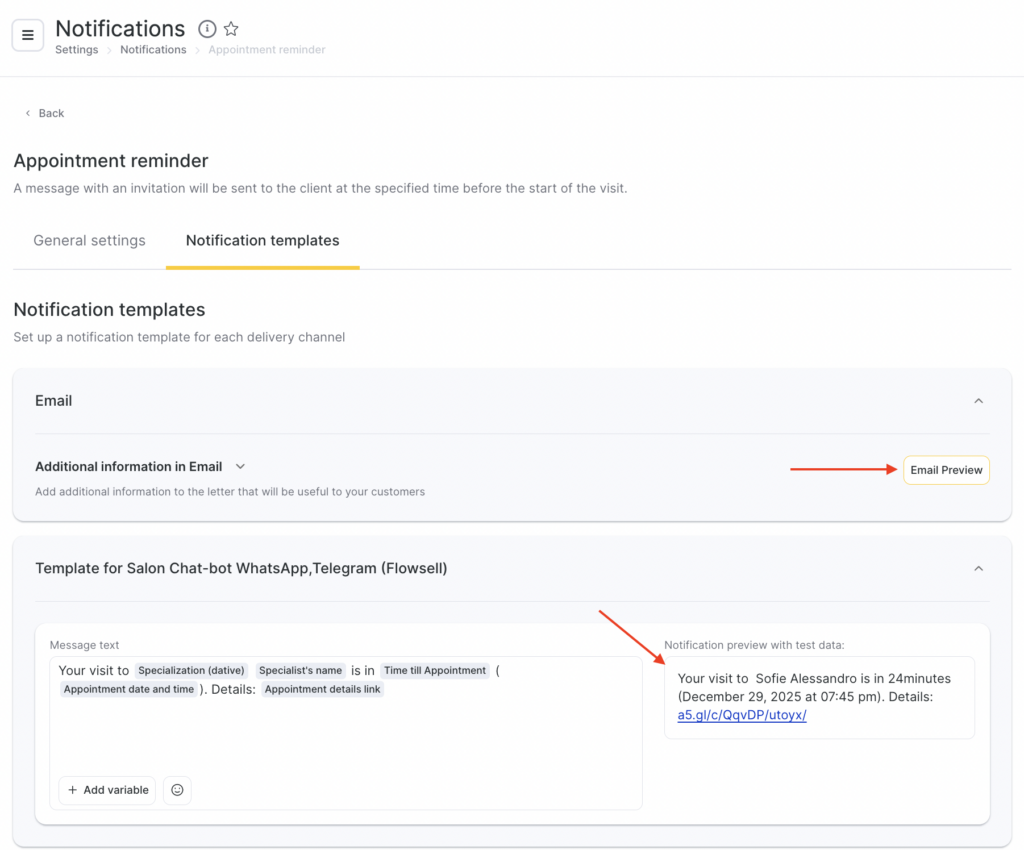
For all notification templates, preview is available — how the message will look when sent to a client, team member, or receptionist, including variables.
Completing the setup #
- After finishing the configuration, click Save in the bottom-right corner of the page.
- To enable the notification, return to the Notification types tab and switch the toggle to the active state. To disable it, switch the toggle off.

To the right of the notification name, you will see the names of the sending channels that are enabled for this notification type.
Setting the reminder time in the visit window #
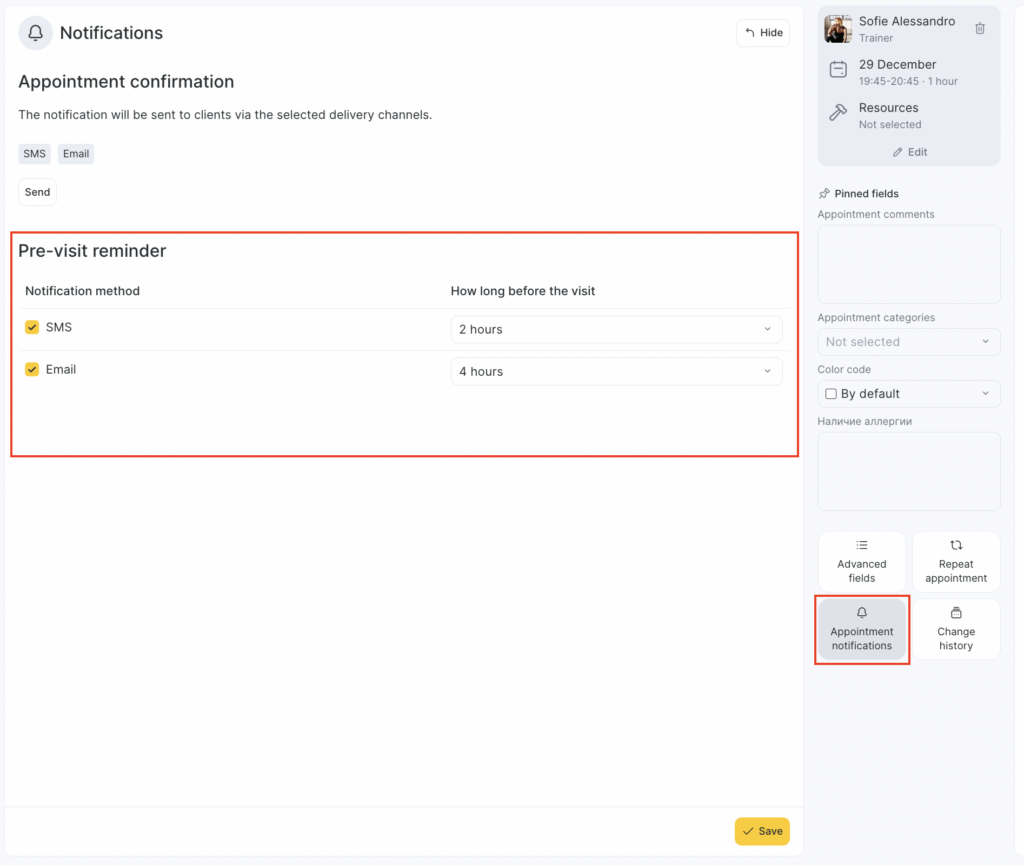
You can also set the reminder sending time individually for each visit in the appointment window under Notifications. To disable sending a reminder for a visit, clear the checkbox for the sending channel.
Important
By default, the notification settings are set to send SMS 1 hour before the visit and Email 12 hours before the visit. If an appointment in the booking journal was created before the notification sending settings were changed, the default settings will apply to it.
All changes apply only to future appointments. If needed, for previously created appointments you can change the sending time manually in the appointment window under Notifications.

