
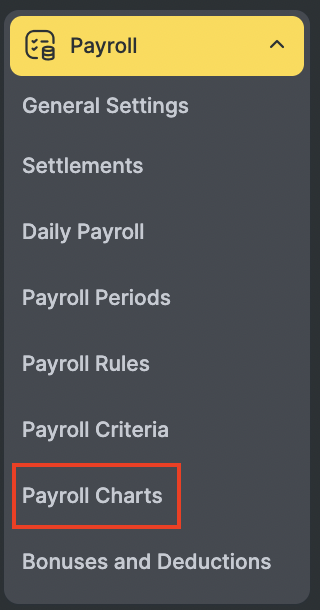
If you use the planned payroll calculation chart, the Payroll > Payroll Charts section is available in Administration mode. To get started:
- Go to Payroll > Payroll Charts.
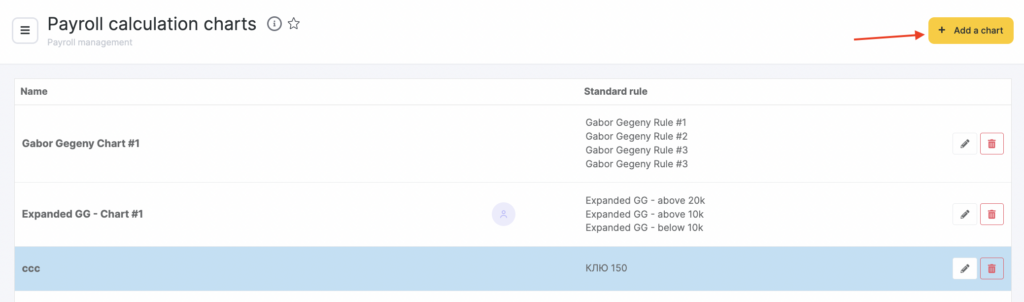
- Click Add a chart. In the window that opens, enter the required information.
- Specify the Name, for example, Chart for stylists.
- Specify the Chart type. There are two types of payroll calculation charts: standard and planned.
- Standard chart: payroll will be calculated using the Standard rule (selected in the same section after you choose the chart type).
- Planned chart: payroll will be calculated according to the configured algorithm.
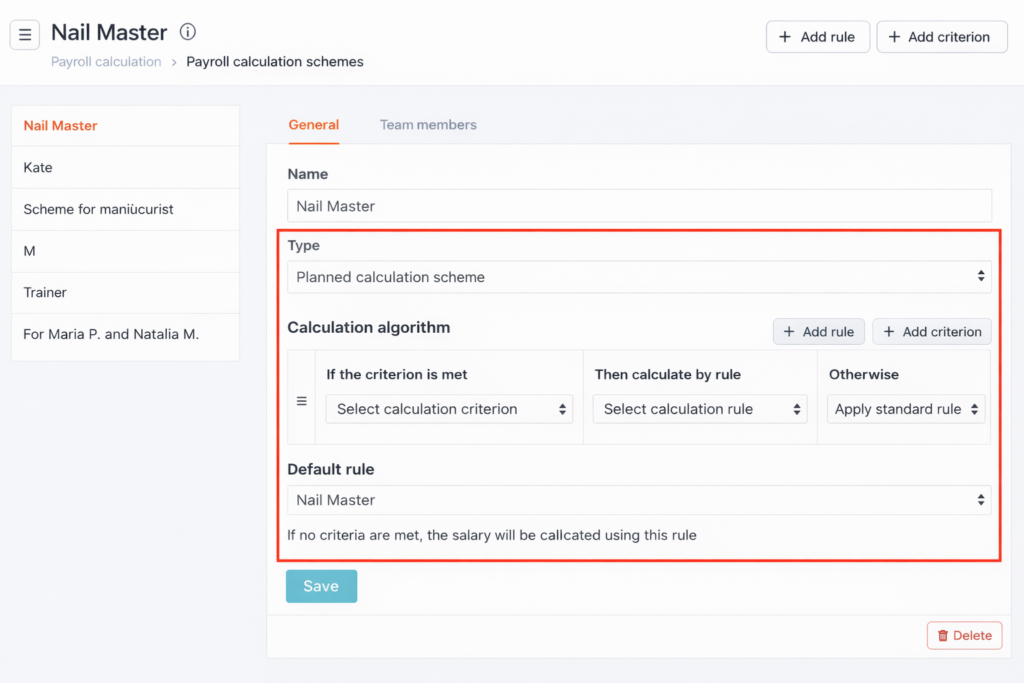
When configuring the algorithm, you set the relationship between criteria and rules. If the specified criterion is met, payroll is calculated using the specified rule. If the criterion is not met, either the Standard rule is applied (selected in the same section after choosing the chart type) or the next criterion is checked. This way, you can set up multiple criteria and rules.
- If none of the criteria are met, payroll will be calculated using the standard rule. Criteria should be listed in descending order of difficulty. When a criterion is met, the system stops checking the next criteria, so the most difficult criterion should be placed above the easier ones.
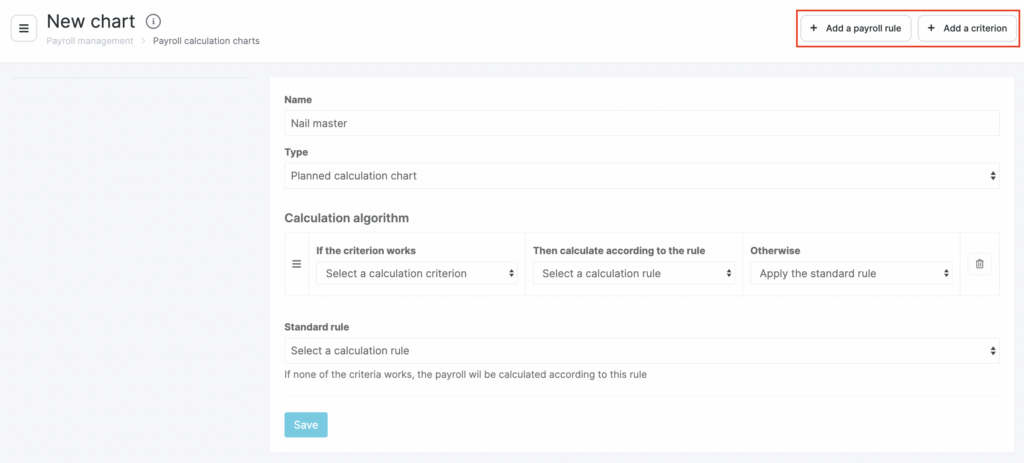
Specify the Standard rule: select the required option from the drop-down list.
When creating a calculation chart, you can create a new rule and/or a new criterion. To do this, click Add a payroll rule and Add criterion.
For details on these settings, see the articles Creating a new calculation rule and Creating a new calculation criterion.
Payroll calculation module setup #
The payroll calculation module allows you to configure both simple and complex payroll charts. You can use one chart for all team members or create different ones depending on position, revenue, tasks performed, and other factors.
What you can configure #
- Fixed rate (daily, monthly)
- Percentages from sales of services and/or products
- Complex charts based on location revenue and target achievement
- Bonuses and penalties
- Guaranteed minimum
- Calculation conditions and criteria
Example 1: Receptionist #
Requirements:
- Fixed monthly rate
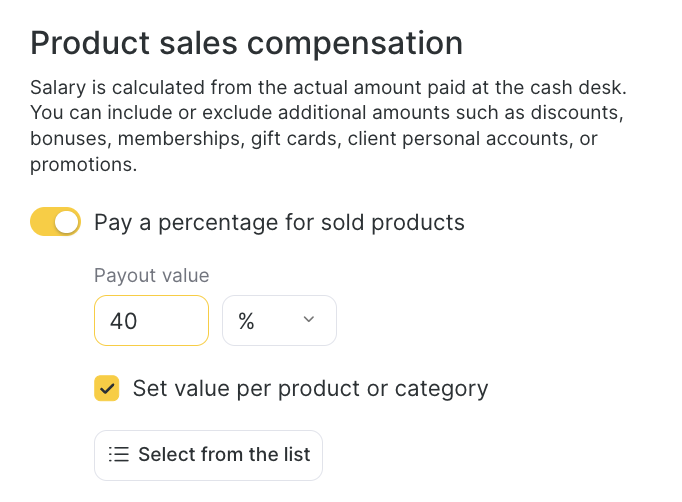
- Percentage from product sales
Step-by-step setup #
- Go to Payroll > Payroll Rules and click Add a rule.
- Skip the Services and Group booking blocks.
- In the Products block, set the percentage from sales (you can configure it separately by products/categories).
- In the Salary block, enter the fixed rate and period (for example, 150,000 ₸ per month). If needed, configure the guaranteed minimum, percentage from daily turnover, and other parameters.
- Save the rule.
Now:
Go to Payroll > Payroll Charts and click Add a chart.
Enter the name (for example, “Receptionist payroll”), choose the type: Standard.
Assign the chart to the required team members in the Team members tab and specify the start date.
Example 2: Manicurist #
Requirements:
- Revenue < 500,000 ₸: 40% from provided services
- Revenue ≥ 500,000 ₸: 25,000 ₸ salary + 35% from services
Setup #
Create two calculation rules:
- Rule 1: 40% from services
- Rule 2: 25,000 ₸ salary + 35% from services
Go to Payroll > Payroll Criteria and click Add a criterion.
Name: Turnover 500,000
Period: month
Go to Payroll Charts and create a Planned chart.
Name it (for example, “Manicurists”).
Assign:
- if the criterion is met → apply Rule 1
- if not met → apply Rule 2
Add team members and the chart start date.
Bonuses, penalties, and payroll sheets #
In Bonuses and penalties, you can add manual accruals/deductions.
In the Settlements with team members tab, you can:
- Create new payroll sheets
- Accrue bonuses and penalties
- Track calculations by periods
Helpful sections #
- Calculation for period — preliminary payroll calculation
- Payroll sheet — detailed breakdown of accruals by rules
- Document history — quick search for previously created calculations
The module can be flexibly adapted to any currency — tenge, dollars, etc.
You can use planned charts not only for revenue, but also for KPI, number of clients, and more.

