You can connect a Google Calendar to a single team member or multiple team members. Synchronization enables you to add appointments from Altegio to the connected Google Calendar, but not the other way around.
How can you connect the Calendar #
To connect a team member’s Google Calendar to Altegio, follow these steps:
- Go to Settings > Main settings > Team section and open the team member’s card. Then, go to the Settings tab.
- In the Integration section, click on the Sign in with Google button. This will open a new window that will prompt you to log in to your Google account.
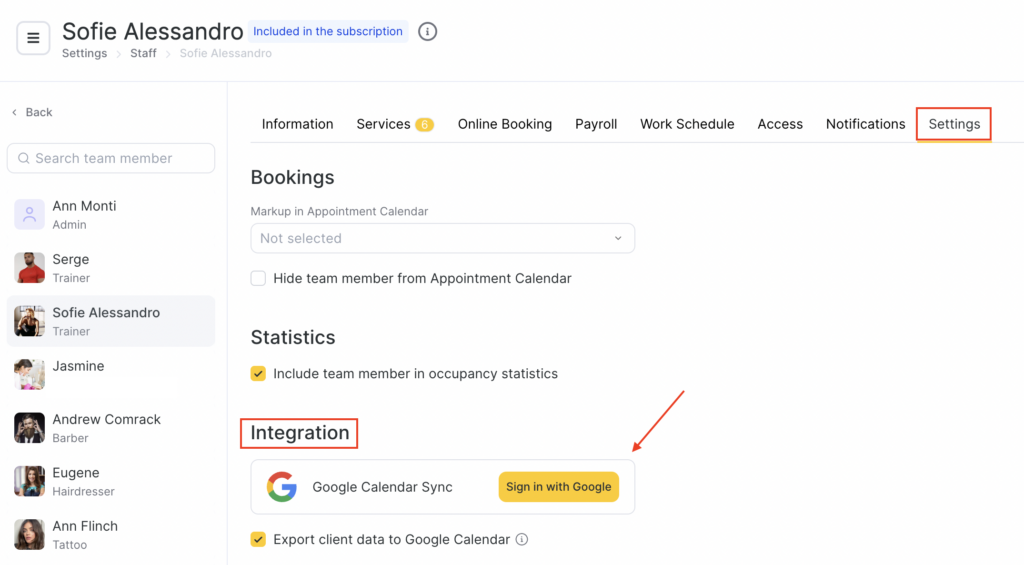
- After establishing the connection, all appointments will be automatically uploaded to the connected Google Calendar.
Note
If you enable the option to Export client data to Google Calendar, information about the clients will be uploaded to the Calendar when creating an appointment. If this option is disabled, only the client’s name will appear in the Calendar.
How to disconnect the Calendar #
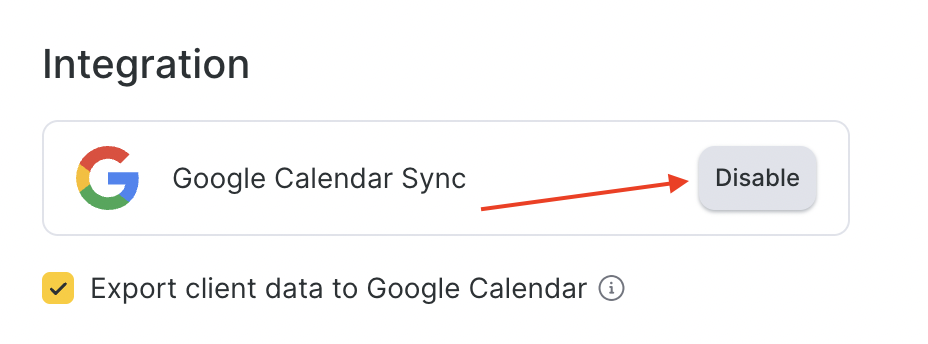
- Go to the Settings > Main settings > Team section and open the Settings tab in a team member’s card.
- In the Integration section click the Disable button.
Synchronization of the schedule of all team members into one calendar #
- Add the same Google Calendar for all team members.
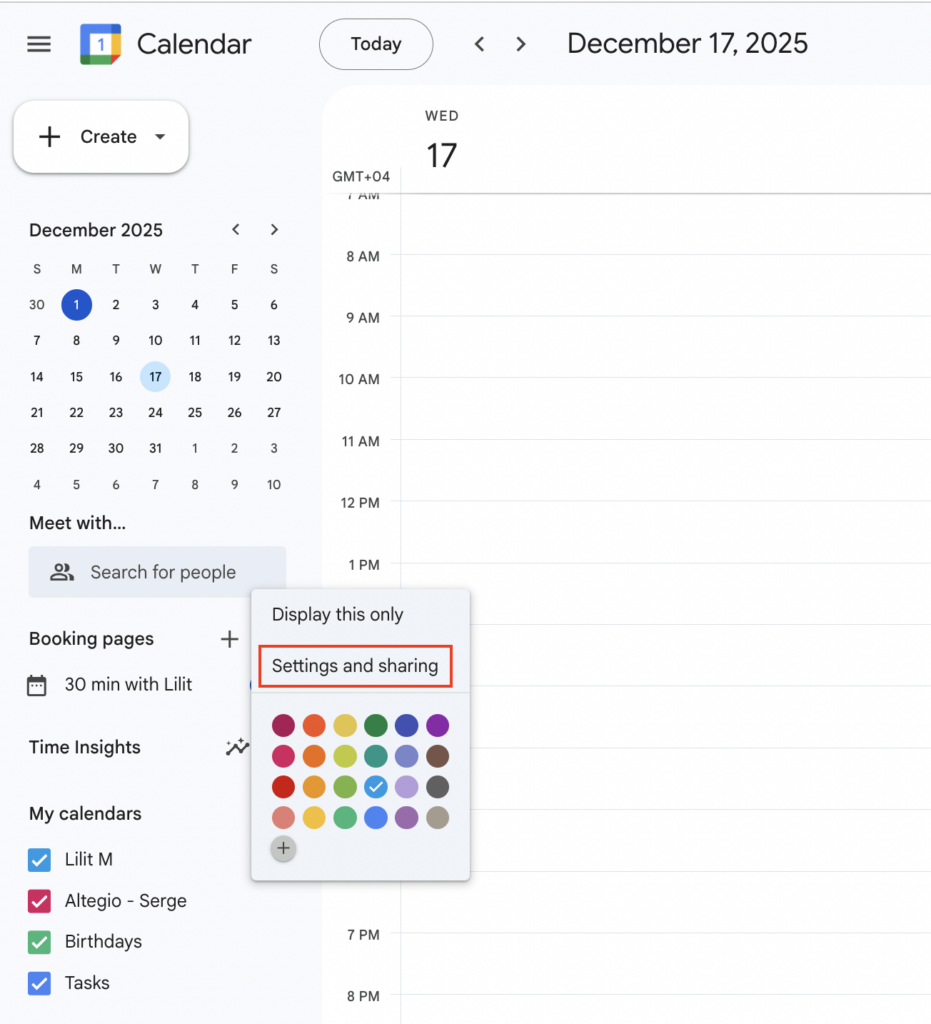
- To allow access to a team member’s Google Calendar, select the calendar and click on the button with three dots.
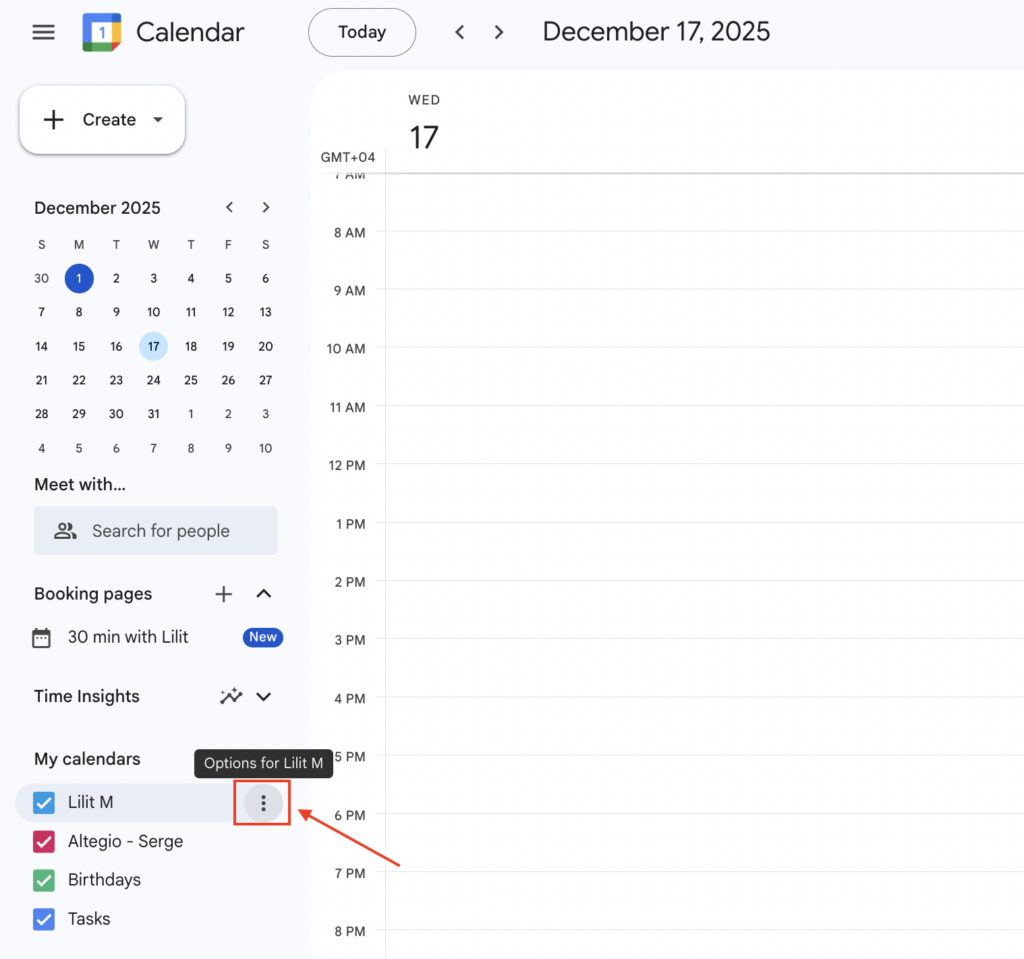
- Then, select Settings and sharing from the drop-down menu.
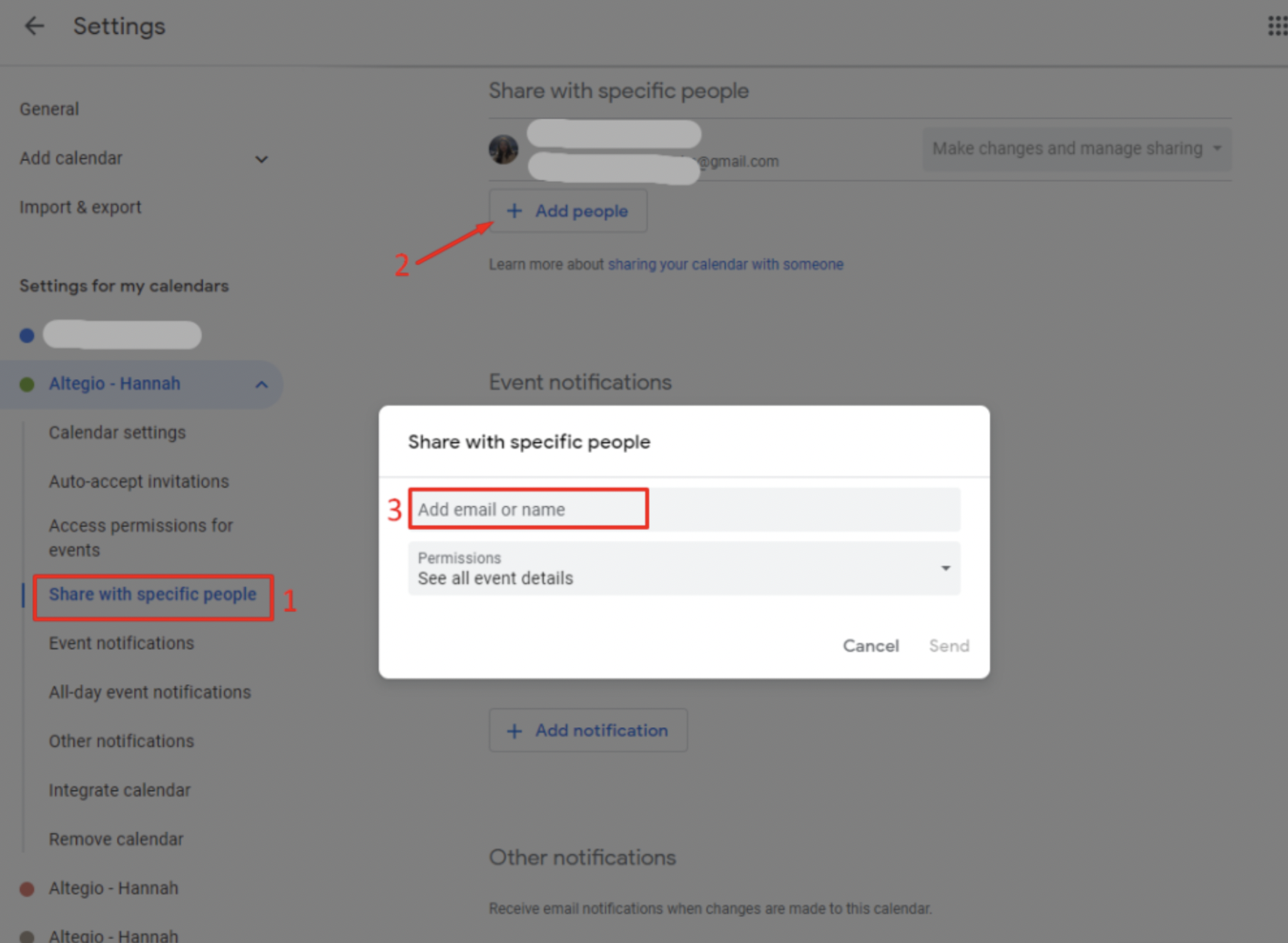
- In the Access for individual users section, click on the Add user button, enter the email address associated with the team members’s Altegio account, and then click the Send button. The user will be added to the general list, where you can set access rights for them.
- In the settings, ensure that the time zone of the calendar corresponds to the time zone of the city where your company is located. This will help to ensure that the appointments and schedules are synchronized accurately.