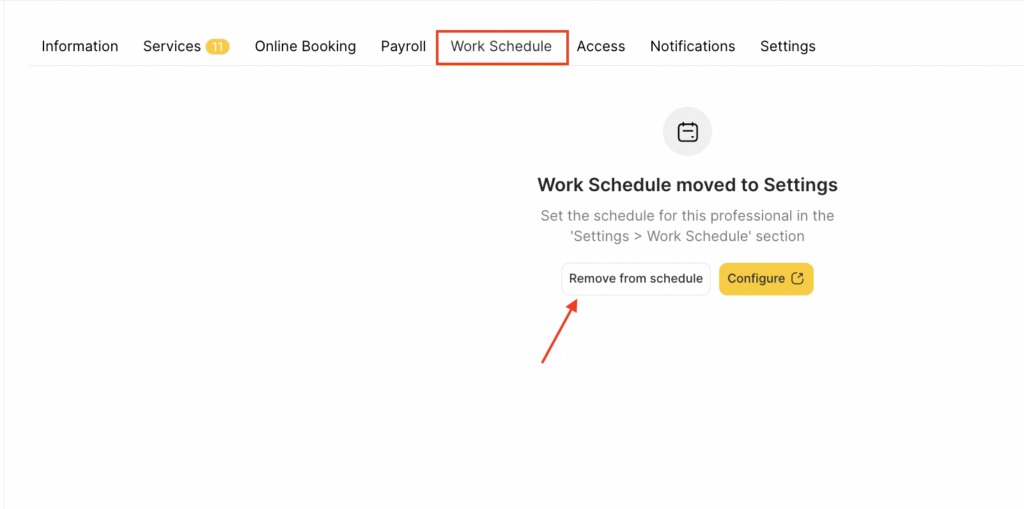
After filling in the sections with the team member’s main information, additional information,settings, and services, add the work schedule for team.
You can assign a schedule to team members in several ways:
- via Settings > Main settings > Team;
- via Settings > Main settings > Work schedule;
- via the Appointment Calendar
- via the Altegio mobile app.
In this article, we’ll look at the first option.
Editing #
To assign a schedule to team members, go to Settings > Main settings > Team.
Select the team member, then click their name or the Change schedule button.

In the Work Schedule tab, set up the team member’s schedule by clicking Set up. The system will automatically open Settings > Main settings > Work schedule. How to configure the schedule in that section is described in the article.
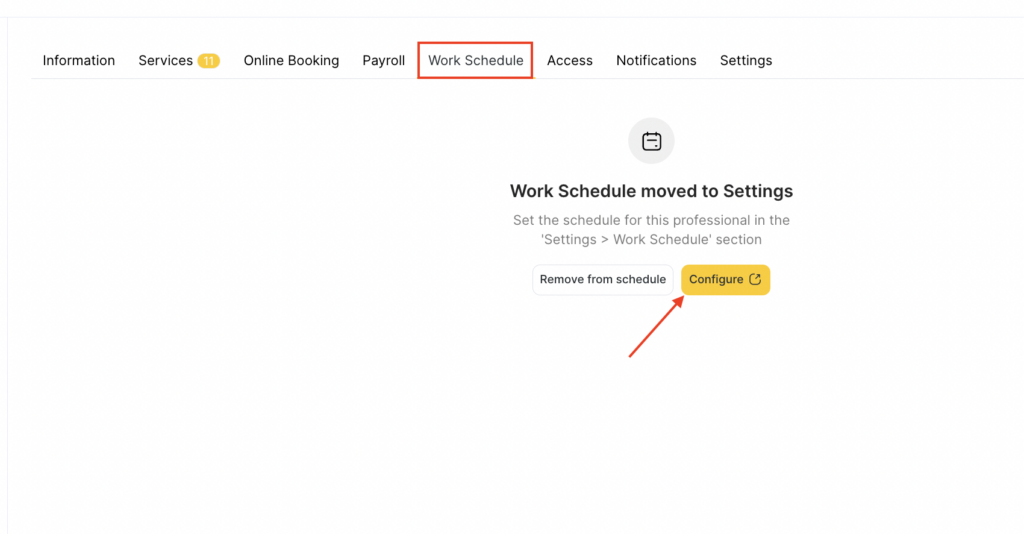
You can also delete the team member’s schedule here by clicking Remove from schedule. After you confirm the action, the team member will no longer be counted in the subscription. The current set of settings will be deleted. The team member will not be able to configure a work schedule and will also disappear from the appointment calendar and online booking.