After assigning services to a team member, set up online booking for them. You can configure availability for online booking, description, rating display, online prepayment, skipping team member selection, and available time for bookings.
Online booking settings #
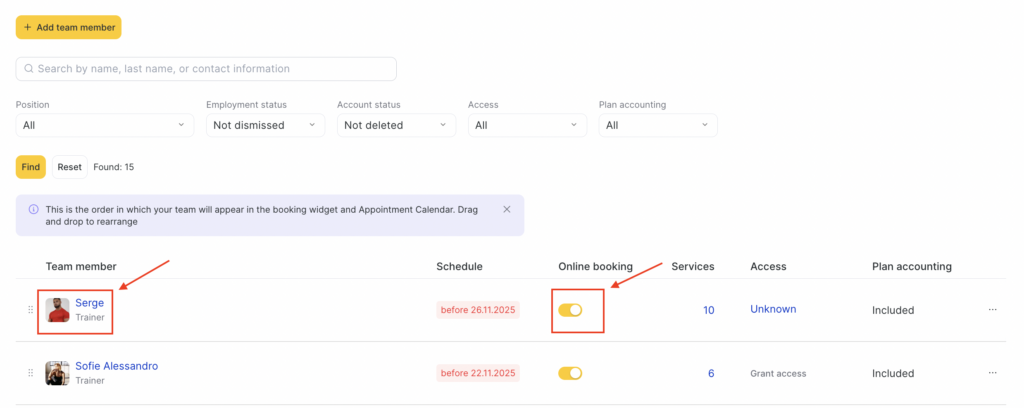
- Go to Team > Team members list (Administration mode). On the team member list page, you can quickly enable or disable online booking for a team member without opening their settings. To go to the detailed online booking settings, click on the team member’s name.
- In the team member settings, go to the Online Booking tab.
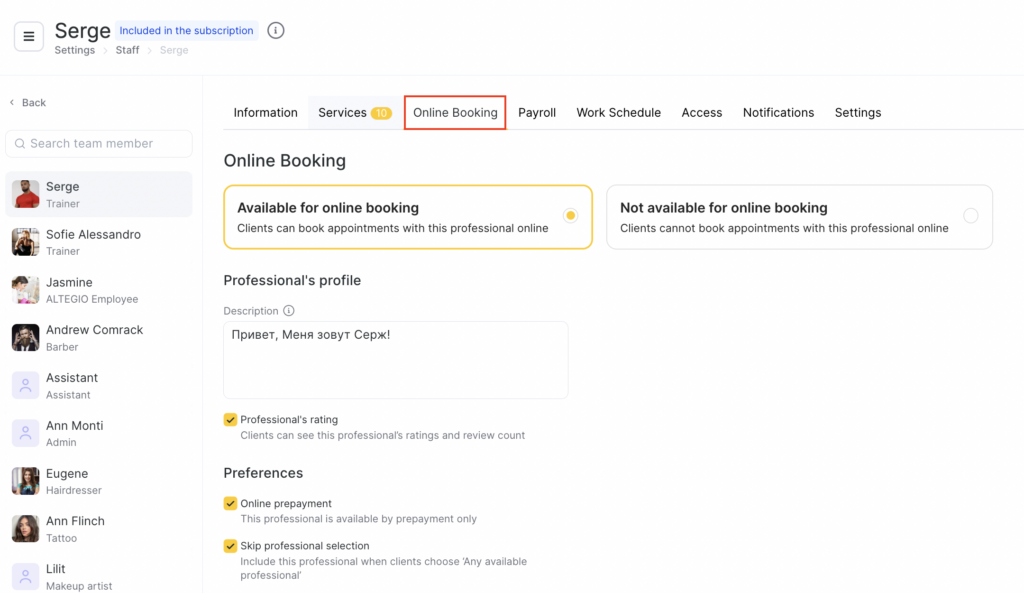
- On the page that opens, edit the information. Read more about each option below.
- At the end, make sure to click Save.
Online booking #
Available for online booking — the team member appears in the online widget, and clients can book them via the internet.
Not available for online booking — the team member is hidden from the online widget, clients cannot view their page or book them online, but the administrator still sees their schedule in the calendar and can create bookings manually (for example, by phone).
Professional’s profile #
Add a description of the team member that clients will see when making a booking.
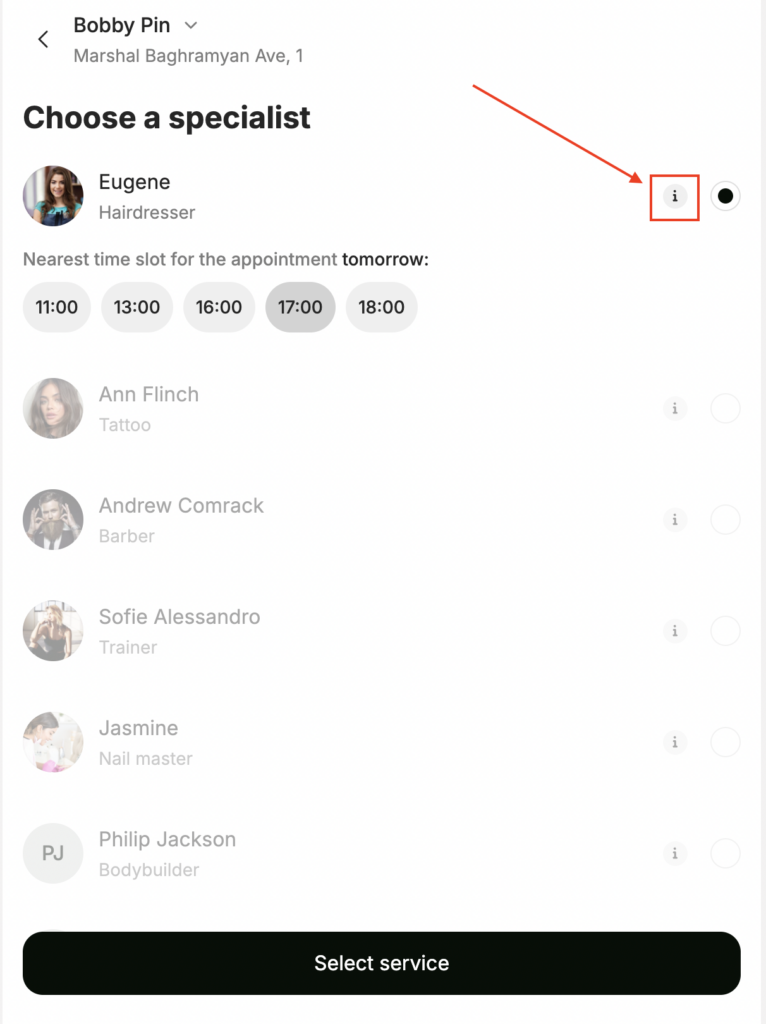
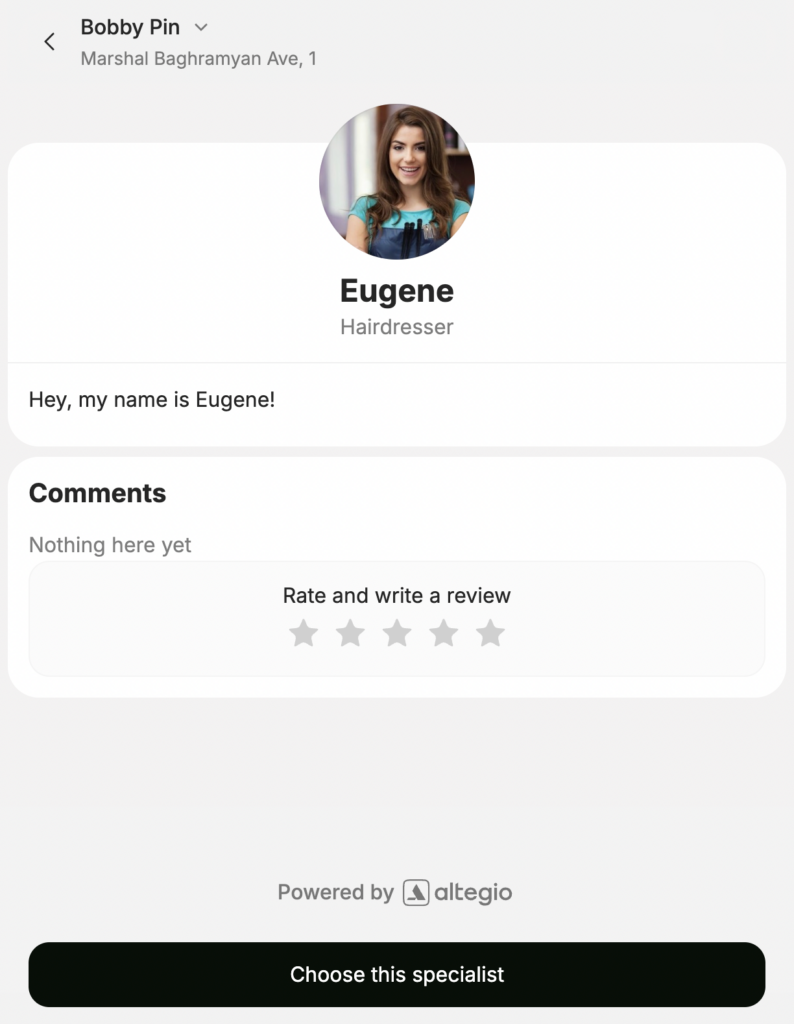
The description opens in the online booking widget when the user clicks the i icon next to the photo. This section usually includes professional experience, education, list of services, specialization, and brief personal details.
Example of how it appears in the widget:
Team member rating #
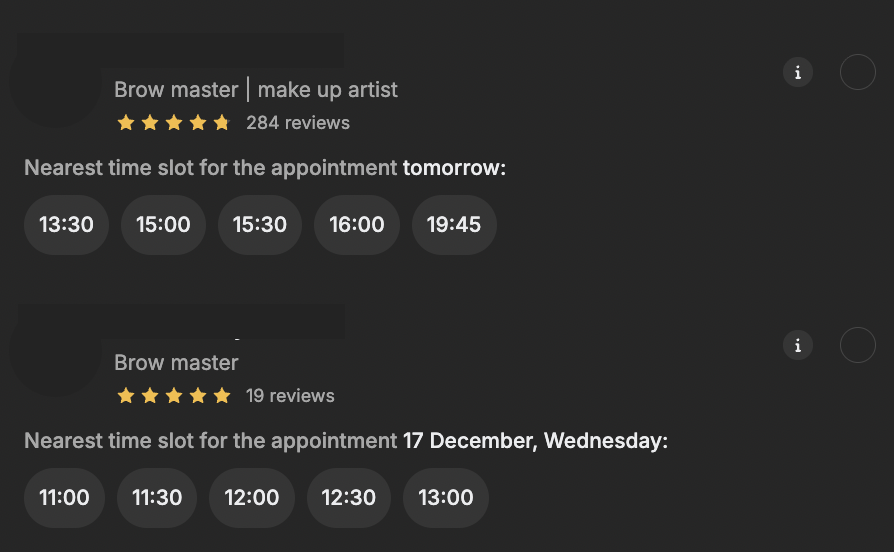
If you tick the team member rating checkbox, clients will be able to see the rating and number of reviews for the team member in the online booking widget.
Ratings can be shown or hidden in the widget if they are very low or, on the contrary, very high, so that not all clients choose the same team member. If you clear the checkbox, the rating will not be displayed in the team member list.
Examples of enabled rating:
Booking preferences for the team member #
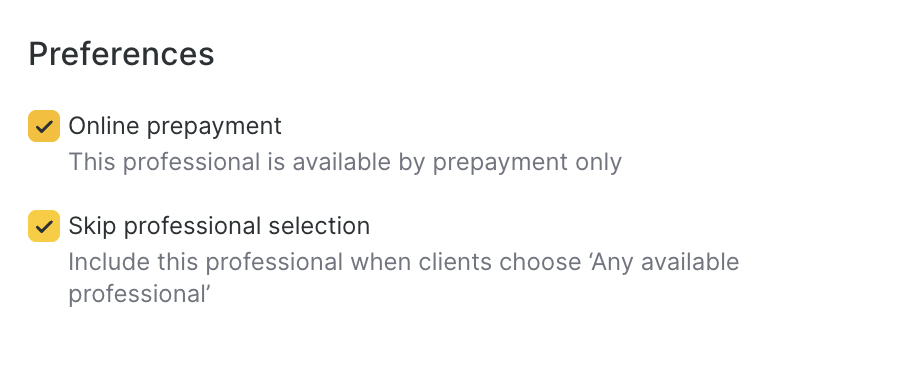
Online prepayment — tick the checkbox to allow bookings with this team member only with prepayment. In this case, users will not be able to book until they pay for the visit.
Read more about enabling and configuring payments in the online booking form here.
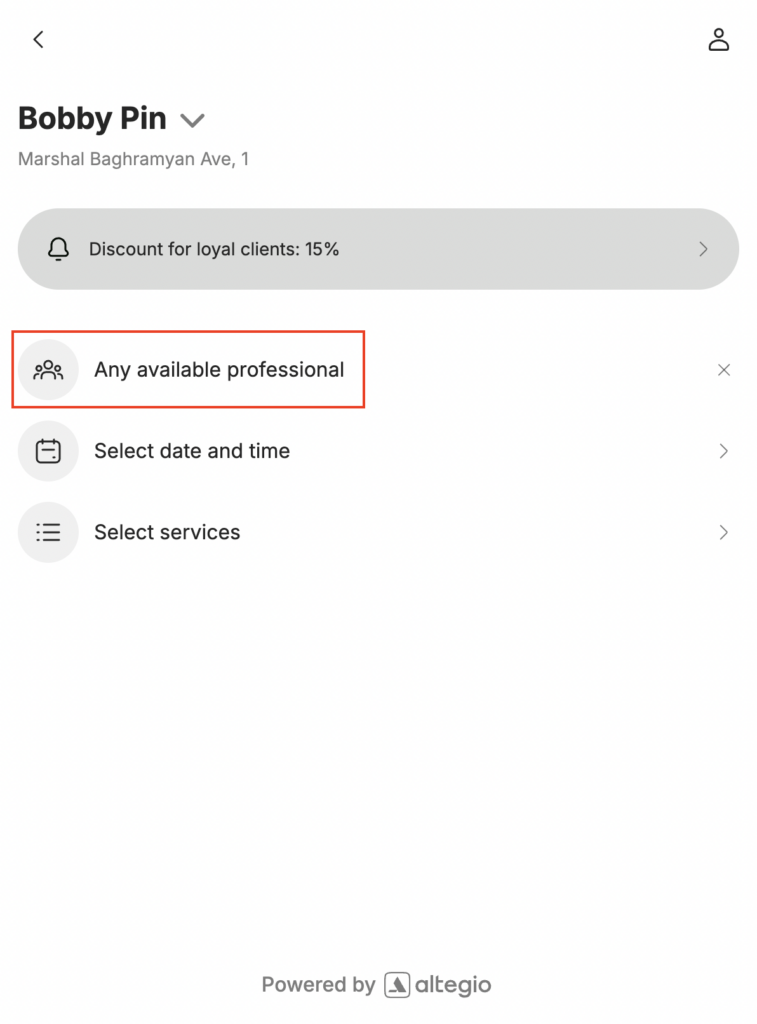
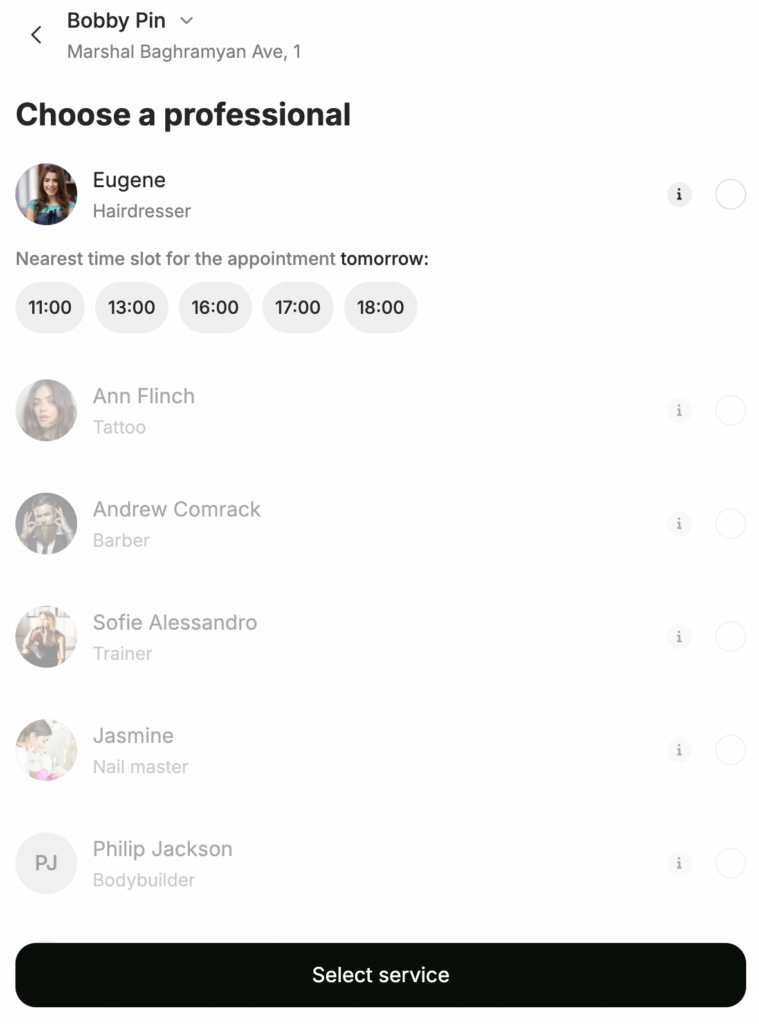
The Any available professional option is displayed in the online booking widget. Allow or forbid online booking with this team member if the client selected the Any available professional option.
Skip team member selection — tick the checkbox to allow booking with this team member when the client chooses the Any available professional option. Enabling skip selection in the team member settings allows clients to choose any of the team members for whom this option is enabled, as well as if the general any professional selection is enabled.
Enabling/disabling the Any available professional button for all widgets is configured in Online booking > Settings > Enable “Any professional” mode step, the Allow booking with any specialist setting. Read more about additional online booking settings here.
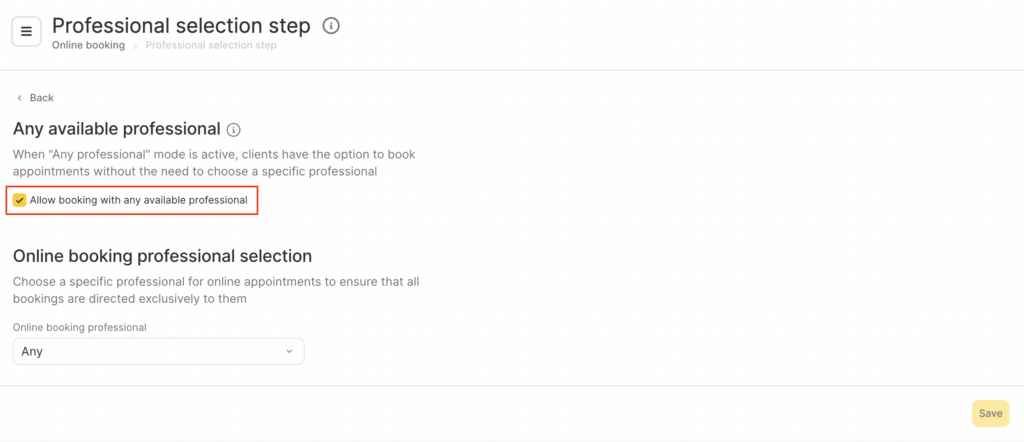
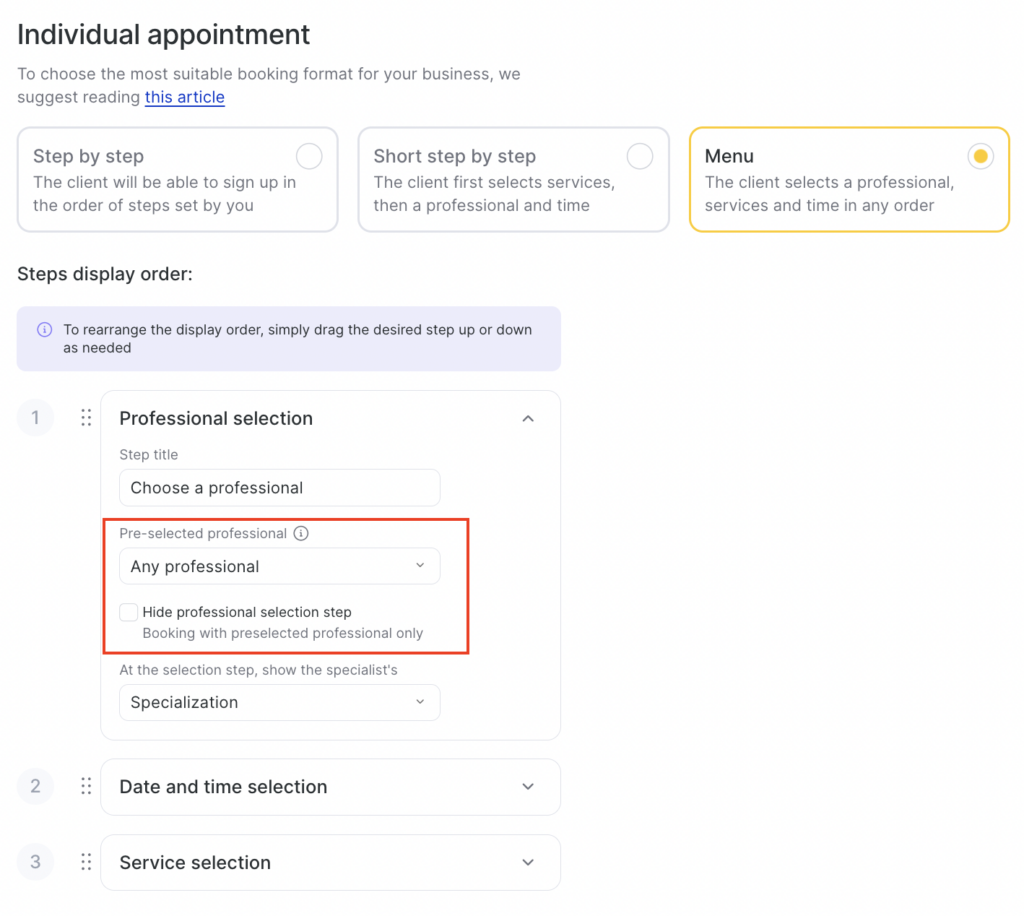
The same mode can be enabled when configuring the booking steps in a separate widget (by setting Any available professional in the Preselected team member field — read more about these settings in the article).
Example of the enabled Any professional option in the widget:
Available time for online booking #
- Set up the time when the team member will be available for online booking. There are two options for this:
- Location-wide. In this case, the time for online booking is configured in Online Booking > Settings > Set available hours and applies to all team members who do not have personal time configured.
- Personal for the team member. In this case, the time for online booking is configured specifically for this team member in their settings.
The settings for the location and for team members are similar, the only difference is that location-wide settings apply to everyone, while a team member’s settings apply only to that specific team member. You can set different available time settings for different team members.
Read more about all available time settings with examples here.
Unavailable days for online booking #
You can make online booking with a team member unavailable on specific days and/or periods. For example, if on certain days the team member only accepts clients offline. This helps on pre-holiday days to control booking and schedule clients manually.
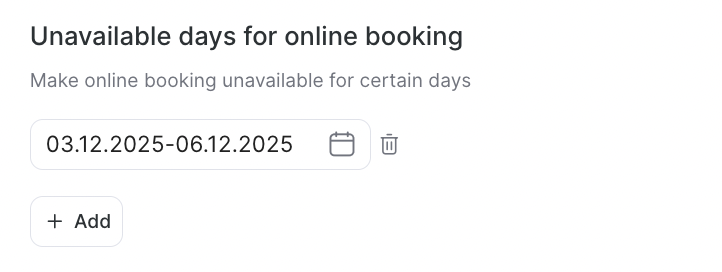
To configure this, click the Add button and select the desired day, several days, or a period.
To delete, click the trash bin button.
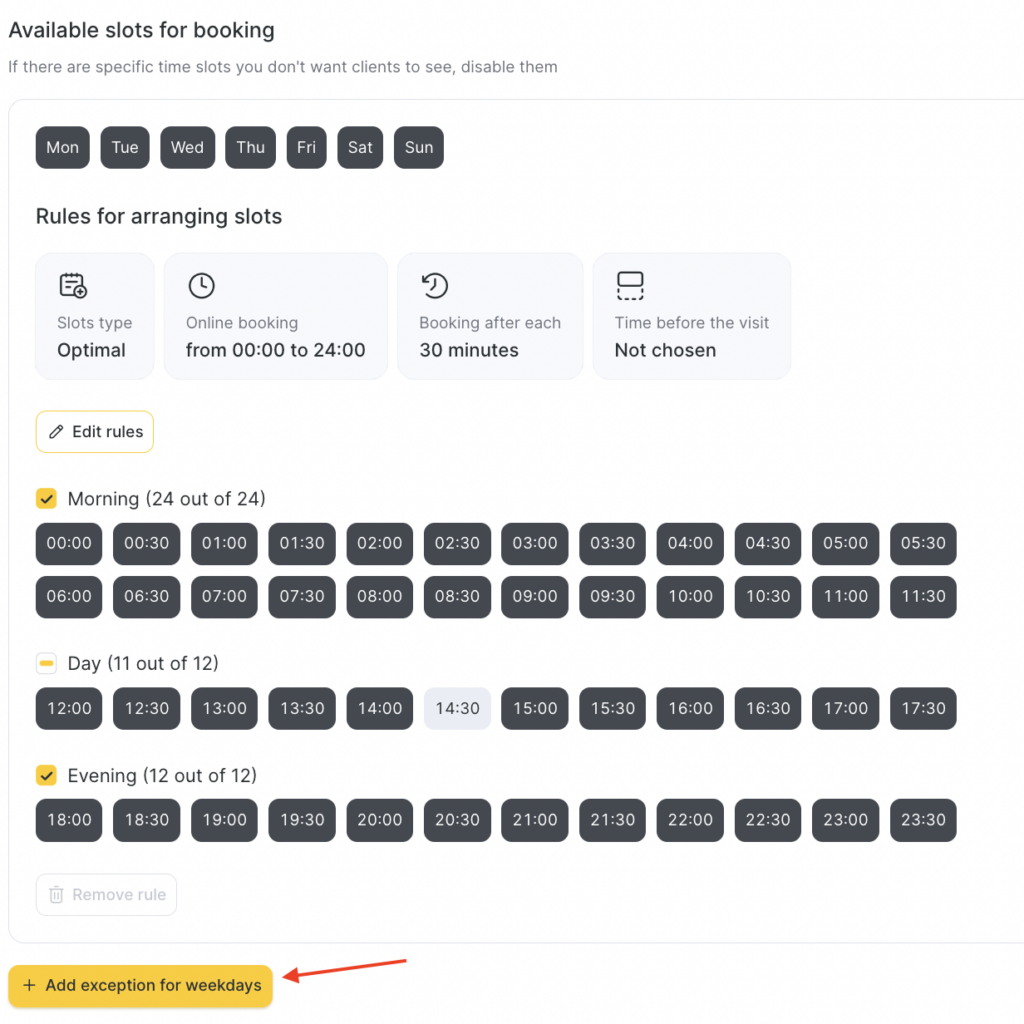
- Set up rules for building time slots that will be displayed for online booking.
- Slot type — online booking density. There are several types:
- Fixed. You create the booking grid yourself. Suitable if you have a stable flow of clients and want to fix slots for maximum efficiency.
- Optimal. If a booking ends earlier, an additional slot is created while the other slots remain unchanged. Suitable if you want to give clients more options for booking and minimize empty windows.
- Dynamic. An additional slot is created after the end of a booking or break, and the remaining slots adjust to it. Suitable if you want to provide maximum flexibility in slot selection for clients.
- Start of online booking — from the online booking time or from the team member’s start of the working day (available only for fixed and optimal slot types).
- Booking step — the interval at which clients will be able to book this team member online (from 5 minutes to 7 hours).
- Time before visit — the period before the visit when the client will no longer be able to book a service with this team member. You can set an interval in 30-minute steps, from 30 minutes up to 24 hours.
- Edit the availability of slots for morning/day/evening if necessary. This setting is available only for the fixed and optimal slot types with the From online booking time option. To do this, click the required slots:
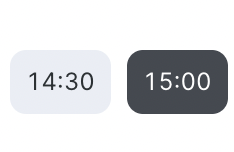
- black indicates active slots;
- grey indicates inactive slots.
- Set different booking time scenarios for different days of the week if needed. This option is useful, for example, when the booking interval on weekends differs from weekdays.
- To set up a different day of the week, click the Add exception for weekdays.