In the Altegio.me mobile app, there is now an option to show customers their accumulated cashback. You can configure flexible bonus programs in the Altegio chain interface and encourage customers to choose your company more often by displaying their bonus balance in the app. If necessary, the display of cashback in the app can be disabled. Read on in this article to learn how it works and how to configure it.
Cashback on the app home screen #
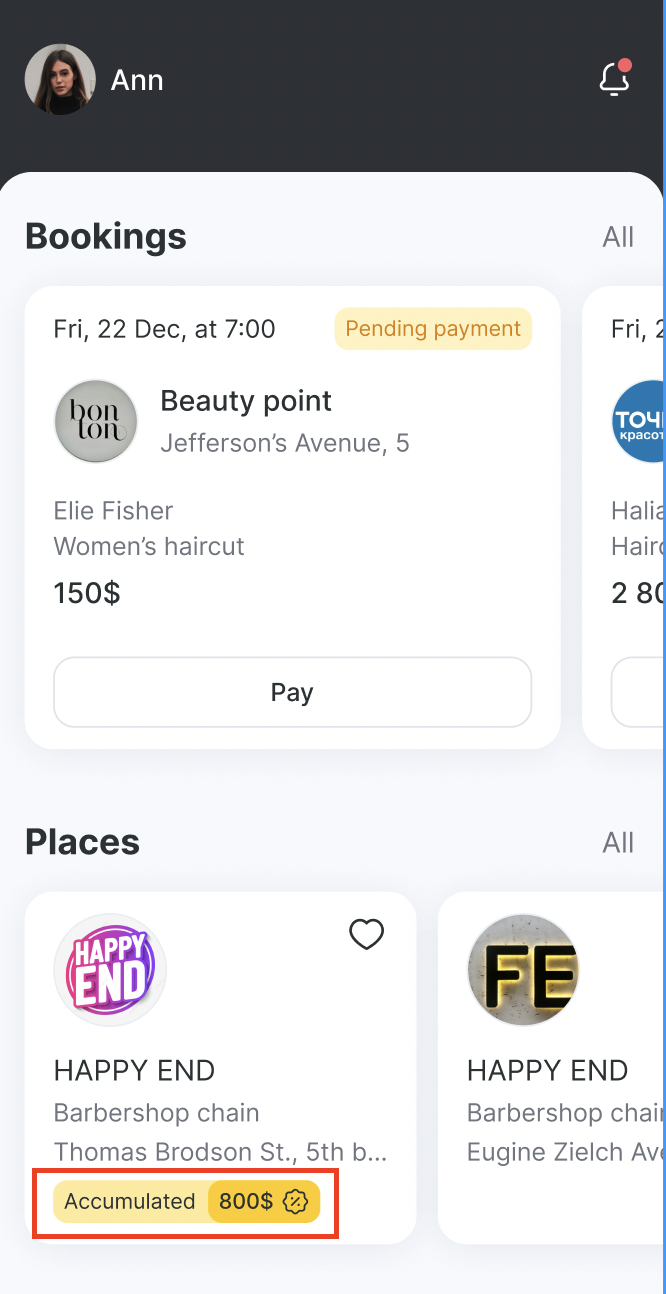
If a client has a loyalty card with a non-zero cashback balance in a branch, the cashback amount will be shown on the app’s home screen in the company card.

If the client has no accumulated cashback, or if the branch does not offer bonus programs, cashback (or any mention of it) will not be displayed in the company card on the home screen.
If the client has multiple loyalty cards in the same location, then on the home screen:
- If cashback balances are the same on different cards, the cashback from the most recently issued card will be displayed.
- The app will display the cashback balance, promotions, and terms from the card that has cashback.
- If multiple cards have cashback, the highest cashback balance will be shown.
Cashback in the company profile #
When opening the company profile, a button showing the cashback balance will be displayed. The display rules are almost the same as on the app home screen.
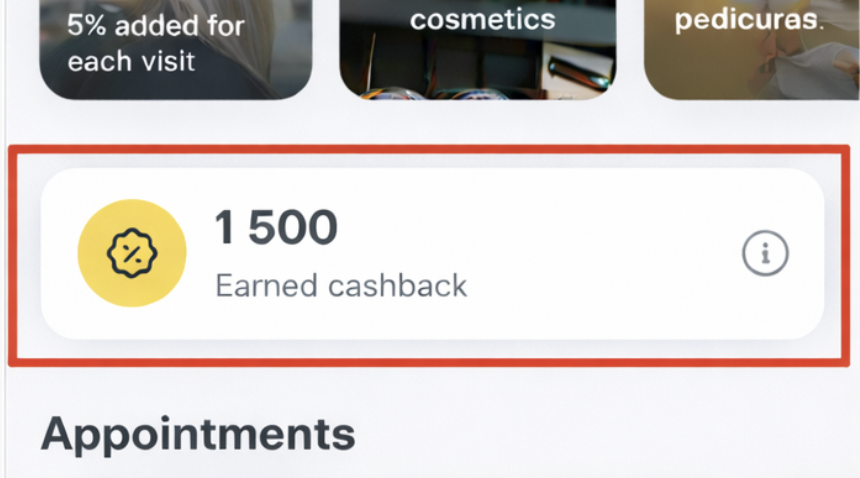
The only difference is that on the home screen, cashback with a zero balance is not shown.
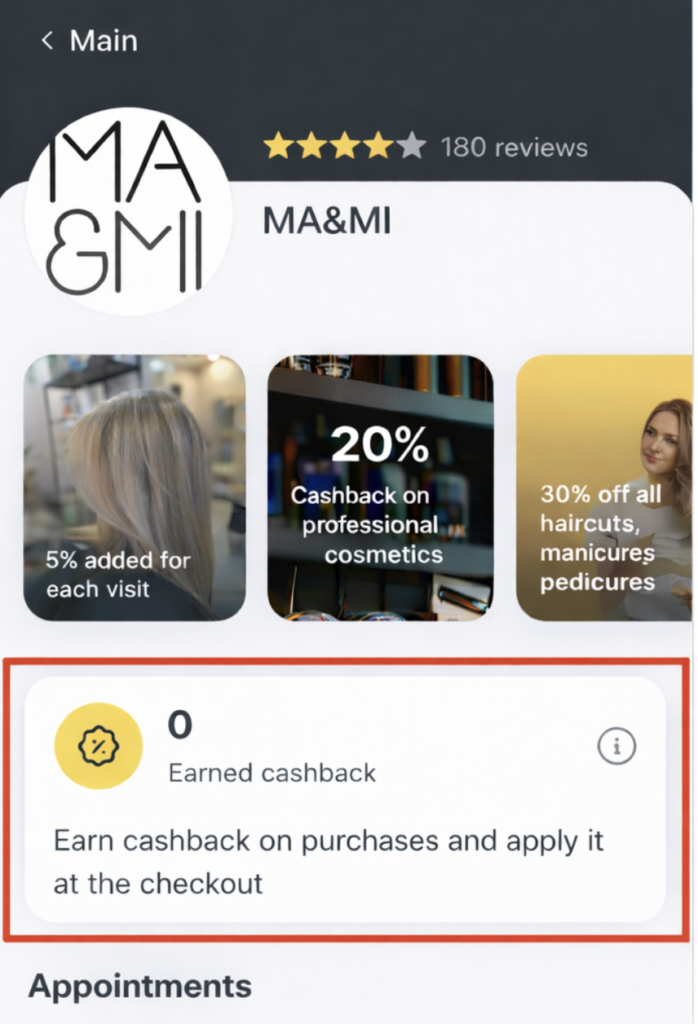
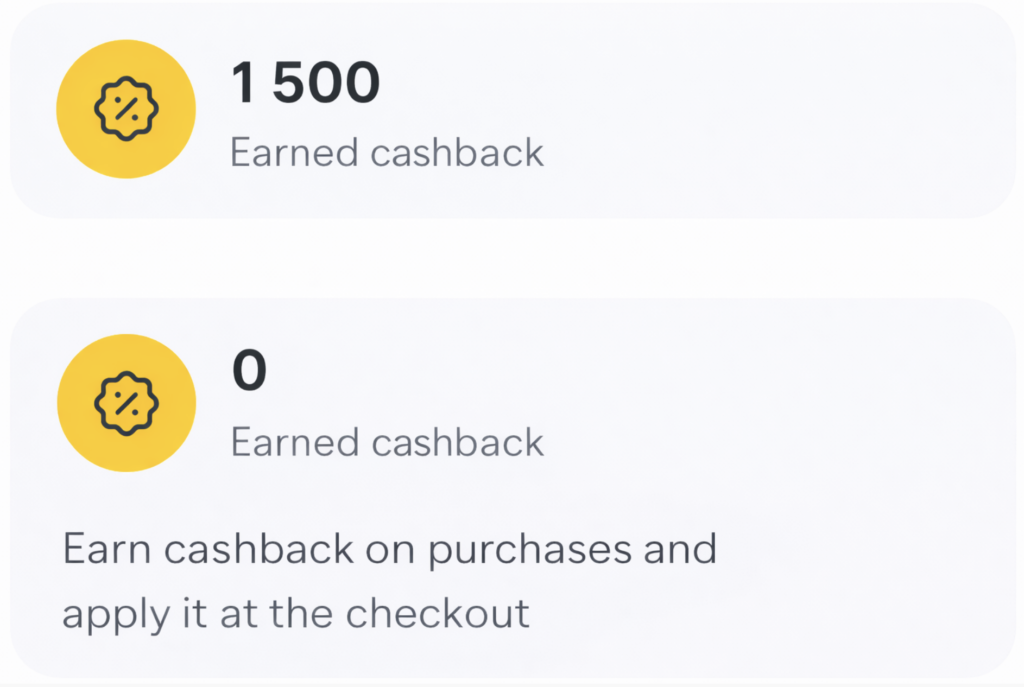
If the client has a zero cashback balance on all cards, but still has an active loyalty card with bonus programs enabled, then the button with the zero balance will show the message: “Earn cashback on purchases and redeem it when paying at checkout.” In this case, the cashback from the most recently issued card will be displayed.
Cashback details screen #
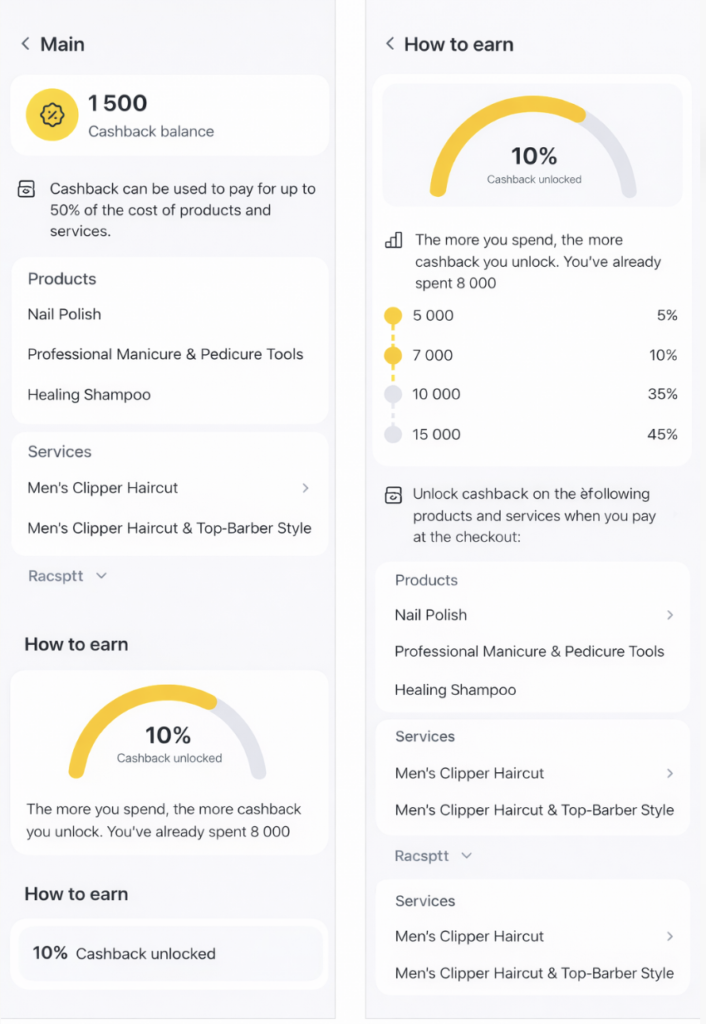
When the user taps the cashback button in the company profile, a cashback details screen opens.
This screen displays:
- the amount of accumulated bonuses;
- what the cashback can be used for;
- the cashback earning conditions.
Amount of accumulated bonuses #
The bonus amount data is the same as what is shown on the home screen and in the company profile.
Cashback redemption conditions #
Under the bonus amount, the app will display the amount and what the cashback can be spent on.
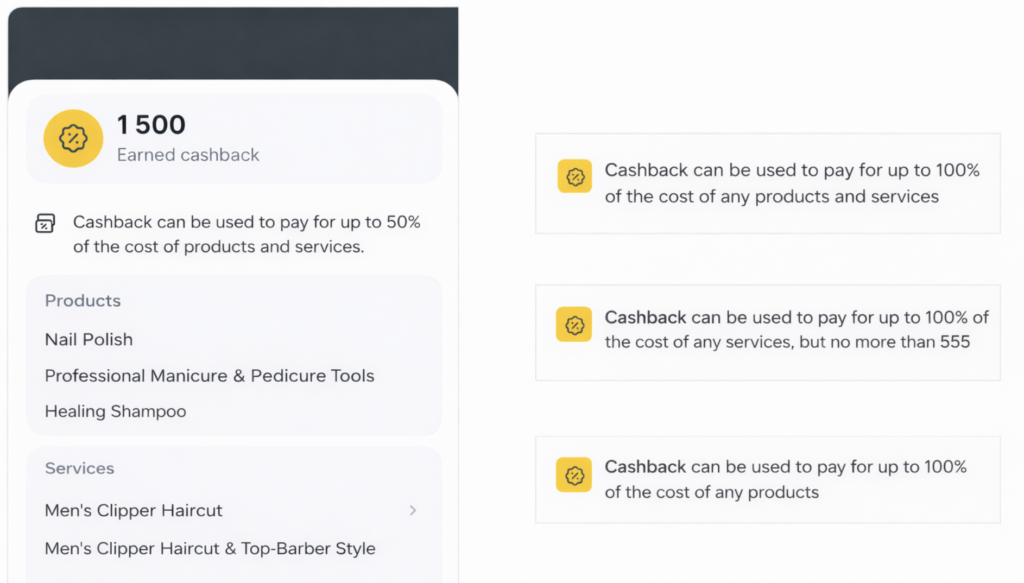
Redemption conditions are configured in the loyalty card type linked to the promotion, in the following fields: Usage restriction (points redemption), Points payment limit (fixed amount), and Points payment limit (% of receipt total).
Usage restriction (points redemption) — can be applied to:
- any services,
- selected services,
- any products,
- selected products,
- services only, or products only.
If there are restrictions for products and/or services, a list of those products and services will be shown below.
- When a user taps a service, the online booking widget will open with that service pre-selected, provided the service is available for online booking in the branch.
- If a service is a network service but is not available for booking in the branch, it will still be displayed, but the user won’t be able to open the booking widget from it.
- If a full restriction is set for both services and products at the same time, the app will display the message: “Please check the cashback usage terms with the organization administrator.”
Points payment limit (fixed amount) — if a fixed-amount limit is set, it will be shown in the app.
For example, if the payment limit is 555, the app will display: “You can pay up to 100% of the cost of any products and services with cashback, but no more than 555.”
Points payment limit (% of receipt total) — if a percentage limit is set, it will be shown in the app.
For example, if the payment limit is 50%, the app will display: “You can pay up to 50% of the cost of any products and services with cashback.”
In the future, the app will also show points expiration conditions.
Cashback earning conditions #
In the How to earn section, the app displays information about the cashback earning rules.
These conditions match promotions of the Bonuses type that are linked to the loyalty card.
Depending on the bonus type and the promotion settings, different information will be shown:
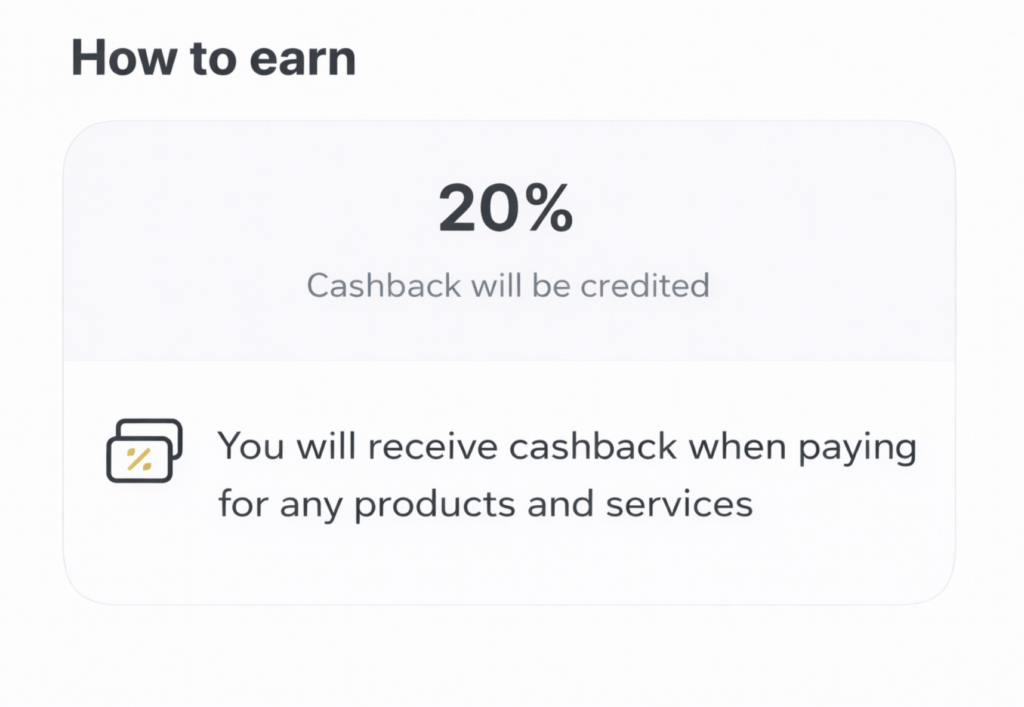
- Fixed bonuses — the cashback amount (% or fixed value) that will be credited.
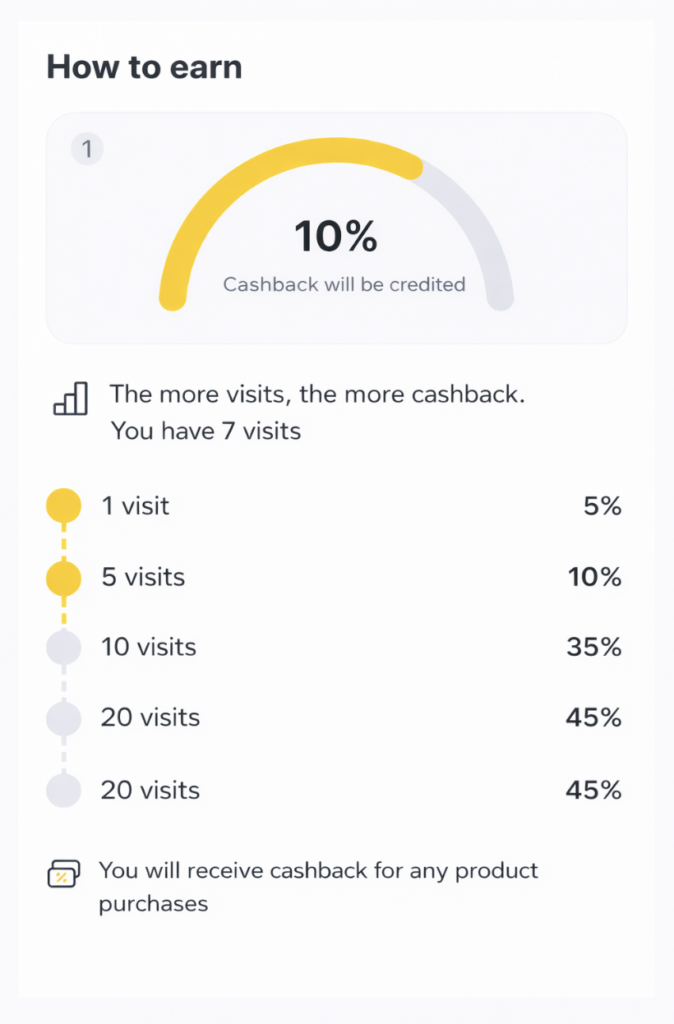
- Cumulative bonuses based on number of visits — the current cashback amount (% or fixed value) and how many visits are left until moving to the next cashback level.
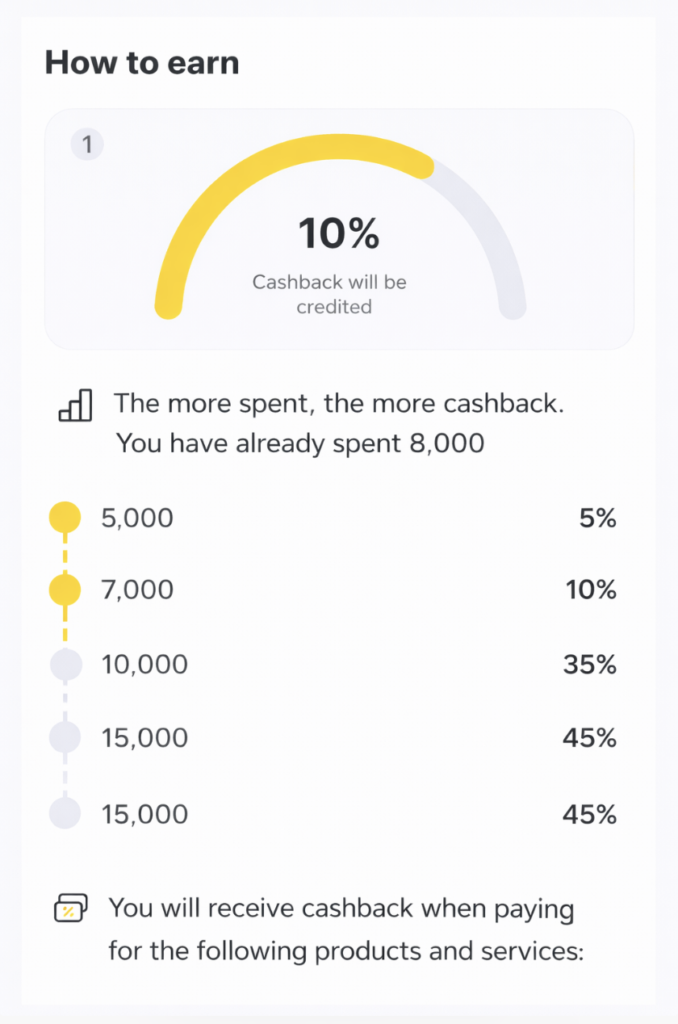
- Cumulative bonuses based on total spend — the current cashback amount (% or fixed value) and how much more needs to be spent to reach the next cashback level.
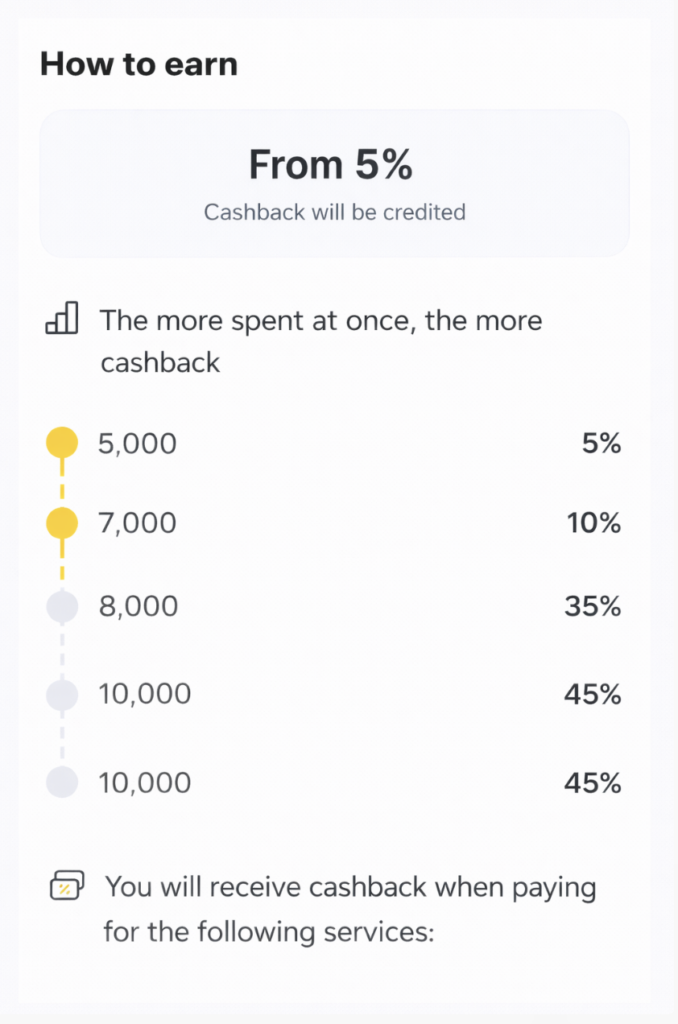
- Cumulative bonuses within a single visit — the current cashback amount (% or fixed value) and how much more needs to be spent in one visit to reach the next cashback level.
Also, depending on the bonus earning restrictions set in the promotion, different information will be shown:
- You will receive cashback when paying for the following products — an expandable list of products.
- You will receive cashback when paying for the following services — an expandable list of services. If the promotion lists specific services (not service categories), the user can open the online booking widget from the selected service, with that service pre-selected — as long as it is available for online booking in the branch. If a service is a network service but is not available for booking in the branch, it will still be displayed, but the user won’t be able to open the widget from it.
- You will receive cashback when paying for the following services and products — an expandable list of both products and services.
- Please check the cashback earning terms with the organization administrator — this message appears if restrictions apply to both products and services.
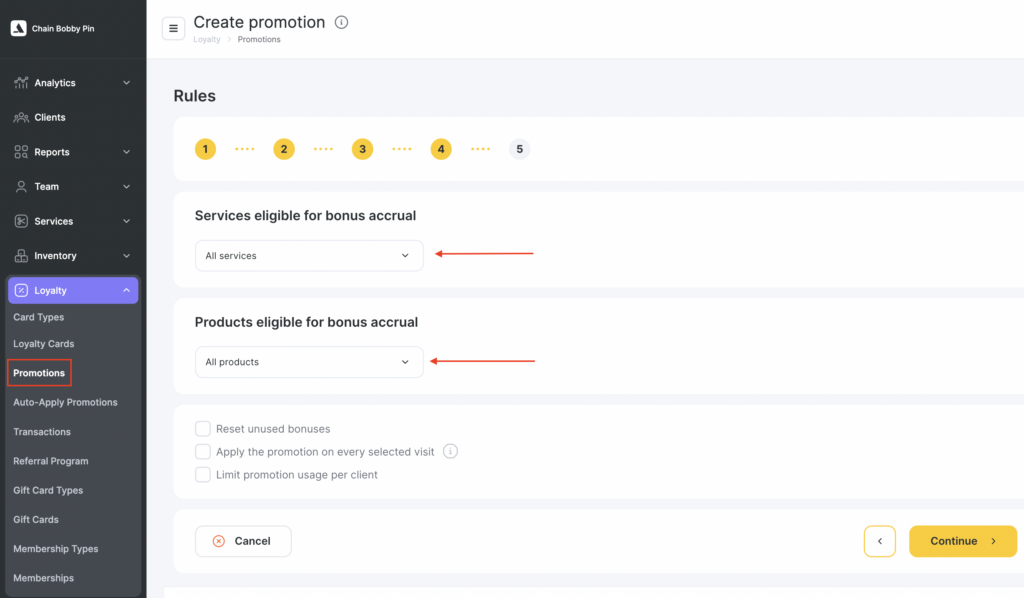
Cashback earning restrictions are set when creating a promotion in the network section Loyalty > Promotions.
Setting up cashback display in the app #
To display cashback in the Altegio.me app, you need to:
- Create a loyalty card in the Altegio network interface under Loyalty > Card types, then create a bonus promotion under Loyalty > Promotions and link it to the card. For more details on setting up a bonus loyalty system, see the article.
- Issue the card with the linked promotion to the client. The instructions for issuing cards to clients are available here.
- After that, cashback will be displayed in the app on the home screen and on the company page. From the company page, users can also open the cashback details screen.
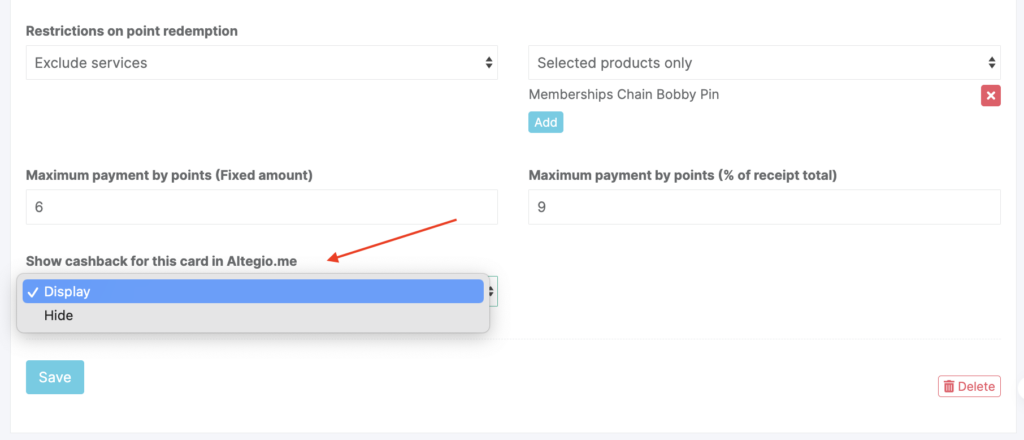
- If needed, cashback display in the app can be disabled at any time in the loyalty card settings, in the field Show cashback for this card in Altegio.me. After that, the client will no longer see cashback or its details for this card and the promotions linked to it on the home screen and the company page, but they will still be able to open the loyalty card in the old format from the personal account (in future updates, access to cashback in the old format will be removed).
- After disabling cashback display for the card, the change will apply instantly for the client—there’s no need to reinstall the app or log out and back in. It’s enough to refresh the home screen by pulling it down.