
What is it and what is it used for? #
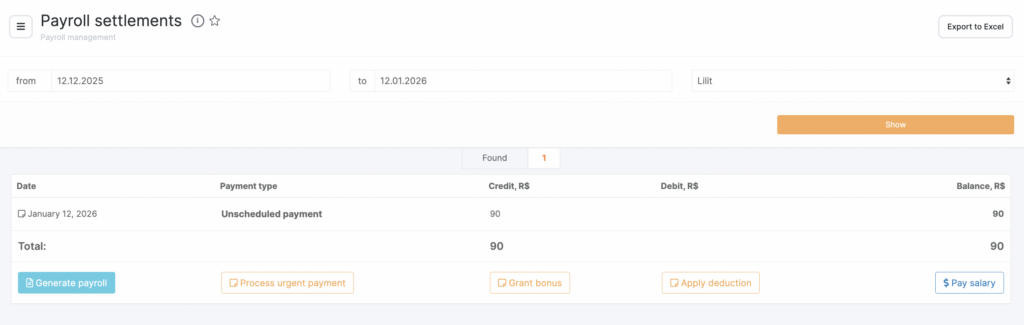
In Payroll calculation > Settlements, you can see all transactions related to salary accruals and salary payouts to team members. To view these details for a specific team member, select the period and the team member, then click Show.
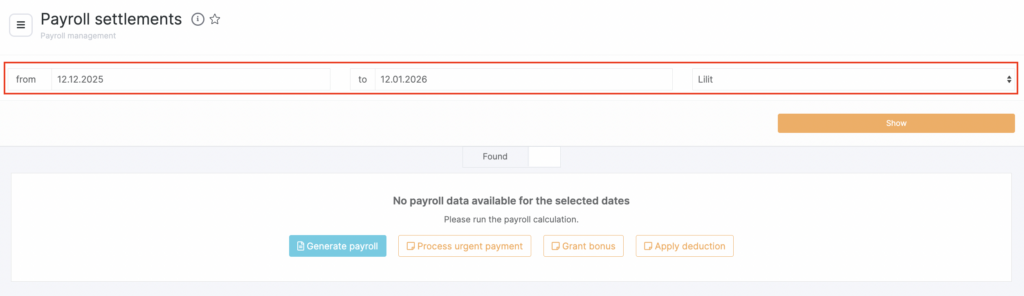
This section displays the dates and purposes of accruals, accrual amounts (income), payout amounts (expense), and the remaining unpaid salary (balance).
How to accrue salary #
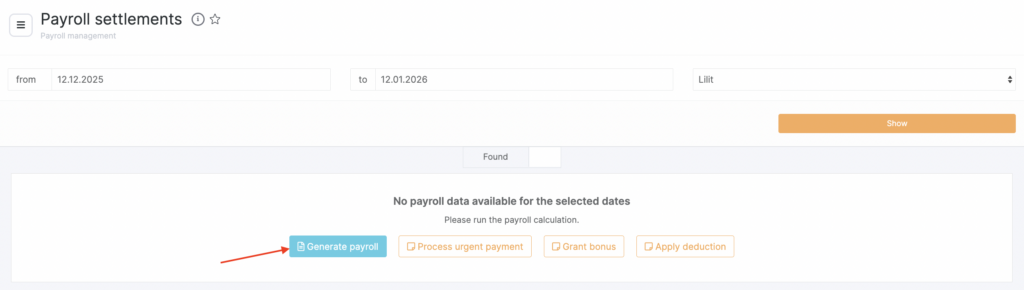
- To accrue salary, go to Payroll > Settlements and click Generate payroll.
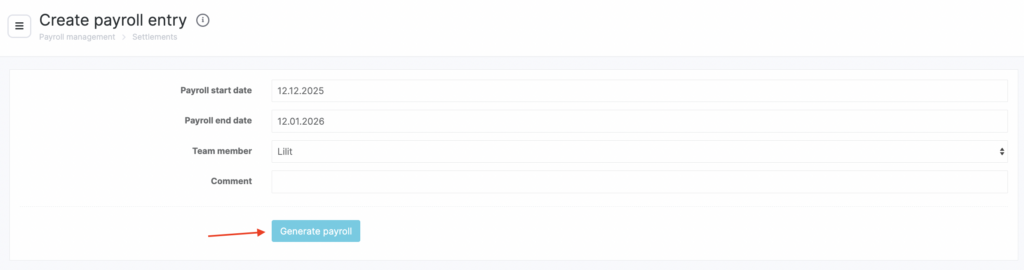
- On the statement creation page, select the start and end dates of the accrual period, the team member who will receive the salary accrual, and add a comment.
- Then click Generate payroll.
- A new window will open showing detailed information for the entire accrual.
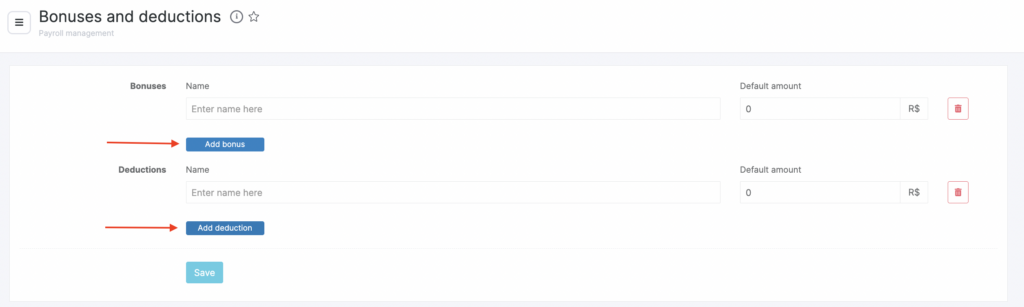
- Here, you can also add a bonus (1) and/or a deduction (2). For more details on accruing bonuses and penalties, see the article.
Also in Payroll > Settlements, you can Process an urgent payment for a team member. This process is described in more detail in this article.
- After creating the payroll statement, you can either Save and accrue salary or Save as draft . A draft allows you to create a payroll statement without accruing salary.
Here you can also View settlements with this team member or Delete the payroll statement .
When you open the statement details from the settlements page, you will be able to Export the statement to Excel , Pay salary, View settlements, or Delete the statement .
Differences in the payroll statement #
After you click Save and accrue in a payroll statement, some items may appear highlighted with an additional color.
Red means there is a discrepancy with an item for which salary was accrued. This happens if an appointment was deleted, rescheduled, a new one was added, services were removed from a visit, the price was changed, or the visit status was changed (for example, the visit was Waiting, and after accrual it was changed to Arrived, or vice versa).
Yellow means that after the payroll statement was created, changes were made to the payroll calculation rule. This discrepancy will also appear if a new service was added to a visit.
In such cases, you need to click Generate payroll so the payroll statement is updated.
Important
Only visits with the status Arrived are included in the payroll statement.
Discrepancies can appear if Save and accrue was clicked in the statement. If the payroll statement is saved as a draft, discrepancies will not appear after changes are made.
How to pay salary #
- Click Pay salary. You will be automatically redirected to the new payment creation page in Finance > Financial transactions (for more details on creating payments, see the article).

- In the new window, set the payment date and time, choose the payment category (the category Payroll is set automatically), select the cash desk the funds will be withdrawn from, and choose the team member receiving the salary.
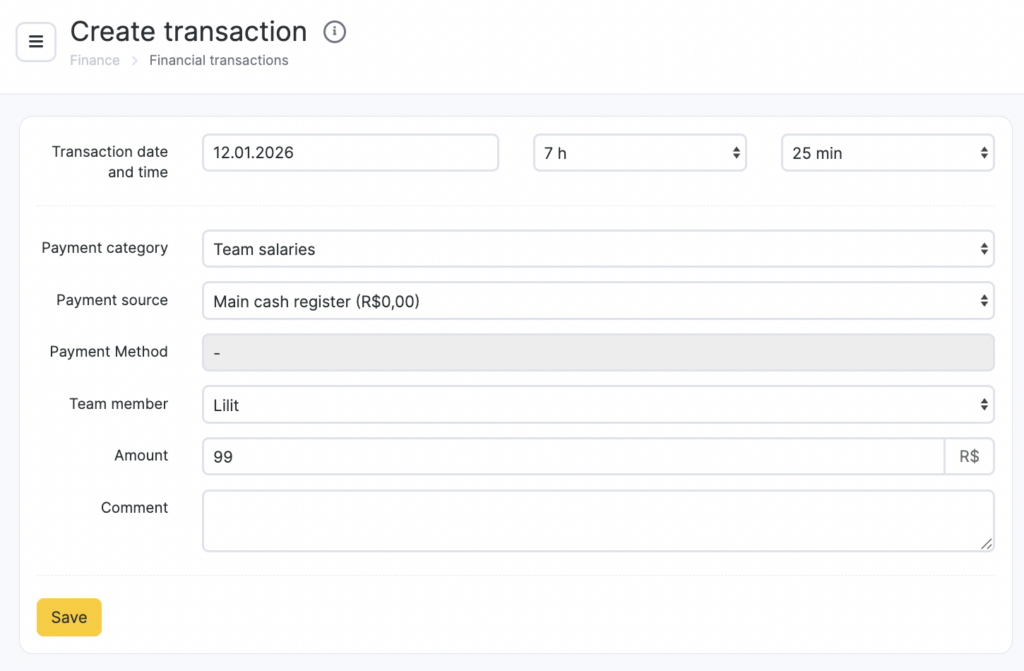
The salary amount is filled automatically depending on where you clicked Pay salary:
- if you clicked it in Payroll > Settlements, the amount from the Balance column will be shown;
- if you clicked it on the payroll statement page, the total accrued amount for that statement will be shown.
If you want to pay a different amount, change it. Add a comment and click Save.
The salary payout transaction will appear when you open the settlements page for that team member.

