
To upload a product list from Excel:
- Go to Products > All products (Administration mode).
- Click the name of the category you want to upload products into, or create a new one. All categories must be created before uploading.
If you’re uploading into multiple different categories, make sure your Excel file includes a separate column where you specify the category ID the product should be added to.
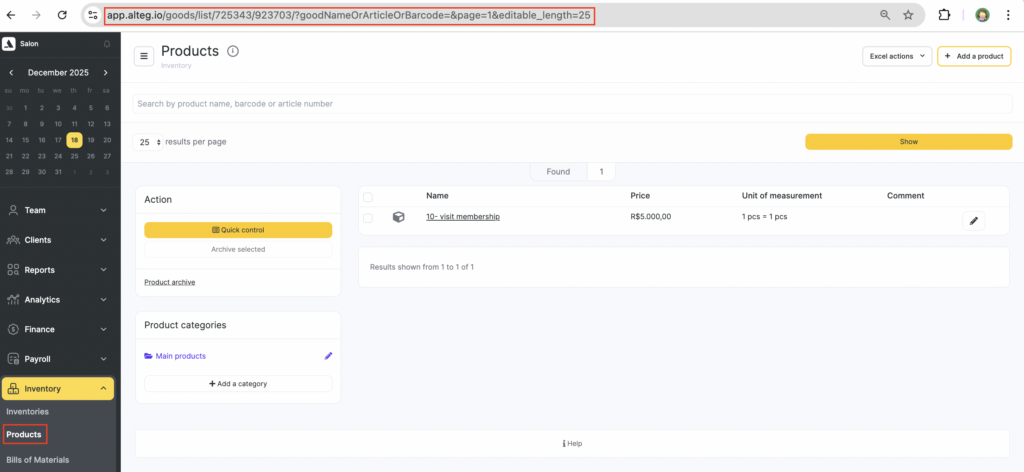
Category ID is the category’s unique number in Altegio. To find the category ID, go to Products > All products in the main menu and click the required category name.
In the address bar, you’ll see a link like this, where the number (e.g., 923703) is the category ID.
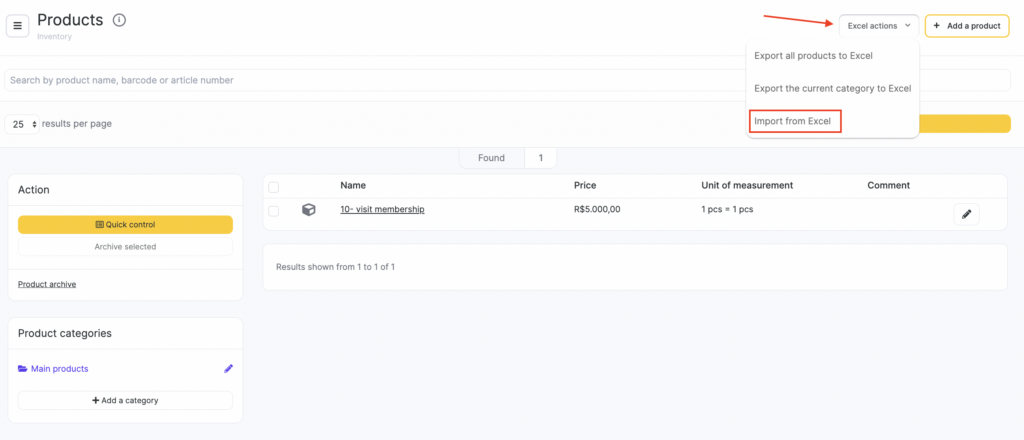
- In the top-right corner, click Excel actions and select Import from Excel.
- Prepare an Excel table with your product list. The table must contain product names.
If needed, you can add extra parameters in separate columns:
- Product category ID (for uploading into different categories)
- Receipt name
- SKU
- Barcode
- Sale price
- Cost price
- Unit of measure for sale
- Unit of measure for write-off
- Write-off units per sale unit
- Net weight
- Gross weight
- Critical stock
- Desired stock
- Comment
Prices must be entered without digit grouping and without letters (use 1500, not 1 500$).
For units of measure, enter the full or short name (e.g., Piece or ml). If the unit isn’t found in the list, Piece will be set by default.
You can check the correct unit names on the upload page opened in step 3. You can use either abbreviations or full names.
The product comment must not contain line breaks.
- Copy the data from the Excel table into the input field and click Upload. You can upload up to 500 rows at a time.
- In the new window, match the uploaded data to the table headers.
- Click Save.
Note
You can use this same process to update existing product data (for example, prices). To do that, export products to Excel via Excel actions > Export to Excel, then upload the same file back.Note that units of measure for products that already have operations can only be corrected manually.
After the first upload, each product is automatically assigned an ID.

