After creating and configuring categories, add products to inventories. You can add products one by one or upload a list via Excel (for more details on adding products via Excel, see here).
New product
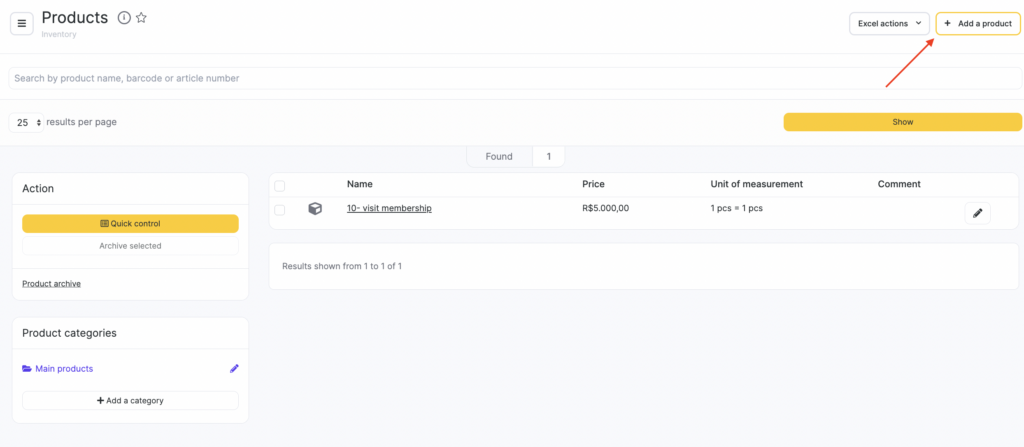
- Go to Inventory > Products and click Add product.
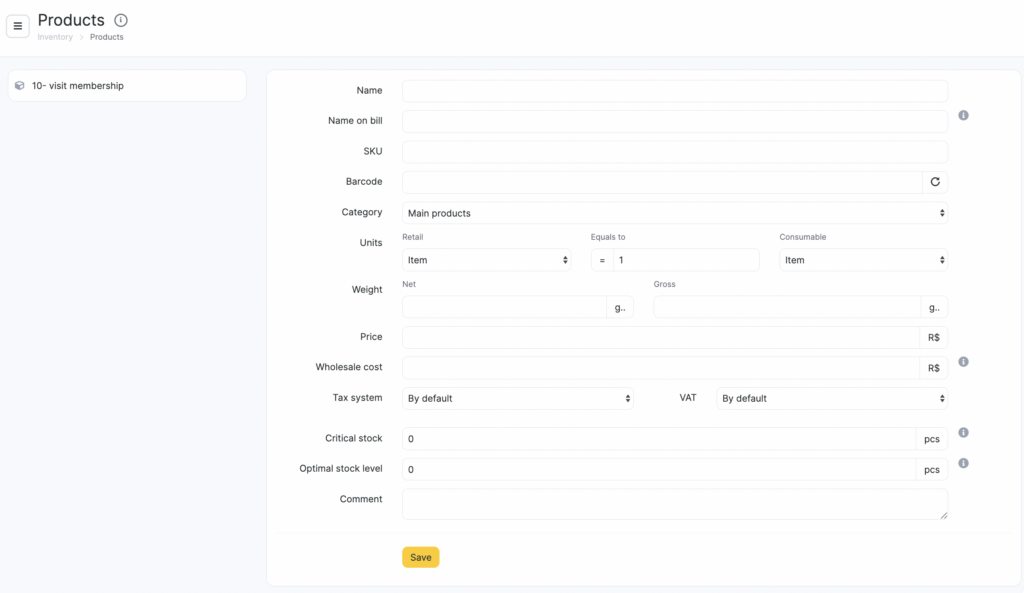
- In the window that opens, enter all the required information and click Save.
- Enter the Product name, for example, “Matrix hair dye”.
- Enter the Receipt name. If you leave this field empty, the value from Product name will be used when printing a receipt.
- Enter the product SKU.
- Enter the Barcode, or click the circular arrow button to generate it automatically.
- Set the Sale price.
- Set the Cost price. Cost price is the price at which this product will be written off as a consumable. Later, the cost price will be filled in automatically when recording a goods receipt.
- Select the Tax system used by the company.
- Select Units of measure — For sale and For write-off. In the Equals field, specify how many write-off units are contained in one unit for sale.
Example
For “Hair dye”, the unit of measure for sale can be “Piece”, and for write-off can be “Gram”. In the Equals field, specify how many grams of dye are in one piece.
- Set the Critical stock level. This is the product quantity at which further work is not possible and you need to reorder this item. A filter for products that reached critical stock is available in the Stock balance and Product order reports.
Products will appear in search when the quantity is 1 unit higher than the value in the Critical stock field.
Important
At the moment, the system does not send notifications when stock reaches the critical level.
We recommend checking stock levels manually on a regular basis to restock in time.
- Set the Desired stock level. This is the quantity that should be kept in inventories to meet your needs. In the Product order report, all products with quantities below the desired stock will be shown. The required quantity to reach the desired stock will also be calculated automatically.
- Enter the Net weight and Gross weight values.
- Add a Comment.
Editing and archive
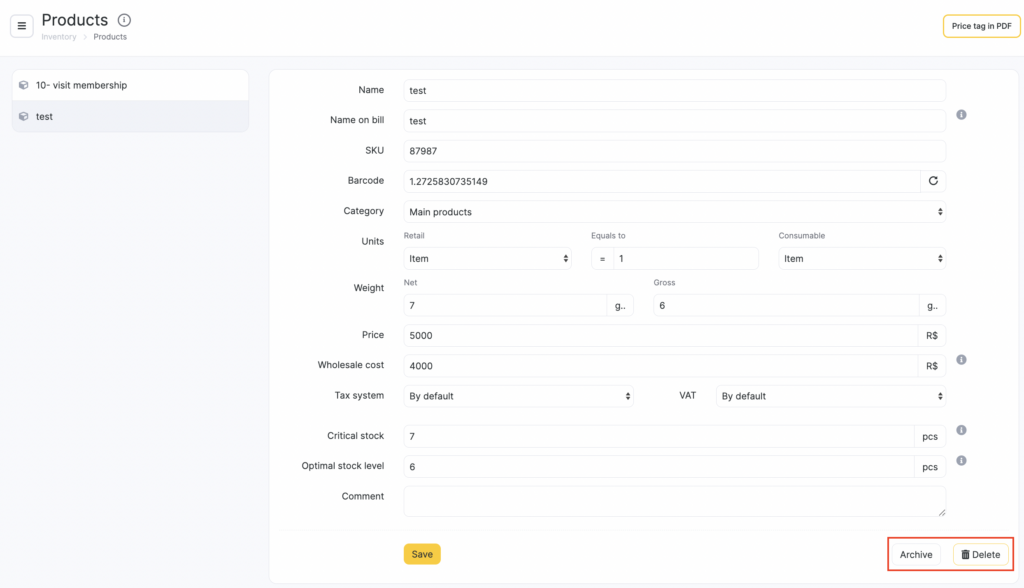
You can edit information for any product. Open the product card by clicking the product name or the pencil icon.
Here you can also delete or archive the product. Archiving lets you store unused items instead of deleting them permanently, and later choose whether to delete them permanently or restore them if needed.
Important
You can archive only products created in the location.
You can’t archive products linked to bills of materials.
If a product is linked to payroll, it will disappear from payroll calculations.
Deleted archived categories and products can be restored back to the archive (contact Altegio Support).
You can archive a product only if all of the following conditions are met:
- The employee has the Access to archiving and restoring products permission (configured in Settings > Main settings > Team > Team member name > Access tab > Inventory section).
- The product is not chain-wide and is not linked to another chain-wide product.
- The product is not deleted.
- The product is not archived.
- The product is not used in bills of materials.
- The product is not used for selling memberships or gift cards.

To archive multiple products at once, go to Inventory > Products, select the category you want to move products from, check the boxes next to the products you want to archive, and click Archive selected.
To unarchive or permanently delete a product, go to the Product archive tab. On the Products tab, restore products one by one, or select multiple products (check the boxes) and click Restore selected or Delete. To return to the product list, click Back to products.

You can unarchive a product only if all of the following conditions are met:
- The user has the Access to archiving and restoring products permission (configured in Settings > Main settings > Team member > Team member name > Access tab > Inventory section).
- The product is not chain-wide and is not linked to another chain-wide product.
- The product is not deleted.
- The product is archived.
- The product is not inside a deleted product category.
- The product is not inside an archived product category.