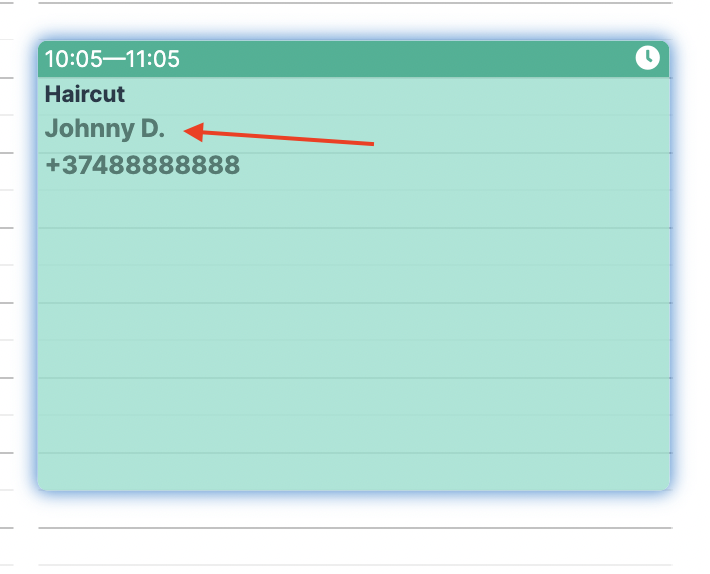
In certain cases, simply providing the client’s name may not be sufficient. For instance, when filling out medical or other documents, or when attempting to simplify searches within the client database for individuals with similar names. By specifying the client’s full name in the designated field, it will be displayed in notifications to the client, reviews in the online booking widget, and the Altegio interface for all employees.
To address these concerns, Altegio now provides an option to include the client’s last name and middle name. This eliminates the need to create additional fields or include full names in the Name field. Separate fields have been added for the last name and middle name fields, allowing for greater accuracy and clarity when inputting client information.
You have the option to enable or disable the display of last name and middle name fields in the Appointment Calendar settings. Additionally, you can control access rights to determine who can view the last name and middle name of clients.
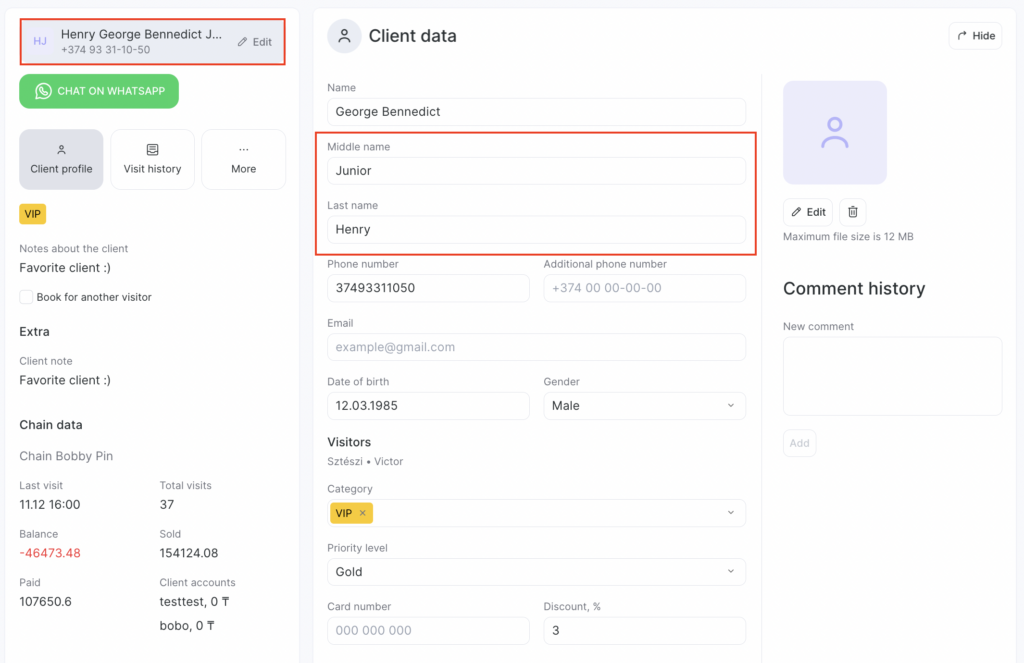
Sections and modules where last name and middle name fields are displayed #
- Appointment details (appointment and client data)
- Group event window
- Appointment Calendar
- Clients > All Clients section (client’s card)
- Product Sales window
- Inventory > Inventory operations (list of inventory operations)
- Reports > Upcoming Appointments section
- Reports > Appointments section
- Reports > Reviews section
- Finance > Financial transactions section
- Finance > Documents section
Settings #
To display the last name and middle name fields, please follow these steps:
- Navigate to the Settings section.
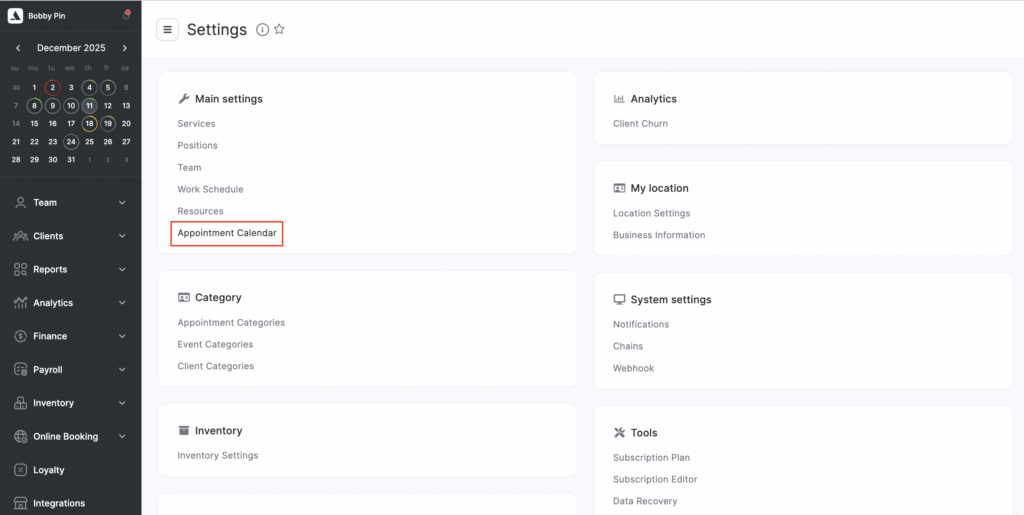
- Under the “Main settings” title choose the Appointment Calendar option.
- Within the Customer full name section, select the necessary boxes to ensure the desired fields are displayed.
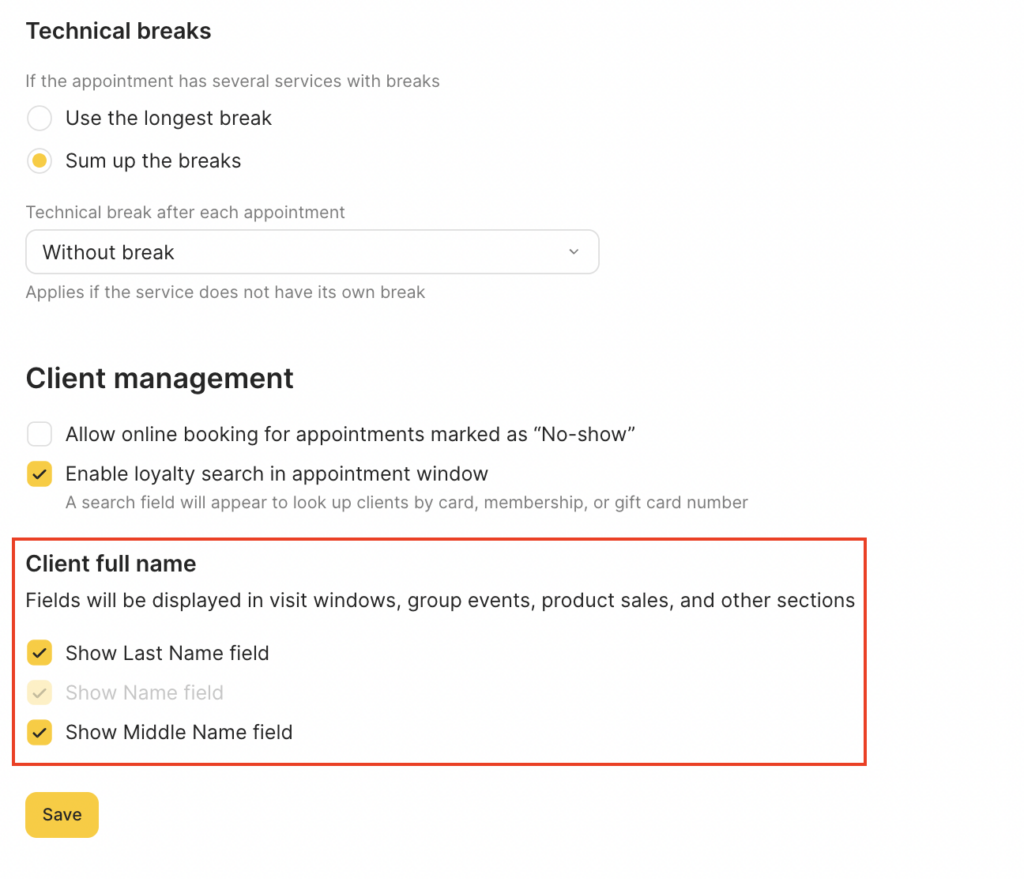
You have the option to enable the display of both fields (last name and middle name) or only one. Depending on the access rights settings, users may only see the client’s name and the first letter of their last name, or they may see the client’s full name. You can read more about setting permissions below.
- Click the Save button below to save your changes.
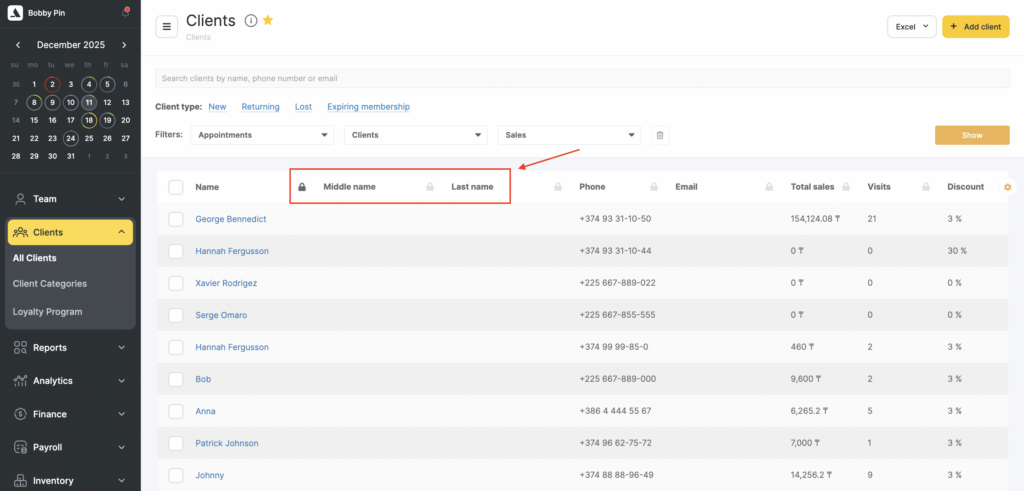
Once you’ve set up the Appointment Calendar, new fields – Last name and Middle name will appear next to the Name field in the All Clients section.
Important
The feature is still being finalized and there are plans to add last name and middle name fields to other areas of the system, including Excel uploads and downloads and in the chain interface.
It’s important to note that the %NAME% variable in notifications only includes the name, not the last name and middle name fields.
Access rights #
To ensure that the last name and middle name fields are displayed in the Altegio interface, you need to configure the user’s access rights accordingly. If a user does not have the necessary permissions to view the client’s full name, they will not see the middle name and only the first letter of the last name will be visible to them. For example, a client named Carol Jackson would be displayed as Carol J. for that user.
To set access rights:
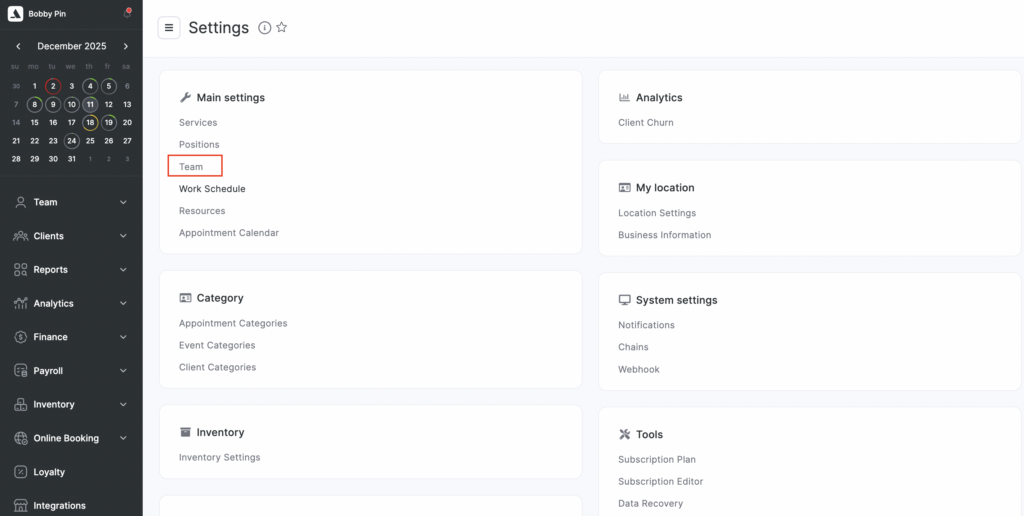
- Navigate to Settings > Team section.
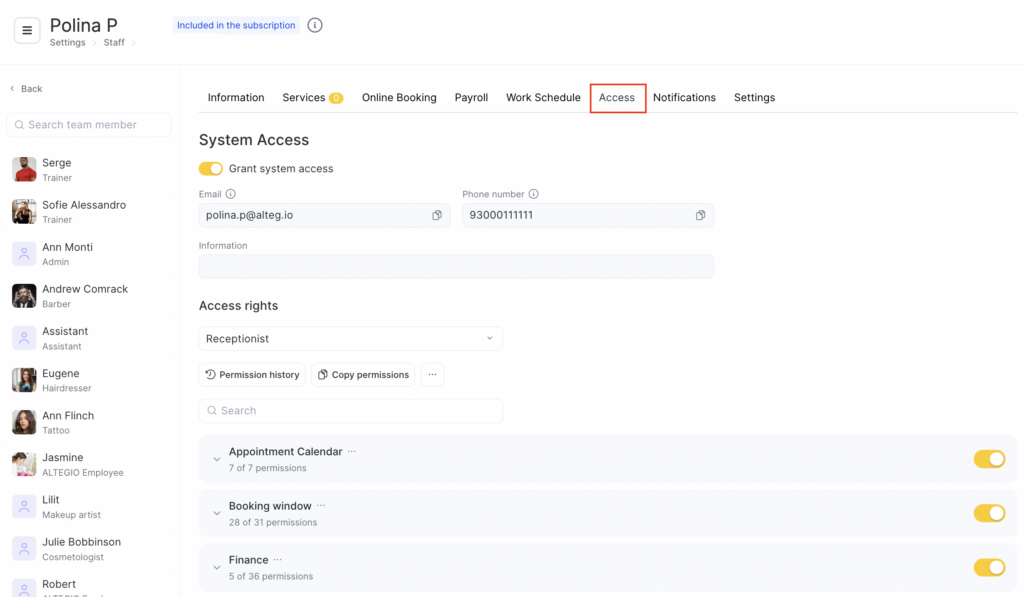
- Click on the user’s name and proceed to the “Access” tab.
- Set the access rights according to the user’s role:
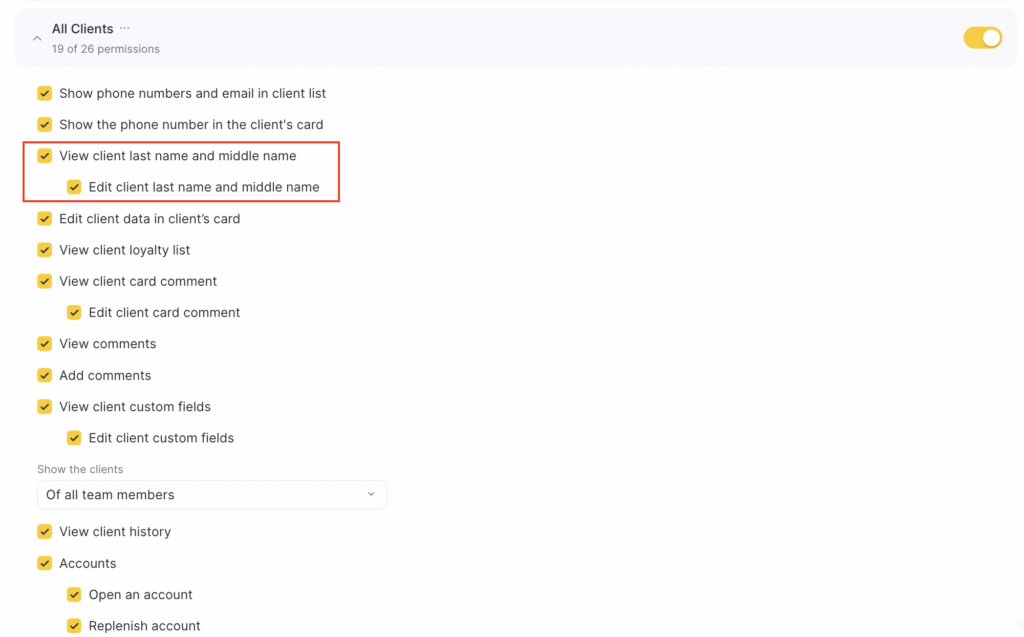
To only view a client’s last name and patronymic in the Altegio interface, the All Clients > View client last name and middle name access permission must be enabled.
To view, add, and edit a client’s last name and patronymic, the user must have the following permissions enabled: All Clients > View client last name and middle name > Edit client last name and middle name.
- Click the Save button below to save your settings.
Note
In the bookings within the Appointment Calendar, only the name and the first letter of the last name are displayed, regardless of the user’s access rights settings.