
Variables are dynamic values in notification templates that will be replaced with specific data about the client, location, service, appointment, or team member, as well as with links to appointment details, a review request, or online booking. Instead of the variables, the message received by a client or by an team member/receptionist will contain up-to-date information, depending on which variables are selected in the notification type template.
Variables are universal across notification types and templates where selecting them is available.
How to add a variable to a template #
- In the Administration mode, go to Notifications, then open the Notification types tab.
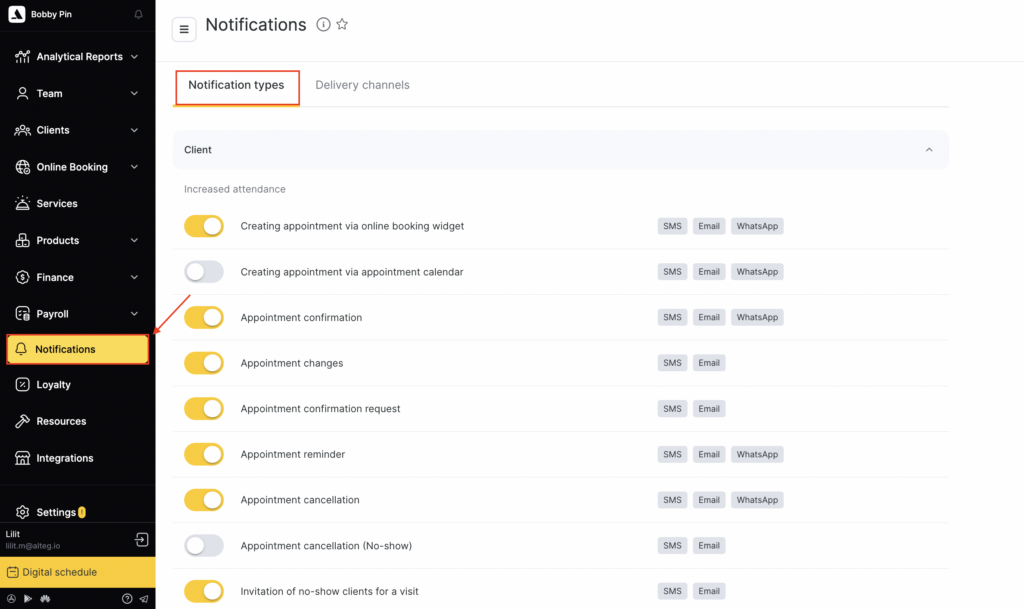
- Select the notification type where you need to configure a template with variables. To start editing, click the notification name or the ✎ icon.
- While editing the notification, in the Notification templates tab you can set different text for each available delivery channel.
- To add a variable to the template, click Add variable, then choose the one that fits the meaning.
After adding a variable, use a space to separate the variable from the main text and from other variables.
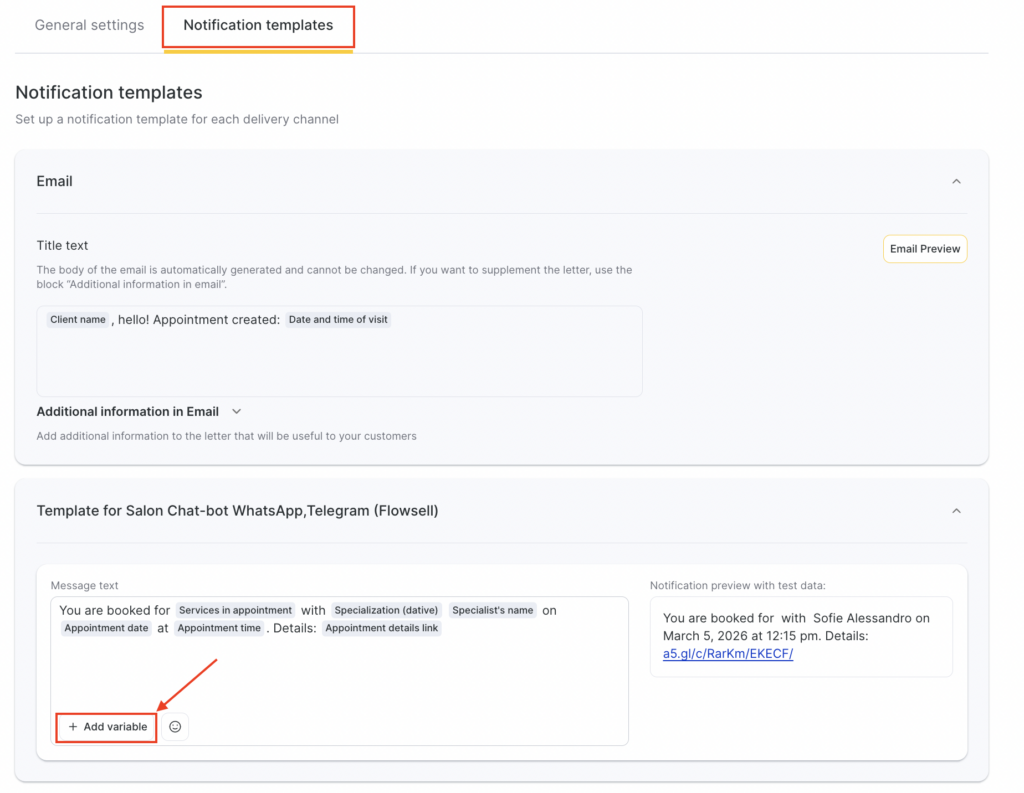
- In notification templates, you can use emoji — click the smiley button and select one from the list or add your own.
- A preview is available for all notification templates, showing how the message will look when sent to a client, team member, or receptionist with the selected variables.
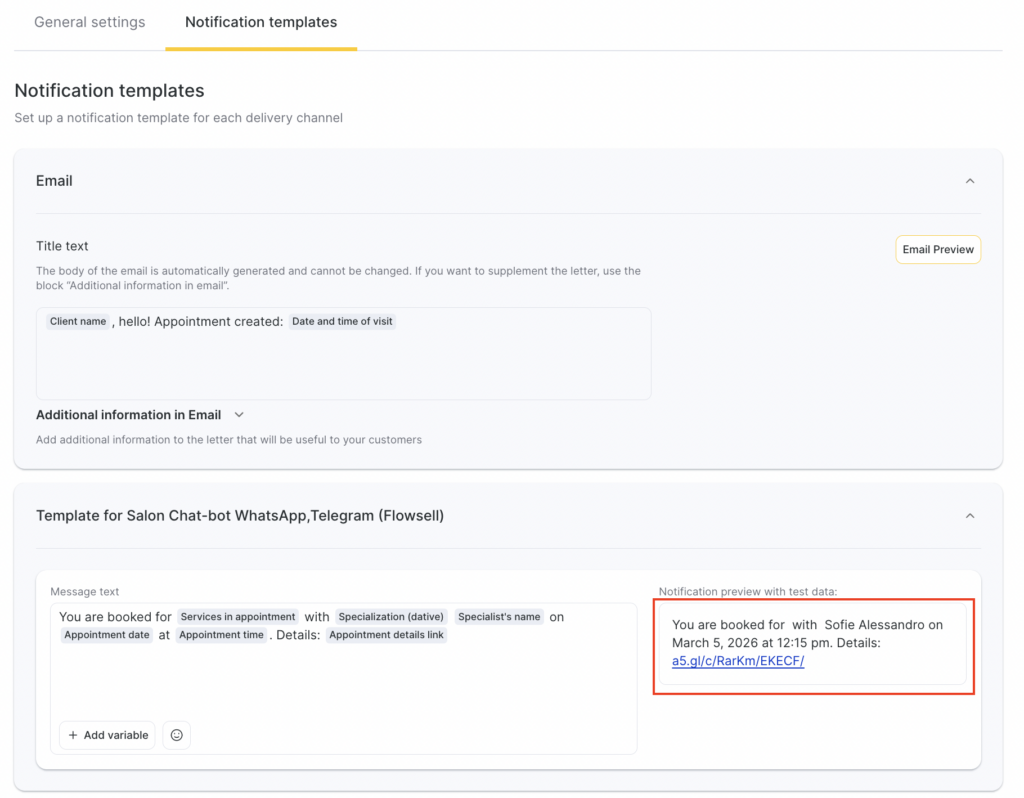
Finish setup by clicking Save in the bottom-right corner.
List of available variables #
Company name #
The company name specified in Settings > Location > Brand. If the company name is not specified, the location name will be used.
Specialization #
The name of the “Specialist” entity in the nominative case, specified in Online booking > Online booking links in the field Name of the “Specialist” entity.
Important
Setting grammatical cases for specialization is currently available only in the old version of online booking settings. If you previously filled in the specialization field and want to change or remove the specialization name, contact Altegio Support. If specialization was not filled in within online booking settings, this variable will be empty.
Specialization (dative case) #
The name of the “Specialist” entity in the dative case, specified in Online booking > Online booking links in the field “Specialist” entity, dative case.
Important
Setting grammatical cases for specialization is currently available only in the old version of online booking settings. If you previously filled in the specialization field and want to change or remove the specialization name, contact Altegio Support. If specialization was not filled in within online booking settings, this variable will be empty.
Online booking link #
A link to the main online booking widget from Online booking > Online booking links. This link is generated automatically. If there are several main widgets, the first one in the list will be used.
Company address #
The location address specified in Settings > Location > Contacts.
Company phone number #
The phone number specified in Settings > Location > Contacts.
Client discount #
The discount amount set via the location section Clients > Loyalty program.
Days until discount expires #
The number of days during which the client must visit to keep the discount set via Clients > Loyalty program.
Days until importance status expires #
The number of days during which the client must visit to keep the discount set via Clients > Loyalty program.
Appointment date #
The appointment date in the format: %day%, %month% (text), %year% (full).
Appointment date and time #
The appointment date and time in the full format: %day%, %month% (text), %year% (full), %time% in the format “at 00:00”.
Appointment date and time (short) #
The appointment date and time in the short format: %day%, %month% (numeric), %time% in the format “00:00”.
Appointment time #
The time the client is booked for in the format “00:00”.
Time until appointment #
The time remaining until the appointment.
Team member name #
The team member name in the appointment in the nominative case. The appointment displays the name specified in Team > Team members list.
Appointment details link #
A link to detailed appointment information — generated automatically. Following this link also allows the client to cancel and/or reschedule the appointment if this option is enabled in Online Booking > Settings > Even more features section> Define cancellation and rescheduling rules.
Review form link #
A link that allows leaving a review about the team member — generated automatically.
Services in the appointment #
The names of services included in the appointment. This variable takes into account the Interval between unique appointments setting (Settings > Main settings >Appointment Calendar). If bookings are merged into a single appointment, all services from those bookings will be included in one message.
Example
If a client has two bookings from 11:00–12:00 and another from 13:00–14:00, and these bookings are merged into one appointment by the Interval between unique appointments setting, the notification for the first booking will include services from both bookings.
Services in a single booking #
The service names included in a single booking. This variable does not take into account the Interval between unique appointments setting — even if bookings are merged into one appointment, the message will contain services only from the specific booking.
Example
If a client has two bookings from 11:00–12:00 and another from 13:00–14:00, and these bookings are merged into one appointment, the notification for the first booking will include only the services from that booking.
Client first name #
The client’s first name specified in the client profile or appointment window in the First name field. This variable does not include last name or middle name (even if those fields are enabled in Settings > Digital schedule > Digital Schedule Settings). If last name/middle name are entered into the First name field instead of separate fields, they will also be included in the message.
Client last name #
The client’s last name specified in the client profile or appointment window in the separate Last name field. For this variable to work, displaying the client last name must also be enabled in Settings > Digital schedule > Digital Schedule Settings.
Client phone number #
The client phone number specified in the booking.

