In Altegio, users can configure push notifications in the mobile app. This feature is available on the Notifications tab in the user’s account settings.
How it works #
If push notifications are enabled for a branch (in Settings > Team > team member profile > Notifications tab), the system assigns a role for all team members in that branch: team member or receptionist.
This role is automatically applied in the team member settings (Settings > Team > team member profile > Notifications tab), and push notifications start being delivered.
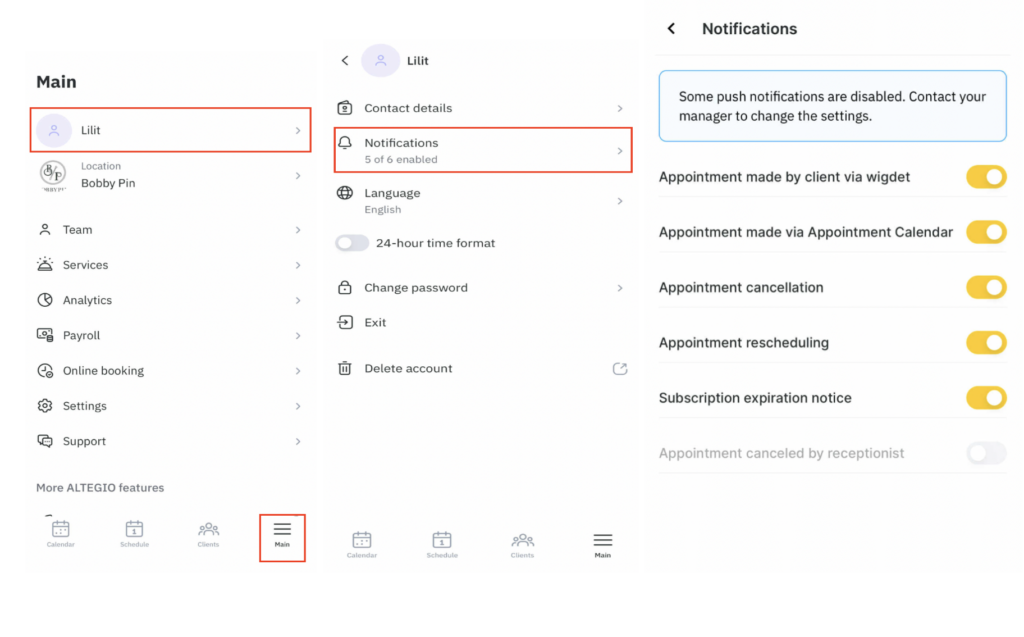
Configuring notifications in the Altegio app #
- Open the main menu by tapping More in the bottom bar.
- Go to Account settings by tapping your name.
- Open Notifications and enable the notifications you want to receive by switching the toggle on.
Important
If the notification settings are locked when you open this section, contact your branch manager — push notifications must be enabled in Settings > Team members > team member profile > Notifications tab.
Enabling push notifications on your phone #
To receive push notifications, your phone settings must allow Altegio to show pop-up notifications.
Settings vary by device model, but the steps are generally similar within the same operating system.
Notification settings on iPhone #
- Go to Settings > Notifications > Altegio.
- Turn on Allow Notifications.
- To receive sound alerts, enable Sounds.
- Toggle Badges on/off depending on whether you want the app icon to show the number of unread notifications.
Notification settings on Android #
- Go to Settings > Notifications > App notifications > Altegio.
- Turn on Show notifications.
- Toggle Allow notification badges / App icon badge on/off depending on whether you want the app icon to show the number of unread notifications.
- Enable Allow pop-up notifications to receive push notifications.
- To receive sound alerts, enable Allow sound / Sounds.
Important
Push notifications will not arrive if your phone is in Do Not Disturb mode or Airplane mode.