
In the mobile app, you can import contacts from your device’s address book into Altegio or export your client list to your smartphone or tablet.
Important
To import contacts into the client list, your team member must have access rights to the All Clients section.To export contacts, your team member must have the following permissions in the All Clients list:
Show phone numbers and emails in the client list
Export client list to Excel
Show clients of all team members
Access rights are configured in the web version under Settings > Team members (in the team member profile on the Access tab), and also in the mobile app in the team member settings.
If your phone book contains many contacts, please wait — it may take some time for all data to load.
Import and export #
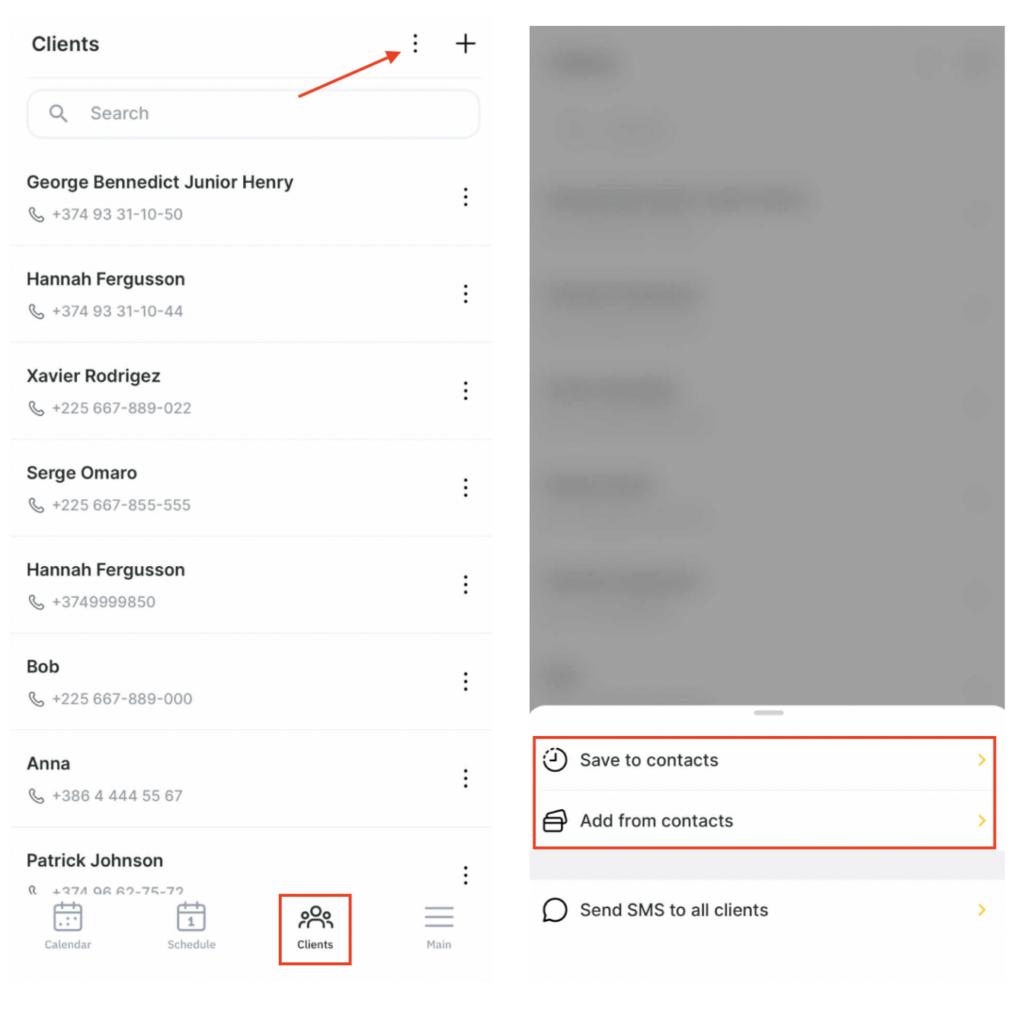
- Go to Clients.
- Tap the three dots in the upper-right corner.
- Choose:
- Add from phone book to import, or
- Save to phone book to export.
- On the page that opens, allow the Altegio app to access your contacts.
Import #
You will see a list of all contacts on your device. Select the required contacts using the checkbox, or upload the entire phone book by tapping Select all.
If the selected contact has multiple phone numbers, you will need to choose which number to import into Altegio.
Export #
Select the clients you want to export, or transfer the entire client list by tapping Select all.
Tap Import selected to move contacts into Altegio, or Export selected to move contacts from Altegio to your phone book.
If the selected contact’s phone number matches a client already in the client list, it will not be added.
Notes
If a client’s first name and last name are stored in separate fields in your phone book, they will be imported into separate fields in Altegio as well. If the full name is stored in a single field, it will be imported into the First name field.If the Last name field is disabled in your branch’s appointment book settings, only the first name will be shown during import. However, the last name (if stored in a separate field) will still be imported into the client list.
To display the client’s last name in the client list after import, enable last name display in the web version of the system.

