
Within the Altegio mobile application, you’ll find a convenient Appointment Calendar scaling feature that mirrors what’s available on the web version. Users have the flexibility to tailor the calendar display to their preferences on their mobile devices.
In the Scaling section, you can fine-tune the following settings:
- Multiplicity
- Number of columns
To access this section, simply click on the upper right sidebar.
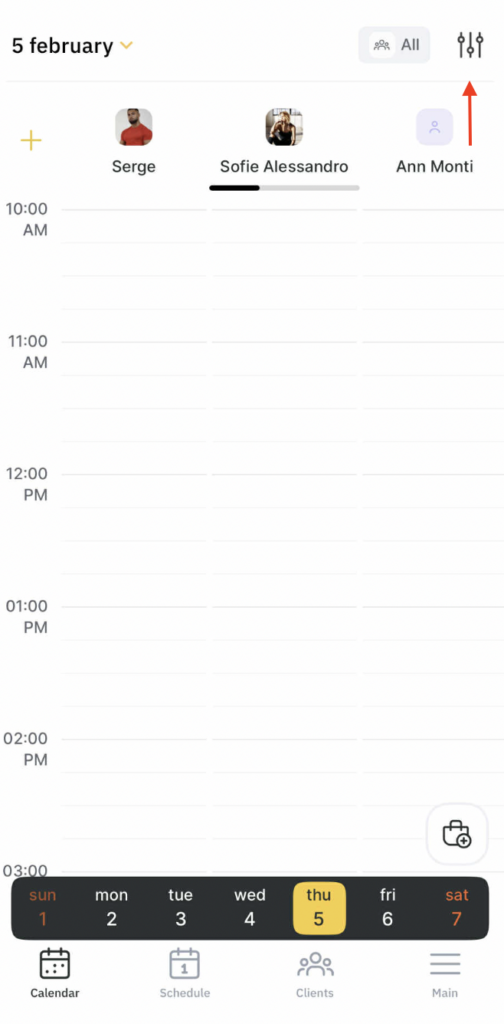
Multiplicity in Appointment Calendar #
When working with the Appointment Calendar, whether in Team or Resources mode, you can adjust the Multiplicity settings by following these steps:
- Navigate to the Scaling section.
- Locate the option for Slot duration and make your desired adjustments.
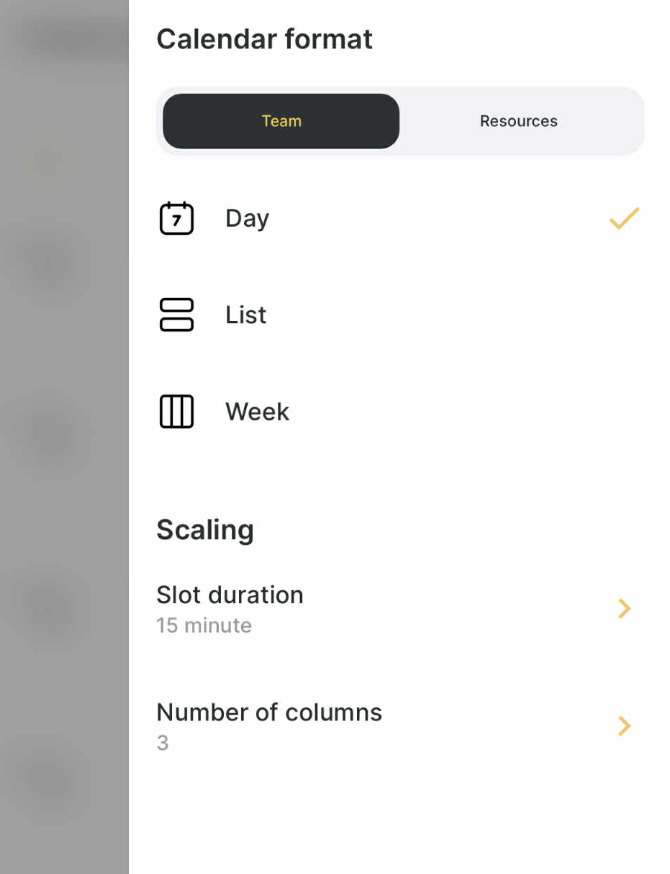
There are three possible multiplicities: 5, 10 and 15 minutes. By default the multiplicity is set to 15 minutes. To change the multiplicity, move the slider to the required position.
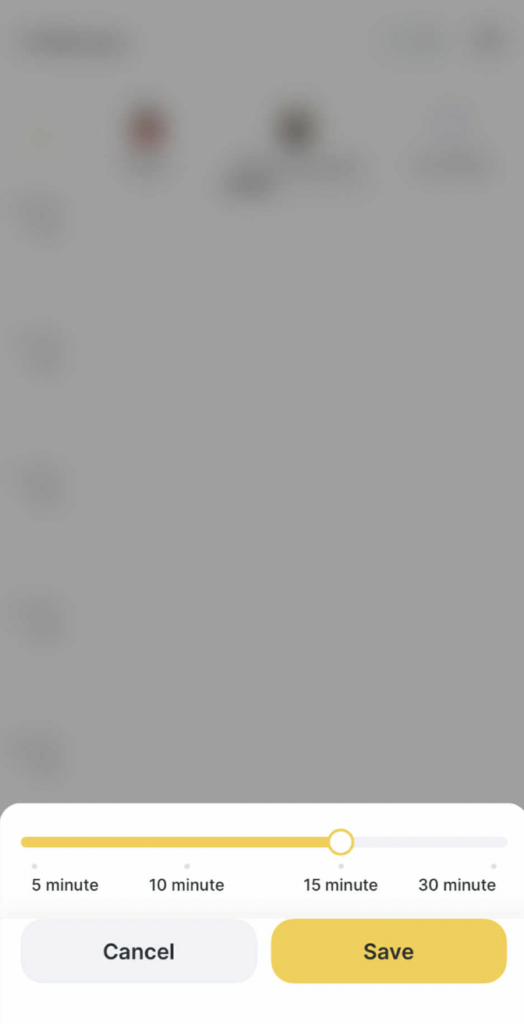
When the settings are changed, Appointment Calendar is reorganized in real time.
To apply the settings, click Save.
This setting applies to the following modes within the Appointment Calendar:
- For Team:
- Day view.
- A week view filtered by team member.
- For Resources:
- Day view.
- Filtered by resource.
Number of columns in Appointment Calendar #
Choose either the Team or Resources mode.
Within the Scaling section, locate the option for Number of columns.
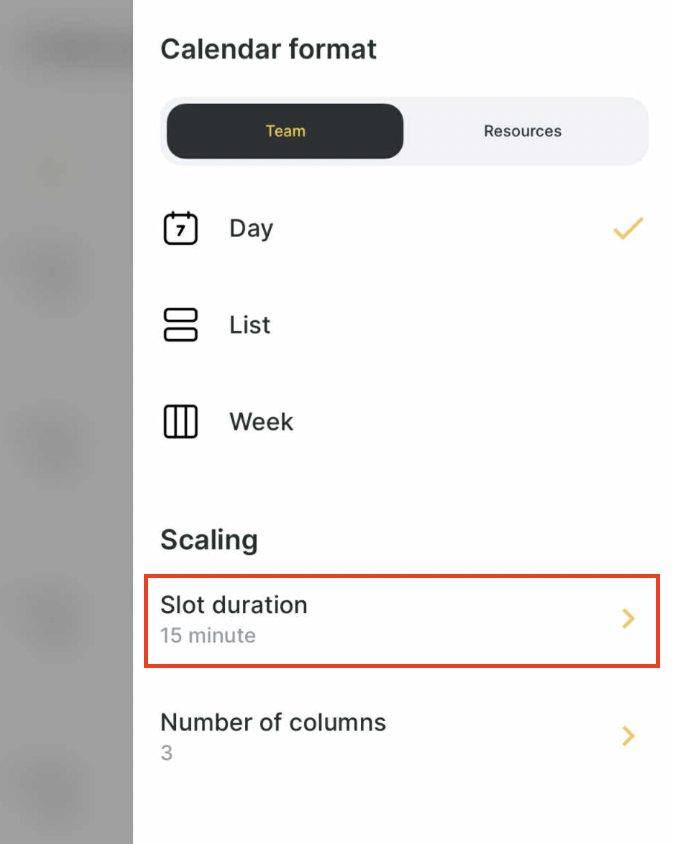
By default, the number of columns is dynamically determined based on user access rights in the following manner:
- Users with access to the Appointment Calendar of a single team member have a default of 1 column.
- Users with access to the Appointment Calendar of multiple team member have a default of 3 columns.
The maximum allowable number of columns in the Team mode is 5, while in the Resources mode, it is limited to 3.
If the location has fewer than 5 team member, you can still select 5 columns in the settings, but the actual number of columns displayed will be constrained by the number of available team member.
When you make adjustments to these settings, the Appointment Calendar updates in real time.
To modify these settings, simply move the slider to your desired position, and to apply the changes, click the “Save” button.
This setting applies to the following modes in the Appointment Calendar:
For Day mode:
It applies to both Team and Resources filters.
If you choose 5 columns in the settings, and there are more than 5 people at the location, a horizontal scroll option will appear.
Note
When Week mode is selected, this setting is not displayed. If the user switches back from the Week mode to the Day mode, the number of columns will match the user’s previously set value.
If you select fewer columns in the settings than are currently displayed in the calendar, a horizontal scroll option will be available for navigation.

