Integrilla replaces the SMS aggregator and allows you to send messages and auto-notifications to WhatsApp and/or Telegram from Altegio.
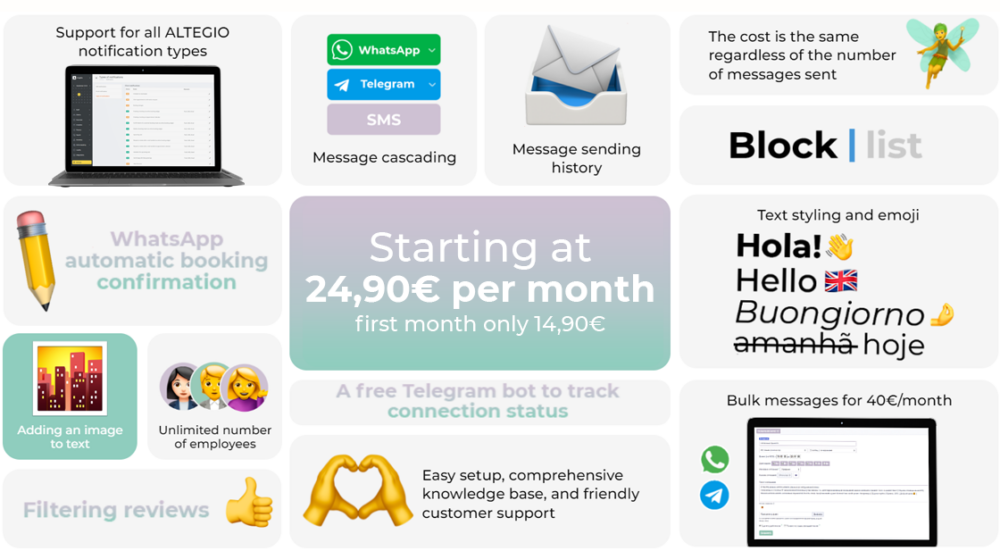
Capabilities #
– Support for all types of notifications available in Altegio;
– Cascade message delivery through the combination of Telegram – WhatsApp – SMS;
– Text formatting, emoji support, and adding images to the text;
– Messenger marketing (mass mailings) to the client base (charged separately);
– Free Telegram bot for monitoring the connection status;
– Automatic appointment confirmation with characters in WhatsApp;
– Filtering of positive reviews
Connection #
⚡Setting up will take no more than 5 minutes.
Cost #
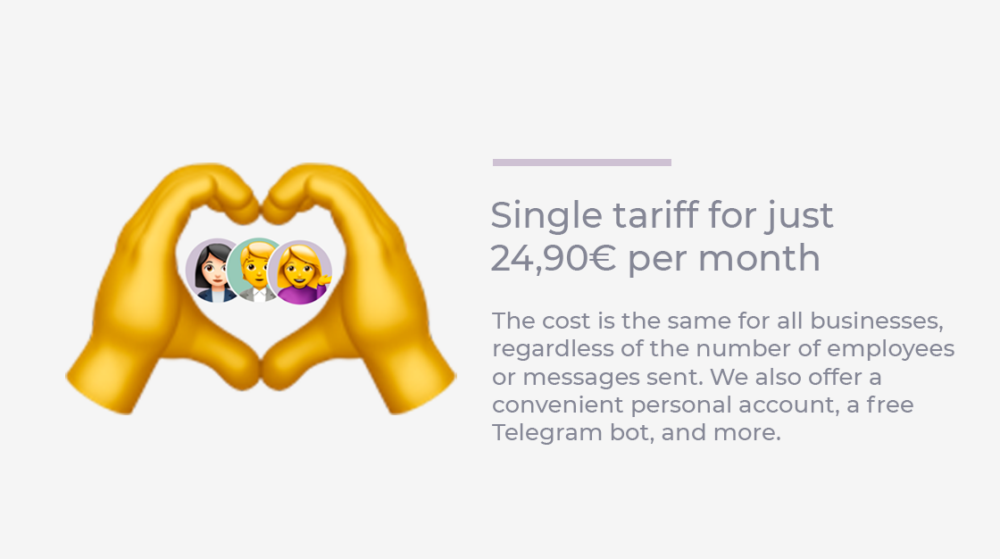
💲The tariff is uniform and does not depend on the number of employees and sent messages.
Connection #
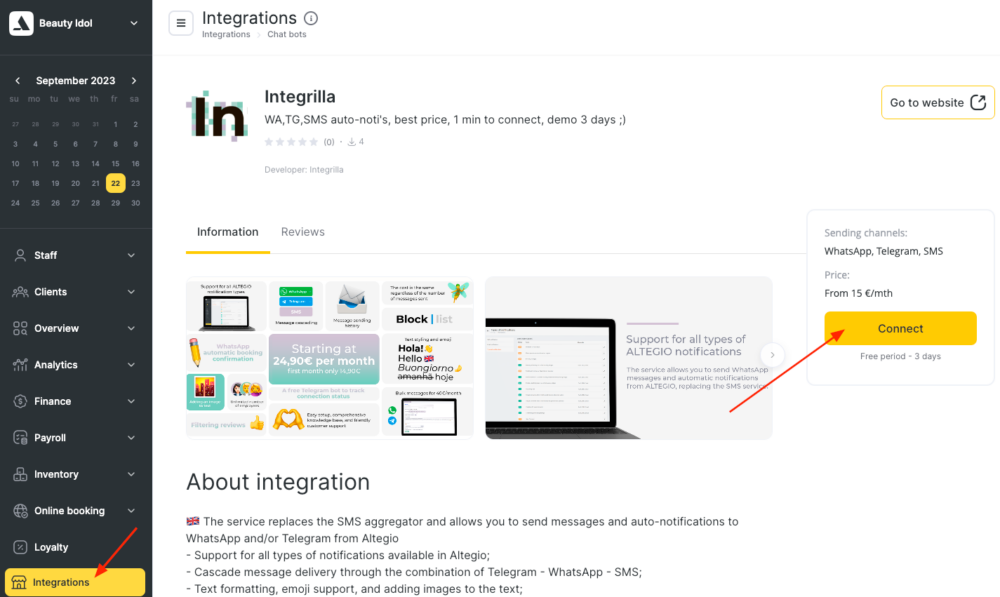
- In Altegio, navigate to the ‘Integrations’ > ‘Notifications’ section and select the ‘Integrilla’ application or go to the link https://app.alteg.io/e/mp_186_intgrla/.
- On the opened page, click the ‘Connect’ button.
- On the opened page, click the Settings tab.
- In the block with the title WhatsApp, click on the text on the red background that says “Scan QR”.
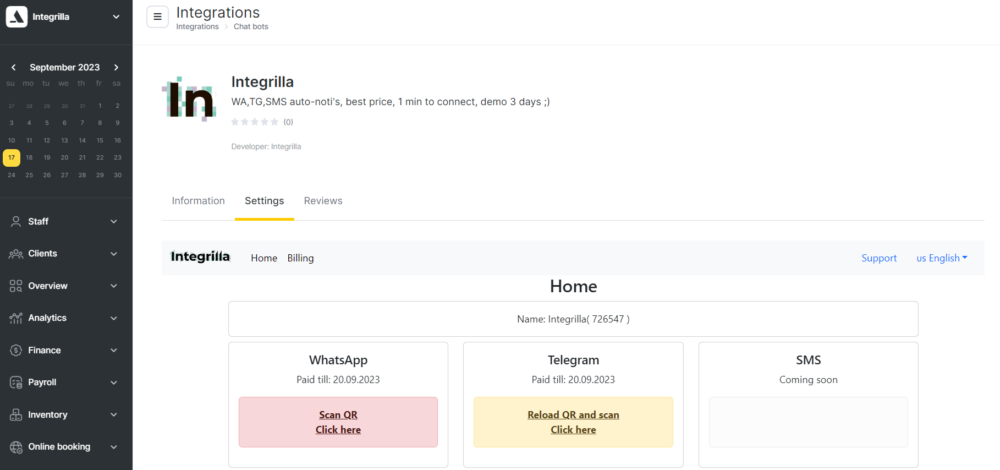
- After clicking on the text, a window with a QR code will open. There will also be a “Reset” button in it if you need to connect another phone.
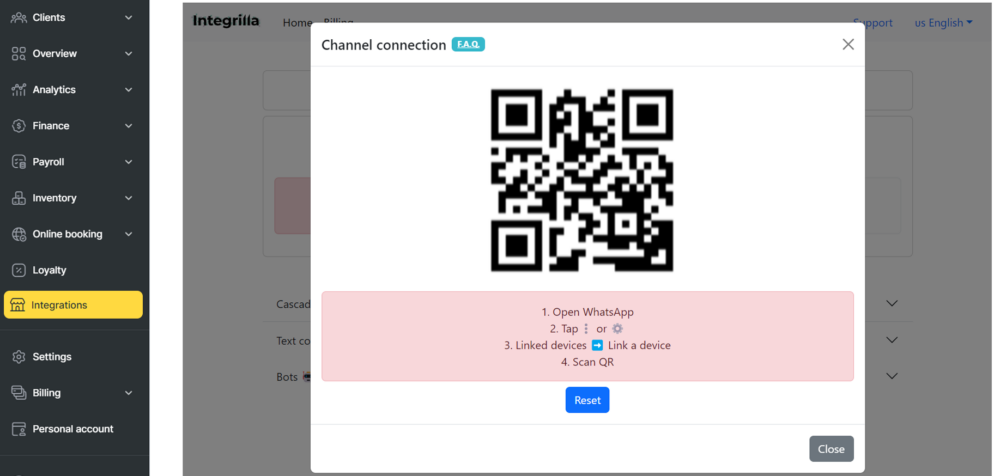
- Now you need to take the phone from which notifications will be sent with installed WhatsApp Business, open the WhatsApp app and click:
* (iPhone) or ⋮ (Android) → Linked devices → Link a device
- The camera will open, which you need to point to the QR code that we opened in the previous step.
- After successful scanning, the text “Connection established” will be displayed in the personal account in a few seconds, and a new device will appear in the application on the phone.
Possible errors #
As a rule, the QR code is scanned without any problems, but there are cases when the WhatsApp application displays an error. Let’s analyze the most common ones:
It is currently not possible to bind new devices #
Make sure that the scanning is done directly from the personal account/QR code page, not from a screenshot, and try again.
Invalid QR code #
Click the “Reset” button, wait a few minutes and scan again.
Additional tips #
- We recommend using the WhatsApp Business application on the phone for the correct operation of the integration.
- Make sure that both devices are connected to the same Wi-Fi network.
- If you are using a phone with a small screen, you can use a magnifying glass to help you scan the QR code.
- If you are still having problems connecting, try restarting both devices.
Contacts:
📩 [email protected]
🌐 integrilla.io
🔧Support:
support.integrilla.io
[email protected]