
WIX Free plan
The WIX builder has limitations on the free plan, and it’s not possible to embed the Altegio widget in its standard view. One of the most relevant options is to install the widget via an <iframe>.
Step-by-step instructions
- Open the WIX editor and go to the Store section. Click Embed a Site.
- An area for creating the site will open.
- To add the widget link to this block, click it to reveal the Enter website address button. Click this button.
- Paste the Altegio widget link and click Update.
- Save the site in the builder and publish it.
WIX Paid plan
To add an Altegio button or online booking to a custom button on WIX, your site must have a custom domain connected.
Adding online booking to WIX (Altegio button)
- Open the site editing mode (Manage and Edit). Go to Settings > Custom code.
- Click + Add Code.
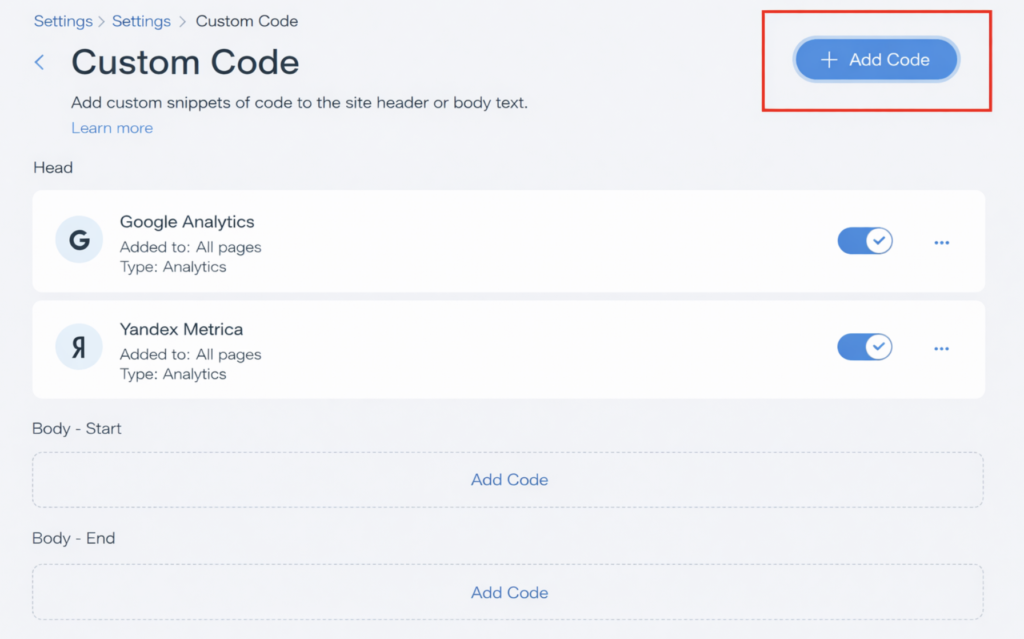
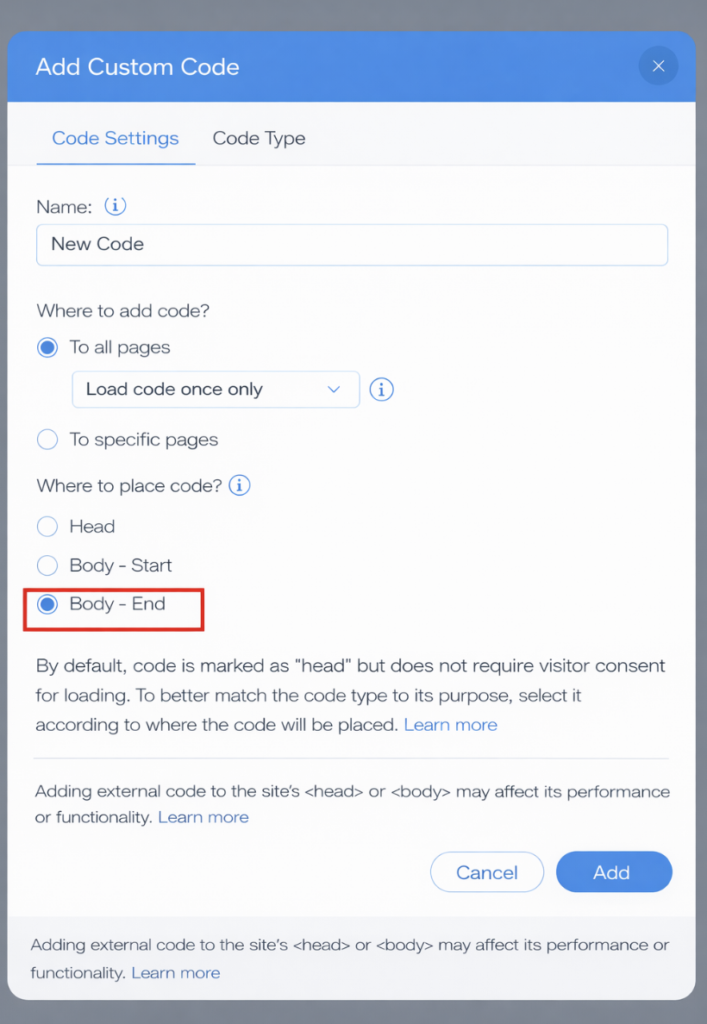
- In the code snippet field, paste the standard button code taken from Online booking > Online booking links. More details on where to find the online booking button code in Altegio are provided below in this article.
- Under Where to place the code?, select Body – end. Click Add.
- Save and publish the site.
Adding online booking to a custom button in WIX
- Add a button in the website builder — this will be your online booking button.
- In the link settings, set Where does this element link to → Web address, and enter the link to your online booking form in the format
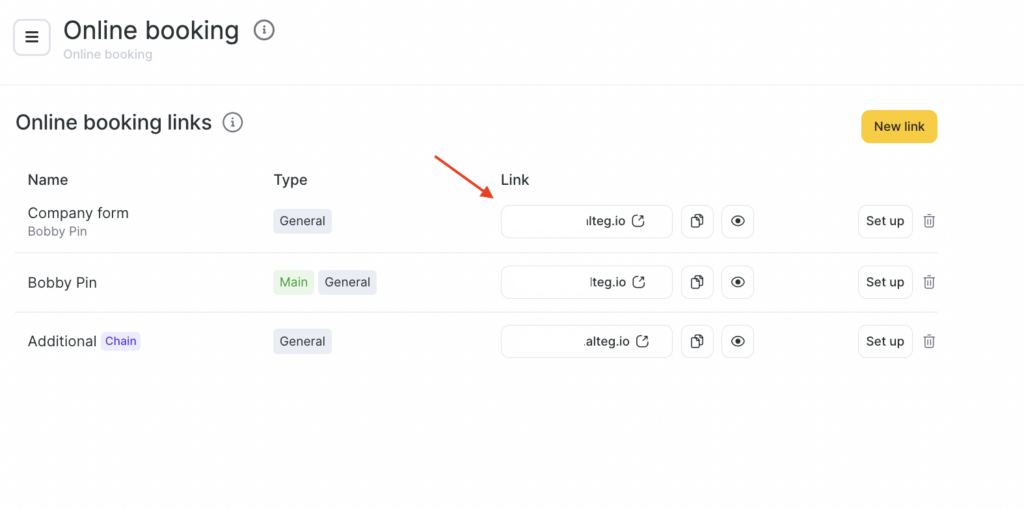
https://nXXXXXX.alteg.io.
You can find the link in Online booking > Online booking links, to the right of the online booking form name.
- Save and publish the site.
- Open the site editing mode. In the top menu, select Settings > Analytics codes. Click + New Tool, and in the dropdown menu select New code.
- In the code snippet field, paste the following code:
<script async src="https://wXXXXXX.alteg.io/widgetJS"></script>
<script>
let elem = document.querySelectorAll('[href^="https://nXXXXXX.alteg.io"]');
for (i = 0; i < elem.length; i++) {
elem[i].classList.add('ms_booking');
}
</script>
For example, in the link https://n193246.alteg.io/, the identifier is the digits 193246. Example of the final code:
<script async src="https://w193246.alteg.io/widgetJS"></script>
<script>
let elem = document.querySelectorAll('[href^="https://n193246.alteg.io"]');
for (i = 0; i < elem.length; i++) {
elem[i].classList.add('ms_booking');
}
</script>
- Under Where to place the code?, select Body – end. Click Add.
- Save and publish the site.
Where to find the button code in Altegio
- In the Administration mode, go to Online booking > Online booking links.
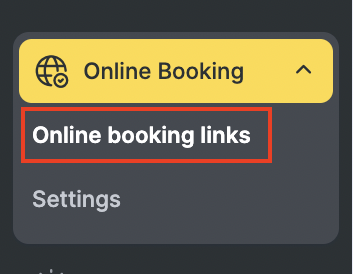
- Select the required form and click its name or Set up.
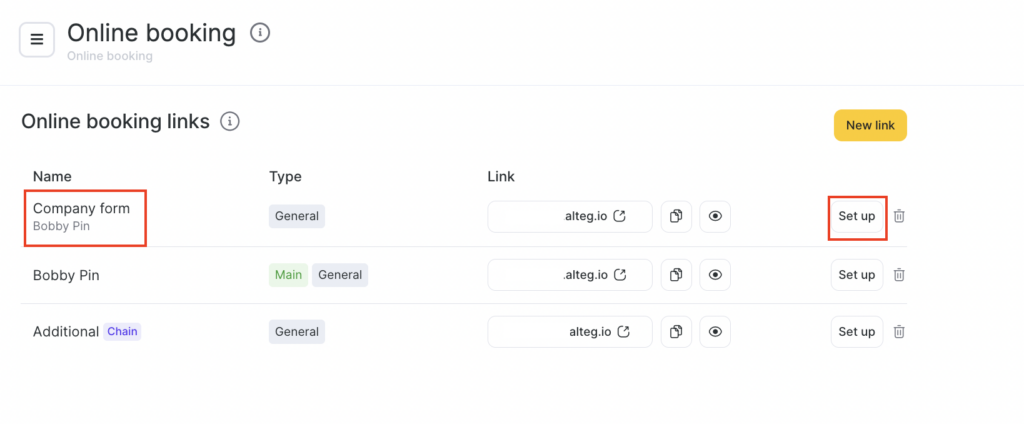
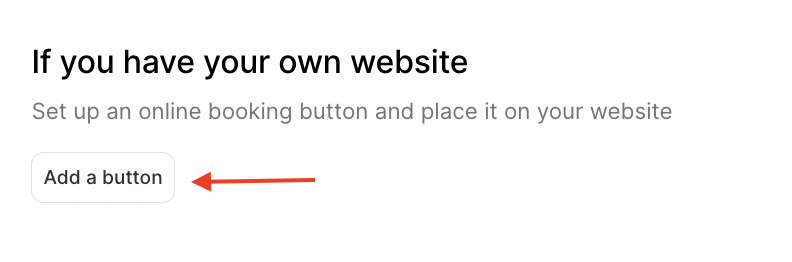
- Scroll down to the If you have your own website section and click Add a button to your website. Enable Show button on website.
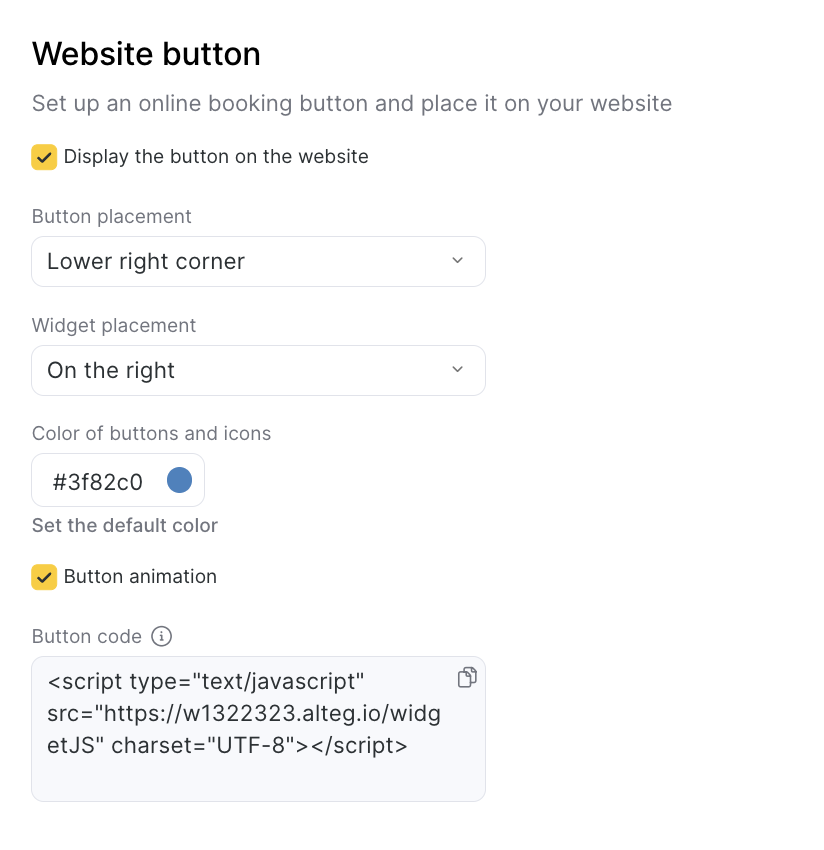
- Copy the button code.