
Altegio allows you to automate online group classes by sending instructions and webinar links directly to your clients.
How does this work?
- Begin by creating an event and making bookings for clients within the Appointment Calendar. Once you have done so, navigate to the Join event tab located in the side panel of the event.
- Within the Join event tab, you can enter the link to your online class and customize the text of the notification as needed. Once you have made any necessary changes, be sure to click Save to ensure that your instructions are properly saved.
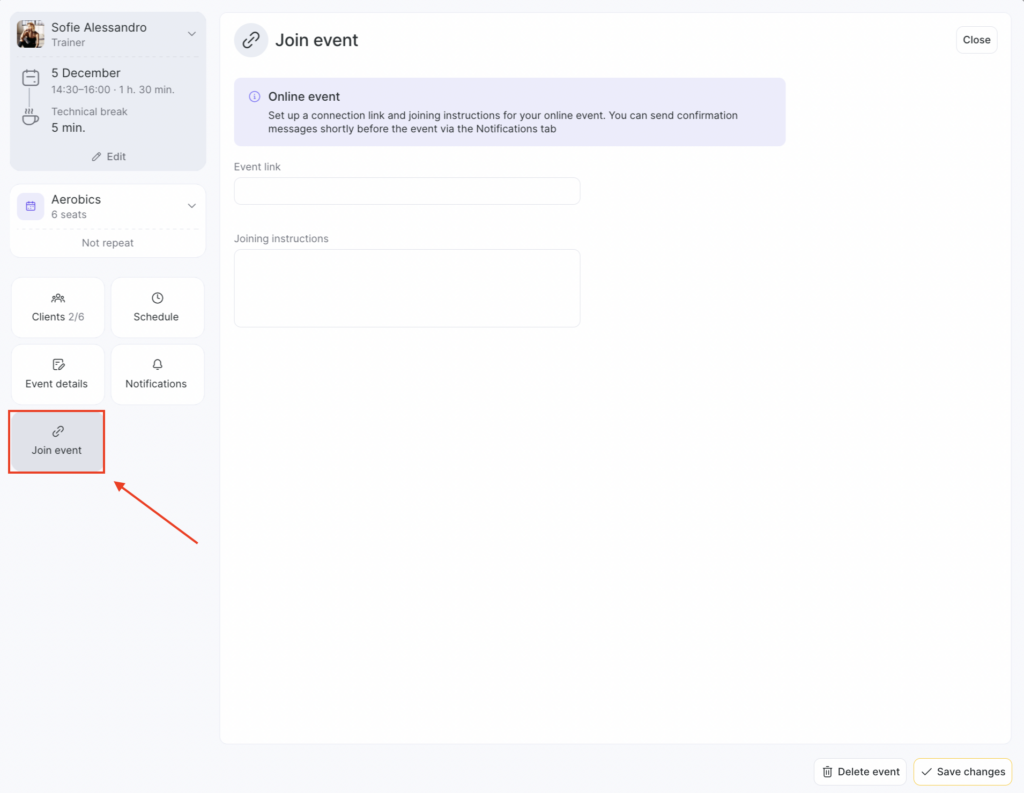
The booking button will be generated automatically based on the link that you entered in this tab.
- To send instructions to your clients go to the Notifications tab:
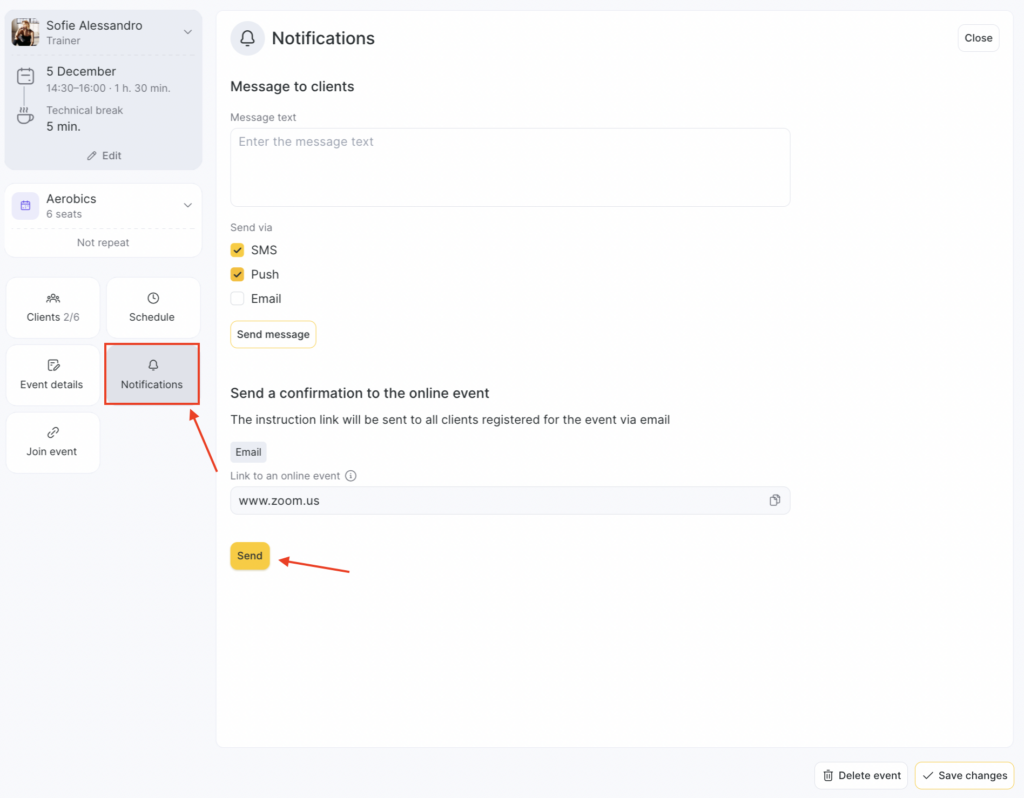
You’ll be able to resend the notifications from the same tab if necessary.
You can view all messages you had sent in the Reports > Messages section.
Configuring notifications
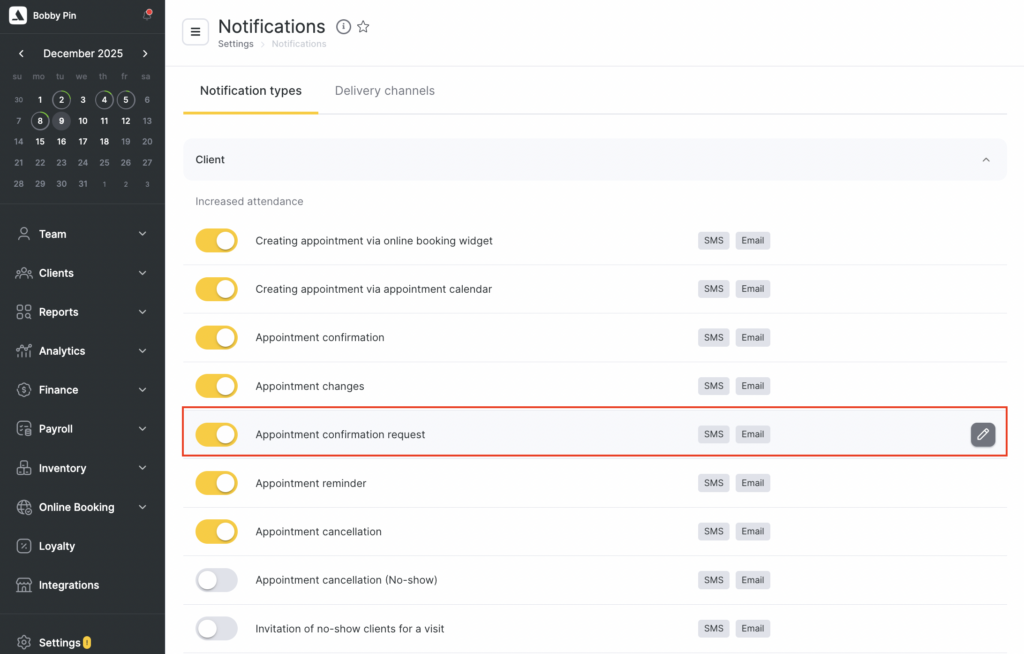
- To configure the notification type go to the Settings > System settings > Notifications settings and open the Notification types tab.
Select the Appointment confirmation request notification type, then navigate to the General settings tab.
- Within the Settings tab set the Email channel to Always send. Please note that currently, sending information about events is only available for the email channel.
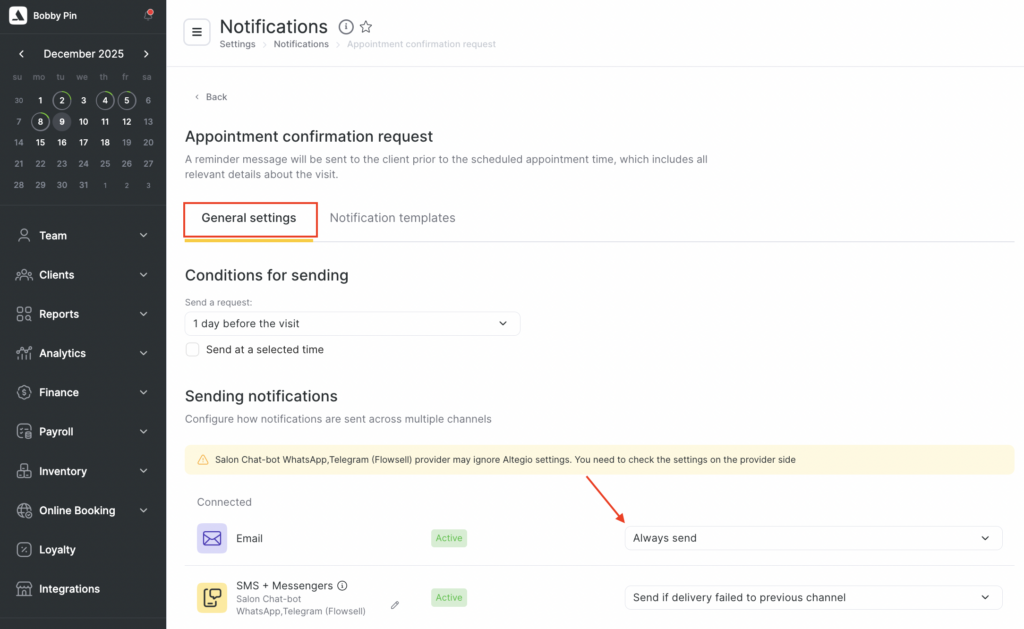
- Once you have made any necessary changes, click Save to ensure that your notification settings are properly updated.