
A category is a group of products that share common attributes. For example, the “ESTEL” category includes all ESTEL brand products; the “Shampoos” category includes shampoos from different manufacturers, etc.
By default, Altegio has a category called Main products. After you create your own category, you will be able to delete it. Categories can be added, configured, and deleted.
New category #
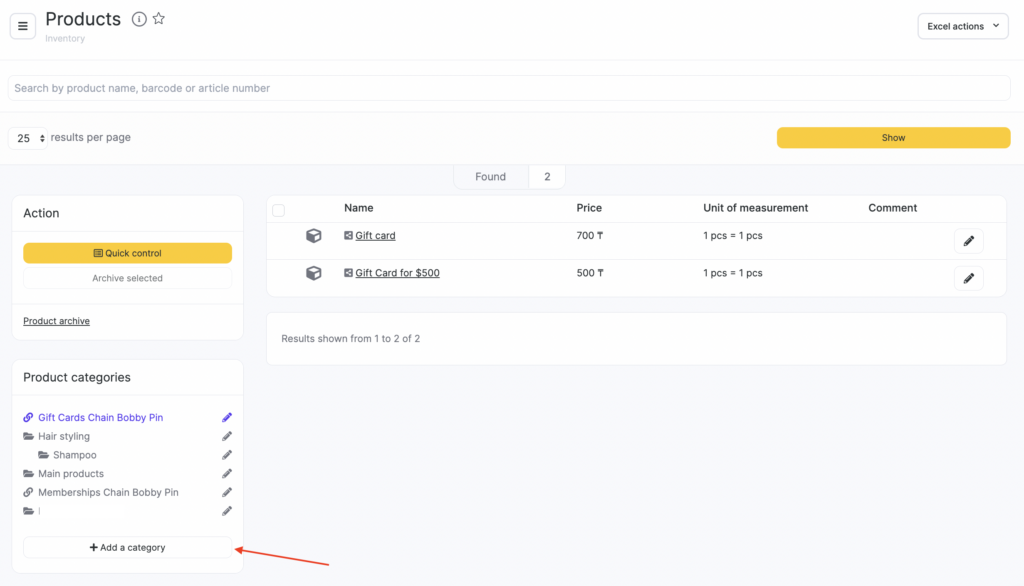
- Go to Products > All products.
- Click Add category.
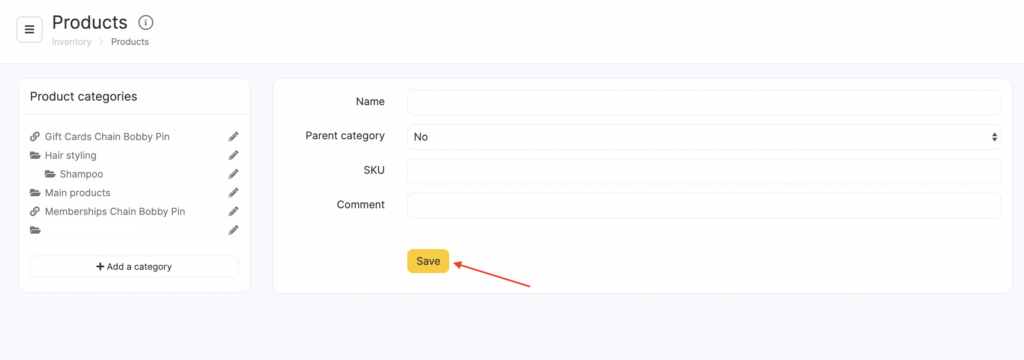
- In the window that opens, enter the Name, select the Parent category (the folder where this category will be placed), SKU, and Comment.
- Click Save.
Editing and archiving #
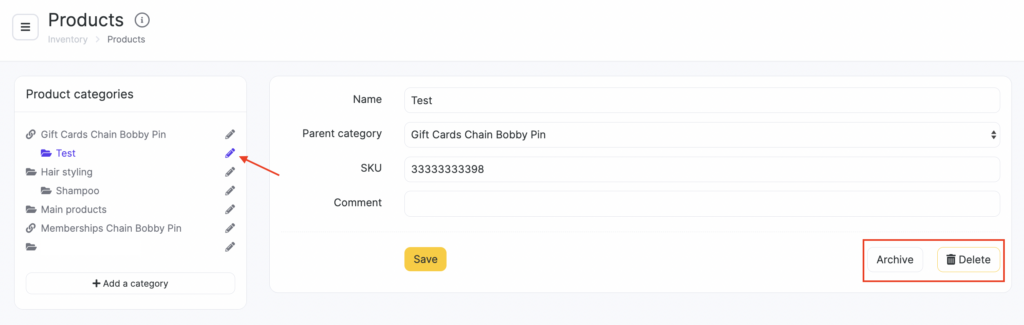
You can edit information for any product category. Select the category, click the pencil icon next to its name, then in the window that opens edit the name, parent category, SKU, and comment, and click Save.
You can also delete or archive a product category here. Archiving lets you store unused items instead of deleting them permanently, and later choose whether to delete them permanently or restore them if needed.
Important
You can archive only products created in the location.You can’t archive the only category.
You can’t archive a category if it contains a product or another category.
You can’t archive products linked to bills of materials.
If a product is linked to payroll, it will disappear from payroll calculations.
Deleted archived categories and products can be restored back to the archive (contact Altegio Support).
You can’t delete a category that contains products. Before deleting a category, remove all products from it.
You can archive a product category only if all of the following conditions are met:
- The team member has the Access to archiving and restoring products permission (configured in Team > > Team members list> Team member name > Access tab > Inventory section).
- The product category is not chain-wide and is not linked to another chain-wide category.
- The category is not deleted.
- The category is not archived.
- The category has no active subcategories or products (only archived and deleted ones are allowed).
- The category is not the only one.
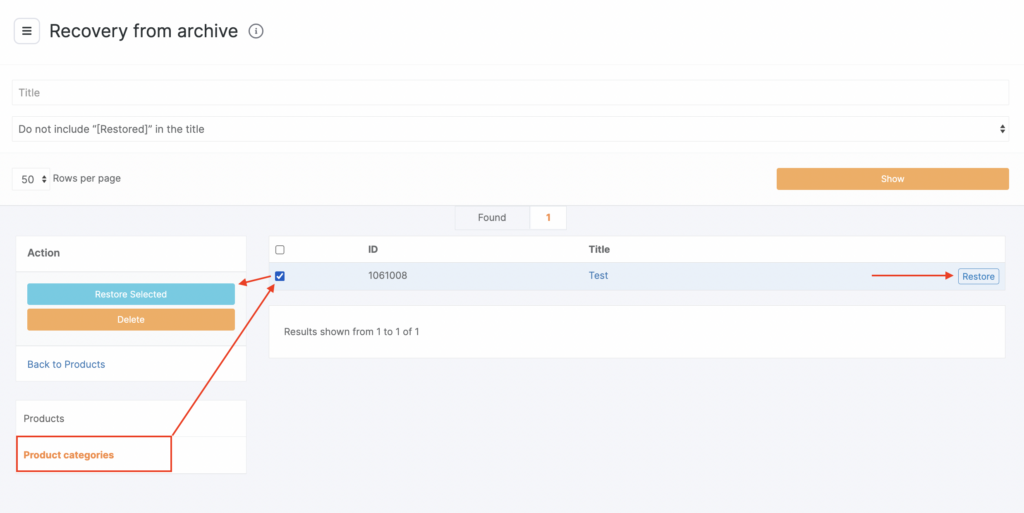
To unarchive or permanently delete a category, go to the Product archive tab. On the Product categories tab, restore categories one by one, or select multiple categories (check the boxes) and click Restore selected or Delete. To return to the product list, click Back to products.
You can unarchive a product category only if all of the following conditions are met:
- The team member has the Access to archiving and restoring products permission (configured in Team > Team members list > Team member name > Access tab > Inventory section).
- The product category is not chain-wide and is not linked to another chain-wide category.
- The category is not deleted.
- The category is archived.
- The category is not inside a deleted product category.
- The category is not inside an archived product category.
Categories at all levels are sorted by creation time: the first created category is shown at the top, then the second, and so on.
Any product category can be deleted (including Main products, which is created by default). However, Altegio does not allow deleting all product categories — at least one category must always remain.

