
Use assistant compensation settings to define how assistants are paid for participating in service delivery. This feature helps salons, clinics, and other service businesses fairly reward team members who assist in performing a service.
General settings #
First, configure the general settings. To do this:
- Go to Payroll > General settings.
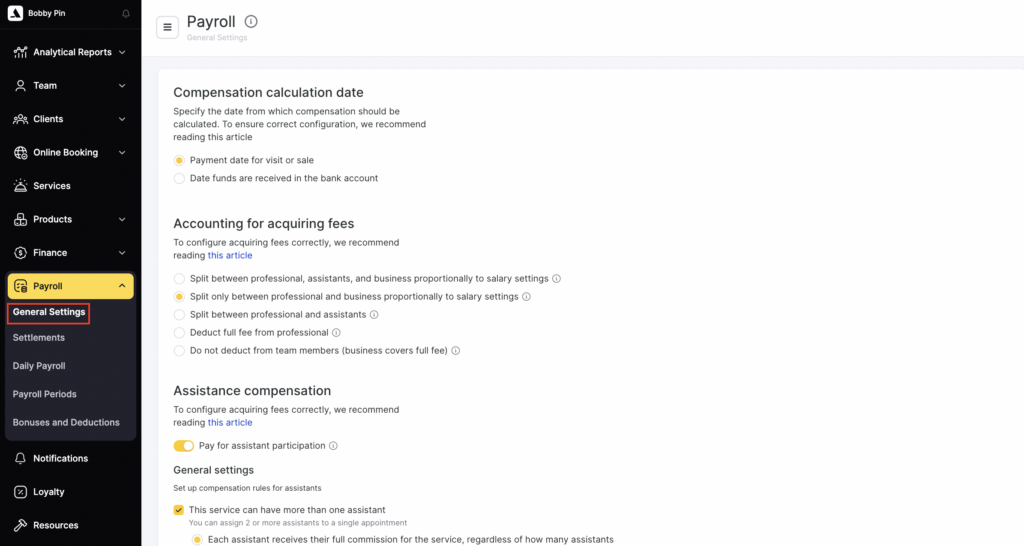
In this section, you can:
- Enable payment for an assistant’s participation in a service.
- Allow assigning multiple assistants to one service.
- Define whether each assistant receives the full payout or a share of it.
- Configure reward parameters separately for each team member.
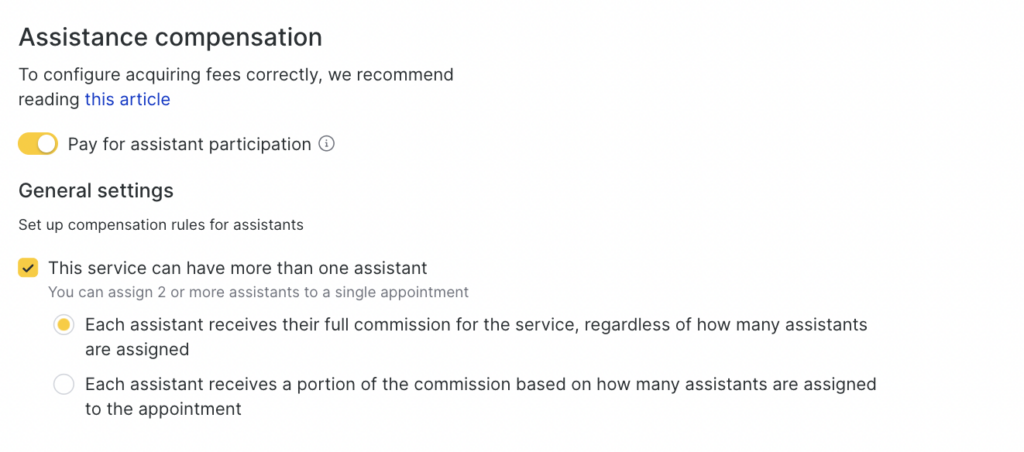
In this section, in addition to assistant compensation settings, you also configure settings such as Reward accrual date and Acquiring fee deduction. These settings allow you to precisely control payroll calculation principles and take into account payment specifics in your business.
Read more about these settings here.
- Enable Pay for assistant participation (individual appointments only)
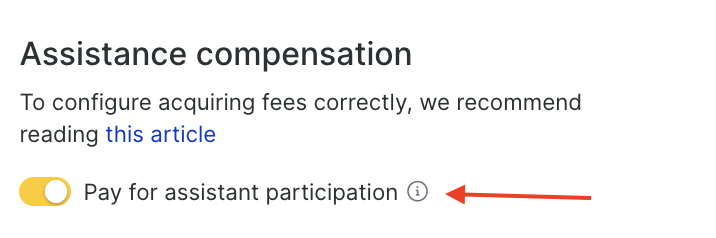
After enabling it, assistants assigned to an appointment can receive compensation according to your rules.
- Set up compensation rules for assistants
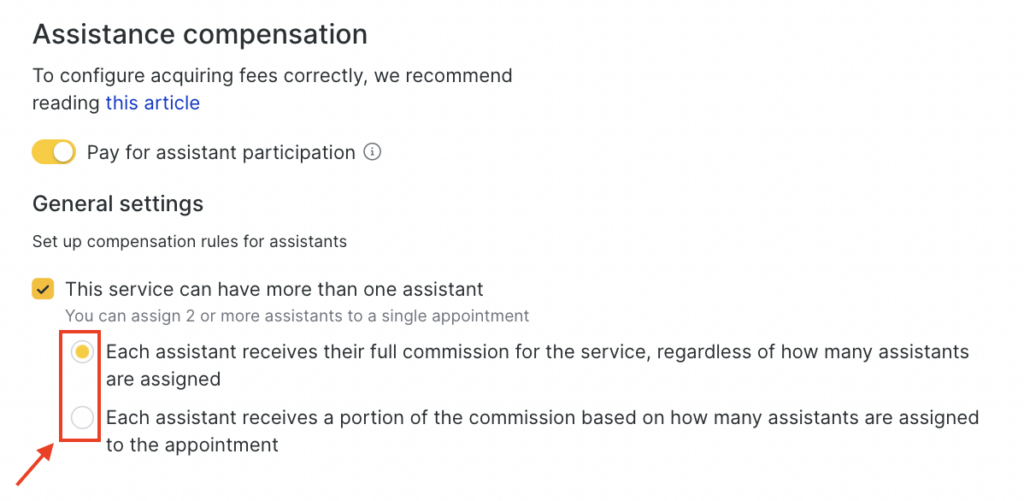
Check This service can have more than one assistant to add two or more assistants to one appointment.
This is useful for complex services that require multiple specialists at the same time.
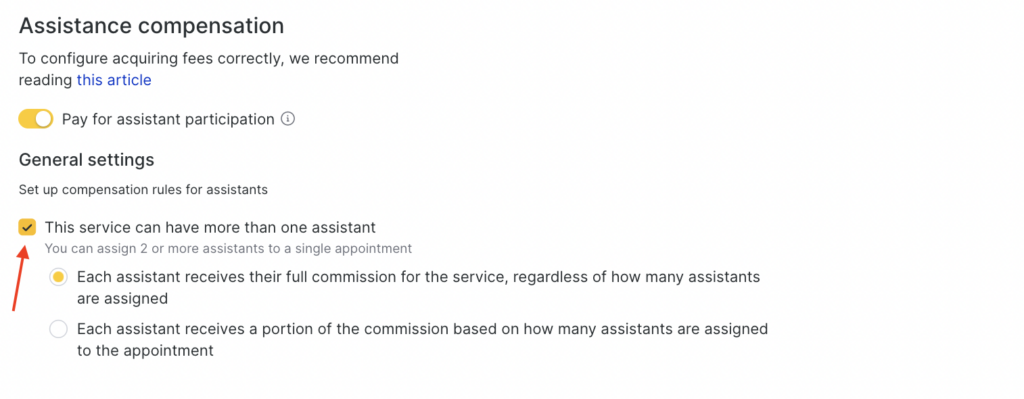
Choose the commission accrual rule #
Each assistant receives the full commission specified for the service, regardless of the number of assistants.
In this case, each assistant receives the full commission amount specified for the service — regardless of how many assistants are added to the appointment.
Suitable when each assistant performs the full scope of work for the service.
The commission specified for the service is split among all assistants assigned to the appointment.
The commission is split proportionally among assistants: each receives a part of their commission depending on the number of assistants involved in the service.
Suitable when multiple assistants share the work.
- Now set personal accrual rules for each team member.
Personal accrual rules #
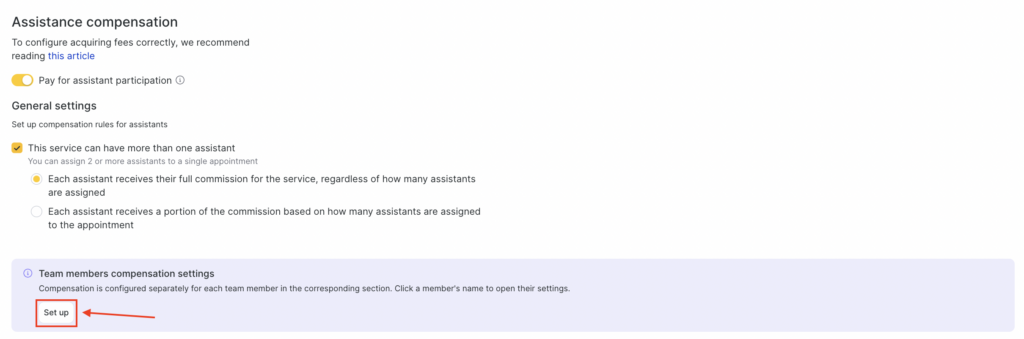
- In Payroll > General Settings, click Configure, or select a specific team member (in Settings > Team > Team members list) to open their personal accrual rules.
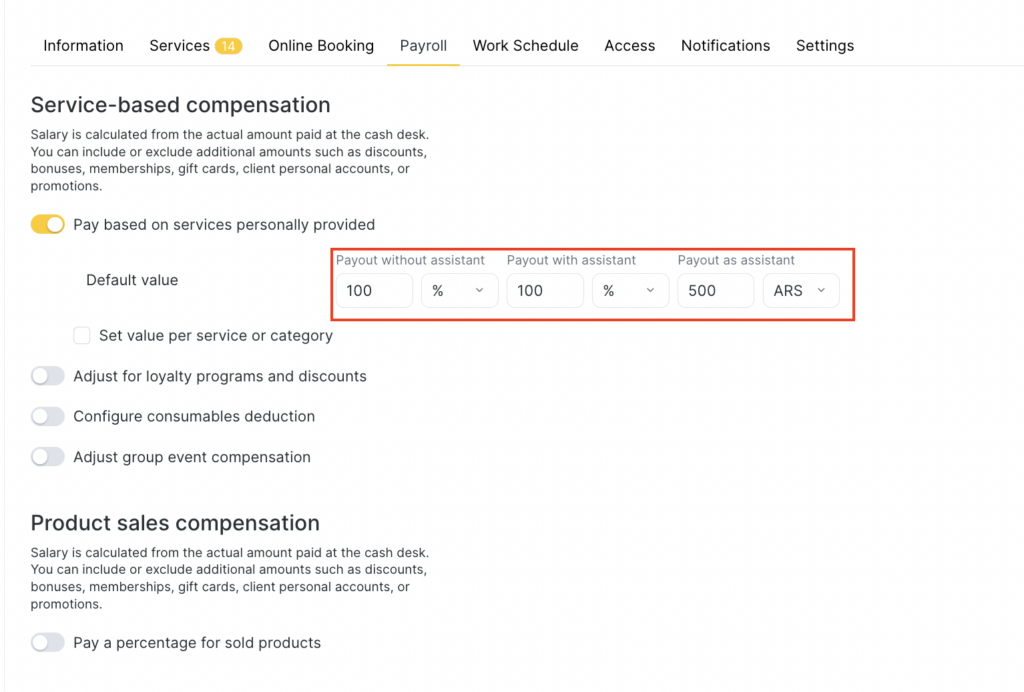
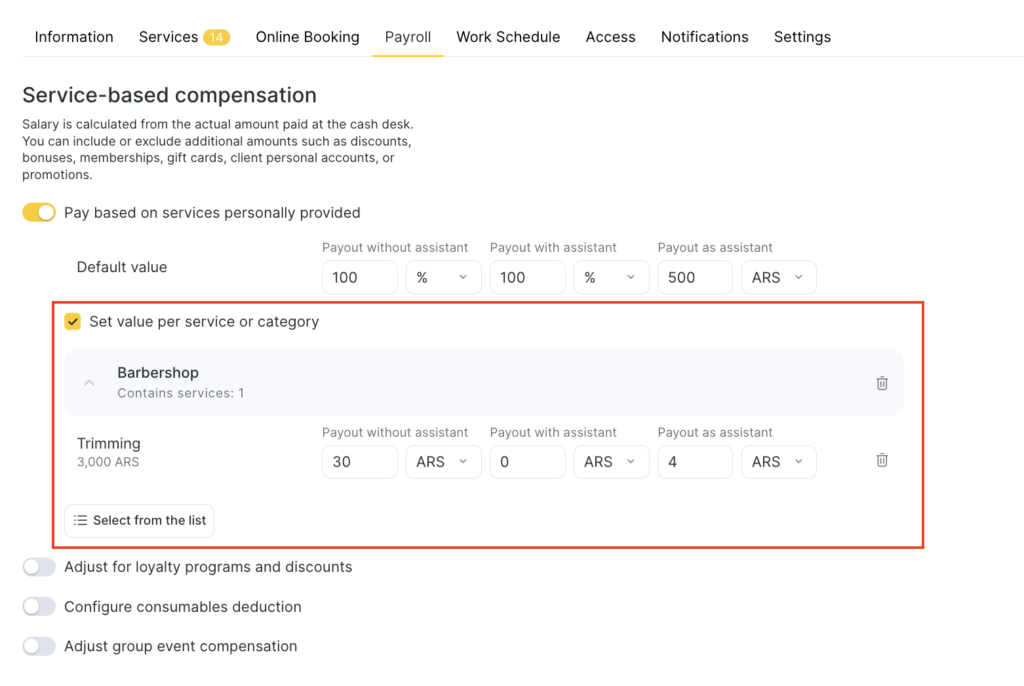
- On the Payroll tab, enable Pay based on services personally provided.
In the default value, assign what payout the team member will receive.
Payout without an assistant — compensation when the team member performs the service independently, without assistants.
Payout with an assistant — compensation when the team member is the main service provider, but one or more assistants participate.
Payout as an assistant — compensation when the team member participates only as an assistant.
You can choose:
Percentage (%) — the team member receives a percentage of the service price.
Fixed amount — the team member receives a fixed monetary amount for the service.
Example:
Payout without an assistant: 10%
Payout with an assistant: 8%
Payout as an assistant: 5 R$
This means:
If the team member performs the service independently, they receive 10% of its price.
If they are the main provider but work with an assistant, they receive 8%.
If they participate only as an assistant, they receive a fixed 5 R$.
How compensation is calculated #
For assistants:
Assistant payout = (“As an assistant” rate) × (their share %)
For the main provider:
If the “With an assistant” rate is set — the team member receives that rate.
If the team member is also specified as an assistant, they receive both payouts: “With an assistant” and “As an assistant”.
If the “With an assistant” rate is not set:
Main provider payout = “Without an assistant” rate − total payouts to assistants
Example
“Without an assistant” = 50%
“As an assistant” = 10% (for each assistant)
Assistant 1 share = 50%
Assistant 2 share = 40%
Assistant payouts = 10% + 10% = 20%
Main provider payout = 50% − 20% = 30%
If you need to assign a different percentage for specific services, enable Set individual values for services or categories.
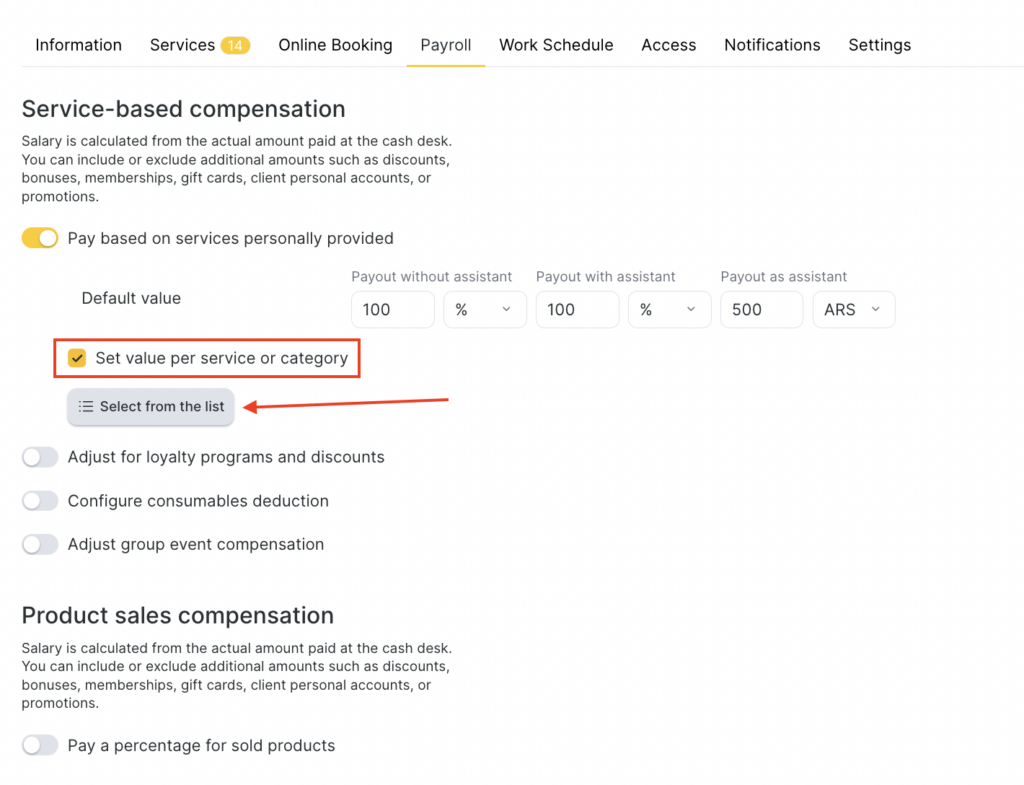
This setting allows you to set a separate percentage (or fixed amount) for a specific service or category. For all other services, the percentage specified in the Default value will be applied.
To assign a separate value for an entire service category, click Select from the list, then choose the required category and check All services. After that, a field will appear where you can specify a percentage or fixed amount — this value will apply to all services within the selected category.
If you need to set different values for individual services within one category, select each service separately.
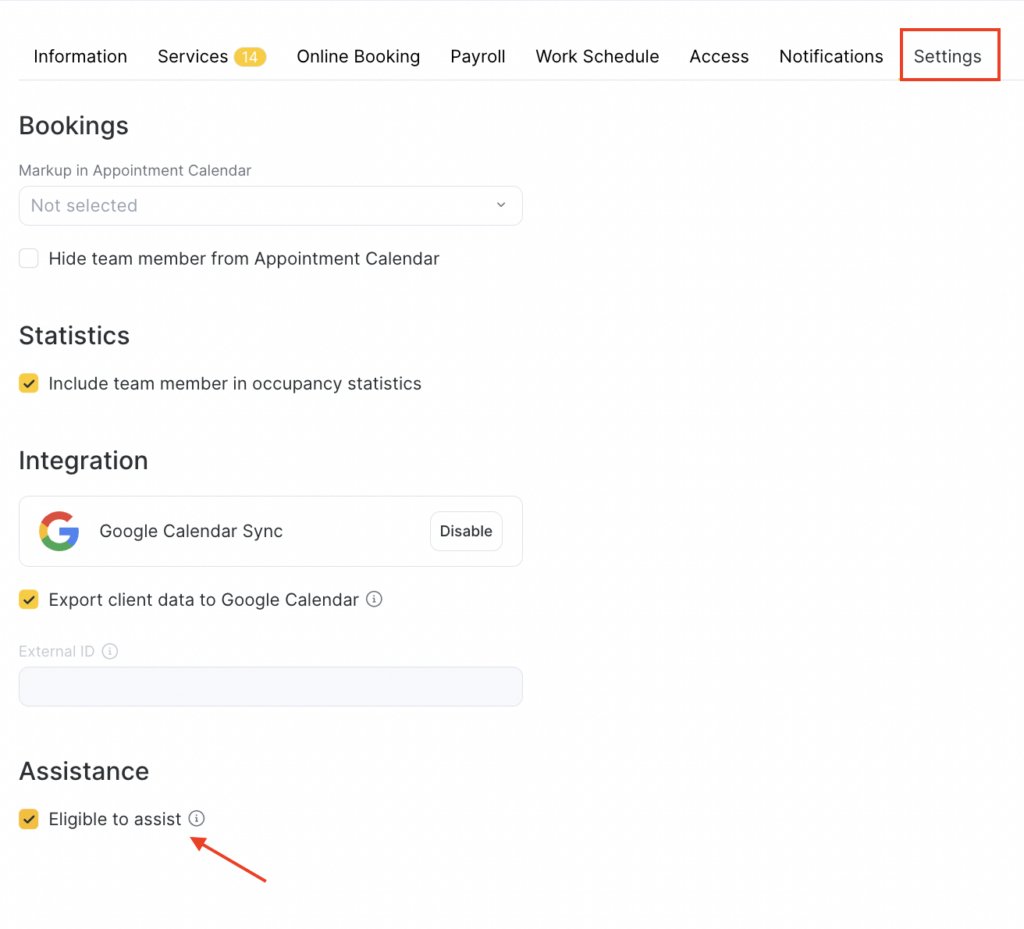
- Go to the Settings tab and enable Eligible to assist.
- After completing all settings, click Save in the bottom-right corner.
Adding assistants in the appointment window #
When creating an appointment or providing a service, you can add assistants. To do this:
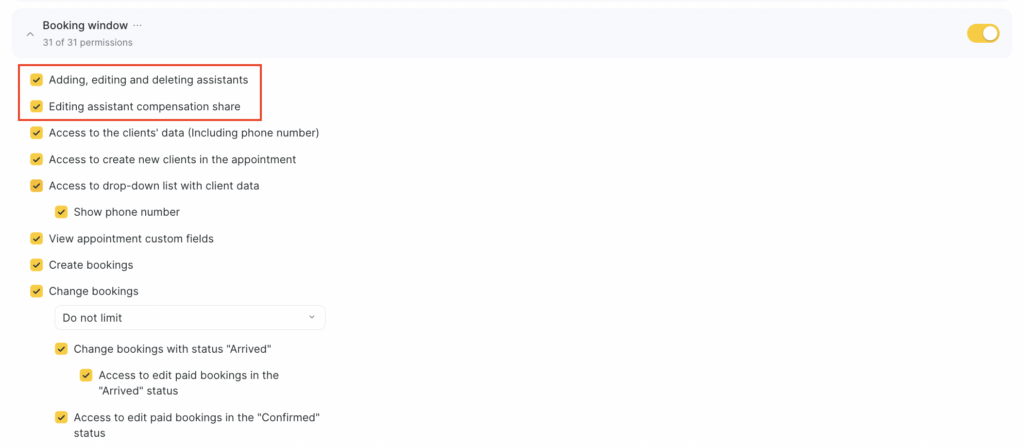
- Make sure the team member has permission to add/edit assistants in an appointment. For details on how to configure the permission to add assistants in the appointment window, see the article.
- Open the appointment, in the central part click the arrow, then + Add assistant.
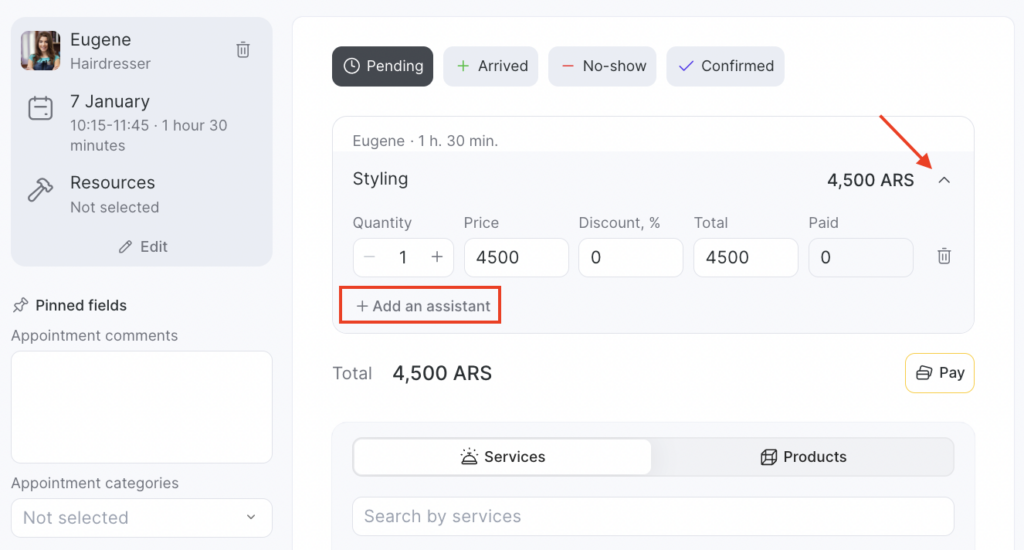
Select the required team member who will act as an assistant in the Assistant field and specify the Assistant reward share (the percentage of the assistant’s reward they will receive for providing this service).
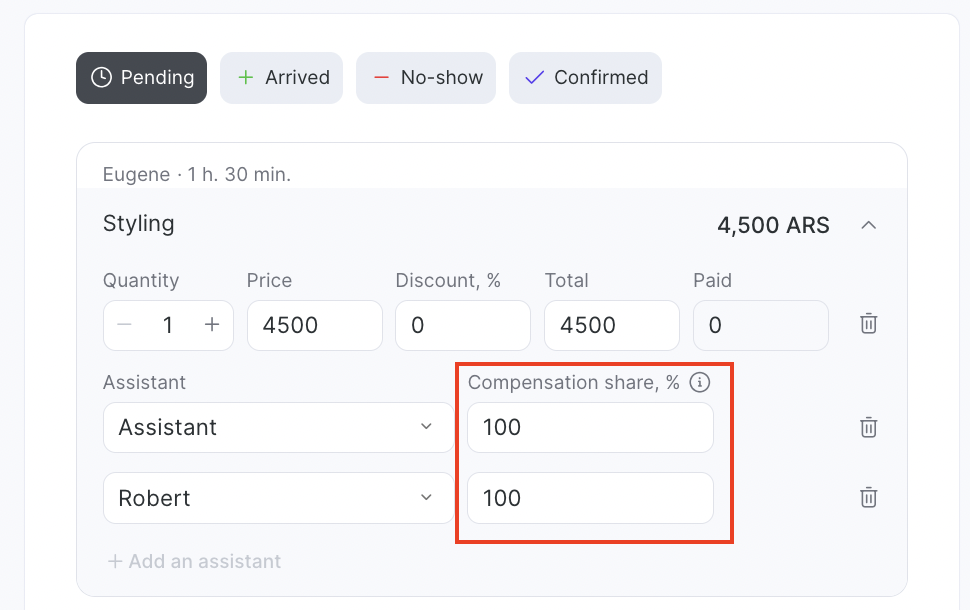
If 2 or more assistants participate in providing the service, add several team members.
If in the general payroll accrual settings (Payroll > General settings) you set that each assistant receives the full commission specified in the service settings regardless of the number of participants, then the appointment window will show 100% by default. You can change it manually.
If you set that each assistant receives a part of their commission, the system will distribute the commission proportionally among all assistants added to the service. With this setting, the reward share in the appointment window cannot be changed.

