
In this article, we’ll cover how to set up payroll accrual rules for an receptionist: for product sales, the number of created appointments, and additional bonuses based on daily turnover or profit.
In beauty salons, receptionists’ pay usually consists of a base salary, a percentage of sales, and KPI bonuses. All of this can be flexibly configured in the system — from percentages for products and services to incentives for active work with appointments.
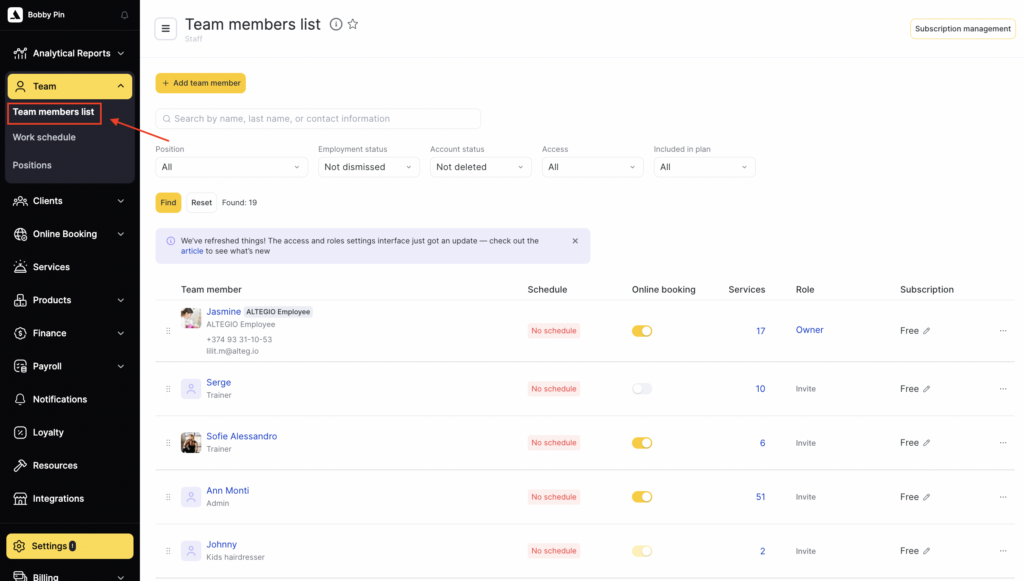
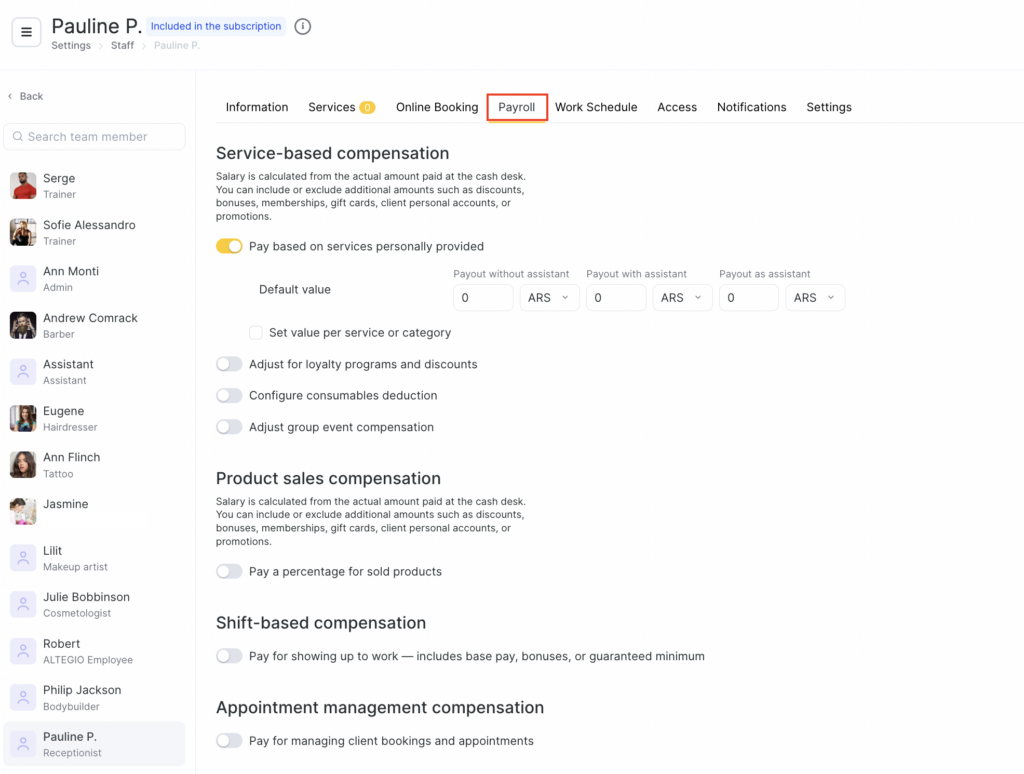
To start, open the receptionists’s profile. Go to Team > Team members list > team member’s name, then open the Payroll tab.(Make sure you have completed the General payroll calculation settings beforehand.)
Payment for product sales #
Payroll for product sales is calculated based on the amount actually paid at the cash desk. If needed, you can choose whether to include or exclude additional amounts: discounts, bonuses, memberships, gift cards, deposits, and promotions.
- Enable Payout for sold products if team members receive commission from retail product sales.
- Set a percentage of the product price (%) or a fixed payout amount. As with services, you can set one percentage/amount for all products or set separate values for specific categories or specific products.
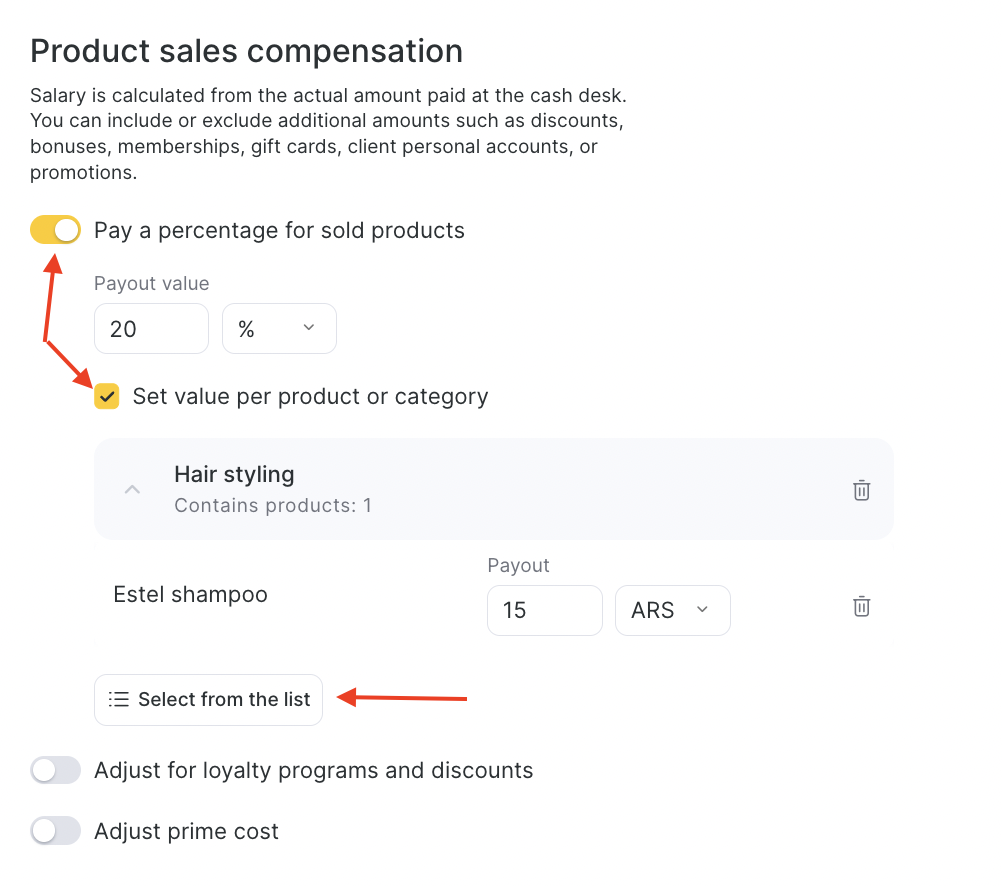
To assign a separate value for an entire product category, click Select from the list, choose the required category, and check All products. A field will then appear where you can enter a percentage or fixed amount — this value will apply to all products within the selected category.
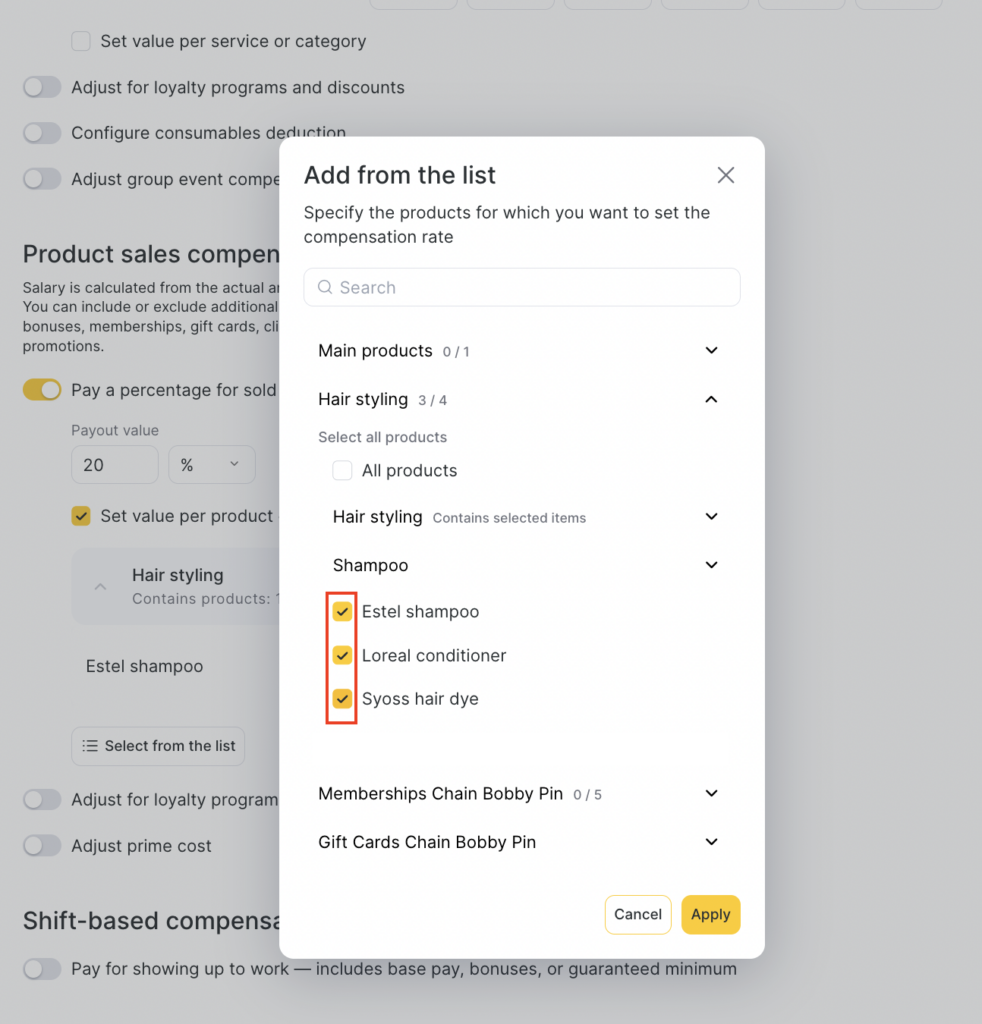
If you need to set different values for individual products within one category, select each product separately.
Adjustments for loyalty programs and discounts #
This section lets you configure which amounts should be included when calculating team member compensation if a client uses discounts, bonuses, subscriptions, or participates in promotions.
- If you enable the adjustment, the payroll calculation will use the full product price, without reducing it for the client’s discount, bonus payments, gift cards, promotions, or memberships.
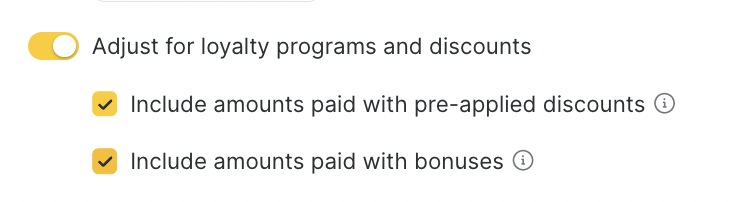
- If the adjustment is not enabled, the discount amount, as well as the part paid with bonuses, certificates, or subscriptions, is deducted from the payroll calculation base.
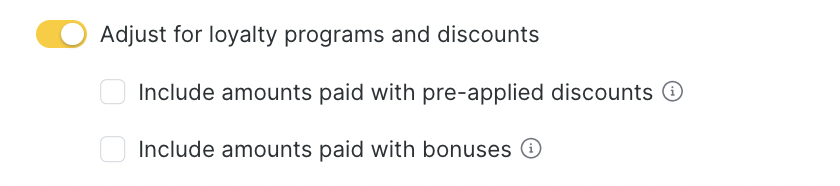
Example
Shampoo price — €100.
The client received a 10% discount and paid €90.The team member receives 40% commission for the sale:
— if the adjustment is off, the team member gets 40% of the discounted amount — €36;
— if the adjustment is on, the team member gets 40% of the full price — €40.
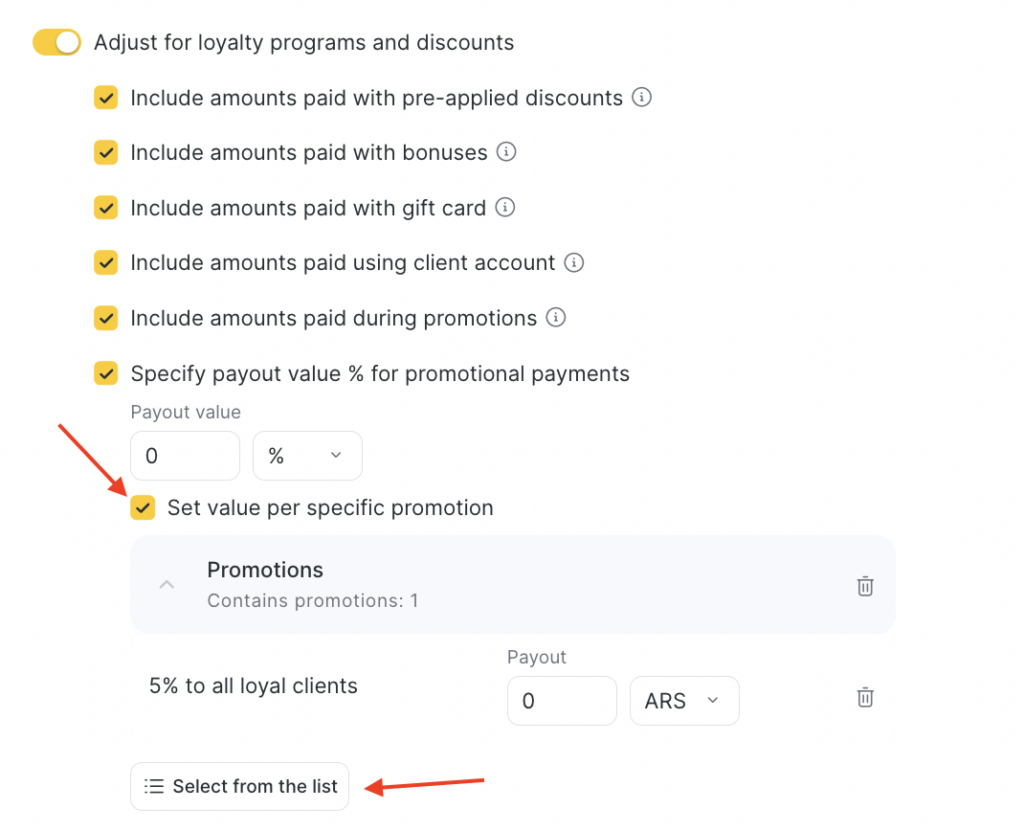
You can include or exclude the following payment types from the calculation:
- Pre-applied client discount — whether to include the amount reduced due to the discount.
- Bonus payment — whether the bonus-paid part of the product price should be included in the payout calculation.
- Membership payment — whether to include the product price paid by membership.
- Payment from client account — whether to include payment from the client’s personal balance.
- Gift card payment — whether to include the amount paid with a gift card.
- Promotional payment — whether to include the amount paid under a promotion.
Set payout value for the amount paid under a promotion #
If a product was paid under a promotion, you can define special compensation rules.
For example, if the client pays less under a promotion, the team member may receive a percentage of the actual paid amount or a fixed amount.
You can also set separate payouts for each promotion in the list. To do this, check Set value for a specific promotion, click Select from the list, choose the promotion, and set a percentage of the actual amount or a fixed amount.
Prime cost accounting #
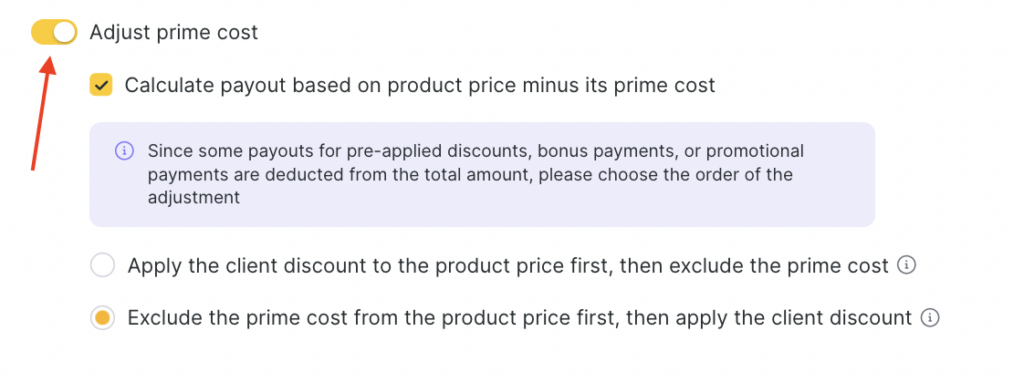
Enable Prime cost accounting so the payout is calculated from the product price minus the cost price (for example, the cost of materials).
The system also allows you to choose the order of application. To do this, enable Calculate payout as the difference between the product price and its prime cost and select the order:
- Apply the client discount first, then deduct the cost price.
- Or vise versa— deduct the cost price first, then apply the client discount.
Payment per working day #
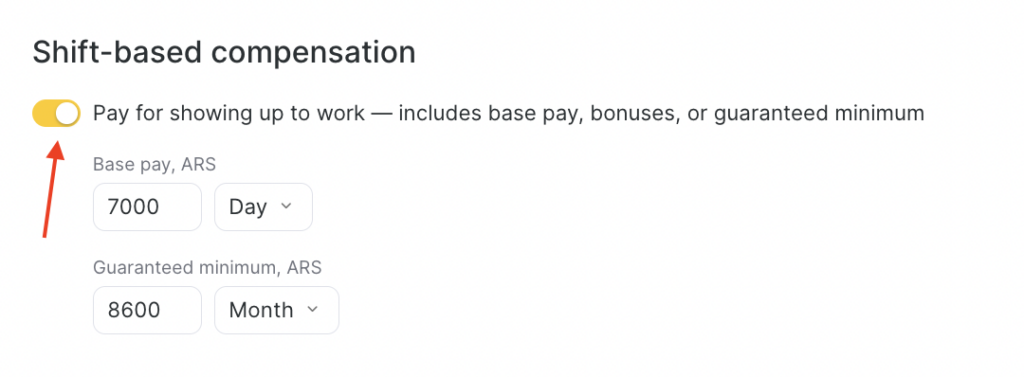
For team members whose work is paid per shift (for example, receptionists):
Enable Payment for coming to work includes base pay, additional reward, or a guaranteed minimum.
Set the base pay per hour/day/month.
To accrue a monthly base salary, 3 conditions must be met:
- Monthly salary is always accrued on the 1st day of the month following the billing month. To accrue a salary for January, the calculation period must include February 1.
- The team member’s schedule must include at least 1 working hour/day in the month for which the salary is accrued. To accrue a salary for January, the team member must have working hours in January.
- The calculation scheme in which the rule is applied must cover the calculation month. For example, to accrue a salary for January, the scheme must be active for the team member starting January 1.
Example
If you select the calculation period 09/01–09/30, then (if the other conditions are met) salary for August will be accrued, but salary for September will not. At the same time, if you select 09/02–10/01, salary for August will not be accrued, but salary for September will be accrued.
- Set a guaranteed minimum per day/month — the amount the team member will receive in any case, even if the base salary plus percentages is less than the minimum. Useful during low-load periods.
To accrue a monthly Guaranteed Minimum, the calculation period must fully include the month for which the calculation is performed.
Payout for working with appointments #
If a team member works with client appointments (creating, changing, confirming visits), this setting is especially relevant for receptionists and managers who manage the schedule and interact with clients.
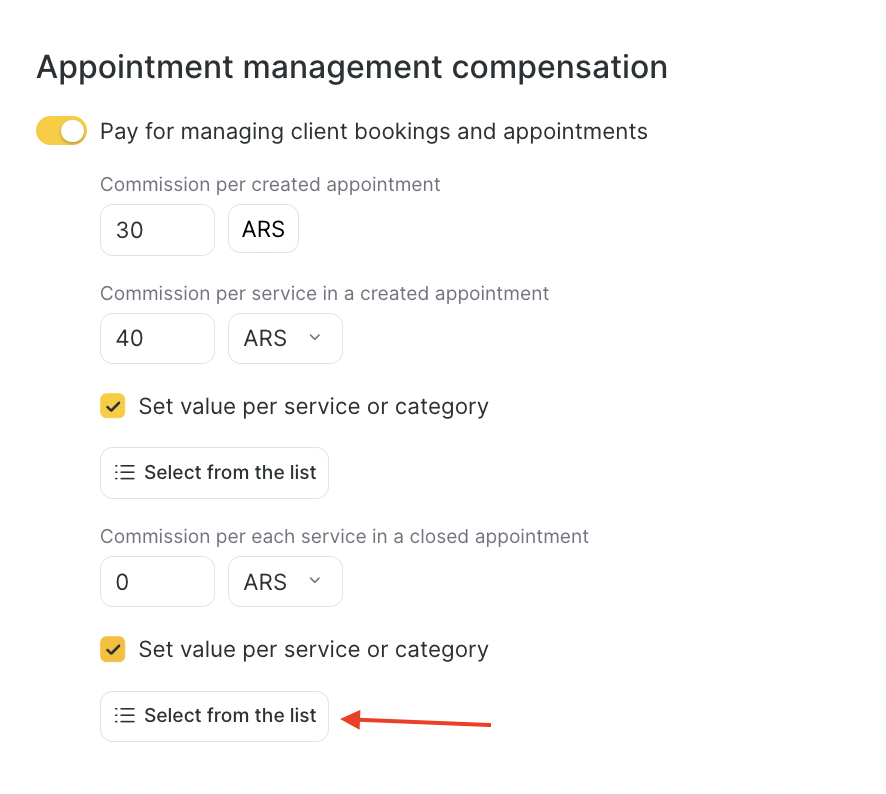
Enable Reward for appointment management.
Set payouts for:
- Created appointment (in currency). In this case, accrual goes to the receptionist who created the appointment.
- Service in a created appointment (percentage or currency). Accrual goes to the receptionist who created the appointment.
- Service in a closed appointment created via the online widget (percentage or currency). Accrual goes to the receptionist who created the appointment.
A closed online appointment is an appointment with the Arrived status. In this case, the calculations take into account the receptionist who first changed the appointment status to Arrived. Regardless of who created the appointment and when, the payout will go to the person who first changed the status — i.e., who closed the appointment.
Set individual values for different services or categories. To select categories or services, click Select from the list.
Additional reward for provided services and product sales #
If you want to reward team members based on the company’s overall success in providing services or selling products:
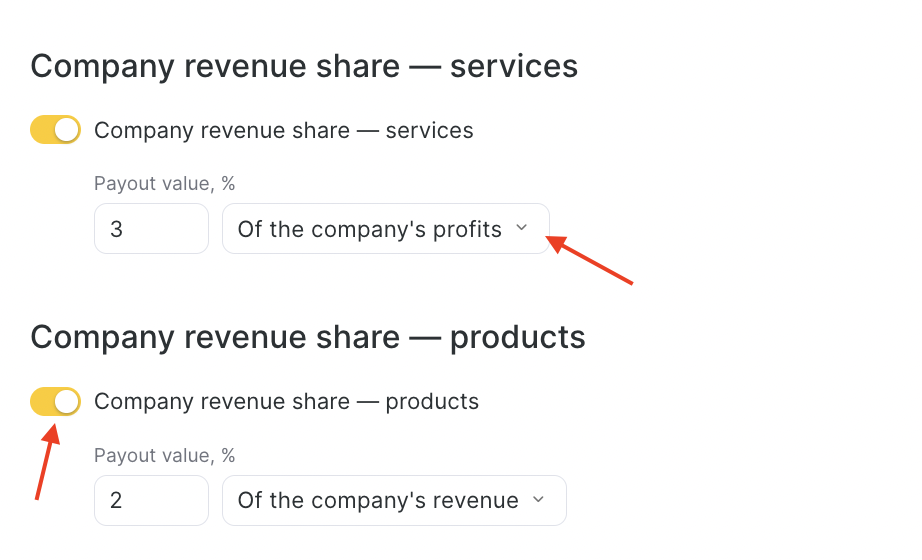
- Enable Additional reward for provided services or for product sales.
- Set the payout percentage:
- From the company daily turnover
- From the company daily profit
Example
Turnover: R$10,000
Expenses: R$7,000
Profit: R$3,000
5% of revenue = R$500
5% of profit = R$150
Revenue = fixed payout from sales.
Profit = a fair share only when there is income.
Additionally, you can set up accrual of bonuses and penalties in Altegio. More details are available in the article.
To learn how to accrue payroll for a team member, see the Settlements article.

