
In the system, you can add assistants who help deliver services during an appointment. An assistant participates in the appointment together with the main staff member and is taken into account when calculating payroll.
Who can be an assistant #
The following can act as an assistant:
- Separate team members who do not provide services on their own (for example, trainees, master’s helpers, doctor’s assistants).
- Full-fledged team members who usually provide services independently, but participate as assistants within a specific appointment.
Using assistants makes it possible to flexibly distribute roles among staff within appointments and correctly account for each participant’s contribution when calculating payroll. This functionality simplifies working with team-based services and allows you to set up different compensation models for staff working with an assistant and without one.
How to add an assistant #
If the assistant is a separate staff member who only performs an assisting role, you can add them to the system as follows:
- Go to Team > Team members list and click Add team member. For more details on how to add a team member, see the article.
- Enter the team member’s name.
- Grant access to the service. Specify the phone number or email address where the invitation to the system will be sent, and assign the free View only role.
An SMS invitation is sent only if you have an SMS aggregator or a chatbot connected.
The assistant is not displayed in the schedule in the appointment calendar, so you don’t need to add them to the work schedule.
At the same time, the team member must be assigned an access role. The suitable option is the View only role, since it is free and allows the person to participate in appointments as an assistant without access to system management.
After creating the assistant, go to the Settings tab and, in the Assistance section, enable access to assisting.
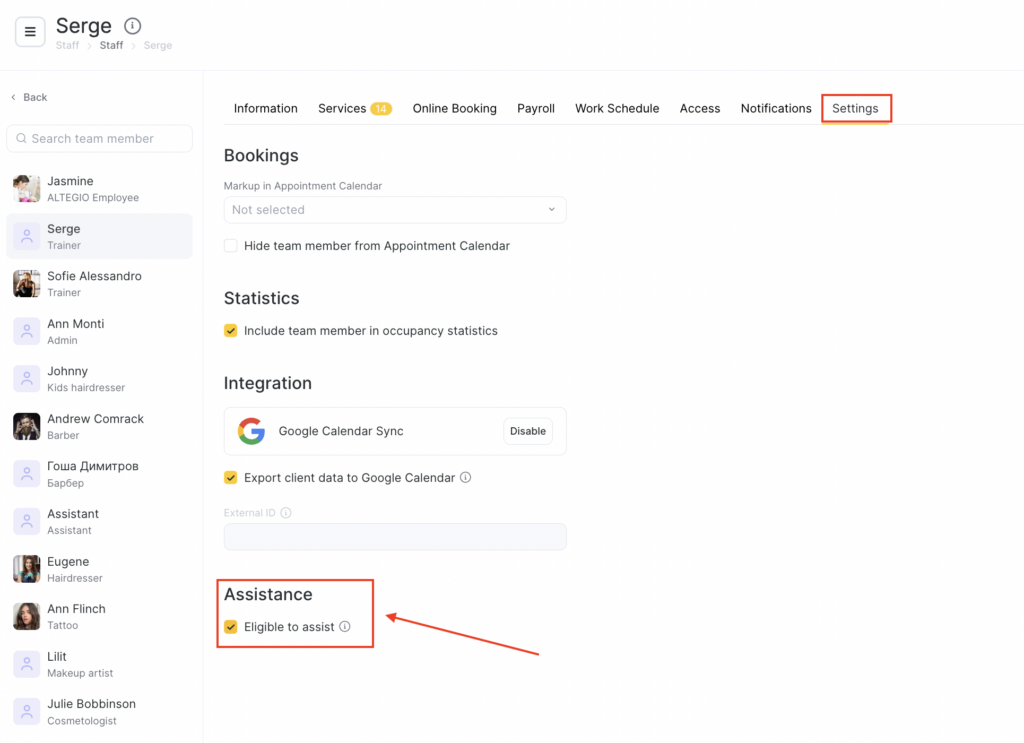
If a team member already provides services but can also perform the assistant role, this option must be enabled in their settings. To do this:
- Go to the Team> Team members list section.
- Open the team member profile by clicking their name, and in the Settings tab enable Available for assisting.
- Save the changes.
How to add an assistant to an appointment is described here.
You can also set up automatic reward accrual for an assistant or for a team member with assistant functions. How to do this is described in the article.

