
Most clients prefer to communicate via messengers, as this is the most convenient way to stay in touch today. Altegio now has a new feature for businesses that helps improve the quality of client communication and raise the level of service — a chat inside the appointment calendar and the visit window.
Improve your company’s service level with Altegio’s convenient communication tools #
- Reply to client questions faster directly in Altegio.
- More information on one screen. The receptionist doesn’t need to switch between browser tabs or search in a phone app to find what they need.
- Use all the benefits of modern messaging: send documents and images.
- Don’t miss incoming client messages thanks to built-in new message notifications.
Chat features in the appointment calendar #
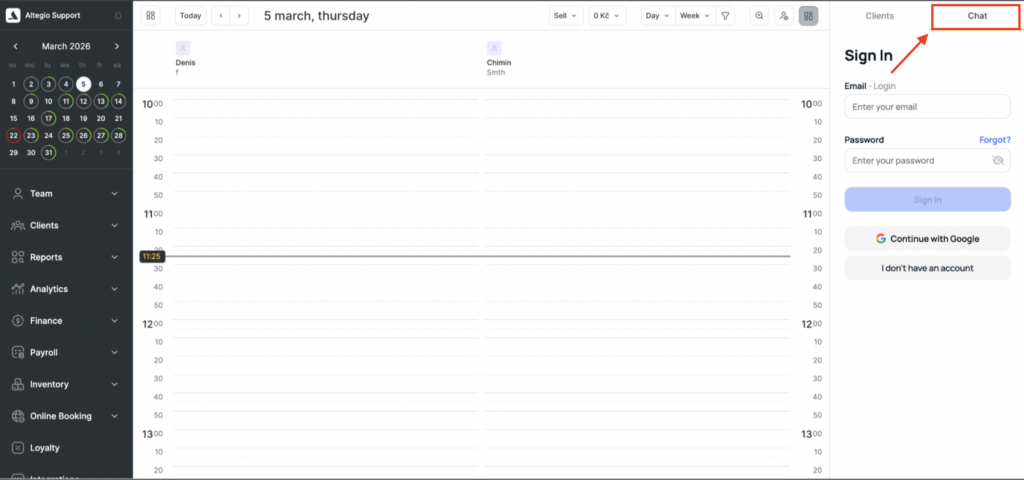
- The chat is available in the appointment calendar and can be opened/closed with one button.
- The chat doesn’t cover the appointment calendar; it opens on the right as a widget.
- While chatting with a client, you can create a visit for them in parallel.
- The chat stays open when switching days of the week in the appointment calendar.
- The chat stays open when switching to any appointment calendar mode, for example “Team member schedule for the week” or “Resources.”
- A full conversation history with the client is available in the chat.
- The chat button shows a red indicator when there is a new incoming message from a client. Pop-up notifications can also be enabled/disabled; read more about setup here.
- Auto-saving of new clients is available for the chat too.
- In the chat, you can identify a client via the client search side panel in the appointment calendar. The appearance and design of the buttons may differ across partners. After clicking the identification button, the client’s data will appear in the “Clients” tab, where you can view the client’s categories, the note from their profile, and visit history; open the client’s past or upcoming booking/event in the appointment calendar and go to the weekly schedule of the team member the client previously booked with. Read more about using the client search panel in the article.
Chat features in the visit window #
The chat is located on the “Visit details” tab and opens via the “Chat Beta” button. The chat automatically pulls the conversation with the client from the visit if their phone number is entered and that number has WhatsApp.
When creating a new visit, the chat is unavailable because it “doesn’t know” the client’s phone number yet. Simply enter the client’s phone number and the chat will automatically find and display the conversation (if that number has WhatsApp). A full conversation history with the client is available in the chat.
Connection #
All internal chat functionality is implemented on the partner’s side. Altegio provides partners with the ability to embed the chat into the interface and interact with it. At the moment, chat support has been implemented by our partners Integrilla, and soon by Fromni, Flowsell, and Message.Help. You can find the full list of partners in the Altegio Marketplace using the search key “Chat”.
Connection #
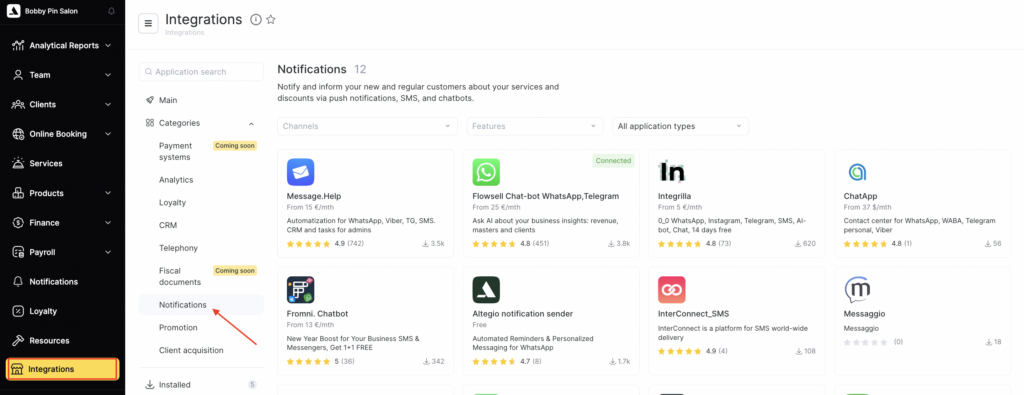
- Go to Integrations > Notifications and connect the partner’s app that supports chat.
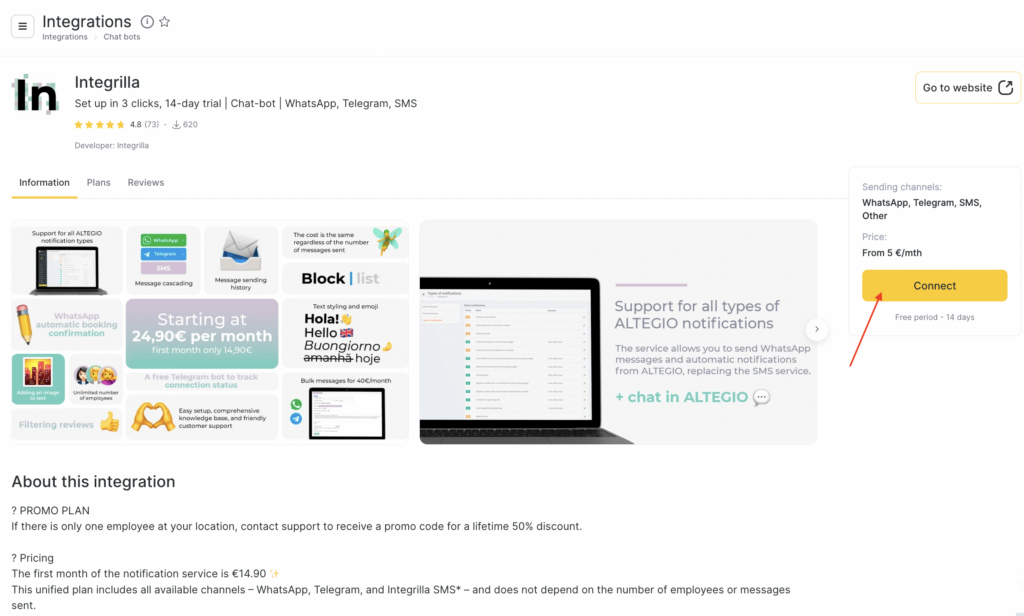
- Register on the partner’s website and pay for the integration.
- The chat will automatically appear in the side panel in the appointment calendar on the “Chat” tab, and on the “Visit details” tab in the visit window, once the partner enables the integration for your location on their side.
Open the chat window in the appointment calendar and enter your login and password for the partner’s website, or start using the chat right away. The chat is connected and ready to use.
Notes #
Chat is enabled only if a partner integration from Integrations > Notifications is connected in your location.
We recommend using Google Chrome. Chat is available only in the web version of Altegio on a computer; the best experience is with a screen resolution of 1360×768 or higher.
To access the chat, an Altegio user must have the following permissions enabled: in the “Appointment calendar” section > “Show phone numbers”, and in the “Visit window” > “Access to client data”.

