Set up the rules and available times for online booking with your team. Based on these settings, clients will be able to book services online for the time slots you choose.
You can enable the “Optimal” online booking option — it’s a good choice if you want to minimize gaps and offer clients more booking options.
You can also set a fixed booking time using the “Fixed” option.
In addition to Optimal and Fixed, you can now configure a dynamic slot type using the “Dynamic” option — an extra slot is created after an appointment or break ends, and the remaining slots adjust accordingly.
Setup and editing #
Available time slots can be configured in two sections of Altegio:
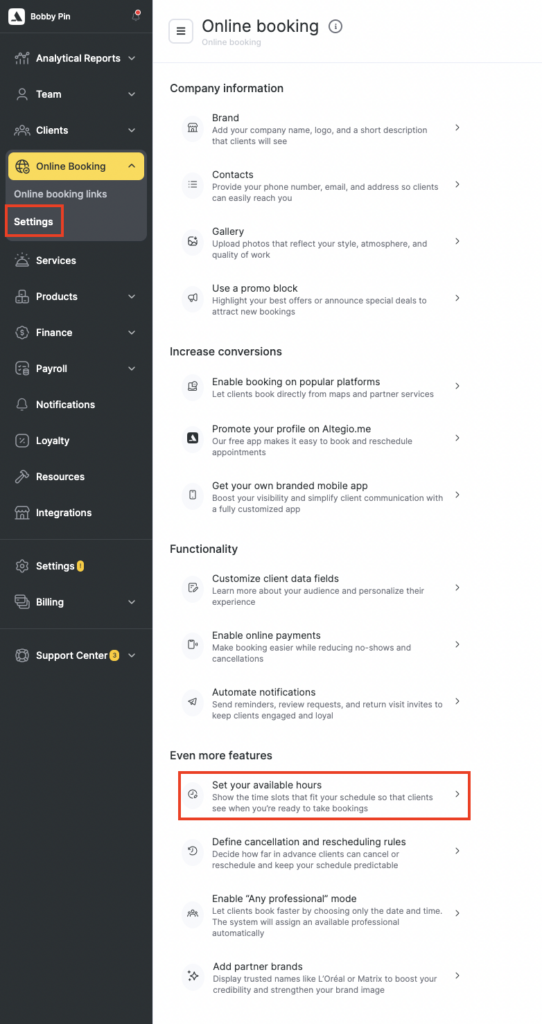
- For all employees of a location in the Online Booking > Settings > Even more features > Set your available hours section.
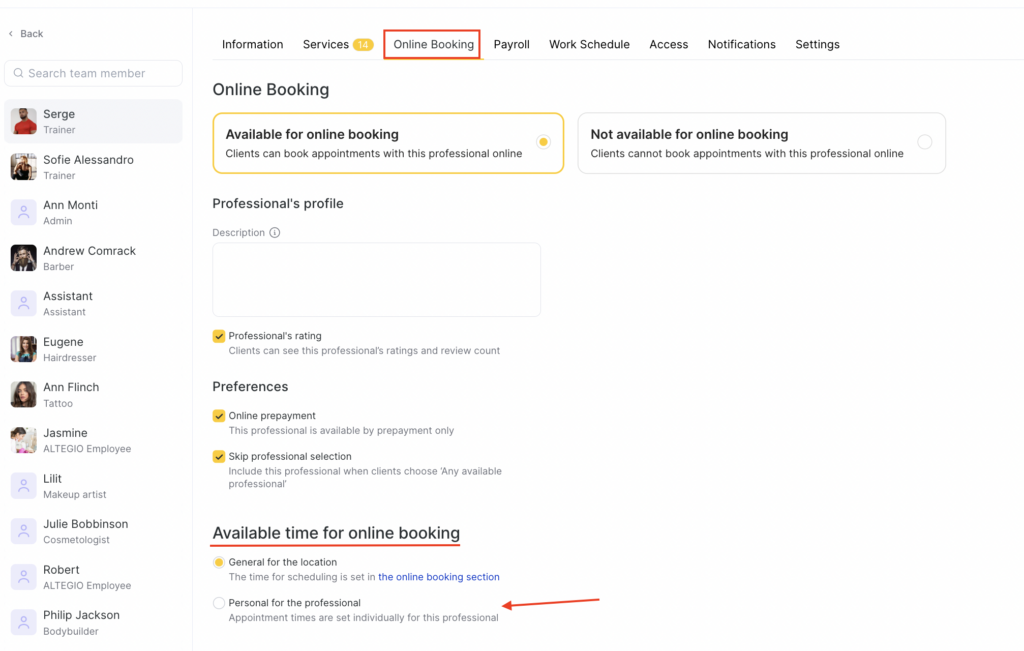
- Individual time slots for specific team members in the Settings > Main settings > Team section.
To access the settings:
- click on the team member’s name in the list, open the Online booking tab, and select Personal for the professional
- Unavailable days for online booking can also be configured separately for each team member. At the same time, the available time for online booking can be either shared for the whole location or set individually per team member.
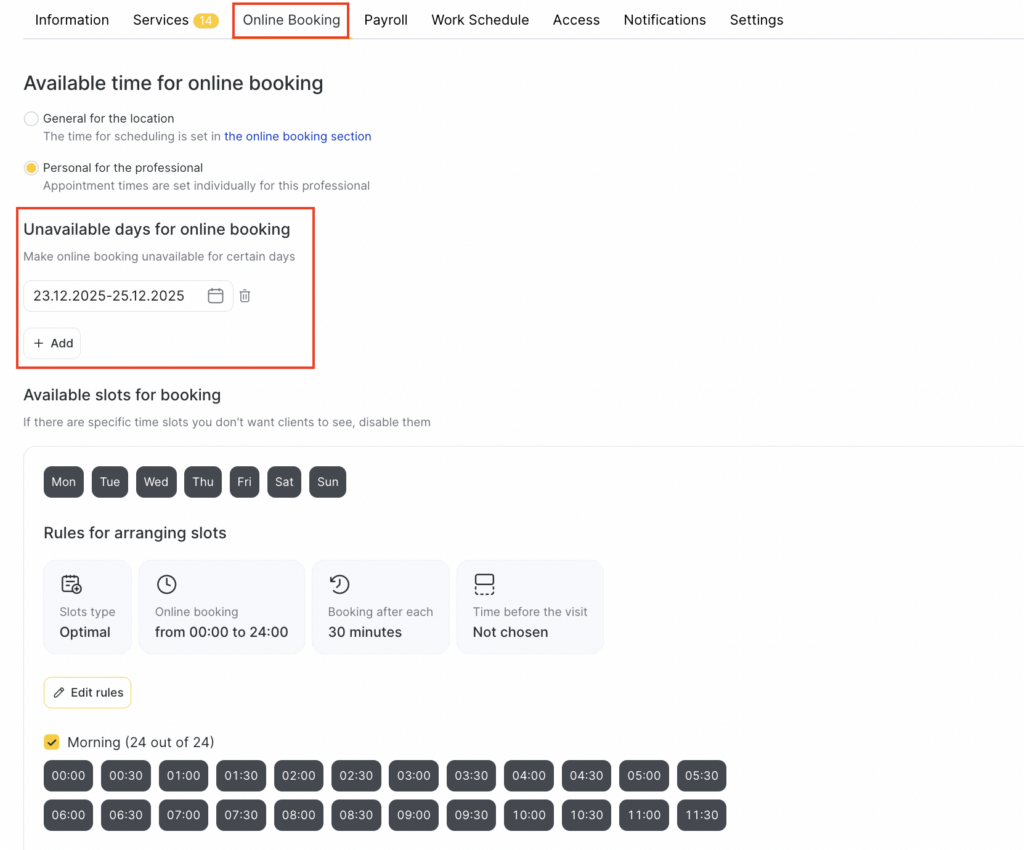
- Click Add and select the required day, multiple days, or a date range. To delete an entry, click the trash icon.
The settings for the location and for team members work the same way. The only difference is that location-level settings apply to everyone, while team member-level settings apply only to the selected team member. You can set different available-time settings for different team members.
You can disable online booking for specific days and/or periods. For example, if you want to serve clients offline on certain days. This is especially useful before holidays, so you can control the schedule and book clients manually.
Available time slots for online booking #
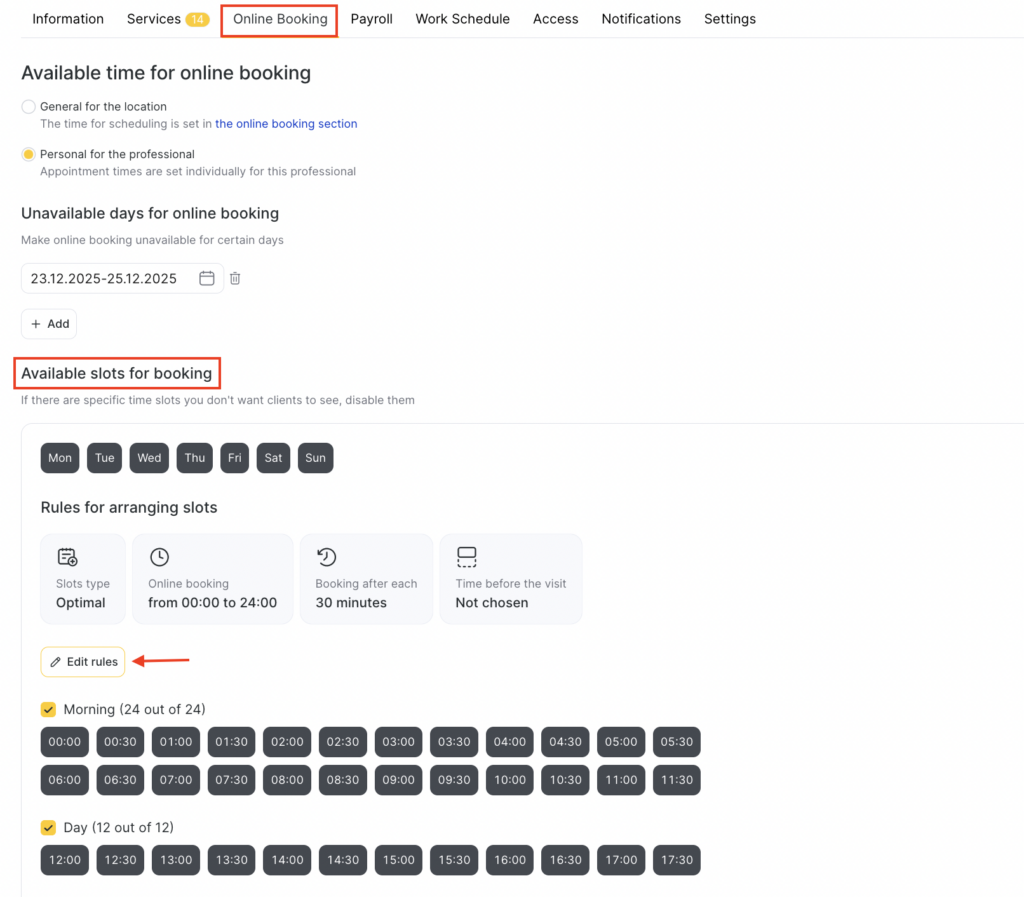
Set up the rules for generating time slots that will be shown during online booking.
In the Available booking slots > Slot generation rules block, click Edit rules.
Here you can configure the slot type, when online booking starts, booking intervals, and the time before the appointment starts.
Follow the on-screen prompts to choose the settings that fit your business needs. To continue, click Next; to go back to the previous step, click Back. At the end, make sure to click Finish setup.
Read more about all available options in the article below.
Online booking density #
Choose the slot type that best fits your business: Fixed, Optimal, or Dynamic.
Fixed — you create the booking grid yourself. It’s a good choice if you have a steady client flow and want to lock in time slots for maximum efficiency.
With this slot type, the start time of each slot is fixed and depends only on the interval you set.
This setting lets you show clients only the times you’ve selected.
Example
An employee works from 9:00 to 18:00, and most appointments with them take 1 hour. In this case, clients will be able to book only at 9:00, 10:00, 11:00, 12:00, 13:00, 14:00, 15:00, 16:00, and 17:00.
If the service duration is less than 1 hour, the client will still be offered only the times you’ve set — no additional slot will be added.
In this example, the next available slots after appointments will be 10:00 and 13:00.
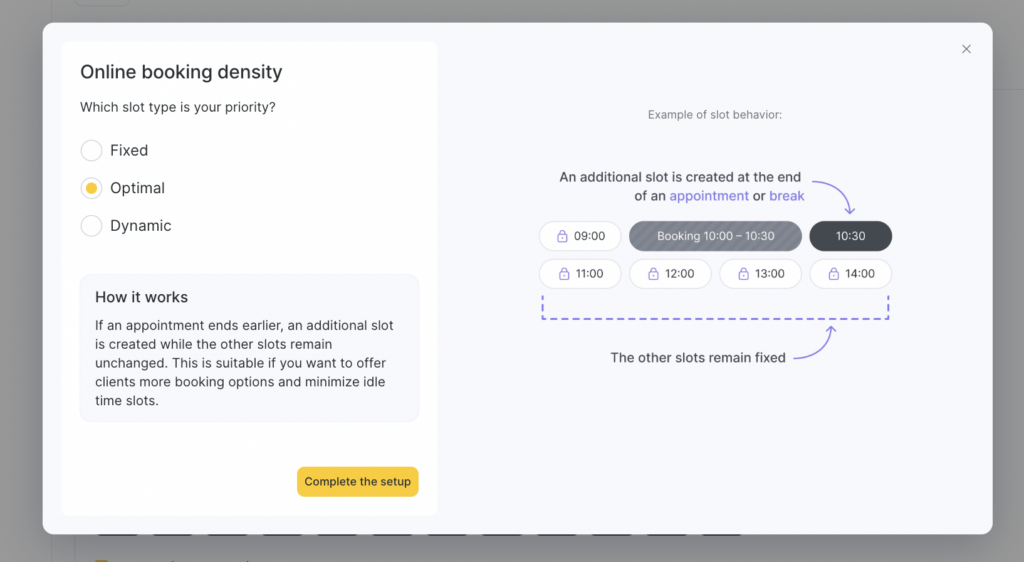
Optimal — if an appointment ends earlier than the standard slot length, an additional slot is created while the other slots remain unchanged. If the employee has a break in their schedule, an extra slot will also appear after the break. This option is ideal if you want to give clients more booking choices and minimize empty gaps.
In this mode, the system automatically creates extra slots based on when the previous appointment ends and on scheduled breaks.
With the Optimal slot type, clients will see not only the slots you set manually, but also the additional slots the system generates automatically after each booking is created.
Example
If the available slots are 9:00, 9:30, 10:00, 10:30, and so on, and the schedule already has appointments at 9:00 and 11:30, then during online booking the client will see not only the slots at 10:00 and 13:30, but also additional slots at 9:45 and 13:10.
Dynamic — an extra slot is created after an appointment or a break ends, and the other slots adjust around it. This option is best if you want to give clients maximum flexibility when choosing time slots.
This is a new way to configure online booking time. In this mode, the system looks for available time slots starting from each free period in the employee’s schedule.
With the Dynamic slot type, slots are generated based on the employee’s working hours, existing appointments, and breaks, using the selected display interval. Also, unlike the Fixed or Optimal types, you can’t set separate available booking slots for this scenario — the slots automatically adapt to the employee’s actual free time and are shown automatically.
Example
If an employee starts work at 9:00 on one day and at 10:00 on another day, then the first available slots for each day will match the start of their working hours—unless those times are already taken by appointments or breaks.
If you add a break from 13:00 to 13:30 and an appointment from 14:00 to 16:05, the client will also see available slots at 13:30 and 16:05.
Online booking start #
Choose what the first available online booking slot should be based on: the online booking time or the employee’s workday start time.
Important
Choosing the online booking start is available only for the Fixed and Optimal slot types.
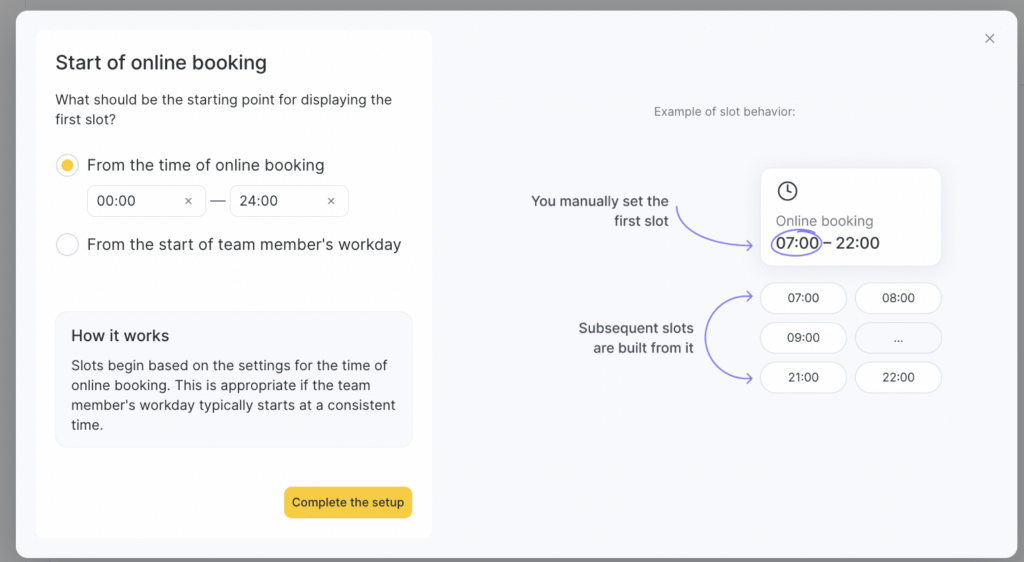
From the time of online booking. Slots start based on your online booking time settings. This option works well if an employee’s workday usually starts at the same time. In this case, you set the first slot manually, and the remaining slots are built from it.
Example
If online booking time is set from 10:00 to 17:00, and the employee’s working hours are always 8:00 to 15:00, then the client will see the first slot at 10:00 and the last one at 14:00 (if the step is 1 hour and the selected service can finish by 15:00).
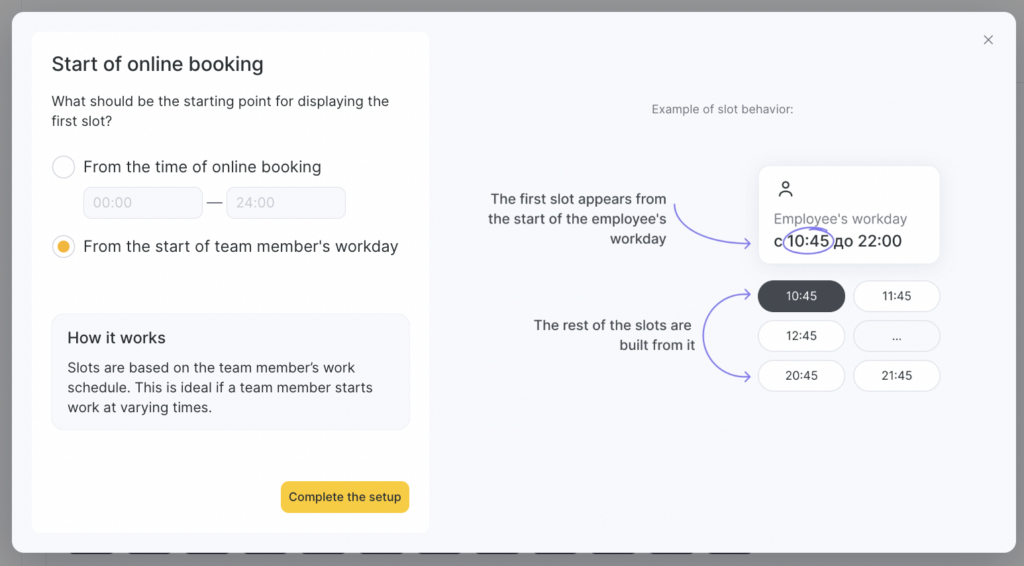
- From the start of team member’s workday. Slots are generated based on the employee’s schedule. This option is a good fit if the employee starts work at different times.
Example
If an employee’s schedule is 8:00 to 15:00 on one day, the client will see the first slot at 8:00 and the last one at 14:00 (if the step is 1 hour and the selected service can finish by 15:00).
If on another day the employee starts work at 10:00, the first slot will also be shown at 10:00.
Booking interval #
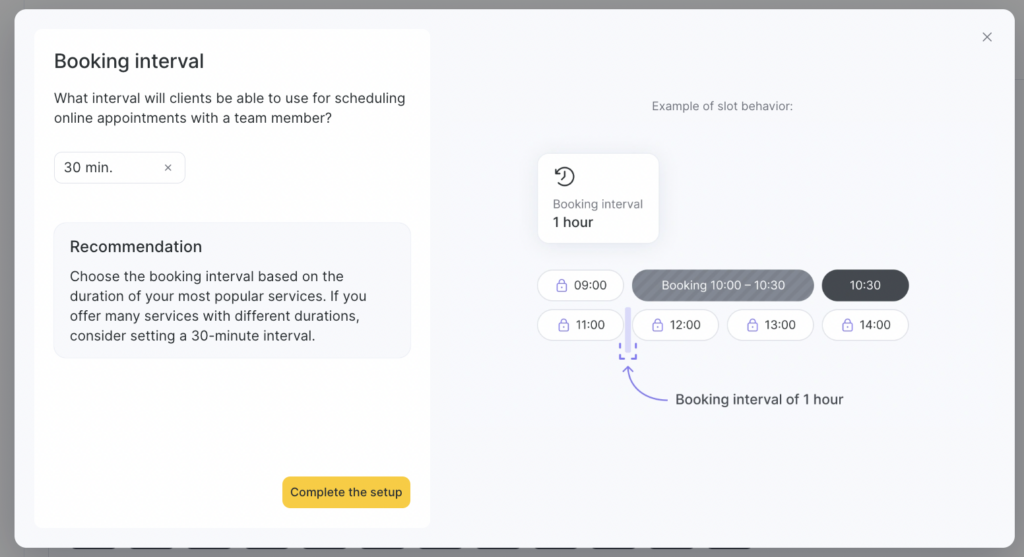
Choose the interval at which clients can book an appointment with a team member online. The booking interval divides the schedule grid into time blocks based on this setting.
Set the interval based on the duration of your most popular services. If you have many services with different durations, you can set a 30-minute interval.
You can choose an interval in 5-minute increments, from 5 minutes up to 7 hours.
Time before the appointment starts #
Specify how much time in advance a client must book a service with a team member. Within this time window, clients won’t be able to make an appointment.
This option is useful if you need time to prepare for the service, or if the team member arrives specifically for the appointment time and needs, for example, 30 minutes to get to the workplace. You can set an interval in 30-minute increments, from 30 minutes up to 24 hours.
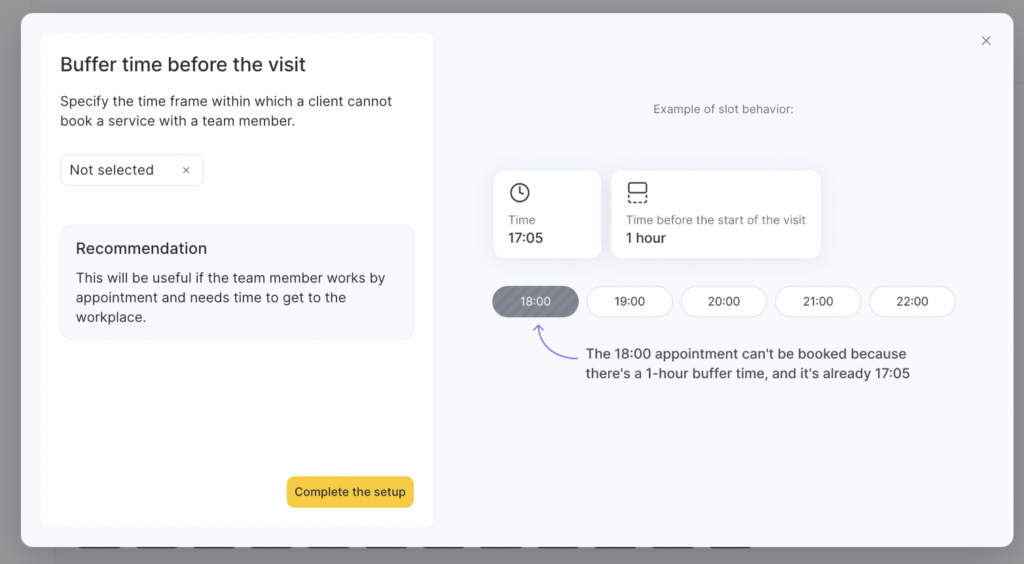
Example
If the setting is 30 minutes, the current time is 15:39, and the nearest free slot is 16:00, then with this rule the client will see the nearest available slot only at 16:30.
Manual slot setup #
After you complete the setup, you’ll be able to manually turn booking slots on or off.
Important
Manual slot setup is available only for the Fixed and Optimal slot types with the “From the online booking time” option.
This is useful if you want to remove morning or evening slots to better control workload during those hours.
In the Available booking slots block, you can configure the time slots shown for online booking. If you don’t want clients to see certain slots, disable them.
You can hide all morning, daytime, or evening slots by unchecking the relevant box.
Example
You can hide all evening slots for online booking, while keeping morning and daytime slots available.
You can also selectively disable specific time slots for online booking. To do this, click the slot you want:
- black slots are active
- gray slots are inactive

For example, on the time grid you can disable booking at 13:00, 13:30, and 14:00.
Setting up slots for different days of the week #
If needed, you can set different scenarios and available days for different weekdays. This option is useful, for example, if the booking interval on weekends differs from weekdays.
To configure another weekday, click Add weekday exception.
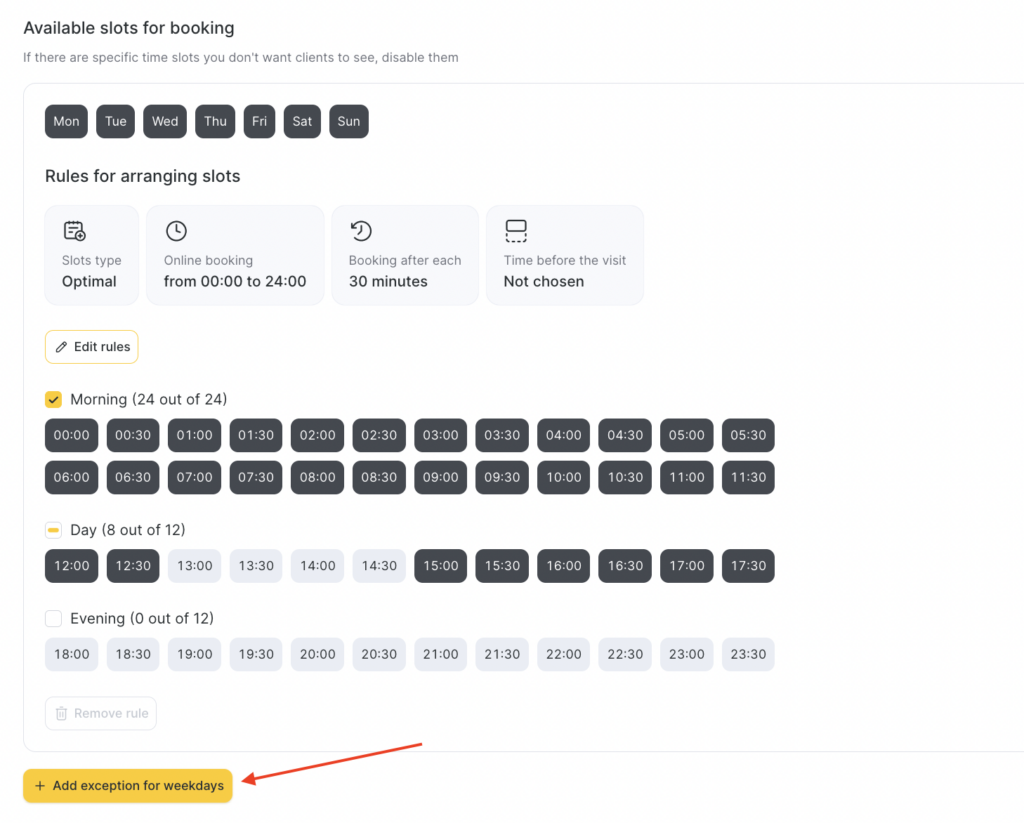
Select the days of the week that should follow a different online booking time setting. Then choose the required scenario and click Save at the bottom.
- black indicates active weekdays in the configured scenario
- gray indicates inactive ones

If you need to add another scenario, click Add weekday exception again.