
The Altegio Notification Sender is an integration that allows you to send automated reminders and personalized messages to your clients through WhatsApp Business. Messages are sent from an official Altegio number and help improve communication, reduce no-shows, and boost customer loyalty.
What You Can Do with WhatsApp Notifications
Once connected, the integration allows you to:
- Reduce no-shows with appointment reminders
- Promote offers with automatic discount and promo notifications
- Increase loyalty by sending personalized birthday greetings
- Retain clients via review requests and rebooking reminders
Important
All messages are one-way notifications. Clients can’t reply but can interact through smart links (reschedule, cancel, leave a review, etc.).
Important
If you have two or more branches and want to connect the integration to several of them, you need to top up your balance separately for each one.
Notifications are sent only if you have a paid subscription; during the trial period, notifications will not be sent.
How to Activate the Integration
- Go to Settings > Integrations > Altegio notification sender.
- Locate the app in the Marketplace and click Connect in the right section of the screen.
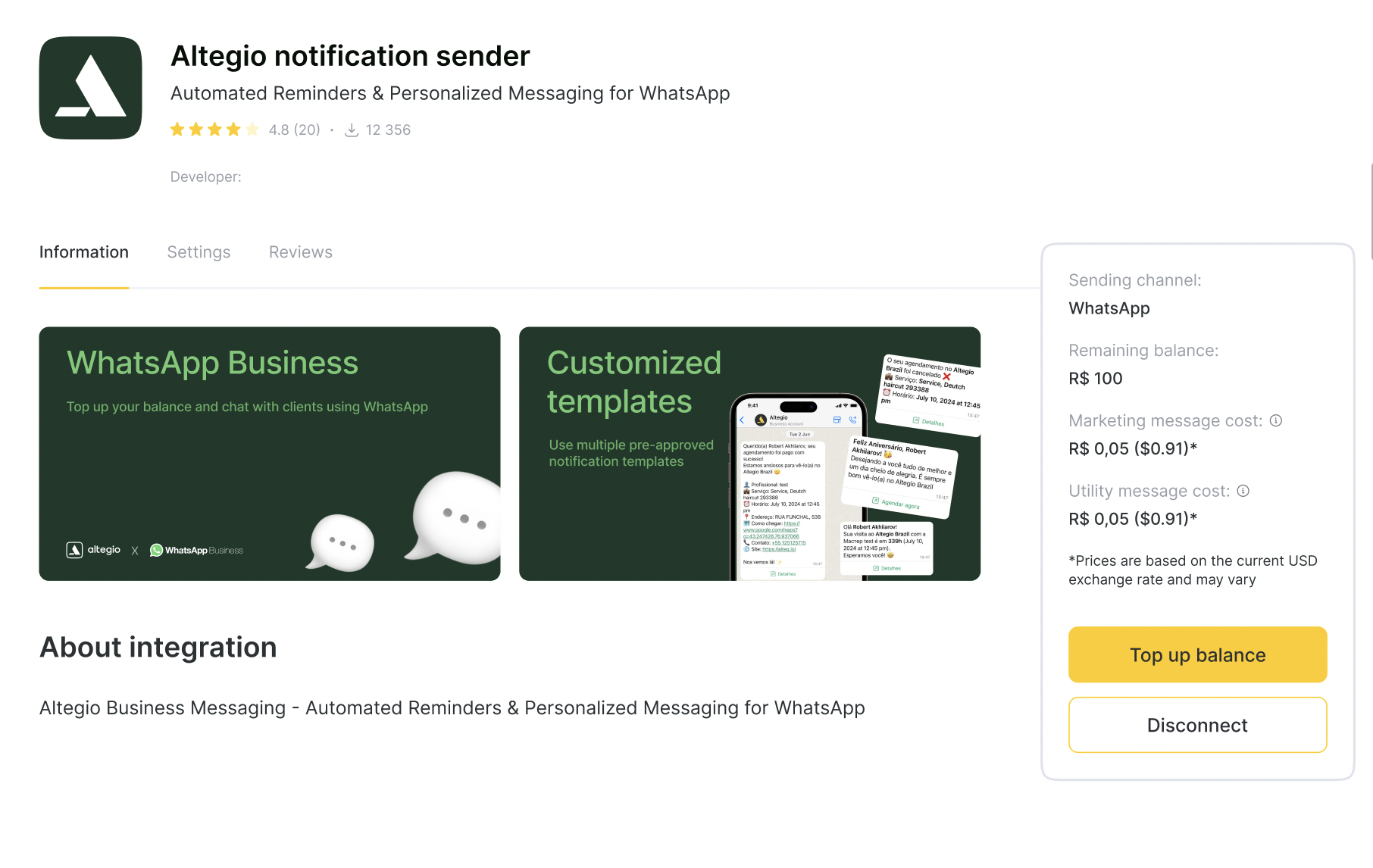
- Verify notification templates. For this, go to the Settings tab and begin with Template verification. You’ll see a message confirming that pre-approved WhatsApp templates are ready.
- Click View to review them in Settings > Notifications.
- You can change the notification language if needed.
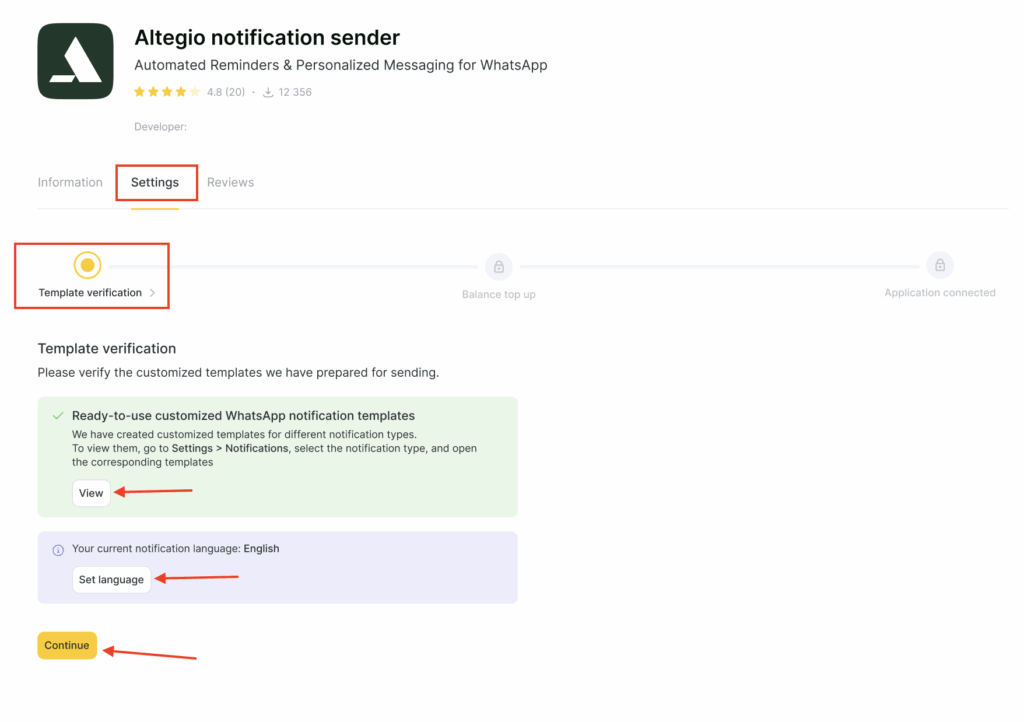
- Once all is set up, click the Continue button below.
- Top up the balance. To start sending messages, go to the next step: Balance top up.
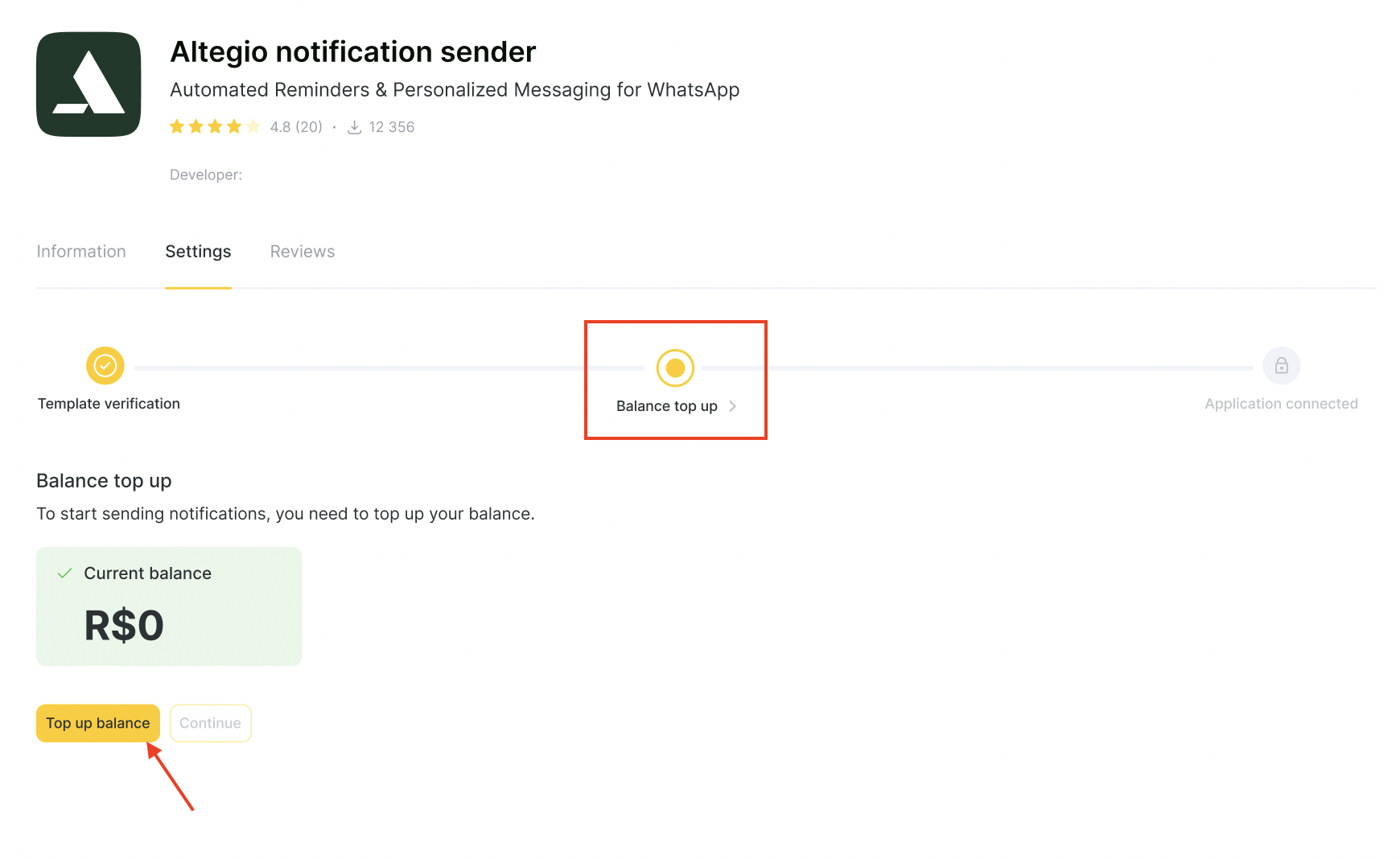
- You’ll see your current balance. Click the Top up balance button to proceed.
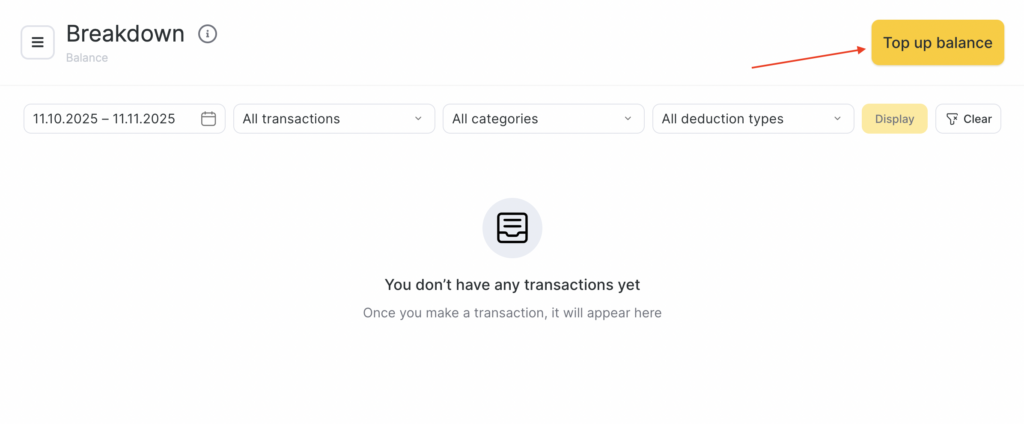
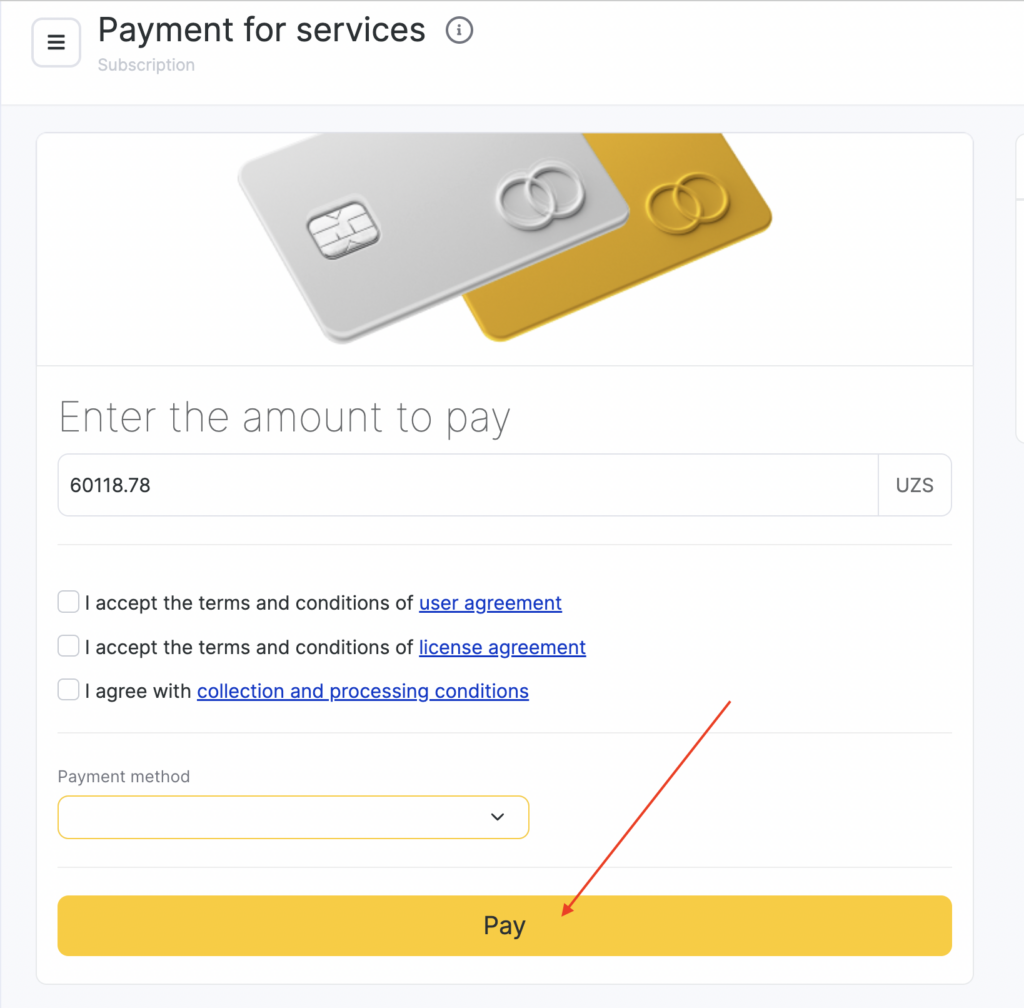
- Complete connection. Once balance is topped up the app status will update to Application connected.
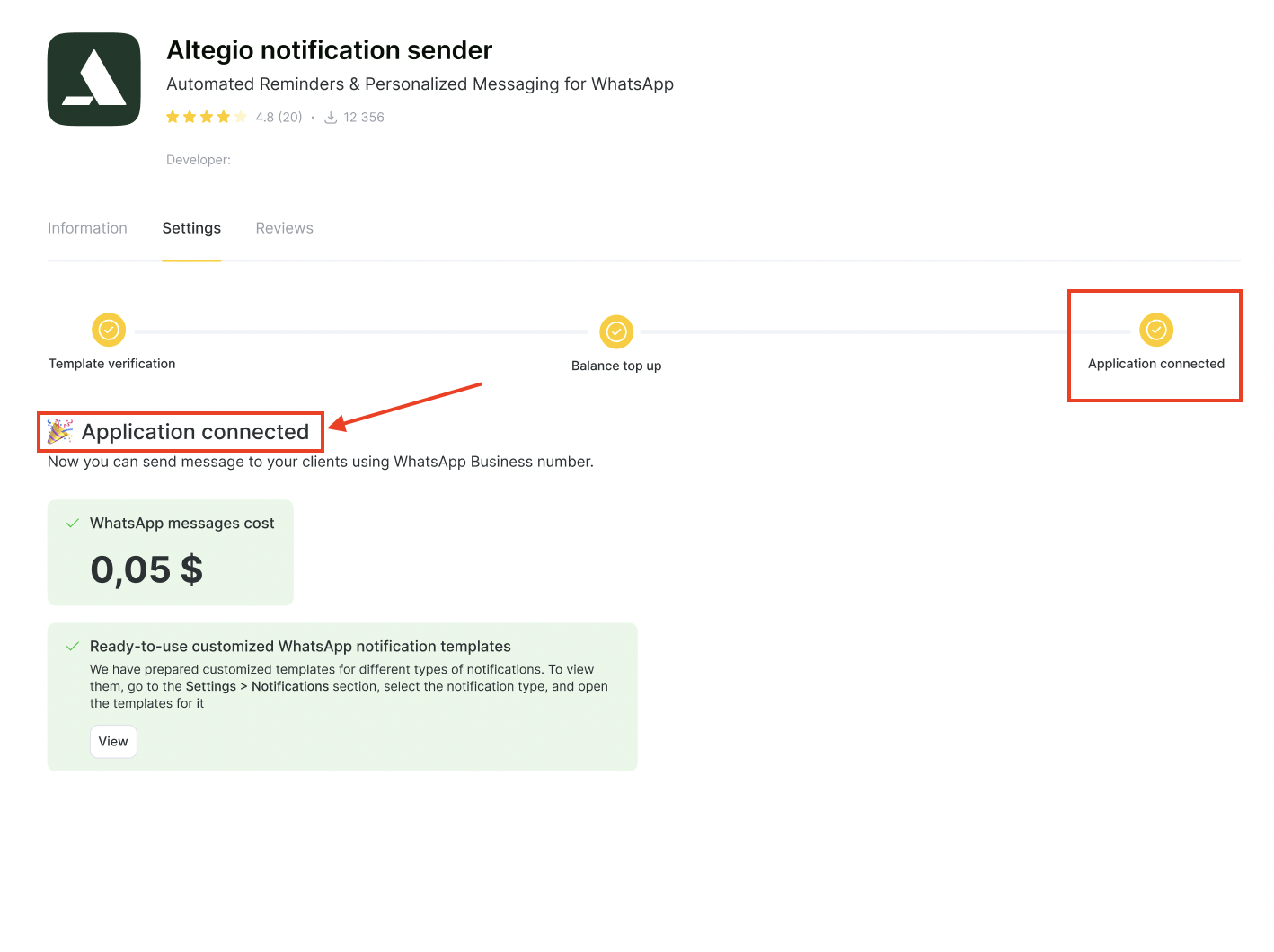
You’ll now be able to send messages via Altegio’s WhatsApp Business number.
Where to Manage Notifications
To customize or check the types of messages being sent:
- Go to Settings > System settings > Notifications.
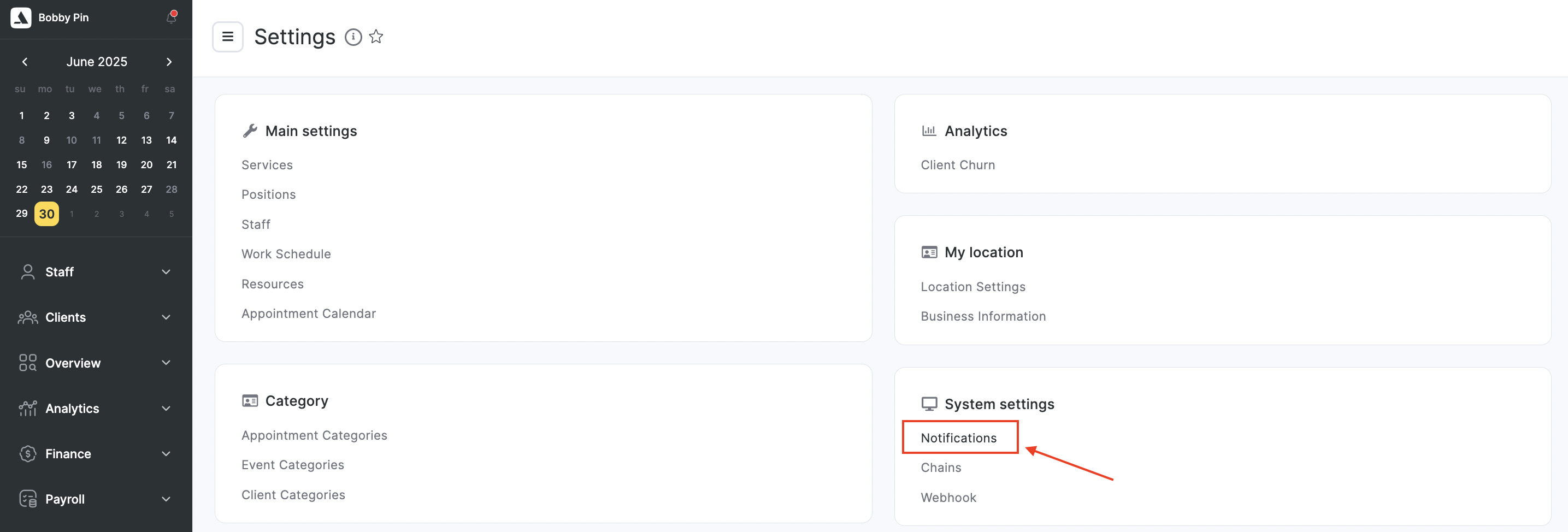
- Under Notification types tab choose the notification type (reminders, promos, rebooking, etc.).
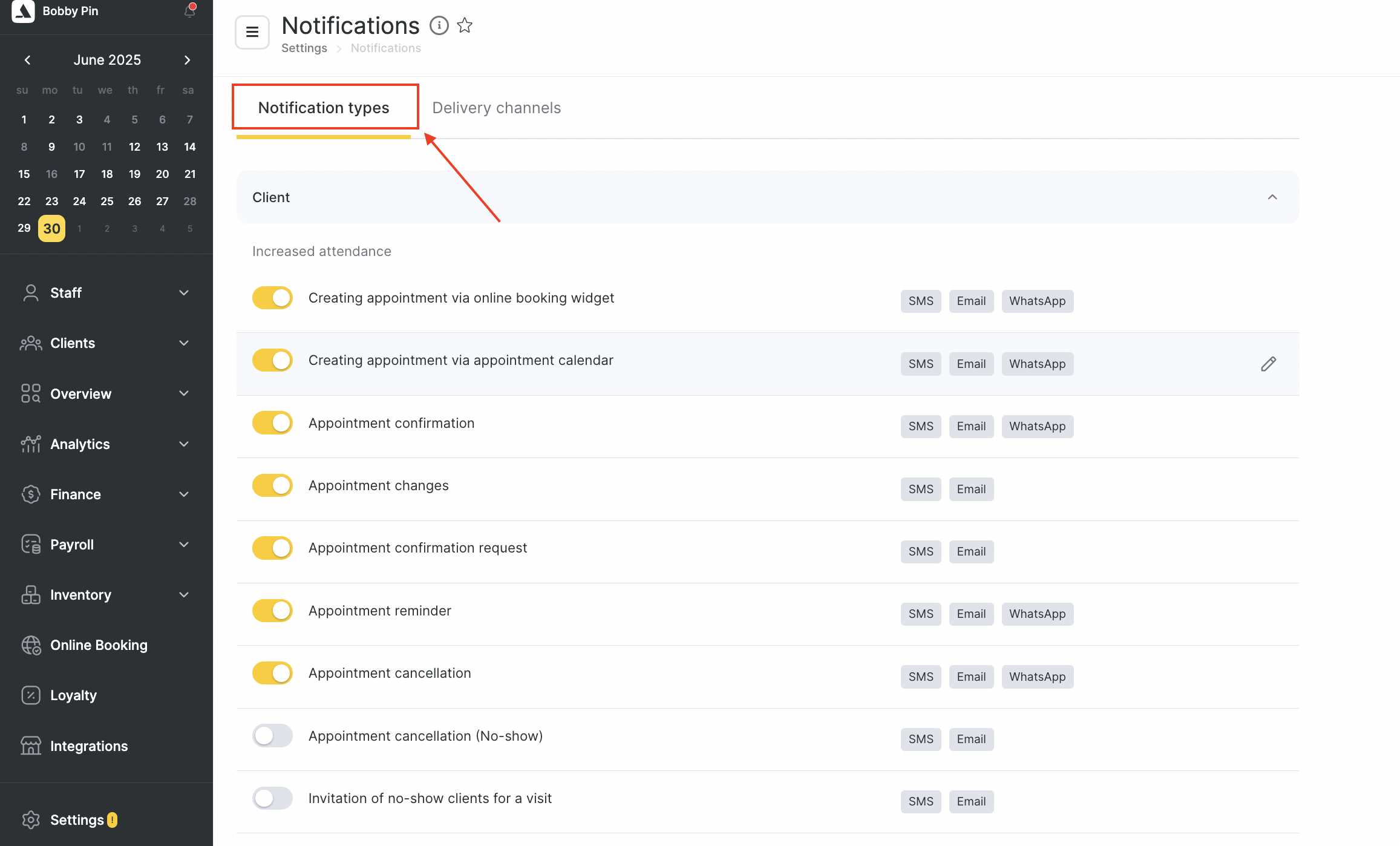
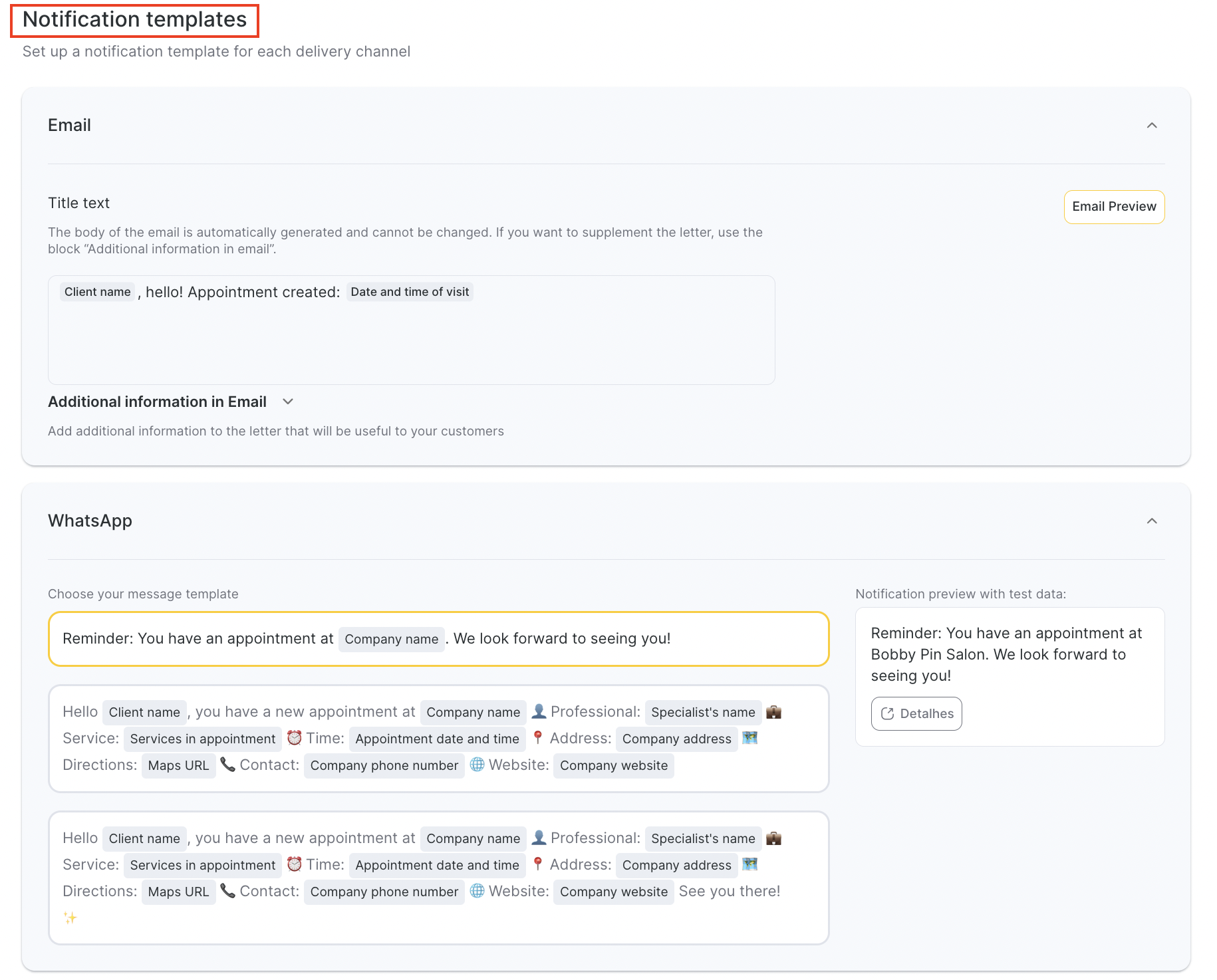
Review or adjust the templates by clicking the pencil icon. You can use a predefined template with existing variables. Read more about configuring notification templates here.
Want to Use Your Own Number?
If you’d prefer to send messages from your own WhatsApp Business number instead of Altegio’s shared sender, check out our WhatsApp Coexistence integration for alternative setup options.

