
If you connected an online payment acceptance service when setting up online sales of memberships and gift cards, order processing and status updates will happen automatically.
If you plan to accept payments by an alternative method, such as a bank transfer using payment details, then during setup in Online Sales > Settings, on the Payment tab, you will need to select Other method. You will also need to process orders manually.
In this article, we will look at how to set up and process online orders without connecting an online payment service. A detailed guide for setting up online sales of memberships and certificates is available here.
Setup #
- In the chain interface, go to Online Sales > Settings and open the Payment tab.
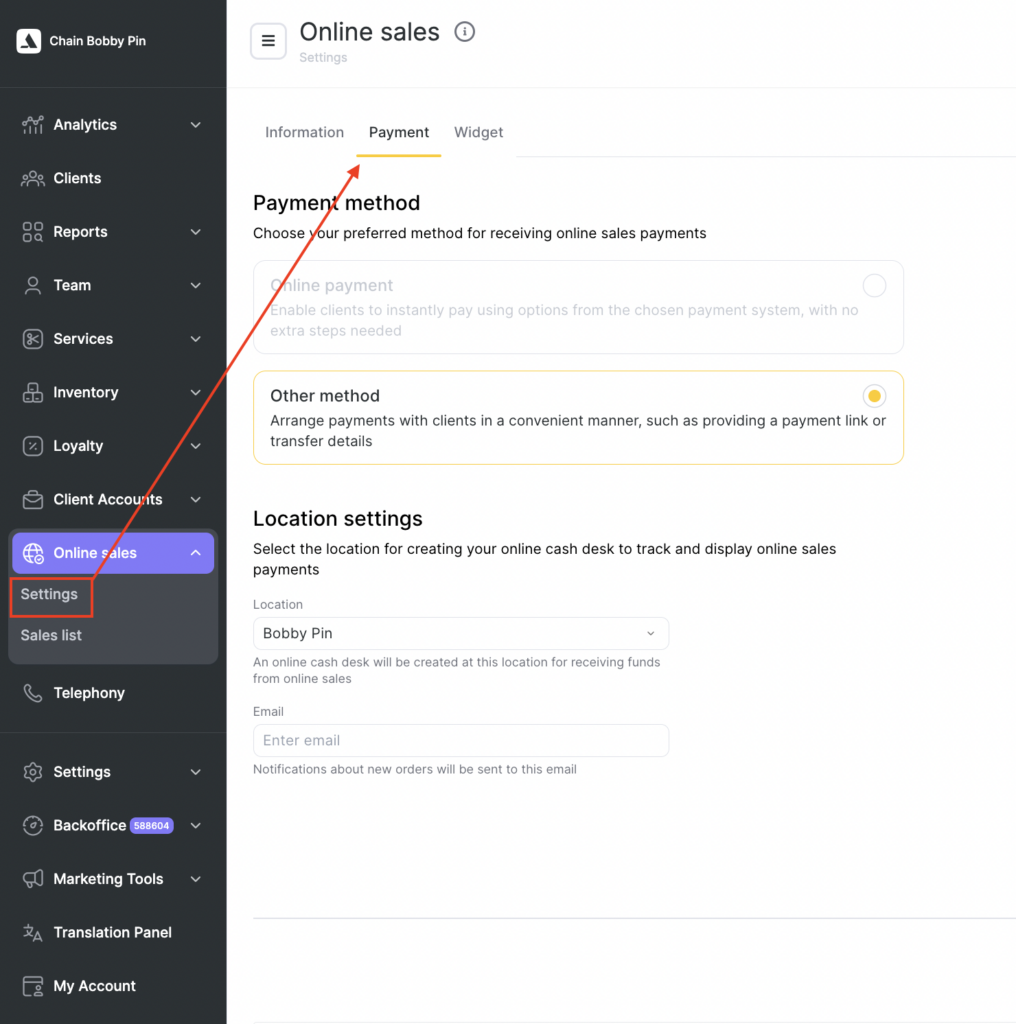
- Select the payment method — Other method.
- Below, in the Select location field, specify which branch should receive funds from online sales. A separate cash register will be created automatically in the selected branch.
- Enter the Email address where notifications about new orders should be sent.
- Click Save.
If you want to record revenue in different branches of the chain, contact your manager or use the instructions in the article under the heading Setup for multiple locations.
Processing online orders #
If you accept payments for sales by an alternative method, you will need to process orders manually. To do this:
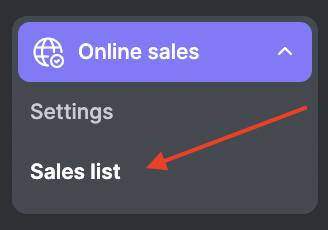
- Go to the chain section Online Sales > Sales list.
- Filter orders by the status Awaiting payment and click Show.
- Send the client the payment details for the order. You can see the contact information of the client who placed the order in the Client field.
Then confirm or reject the order.
Depending on the action you choose, the order status will change to Paid or Cancelled.
If you change the order status to Paid, a sales transaction will be created in the branch specified in the settings. You can view the sale in Finance > Financial Transactions or Products > Inventory Management.
To issue a refund in the system, click the refund button next to the Paid status. After that, all transactions related to this payment will be deleted. The refund to the client must be made manually, depending on the payment method.

